
Q. What kind of computer do you need to use AI and LLMs?
If you're only using cloud AI (web services like Claude and ChatGPT), you don't need a graphics card at all, 32GB of RAM is plenty. If you want to run a model directly on your own machine, that's a different story. A usable 32B-class model needs 24GB of graphics card memory or 48GB of unified memory on a Mac, and anything 70B or above realistically needs 128GB on a Mac.
Three lines you can use today
- If you're only using cloud AI, the computer you already own is enough. On Windows, one 5-minute memory setting stops the sudden crashes.
- For local models, graphics card memory (unified memory on a Mac) is the wall. Work backward from the model size you want to run to figure out what to buy.
- Most people don't need to buy anything new. Before you buy, decide what you're actually going to run.

Running AI ultimately means lending your computer's memory. How much you can lend determines the specs you need.
My AI Shut Itself Down, Right On Screen
I was writing code and stepped away for a minute. When I came back, there was one line of red text in the terminal: "Killed." The AI tool that had been running fine was just dead.
What came next was even stranger. A waterfall of unreadable numbers started pouring out at the cursor. Something like 35;55M35;94M kept piling up every time I moved the mouse. It looked like the dead program was having one last seizure.
I got curious. Why would an AI hang itself? Digging into it, the question split into three: why do AI tools suddenly die, how do you stop that on Windows, and what computer do you actually need to run AI properly. This post answers all three, in order.
It Wasn't Suicide. It Was a Kill.
Cutting to the conclusion. "Killed" doesn't mean the program ended itself, it means the operating system forcibly killed it. Linux has a mechanism that, when memory runs low, picks whichever program is eating the most and kills it on the spot. It even has a suitably grim name: the "OOM Killer" (Out-Of-Memory Killer).
So why was the AI tool eating that much memory in the first place? This is where you need to know the word token. A token is a chunk of text that the AI reads and writes. The longer a conversation runs and the more documents you feed it, the more all of that content piles up in memory as the AI builds its next answer. In my case, a single conversation had climbed to 400,000 tokens. I was effectively working while holding the equivalent of several books in my hands at once.
The number waterfall is a side note, but the explanation is fun. While it's running, the AI tool switches the terminal into a "mouse-tracking mode." On a normal exit it switches it back, but a sudden kill leaves no time for that. So every mouse movement got printed out as raw coordinate signals. Typing reset in the terminal clears it right up.

"Killed" doesn't mean the program shut itself off. Memory ran short, and the operating system forced it down.
Now for the real point. There's one thing Windows users absolutely need to know. When you run AI dev tools like this on Windows, they're often actually running on a small Linux hiding inside Windows. That Linux is called WSL (Windows Subsystem for Linux). The problem is that this hidden Linux has its available memory capped by default.
Per Microsoft's official documentation, WSL's default memory limit is "50% of total Windows memory." My machine has 32GB of physical memory, so WSL was confined to playing inside half of that, 15GB. It was splitting that 15GB with the browser, and the moment 400,000 tokens shoved memory usage up all at once, the killer kicked in.
The fix takes five minutes. Create a file called .wslconfig in your Windows user folder (C:\Users\yourname) and write the following in it. It looks like code, but don't let that intimidate you, it's just a note that says, "Hey WSL, you're allowed up to 22GB."
[wsl2]
memory=22GB
swap=16GB

[experimental]
autoMemoryReclaim=gradual
memory=22GB means WSL is allowed up to 22GB out of the 32GB physical total, a safety margin that leaves about 10GB for Windows itself. swap=16GB is space where the disk gets borrowed as temporary memory once RAM overflows, and the default is only 25% of memory, so just 4GB. Give it more room, and instead of dying instantly, a program slows down a bit but keeps going.
The last line, autoMemoryReclaim=gradual, is the key part. Without it, once WSL grabs its 22GB, it never gives any back to Windows, holding onto it even while idle. Turn on gradual, and it slowly hands unused memory back to Windows. So you get a high ceiling, but Windows still runs with plenty of breathing room day to day.
Save the file, run wsl --shutdown once in PowerShell, and it takes effect. In my case, WSL's memory went from 15GB to 21GB, and swap went from 4GB to 16GB. Seeing 21 when you wrote 22 is normal, WSL keeps a small cut for itself.
Diagram: WSL's default memory is only half of physical RAM. Raise the ceiling and let the leftover get returned to Windows, that's the safe setup.
Trap: bumping up WSL's memory is a safety net, not an unlimited fix. The real solution is not letting a conversation run all the way to 400,000 tokens in the first place. If it's getting long, clean it up or start fresh. The safety net and the habit need to go together.
This Is Where the Road Splits: Someone Else's AI, or Yours
Now, the big question. "A computer for running AI" actually splits into two completely different stories. Miss this split and buy hardware first, and you'll spend money on the wrong thing.
First, borrowing someone else's AI. The genuinely smart models, like Claude or ChatGPT, run on some company's massive servers far away. Your computer is just the window that displays the result. Here, the bottleneck is RAM and your internet connection, not a graphics card. The crash from earlier was exactly this case.
Second, running your own AI directly on your own machine. You download an open model like Llama or Qwen and run it locally. No internet needed, and your data never leaves your machine. In exchange, the entire model has to fit in your computer's memory. Here, graphics card memory becomes an absolute wall.
In one line: cloud is a RAM fight, local is a graphics card fight. So the question "what specs do I need for AI" actually has two different answers.

someone else's AI (cloud) or your own (local). This one fork changes the entire spec requirement.
Using Someone Else's AI: RAM Is Everything
This is the territory I use every day, so I can say this with confidence. If you're only using cloud AI tools, you don't need to think about a graphics card at all. The only thing carrying weight is the RAM that holds the conversation.
| Category | Minimum | Comfortable (recommended) |
|---|---|---|
| Windows | 16GB physical RAM | 32GB physical RAM + WSL memory setting |
| Mac | 16GB | 32GB (no WSL needed, more headroom) |
Most laptops these days ship with 16GB, and the nicer ones have 32GB. So if you're only using the cloud, most people need zero extra spending. What keeps things from dying isn't hardware, it's that 5-minute setting and the habit from earlier.

with cloud AI, the heavy computation runs on someone else's server. Your computer is just the window, so plenty of RAM is all it needs.
Running It Yourself: The Underlying Principle
Being upfront from here on: what I run every day is the cloud side above, and for local models, I haven't run them long-term myself, I researched and calculated the specs. So treat these numbers as a baseline, and double-check against whatever model you actually plan to run before you buy anything.
One single number governs local model specs. The memory needed to hold the entire model. In model names like 7B, 32B, and 70B, the B stands for "a billion parameters" (70B means 70 billion parameters). The bigger this number, the smarter the model, but the more memory it eats.
Stored as-is, these models take 2 bytes per parameter, which puts a 70B model at a hefty 140GB. That's why people use a compression technique called quantization. Apply the commonly used Q4 (4-bit) compression, and the size drops to a quarter, with barely any quality loss. Every number below assumes this Q4 baseline.
Diagram: the 32B class (orange) is the practical floor for usable coding. Running it at full speed needs 24GB of memory.
Based on measured figures, it roughly breaks down like this. 7-8B needs 6GB, 14B needs 10GB, 32B needs 24GB, 70B needs 42GB. On top of that, a longer conversation eats extra memory for context. So the practical floor for usable coding work is the 32B class, and running it at full speed needs 24GB of memory.
Here's a trap: the model needs to fit entirely in memory to run fast. Overflow even a little into slower general RAM, and speed drops by multiples. "24GB technically runs 32B" and "24GB runs it comfortably" are two different claims. Build in some margin.

a local model needs to fit entirely in its container (memory) to run fast. The instant it overflows, speed collapses.
Windows Hardware: Graphics Card Memory (VRAM) Is the Wall
If you're running local models on Windows, there's exactly one number to look at. VRAM, the dedicated memory on your graphics card. It matters more than how many CPU cores you have or how much RAM.
| Tier | Representative graphics card (VRAM) | What you can run |
|---|---|---|
| Entry | RTX 4060 Ti / 5060 Ti (16GB) | Comfortable up to 14B, tight at 32B |
| Practical | RTX 4090 (24GB) / RTX 5090 (32GB) | Comfortable at 32B, 70B via compression/splitting |
| Hardcore | RTX PRO 6000 (48-96GB) or two RTX 5090s | 70B and above, running whole |
System RAM should ideally back it up at 1.5 to 2 times VRAM (32-64GB). A realistic "one comfortable rig" is an RTX 5090 with 32GB paired with 64GB of system RAM. That gives you comfortable headroom at 32B and lets you dabble in 70B too.
A local model will technically run on CPU alone. But at a few characters per second, it's unusable for real work. If you're serious about going local, a graphics card with plenty of VRAM is basically your ticket in.
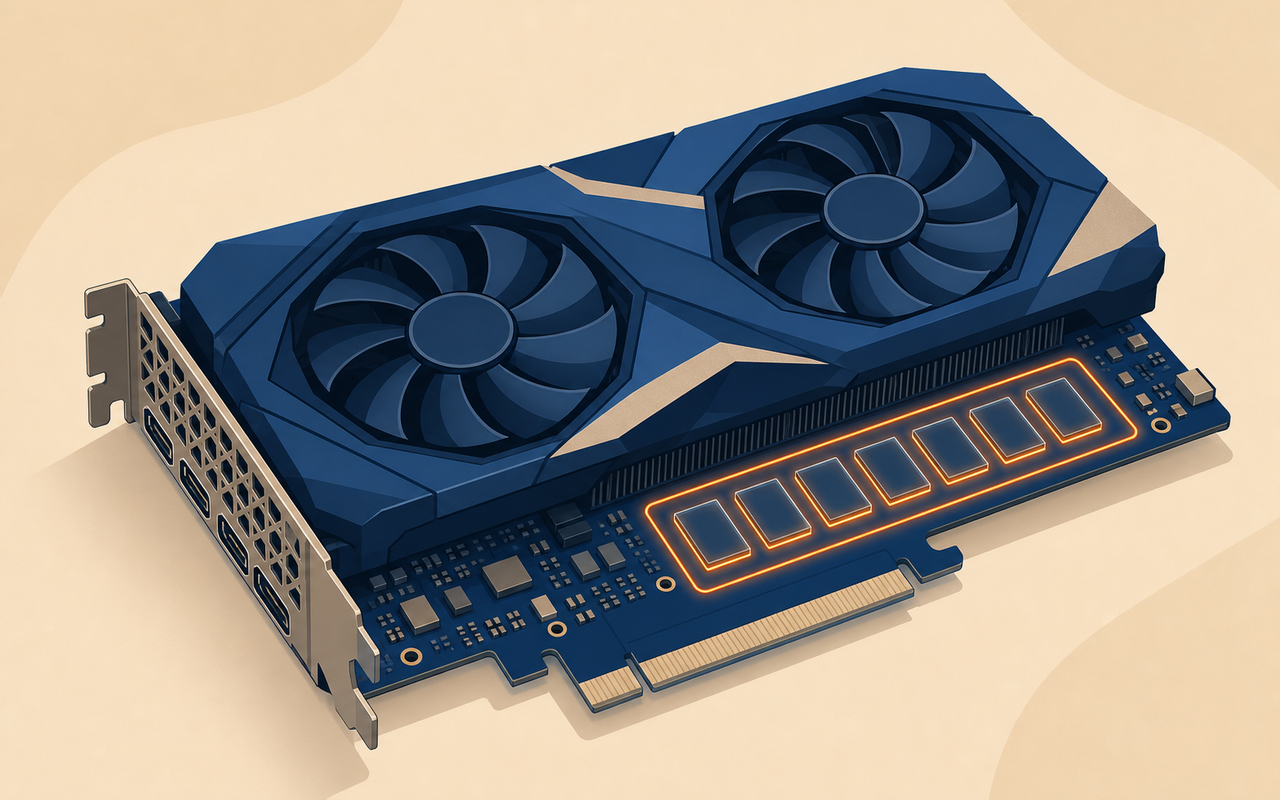
for running local models on Windows, the one number that matters is graphics card memory (VRAM), not core count, not RAM.
Mac Hardware: Unified Memory Flips the Board
Mac flips the board in an interesting way. Apple Silicon Macs don't give the CPU and GPU separate memory pools, they share one. That's called unified memory. So a single Mac with a large unified memory pool can quietly run models that would need several expensive graphics cards on Windows.
Apple's graphics engine can allocate roughly up to 75% of unified memory to the model. On a 64GB Mac, that's about 48GB, on a 128GB Mac, about 96GB, available for the model. This is the real reason Macs are so loved by local AI enthusiasts.
Diagram: on Windows, the small VRAM pool is the wall. On Mac, CPU and GPU share one large memory pool, letting a big model load in whole.
| Unified memory | What you can run | Representative device |
|---|---|---|
| 16GB | Up to 8B | Base MacBook |
| 32GB | Comfortable at 32B | M4 Pro |
| 64GB | 70B for real use | M4 Max |
| 128GB+ | 70B with headroom, 120B class | Mac Studio (M4 Max / M3 Ultra) |
But capacity alone isn't the whole story. Token generation speed scales with memory bandwidth. Base chips have low bandwidth, so big models run slowly on them, only Max and Ultra tiers give big models a usable speed. Since large memory only ever comes attached to Max and Ultra chips anyway, it naturally sorts itself into "large memory plus wide bandwidth" as one combined package.
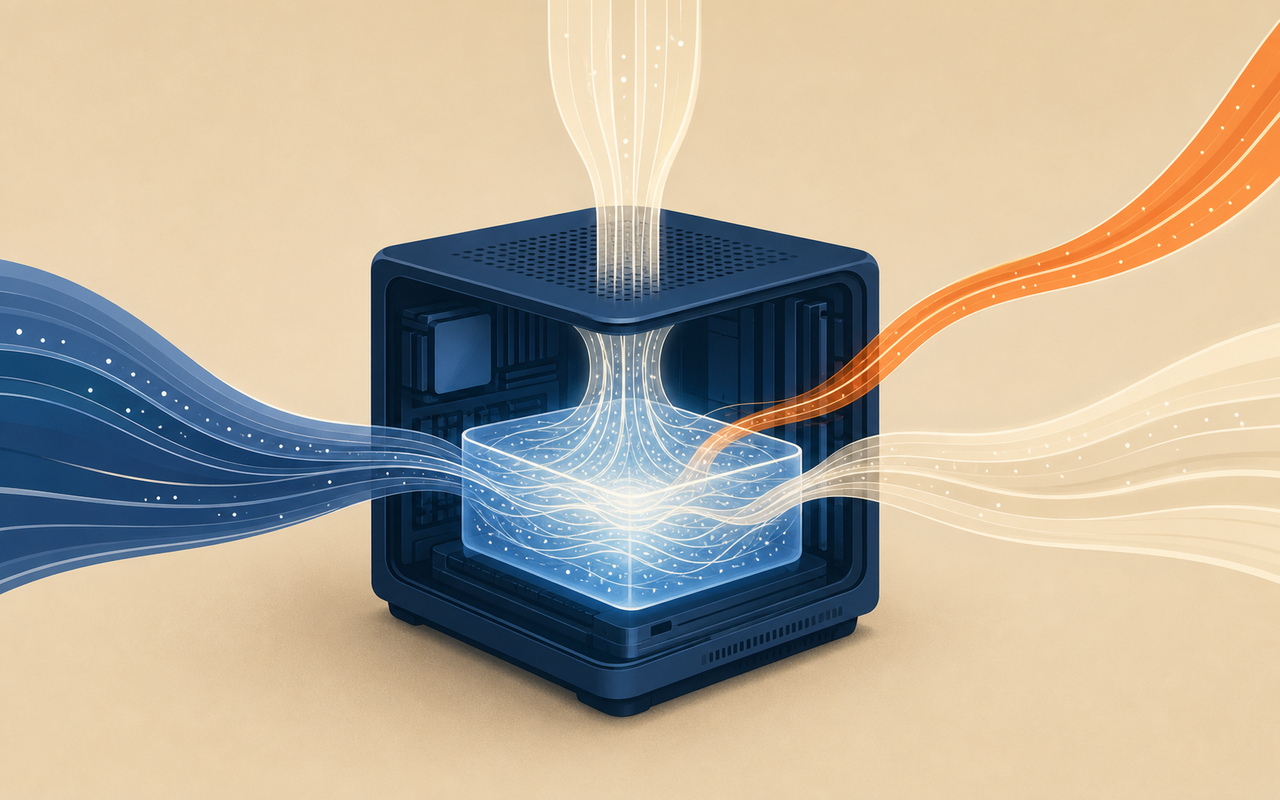
on Mac, one large unified memory pool is shared between CPU and GPU. That's how a single quiet machine can run a big model.
So What Should You Actually Buy: By Budget and Use Case
Putting it all together, the hardware to buy isn't decided by "how much should I spend," it's worked out backward from "what am I going to run." Let's break it down by use case.
| Use case | Windows | Mac |
|---|---|---|
| Cloud only (most people) | Your current computer + WSL setting (free) | Any Mac with 32GB RAM |
| Local, getting started (trying 7-14B) | 16GB VRAM graphics card | 16-32GB Mac |
| Local, practical (32B coding) | RTX 5090 32GB + 64GB RAM | M4 Max, 48-64GB |
| Local, advanced (70B and up) | RTX 5090 + splitting, or multiple GPUs | Mac Studio 128GB |
Let me pin down one honest conclusion. Most of the problems people run into right now are on the cloud side, not a hardware shortage. Local models have clear advantages: privacy, offline use, experimentation. But for coding quality, the top cloud models still beat local 32-70B models. If your goal is "get real work done without worry," a cloud subscription on the computer you already own beats dropping a few thousand dollars on hardware, hands down.
Before You Buy Hardware, Check in This Order
Memorizing a spec sheet matters less than getting the order of questions right. Walk through the questions below in order, and whether to buy, and what to buy if you do, falls out on its own.
- Use case: cloud only, or running it yourself on your own machine? If the former, close your wallet.
- Windows RAM: do you have 32GB physical RAM but leave WSL capped at half of it? Open .wslconfig first.
- Model size: how many B is the model you want to run? Use that number to calculate required memory first (roughly 0.6x the parameter count in GB, at Q4).
- Platform: want to run 70B-class or bigger quietly? Then look at a Mac with large unified memory, otherwise, a graphics card with lots of VRAM.
- Justify the spend: is there a clear reason the cloud won't do (privacy, offline, a specific model)? If not, don't buy.
If you only take one thing away, let it be this.
Don't buy hardware first. Decide what you're going to run, and the specs fall out of that, backward.
Sources
- WSL's default 50% memory, 25% swap, autoMemoryReclaim: Microsoft Learn, Advanced settings configuration in WSL
- Required memory by model size (Q4): SitePoint, VRAM Requirements for 70B Models (2026)
- Apple Silicon unified memory GPU allocation (~75%): SitePoint, Local LLMs on Apple Silicon Mac (2026)
The local model and hardware figures are a researched-and-calculated baseline, not something measured over long-term personal use. The cloud and WSL sections come from direct, measured experience. Graphics card and Mac model names are current as of 2026, reconfirm against your own use case before buying.
Found this useful? Share it
Latest posts
Kakao Share Thumbnail Not Showing? Here's the Fix (JavaScript SDK 2025)
Learn why Kakao Share thumbnails don't appear even with a valid imageUrl, and fix it using scrapImage to convert your URL into a KAGE CDN URL. Step-by-step guide.
How to Generate CRM User Manuals in 20 Minutes with Claude Code Sub-Agents
Learn how Claude Code sub-agents can analyze your CRM codebase and auto-generate user manuals and visual guidebooks in just 20 minutes. See the real-world results.
GEO Generative Engine Optimization: The Complete 2025 AI Marketing Strategy Guide
Learn what GEO (Generative Engine Optimization) is, how it differs from traditional SEO, and discover 5 proven AI marketing strategies to get cited by AI search engines in 2025.
Related projects
Get new posts by email
Insights on marketing, analytics, and dev, delivered to your inbox.