
Naver GFA ads are the image and video ads that Naver calls performance display ads, and you can run them together with search ads under a single ad account. You top up Bizmoney (prepaid ad credit), create a campaign, and save a creative. Review then starts, and creative review takes up to 3 business days. Only the video views goal is billed per view (CPV). All other goals are billed per click (CPC). Naver's official help pages carry no publication or effective date, so this article uses the date I checked them, October 3, 2026, as the reference date.
Naver GFA ads are performance display ads, and here is where they appear
Naver's help center describes this product as a real-time bidding display ad with detailed targeting. A display ad shows an image or video instead of text. Real-time bidding means an auction decides which ad to show each time an impression opportunity comes up. GFA is the search term people use for this product. Naver's official name is Display Ads (performance display ads).
Ads appear on the Naver mobile main page, the PC main page, major Naver services, and family services. The placements differ a little by campaign goal. If you already run search ads, you do not need a new account. You can start display ads in the same advertiser center.
GFA ads have 8 campaign goals and different billing methods
The campaign goal is where you choose the result you want from the ad. This choice changes the placements, the billing unit, and what you must prepare before you start. The official overview page lists these 8 goals.

| Campaign goal | Placements | Billing |
|---|---|---|
| ADVoost Shopping | Naver integrated search, shopping search results, service areas, Naver Plus Store search and content areas | Per click (CPC) |
| Awareness and traffic | Naver and family media, Naver Performance Network | CPC (CPM can be selected with manual bidding) |
| Website conversion | Naver and family media, Naver Performance Network | CPC |
| App conversion | Naver and family media, Naver Performance Network | CPC |
| Catalog sales | Naver and family media, Naver Performance Network | CPC |
| Shopping promotion | Naver Shopping and mobile edition placements | CPC |
| Video views | Naver and family media, Naver Performance Network (in-stream placements include CHZZK, Naver TV, and Naver Sports) | Per view (CPV) |
| Communication Ad | Lists and comments in Naver Cafe communities on the topics you select | CPC |
With CPC you pay when the ad is clicked. With CPV you pay when the video is viewed. With CPM you pay per 1,000 impressions. Awareness and traffic is billed by CPC with automatic bidding, and by CPC or CPM with manual bidding. Video views supports manual bidding only, and the billing basis is CPV. When you bid on cost per completed view (CPV), the minimum bid is 10 KRW and the maximum is 1,000,000 KRW.
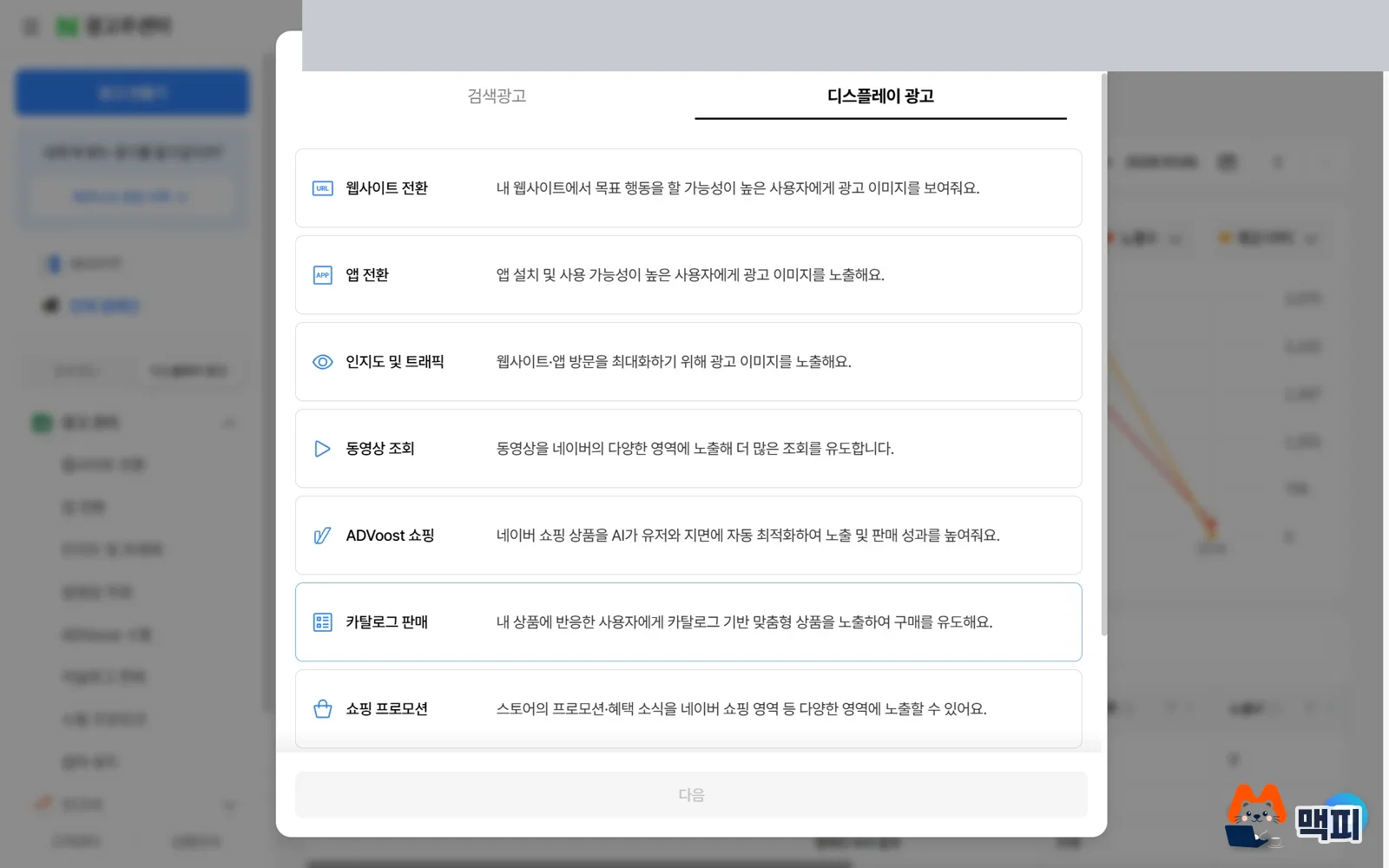
Check what you need to prepare before you pick a goal. Website conversion requires you to finish conversion tracking registration first, or optimization will not work. App conversion needs a conversion tracking request and either an SDK installation or an MAT integration, as the overview page explains. Both goals do not support manual bidding. Shopping promotion requires you to register a Smart Store or Brand Store as a business channel. ADVoost Shopping requires a store listed on Naver Shopping, and its ad unit is an asset group instead of an ad group and creative.
If this is your first campaign, start with awareness and traffic, which grows site visits. It needs the least preparation. You do not need conversion tracking, and you can choose the bidding method. If your goal is an action such as a signup or purchase, install conversion tracking first and then move to website conversion.
Starting GFA ads takes 8 steps
These steps follow the help page for creating an awareness and traffic campaign. First, create an ad account in the advertiser center and log in.

- Register a business channel: Under Display Ads, go to Manage components > Business channel and register the URL you want to advertise. Register a brand site or official homepage as the website type. Register a URL listed on Naver Shopping, such as a Smart Store or Brand Store, as the Naver Shopping type.
- Register a brand: Register your brand under Manage components > Brand.
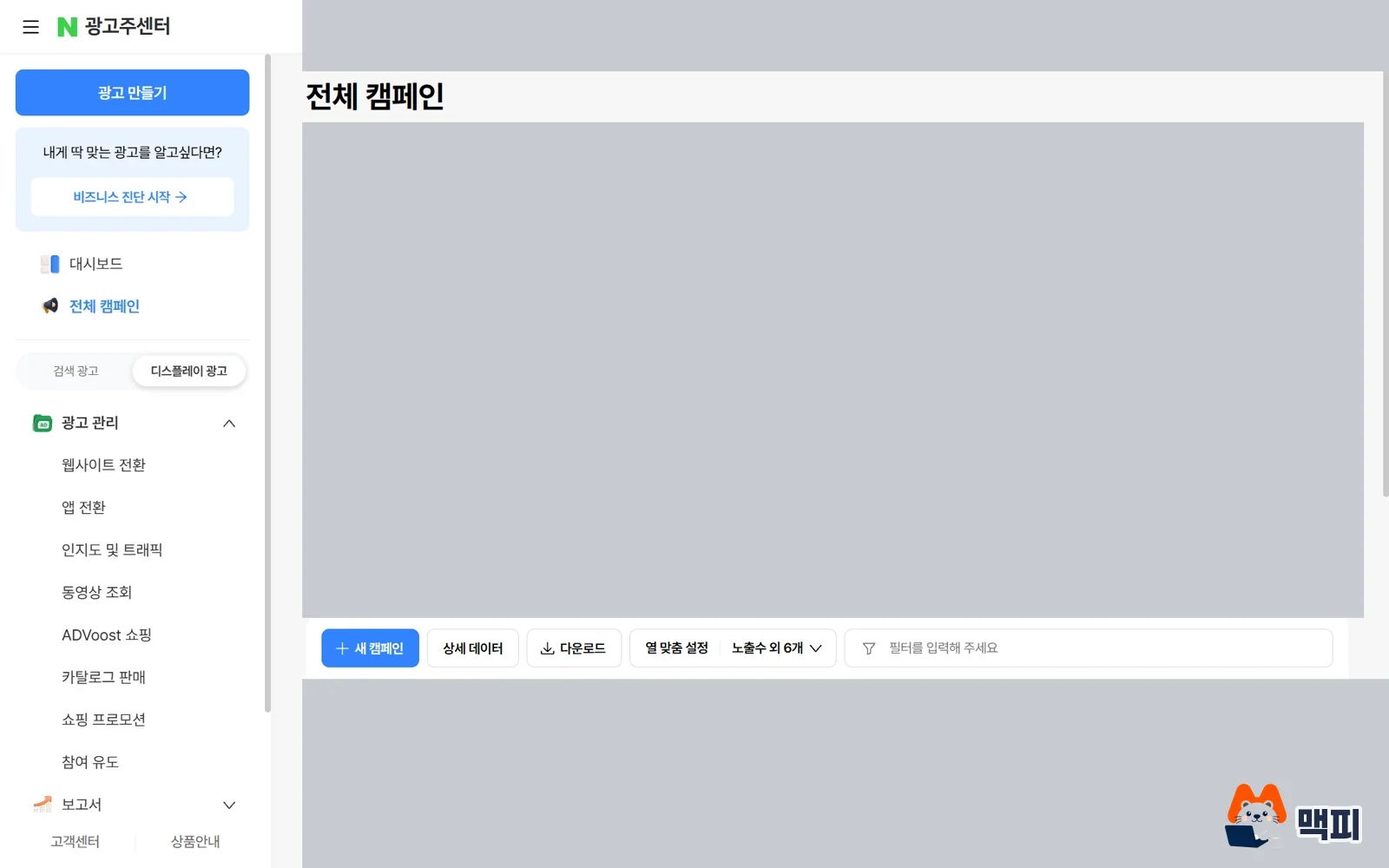
- Create a campaign: In Display Ads, click New campaign and choose a campaign goal.
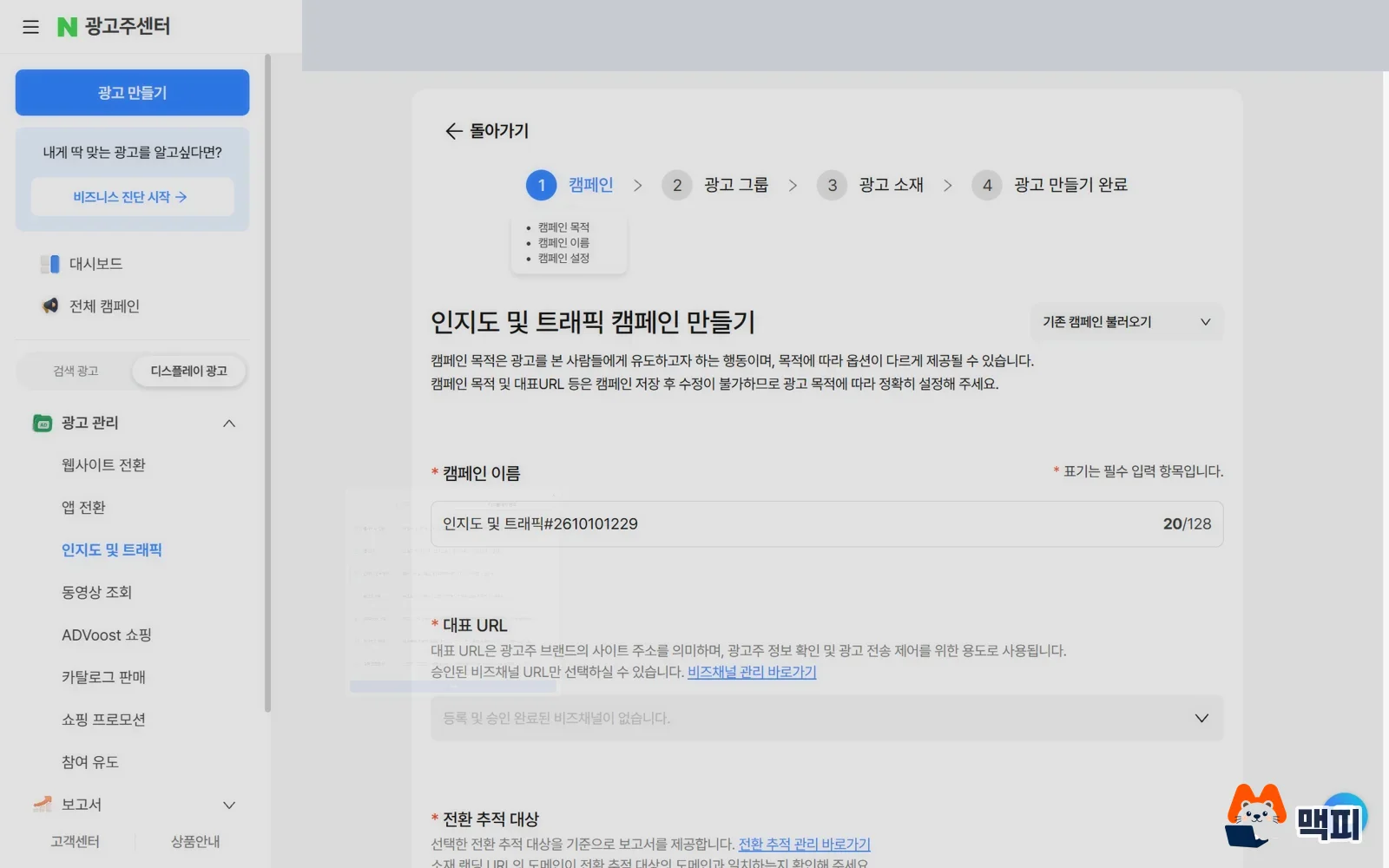
- Set the campaign basics: Choose the main URL, the conversion tracking target, and the brand. If you do not use conversion tracking, select No conversion tracking target.
- Create an ad group: Enter the bidding strategy, bidding goal, billing basis, and daily budget. For awareness and traffic, choose between automatic bidding (maximize clicks) and manual bidding.
- Set targeting: Choose among audience targeting, such as demographics like gender and age, device, and interests, and topic-based contextual targeting. If you narrow targeting too much, the ad may not get impressions.
- Register creatives: Choose one of image banner, native banner, collection, video, or ADVoost creative, then upload the image or video and the copy.
- Save: Click the save button. The ad registration is complete and creative review starts.
The steps change by goal. Website conversion adds conversion tracking target registration at step 2, and video views has a step where you can enter designated keywords. The next section covers the settings that differ by goal.
To check whether registration worked, look at the review status in the creative list of each ad group dashboard. When the status changes to Under review right after saving, registration is done. When it changes to Approved, the creative can be served.
GFA setup tips: what to check for each goal
Bidding, budget, targeting, and creatives appear in every goal. But the official help pages set different limits and cautions for each goal. The table below collects only the items that are easy to miss on first setup.
| Campaign goal | What to check when setting up | Why |
|---|---|---|
| Awareness and traffic | Start with automatic bidding "maximize clicks" and set a bid cap if needed. Keep targeting broad. | Over-narrow targeting shrinks the reachable audience, and impressions may not run smoothly. |
| Website conversion | Install conversion tracking first, then pick the optimization conversion type (all conversions, add to cart, or purchase complete). Use value maximization only with purchase complete optimization. | Optimization needs 40 conversions within the last week. |
| Shopping promotion | Only native images work as creatives, and the landing URL must be an address inside Naver Shopping. For the customer benefit, choose either "My store coupon" or "N Pay points", and enter only benefits you actually offer. | A newly created follow-notification target can take up to 5 hours to become available. |
| ADVoost Shopping | Enter bidding and budget at the campaign level, not the ad group level. Include all items in the item set where possible. You cannot choose placements. | Product sync and optimization take up to 48 hours, so create everything through the asset group 48 hours before you run the ads. |
| Video views | Bid by CPV with manual bidding. You can add up to 2 designated keywords per creative, and only pre-approved ones. | Clicking a keyword goes only to integrated search results, and designated keywords are not used in feed-type (short-form) and full-screen creatives. |
For conversion goals, be careful with changes that restart learning. The website conversion help page lists these as triggers for relearning: changing targeting or creatives, large changes to the budget or bid cap, and leaving an ad group off for a long time. For ADVoost Shopping, Naver also says that frequent ON/OFF switching or setting changes can disrupt optimization and lower performance. To tell which change affected performance, change only one item at a time after launch (this is the author's recommendation). For ADVoost Shopping, Naver also says that a daily budget that is too small may not give automatic bidding enough data to learn.
If you want to manage budget at the campaign level, turn on campaign budget optimization (CBO). In a campaign with CBO on, the ad groups use the campaign's bidding strategy, bidding goal, and budget, and the ad group budget field is disabled. ADVoost Shopping does not support CBO. Also, if you choose automatic bidding, you cannot use the accelerated delivery option.
For creatives, a video creative in awareness and traffic runs only with automatic bidding CPC or manual bidding CPM. An ADVoost creative is registered only when all placements are set in the ad group. If you decide the creative type first and then match the bidding method and placements, you will not get blocked at registration.
Top up Bizmoney first, then pass creative review
Bizmoney is prepaid credit used to pay for ads, so you cannot run ads without a balance. Log in to the advertiser center, click Top up, and choose a method.

| Top-up method | Conditions |
|---|---|
| Credit card | From 100 KRW, in 1 KRW units |
| Naver Pay bank account quick payment | From 10,000 KRW, up to 2,000,000 KRW per transaction and 10,000,000 KRW per month. Not available for corporate businesses |
| Cash deposit | Deposit to the virtual account assigned to each advertiser. The balance usually updates in 5 minutes |
| Biz coupon | Top up with coupons you hold |
You complete real-name verification once, at your first top-up. The help page says review of an ad you register or edit proceeds only after the top-up is done and there is a balance. So top up before you save the creative.
Creative review starts automatically the moment you save the creative. You cannot edit a creative under review or cancel the request. Before you save, use the device preview to check how the ad looks in the main placements and the landing page after a click. If a creative is put on hold, read the comment in the review history on the creative detail page, fix it, and submit it for review again. To get review result alerts, turn on the review result item under informational notifications in your login account settings.
These are common mistakes when starting GFA ads
- Trying to get a creative pre-reviewed first: You cannot have a creative reviewed before you set up a campaign. Create the campaign and ad group, then register the creative to start review.
- Registering with a main URL that does not open: If the campaign's main URL is not valid, review of a newly requested creative can stop. The creative can also be put on hold again if the URL changes after approval. Check first that the landing page opens.
- Assuming the same image passes everywhere: Review standards differ by placement, so the same creative can get different results in different placements. When you save, separate creatives are generated for each image or video and for PC and mobile, and each is reviewed.
- Assuming ads stop at a 0 KRW balance: The help page says extra charges (a negative balance) can occur even after the topped-up Bizmoney is used up. Set a conservative daily budget and check the balance often.
- Not knowing ads can start right at approval: A creative can be served as soon as it is approved. To start on a specific date, set the ad group start date and time before approval, or leave the creative OFF.
Naver GFA ads FAQ
What size should GFA image creatives be
Images follow the ratio for each creative type within a 400 to 2000px range on one side, and the guide copy is limited to 100 characters. An image banner is a single image at 1250×560. If it does not match the spec, it may not be registered.
How do I start GFA ads on a chosen date after approval
An approved creative can be served right away. Before review ends, change the ad group's start date and time to the time you want, or switch the creative to OFF. On the day you want to start, turn the creative ON. Even if the creative is ON, it will not serve if its parent ad group or campaign is OFF.
Where do I get the Bizmoney virtual account for GFA ads
Log in to the advertiser center, then go to Account management > Select account > Payment > Payment settings and click Issue under deposit account. A fixed deposit account appears. Each advertiser gets one account, and an issued number cannot be changed. When you deposit, check the account number and the account holder name (the advertiser ID).
Found this useful? Share it
Latest posts
Kakao Share Thumbnail Not Showing? Here's the Fix (JavaScript SDK 2025)
Learn why Kakao Share thumbnails don't appear even with a valid imageUrl, and fix it using scrapImage to convert your URL into a KAGE CDN URL. Step-by-step guide.
How to Generate CRM User Manuals in 20 Minutes with Claude Code Sub-Agents
Learn how Claude Code sub-agents can analyze your CRM codebase and auto-generate user manuals and visual guidebooks in just 20 minutes. See the real-world results.
GEO Generative Engine Optimization: The Complete 2025 AI Marketing Strategy Guide
Learn what GEO (Generative Engine Optimization) is, how it differs from traditional SEO, and discover 5 proven AI marketing strategies to get cited by AI search engines in 2025.
Related projects
Get new posts by email
Insights on marketing, analytics, and dev, delivered to your inbox.