
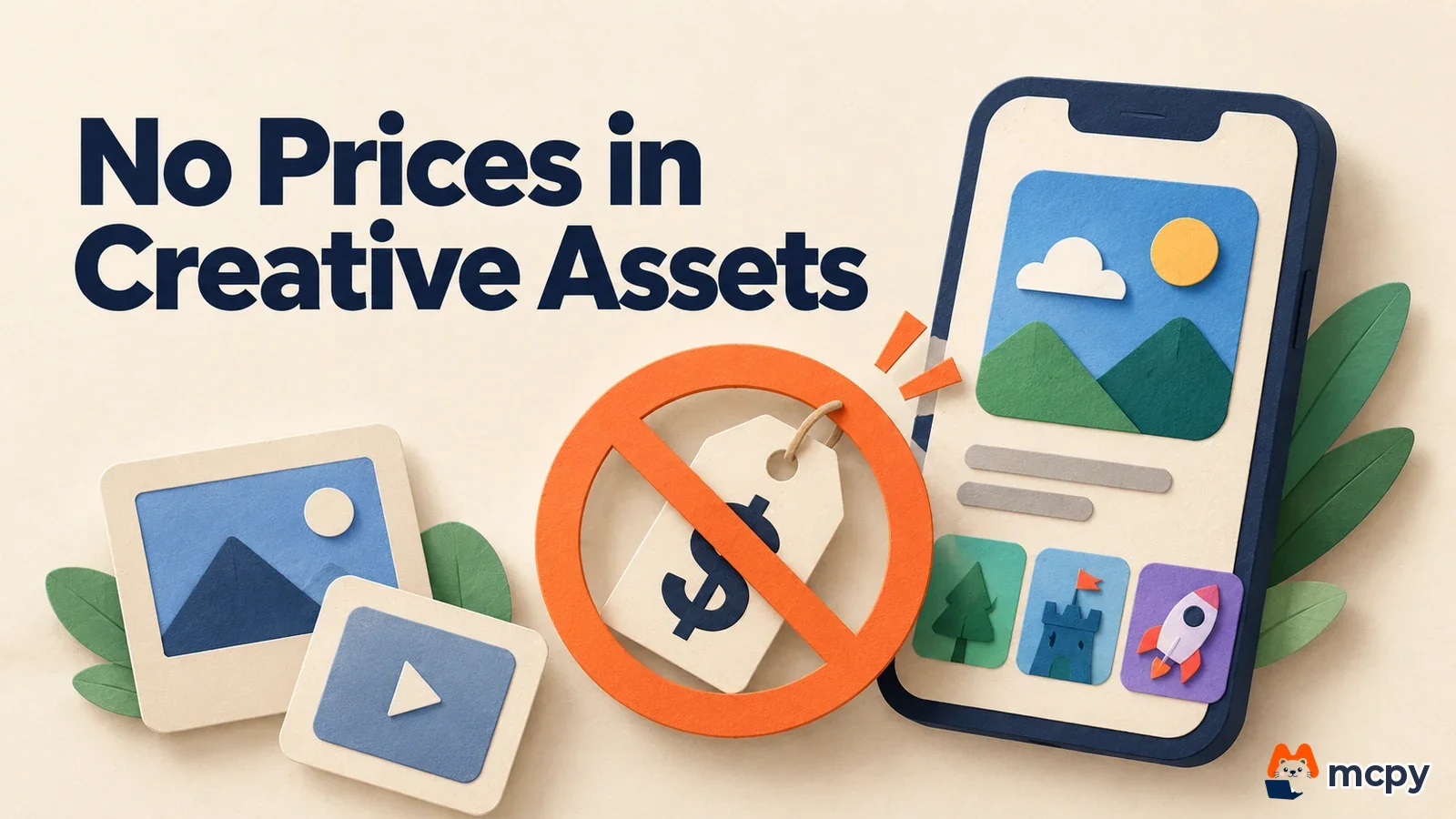
App Store creative assets can no longer show pricing, so who needs to redo their creative
App Store creative assets can no longer include specific prices or discounted prices. Apple added guideline 2.3.14 to the App Review Guidelines on October 16, 2026. If you are building marketing images or videos for the top of your product page and for search results, remove price text from them first. Think of a shop window sign. It tells people the shop name and the signature item, while today's prices go on the menu board by the register. Creative assets now work like that sign. They show the value of the app, and price stays out.
What changed Apple added App Review Guideline 2.3.14. Creative assets cannot include specific or discounted pricing information.
Who is affected App publishers and ad agencies that create and upload marketing images or videos for the product page header, search results and Apple Ads.
What to do now Find and remove price and discount text from your drafts, along with the other elements the best practices document excludes. Then check in App Store Connect where each approved asset is used.
Guideline 2.3.14 sets the rules for App Store creative assets
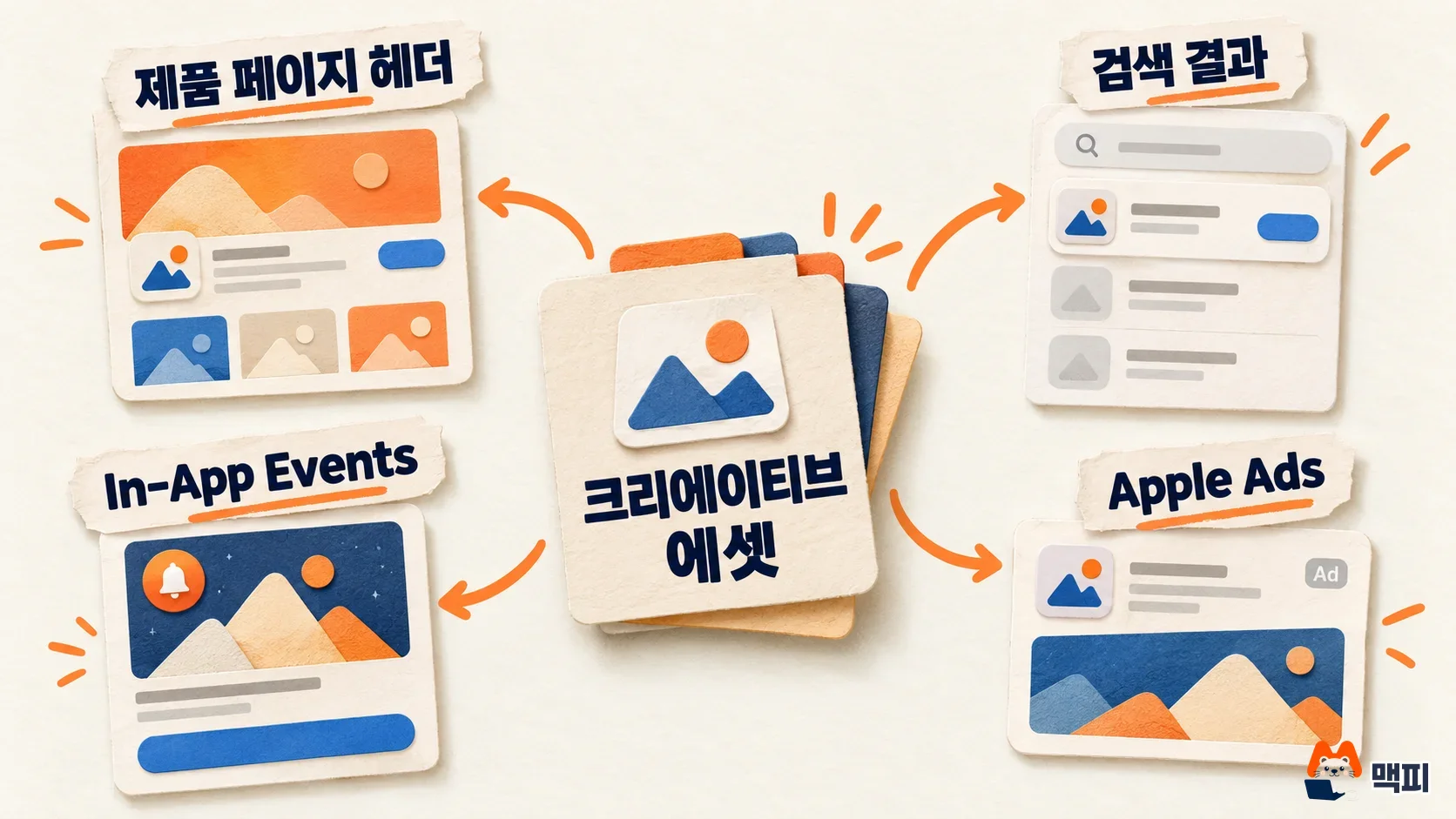
In App Review Guideline 2.3.14, Apple defines creative assets as material that highlights the value of an app in ways other than screenshots and app preview videos showing the app in use. Apple says they can appear in many places in the App Store, including the product page header and search results. Assets must relate to the app's content, features or overall brand. They must follow the standard metadata guidelines and be appropriate for all ages. The same clause says not to include inappropriate content, references to other apps meant to mislead, unverifiable product claims, or specific or discounted pricing information.
The ban is not limited to discounts. The original English text says "specific or discounted pricing information," so showing a regular list price also counts as specific pricing. This clause also does not apply to screenshots and app preview videos. It applies to creative assets, a new type of material that is separate from them.
Apple's developer site has an asset best practices document. It explains that these assets appear in places like product pages, search results and featured placements on iOS 27 and iPadOS 27 or later. That document lists more specific exclusions than the review guidelines, so the table below separates them.
| Item | Details | Source |
|---|---|---|
| Guideline 2.3.14 text | No inappropriate content, misleading references to other apps, unverifiable product claims, or specific or discounted pricing | App Review Guidelines |
| Apple asset best practices document | Excludes pricing and discounts, website URLs, copyright symbols, awards you have not received, logos or mentions of other platforms, and Apple recognition marks such as Editor's Choice and App of the Day | Asset best practices |
| Age | Even if the app has a higher age rating, assets shown in the App Store must meet the 4+ rating standard | Asset best practices |
Guideline 2.3.14 tells you to read the best practices document to judge which assets are allowed. When you check your creative, it is safer to review both documents together.

Does this apply to my ad creative? App Store and Apple Ads
Guideline 2.3.14 applies to creative assets you upload to the App Store. For assets used in ads, Apple Ads policy blocks pricing in the same way. Apple's ads help page presents creative assets as a new option managed separately from app screenshots and preview videos. It says you do not need to resubmit your app to upload or edit them. The Apple Ads help page marks the feature for Today tab and search results ads as "Coming soon." The same page says assets cannot include pricing, benefits or incentive promotions, and that app ranking and award claims are also banned.
Ad assets also have their own specs. According to the same page, images use a 3:2 ratio from 1920×1280 to 3840×2560 pixels, in jpeg, jpg or png format. Video can be used only in search results ads. It runs 5 to 30 seconds, in mp4, m4v or mov format, and plays without sound. You pick approved assets in your Apple Ads account, and ad creative that uses them goes through Apple Ads review before it runs.
Apps that only use existing screenshots and app preview videos are not covered by this clause. The best practices document explains that if you have no creative asset for search results, In-App Events, app previews and screenshots are shown instead. If you plan to make new assets, design them without prices from the start.
App Store creative assets checklist: what to do now
If you already have creative prepared, follow the steps below to remove price text and excluded items. After approval, confirm where the assets actually appear.
- Open your image and video files and look for list prices, discount rates, discounted prices and numbers with currency symbols. For example, if a "3,900 KRW per month" badge is there, delete it and save a separate version that keeps only app feature or brand message text.
- Also look for the items the best practices document excludes: website URLs, copyright symbols, awards you have not received, logos of other platforms and Apple recognition marks.
- For year-end and Black Friday promotion creative, make a version without prices and discount rates. Per the help page, Apple Ads assets also cannot include benefit or incentive promotion text, so remove that too.
- Submit with a new app version in App Store Connect, or upload the assets in the Asset Library. You can also upload through the API.
- Once approved assets appear in the Asset Library, check where each asset is used. Use the product page preview tool to see how it looks before publishing.
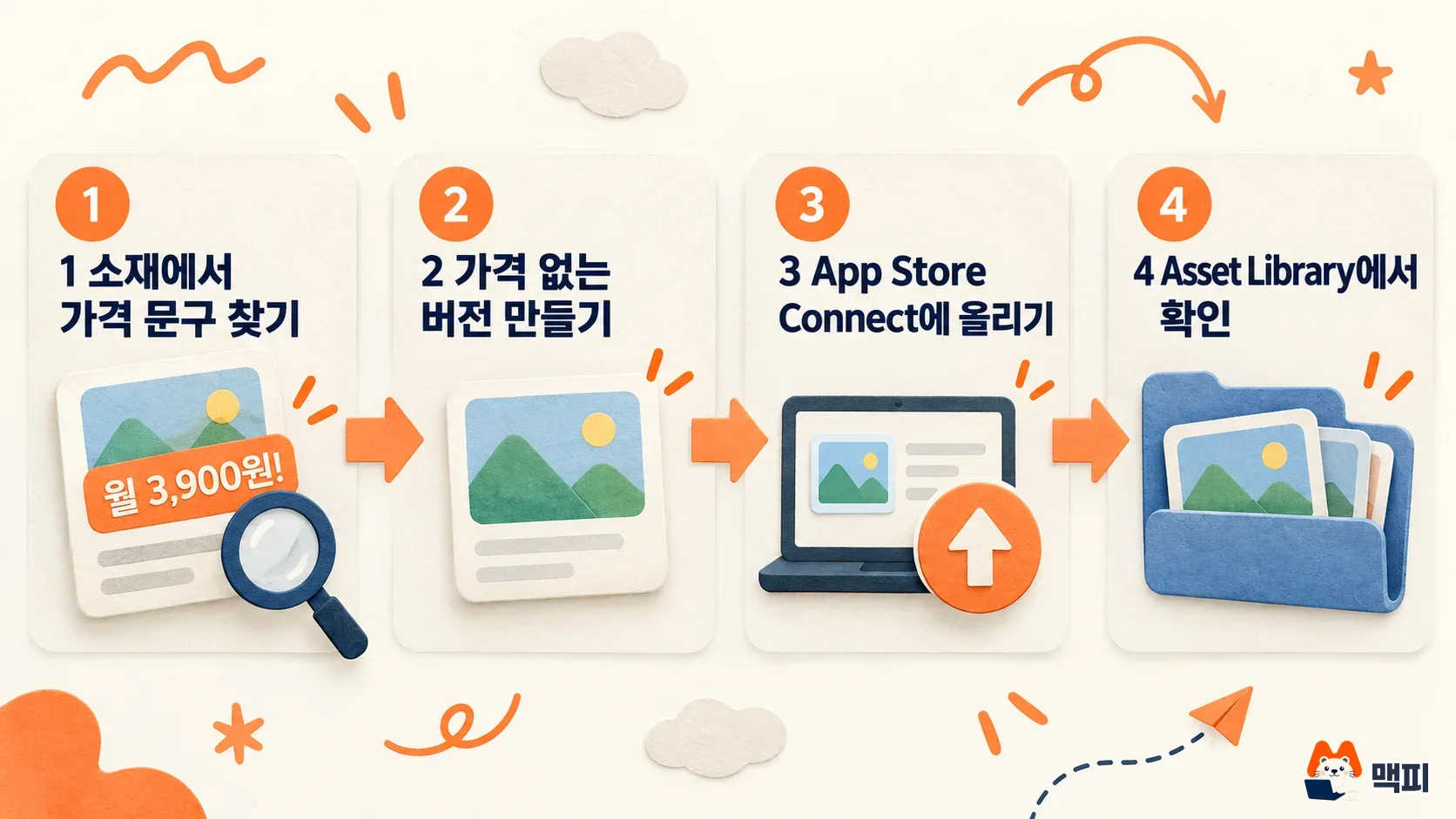
According to Apple's documents, the Asset Library shows approved assets and where they are used. The product page preview tool shows how they look before publishing. If a price-free asset appears in the intended place on both screens, your check is done. If an asset is not approved, or the list shows no usage location, fix the asset and upload it again. The best practices document does not give details on review time or rejection criteria.
What to watch next
Neither Apple's guidelines page nor the asset best practices document states an effective date for 2.3.14. Creative assets appear in the App Store on iOS 27 and iPadOS 27 or later. The Apple Ads help page only says the feature is "Coming soon," so check your Apple Ads account screens and Apple Developer News to learn when creative assets start running in ads.
Found this useful? Share it
Latest posts
Kakao Share Thumbnail Not Showing? Here's the Fix (JavaScript SDK 2025)
Learn why Kakao Share thumbnails don't appear even with a valid imageUrl, and fix it using scrapImage to convert your URL into a KAGE CDN URL. Step-by-step guide.
How to Generate CRM User Manuals in 20 Minutes with Claude Code Sub-Agents
Learn how Claude Code sub-agents can analyze your CRM codebase and auto-generate user manuals and visual guidebooks in just 20 minutes. See the real-world results.
GEO Generative Engine Optimization: The Complete 2025 AI Marketing Strategy Guide
Learn what GEO (Generative Engine Optimization) is, how it differs from traditional SEO, and discover 5 proven AI marketing strategies to get cited by AI search engines in 2025.
Related projects
Get new posts by email
Insights on marketing, analytics, and dev, delivered to your inbox.