
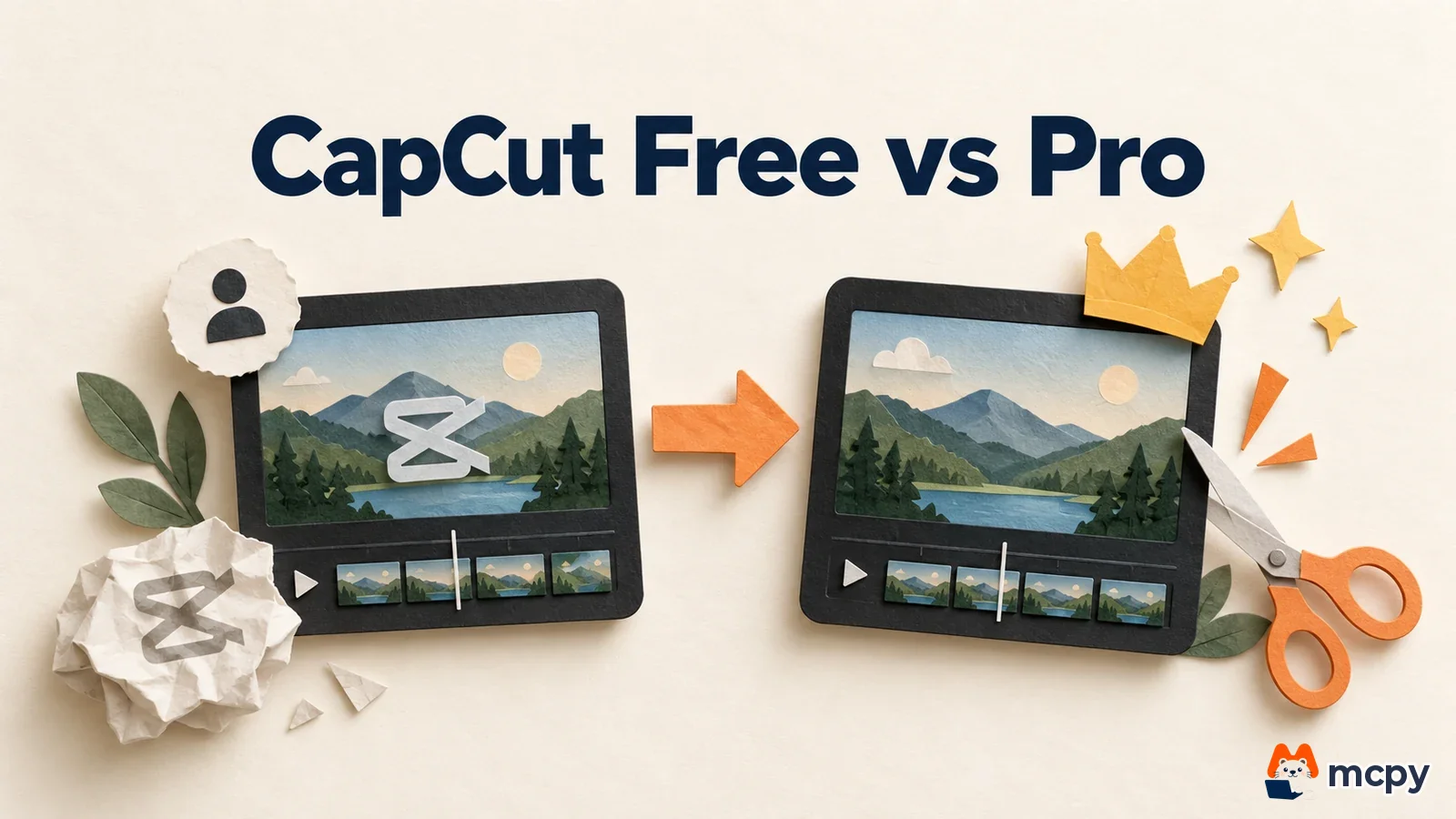
CapCut is a video editor offered as desktop, online and mobile apps. You can start editing for free, but using Pro-only assets (stickers, transitions and filters marked Pro) or some templates can add a watermark. CapCut's official comparison article (document dated September 23, 2026) lists Pro at $19.99 per month or $179.99 per year. Prices vary by region, device, tax and discounts.
Whether to stay free or pay for Pro depends on one thing: does your video need Pro assets? Below you will find a comparison table, the steps to remove the watermark, PC installation, and where to check the price before you pay.
CapCut free vs Pro: the differences
Free gives you basic editing and free assets. Pro lets you use Pro-only assets without a watermark. The CapCut help page explains that using Pro-only stickers, transitions or filters on the free version adds a watermark, and upgrading to Pro lets you export without the watermark for those assets.

| Item | Free | Pro |
|---|---|---|
| Price | 0 KRW (free) | $19.99 per month, $179.99 per year (CapCut comparison article) |
| Pro-only assets | Using them can add a watermark | Use without a watermark (watermark help page) |
| Templates, effects and editing tools | Free assets only | Advanced tools and exclusive templates (pricing help page) |
For cloud storage, the pricing help page says 100GB, while the new subscriber pricing page says 1TB for the revamped Pro. If storage matters, check it directly on the subscription screen. CapCut also uses the plan name Standard, but the documents describe it differently, so go by the name and price shown on the checkout screen.
The exact price in Korean won is set on the checkout screen. On the pricing help page, CapCut says taxes such as VAT, exchange rates and market conditions cause price differences, and that taxes, currency conversion and payment fees are charged by local authorities and financial institutions, not by CapCut.
How to remove the CapCut watermark
The watermark mostly comes from a template's ending clip or from Pro assets. The CapCut help pages describe four methods, and three of them are free.

The timeline is the strip in the editing screen where video, music and captions are placed in time order. The outro is the closing clip attached to the very end of a video.
- Edit manually instead of using a template. The CapCut help page says videos made with your own clips, music, text and effects can be exported without a watermark.
- Delete the CapCut logo ending clip at the end of the timeline. The export help page says to delete this outro on PC and web, and to check every layer stacked over the video for leftover brand text or graphics.
- Replace Pro assets with free ones. If a Pro-only sticker, transition or filter is causing the watermark, swap it for one from the free asset library.
- If you must use Pro assets, upgrade to Pro.
The export help page advises previewing the timeline before you export. Play it through to the last frame. If there is no CapCut logo or brand text, it worked.
CapCut PC download and installation
Get the PC version from the official site or the Microsoft Store. According to the CapCut Windows guide, you need Windows 10 or later, Intel Core i3 or higher, 4GB of RAM or more, Intel HD Graphics 4000 or higher, and 2GB or more of storage.

- On the official CapCut desktop site, click Download for Windows to get CapCut_Setup.exe (about 200MB). If you prefer the store, search for CapCut in the Microsoft Store and install it.
- Run the installer and follow the prompts.
- Log in with a Google, TikTok or Facebook account.
Once the editing screen opens after login, the installation is done.
Where to check CapCut Pro prices and how to choose monthly or yearly
The place to look depends on your device. The CapCut help page says to check the Upgrade button at the top right on web, the subscription button under your user ID on PC, and the Join CapCut Pro button on the Me screen on mobile.
Monthly and yearly plans include the same benefits. Only the billing cycle differs. The CapCut help page presents monthly as a good plan to try without commitment and yearly as better for long-term use. If you need Pro assets for just one project, start monthly. If you post videos every month on a channel, compare the yearly plan. At the listed prices, $179.99 per year equals about 9 months of the $19.99 monthly plan, so yearly is cheaper if you plan to use it for more than 9 months.
Common mistakes when using CapCut
- Using a template as is and leaving the logo clip at the end. The exported video ends with the CapCut logo, so delete the end of the timeline before exporting.
- Adding an asset without noticing it is marked Pro. Free users can get a watermark because of that asset. If in doubt, swap it for a free asset and check again.
- Not checking where the installer comes from. Download it from the official site or the Microsoft Store listed in the CapCut Windows guide.
Frequently asked questions
What are the minimum PC specs for CapCut?
The CapCut Windows guide lists Windows 10 or later, Intel Core i3 or higher, 4GB of RAM or more, and 2GB or more of storage.
Is CapCut Pro better monthly or yearly?
According to the CapCut help page, the benefits are the same on both plans. At the listed prices, yearly is cheaper if you use it for more than 9 months, and monthly is better for short use.
There is one thing to do today. Check whether your current project has a CapCut logo clip at the end of the timeline, and if it does, delete it and export. Prices can change, so check the price on the subscription screen again before you pay.
Found this useful? Share it
Latest posts
Kakao Share Thumbnail Not Showing? Here's the Fix (JavaScript SDK 2025)
Learn why Kakao Share thumbnails don't appear even with a valid imageUrl, and fix it using scrapImage to convert your URL into a KAGE CDN URL. Step-by-step guide.
How to Generate CRM User Manuals in 20 Minutes with Claude Code Sub-Agents
Learn how Claude Code sub-agents can analyze your CRM codebase and auto-generate user manuals and visual guidebooks in just 20 minutes. See the real-world results.
GEO Generative Engine Optimization: The Complete 2025 AI Marketing Strategy Guide
Learn what GEO (Generative Engine Optimization) is, how it differs from traditional SEO, and discover 5 proven AI marketing strategies to get cited by AI search engines in 2025.
Related projects
Get new posts by email
Insights on marketing, analytics, and dev, delivered to your inbox.