
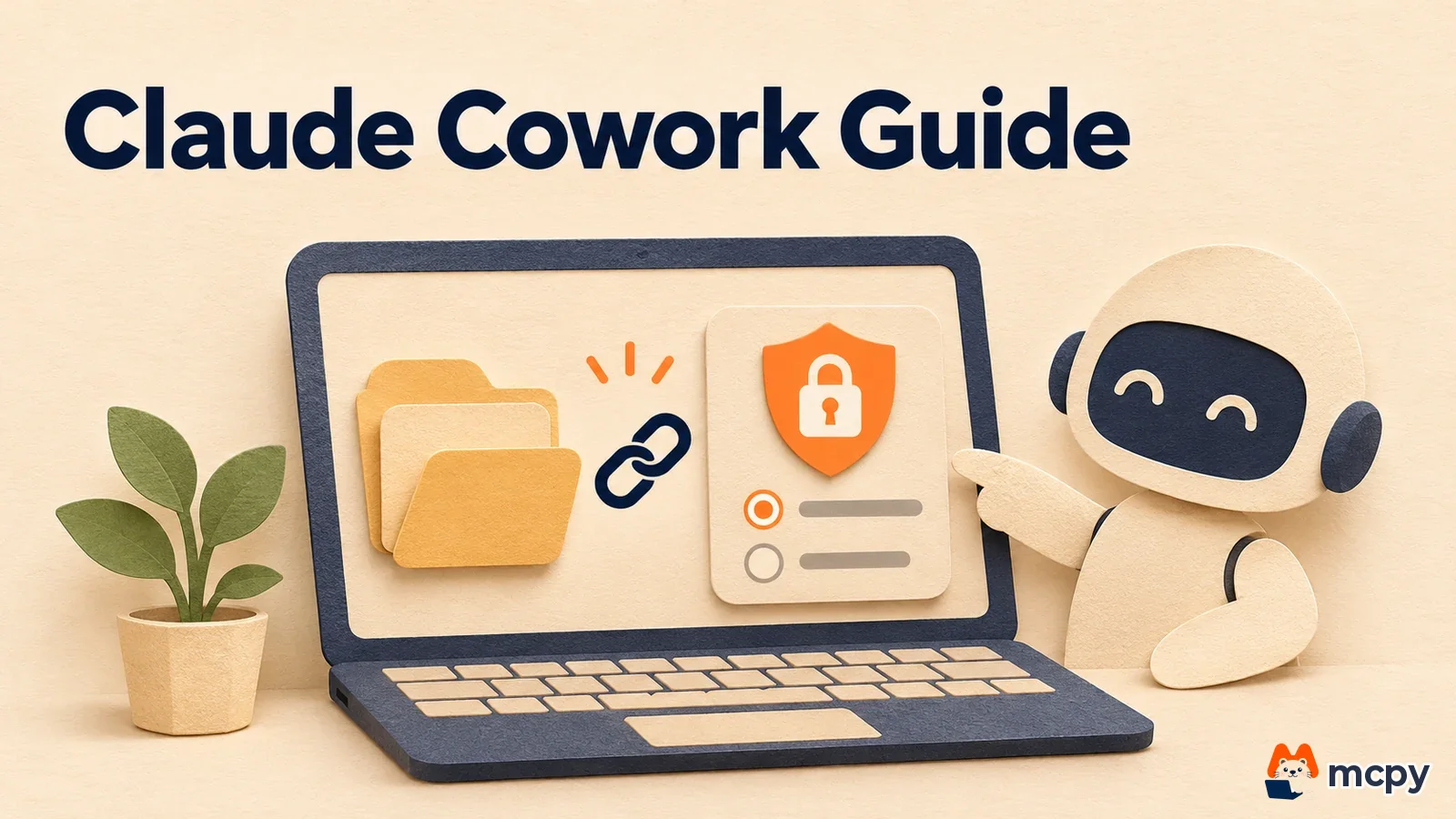
Claude Cowork lets Claude work with folders on your computer and the apps you connect, so it can build result files such as documents, spreadsheets and slides (as of November 4, 2026). Open the Cowork tab, pick a working folder, and describe the result you want in plain words. It is available only on paid plans (Pro, Max, Ultra, Team, Enterprise).
When to use Claude Cowork
Say you need one report. You dig through twelve folders, copy files and move numbers into a table. By the end, you have no time left to think. It is like asking an assistant to run an errand: "Collect the files in this folder and put them in one table." Cowork acts like that assistant. It reads files in the folder you choose and creates new files. Chat is a tool that answers questions. Cowork is a tool that finishes the job. But just as you would not hand an assistant every key, you decide which folders and apps to connect.
Anthropic's Cowork getting-started guide (June 3, 2026) separates the tools. Use chat for questions, brainstorming and quick reviews. Use Cowork for multi-step work that needs a deliverable, such as files, decks and spreadsheets. The same post explains that Cowork and Claude Code run on the same engine, and that Claude Code is for developers who build software.
| Tool | Best for | Example |
|---|---|---|
| Chat | Questions, explanations and ideas that finish in a few turns | Positioning ideas, sentence review |
| Cowork | Work that involves several files and apps and produces a result file | A weekly report that merges Search Console data into one sheet |
| Claude Code | Software development | Editing code in a repository |
The official guide also gives five signs that a task fits. It has several inputs. The result is a file. It repeats. You already know what a good result looks like. And the middle steps, such as extracting, collecting and cross-checking, are boring work you would rather not do. The guide's author says a weekly report that merges Google Search Console data into one sheet dropped from about 30 minutes to 5. That figure is one person's case, so it will not transfer directly to your work.
How to use Claude Cowork in 3 steps
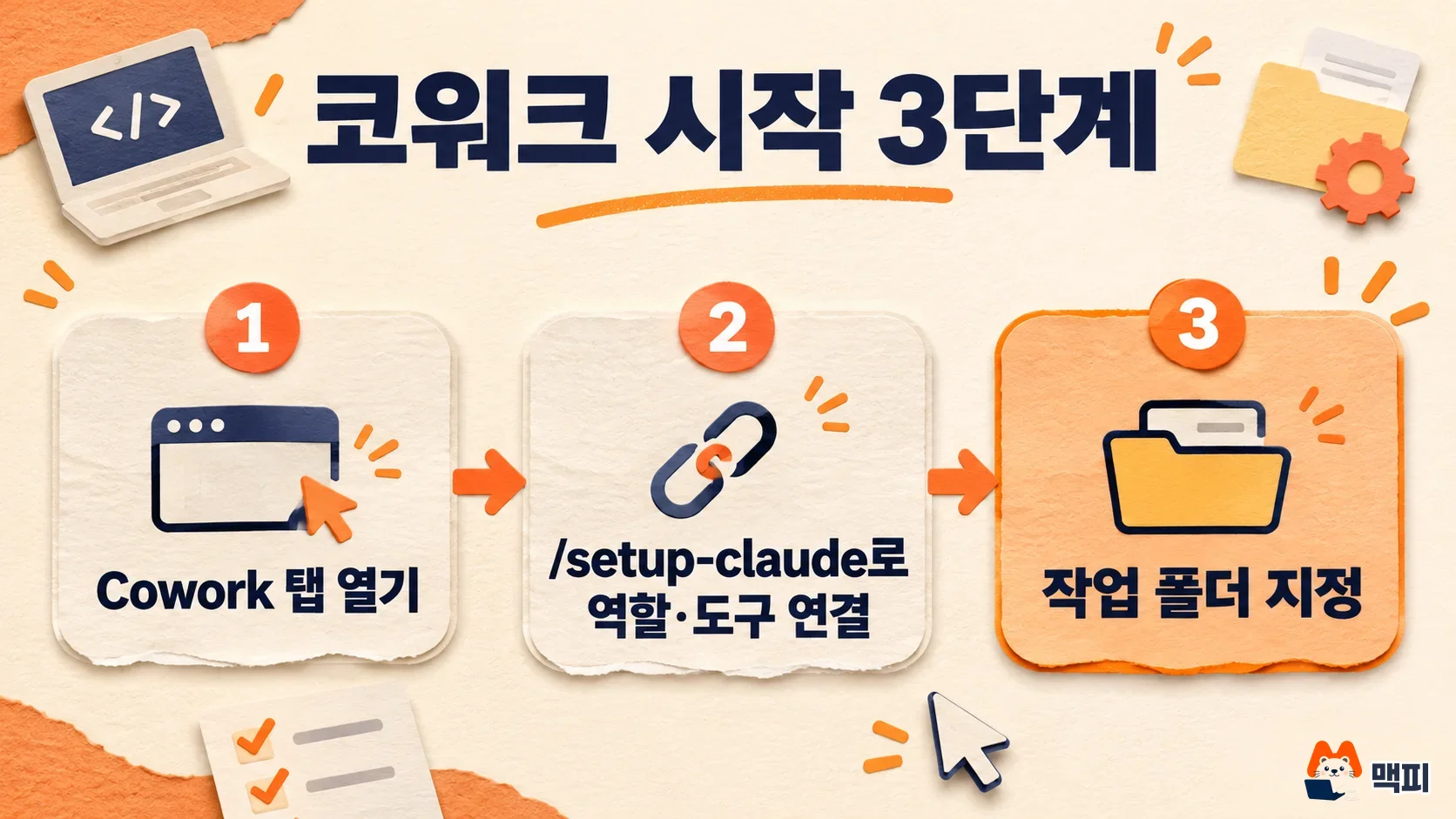
Start by opening the Cowork tab. The three-step tutorial from Anthropic Academy tells you to sign in to the Claude desktop app or claude.ai, then choose the Cowork tab on the home screen. If you do not see the tab, start a new conversation. You need the desktop app to work with files on your computer.
- Open Cowork. In the desktop app input box, choose Cowork. If the input box has no Chat or Cowork option, skip this step (official help article).
- Connect your role and tools. Type
/setup-claudein a new conversation and press Enter. Pick your role, and Claude installs the plugins for that role and connects tools such as Slack, Google Workspace and Microsoft 365. On first use, a "Set up Cowork" banner starts the same process. You can run it again later. - Set the working location. In the chat box, click "Work in a folder" and choose the folder where Claude reads your material and saves results. If you create a project under Projects in the sidebar, files, instructions and memory carry over between sessions.
Write your first task like this. After you set the working folder, state the result file and the criteria you want, for example: "Collect last month's ad report CSVs in this folder and put cost and conversions by channel into one sheet." The official guide recommends asking Claude to repeat your request back and to ask about the period, criteria and exceptions before it starts. The author says this habit was the most useful one. Type / in the input box to see the slash commands from the plugins you installed.
You check success in the folder. Results are saved as real files that you can open, share and keep editing. When the task ends, open the new file in your folder and compare a few numbers against the source.
Claude Cowork permission modes: which one to choose
Cowork is an agent that reads and writes files, so permission settings are half of knowing how to use it. The official help article describes three modes.
| Mode | Behavior | Choose it when |
|---|---|---|
| Manual | Asks you to allow or deny each action | You are new, or you handle sensitive files |
| Auto | Approves read tools automatically. For writes and deletes, Claude reviews safety and blocks risky ones | Everyday work in a folder you know well |
| Skip | No approval prompts and no automatic checks | Only when you fully trust every task, connector and file |
The default is Auto on Pro, Max, Ultra and Team plans, and Manual on Enterprise. Deleting files always needs explicit permission, whatever the mode. The safe order is to start with Manual and watch what Claude tries to do a few times, then move to Auto once you are comfortable. Skip has no confirmation step to undo an accident, so do not use it in a folder that holds important files.

The help article adds a few safety rules. Claude reads and writes only files in the folders you connect. The network blocking setting does not apply to web fetch, web search, MCP or Claude in Chrome, so judge whether an MCP server or website is trustworthy before you widen access. Connect only as many folders as the task needs. For important originals, have Claude work on a copy, which protects you from mistakes.
Claude Cowork pricing and usage limits
You cannot use Cowork on the free plan. Per the official help article, the desktop app is available on macOS, Windows and Linux (beta), and the app must stay open for local files, the browser and computer use. Web and mobile work on Pro, Max, Ultra and Team (beta), and on Enterprise only if the owner turns it on. You need an internet connection for the whole session. On the Claude pricing page, Pro is 20 dollars per month with monthly billing (the equivalent of 17 dollars per month with annual billing), Max starts at 100 dollars per month, and a Team standard seat is 20 dollars per month with annual billing (25 dollars with monthly billing). If you pay in Korean won, exchange rates and VAT apply, so check the final amount on the checkout screen.
Paid plans still have limits. Multi-step tasks that run code, create files, or use connectors and the browser use more of your allowance than simple questions. The help article suggests grouping related work into one task, doing unrelated work in a new conversation, and asking for a short answer when that is all you need. Check your usage under Usage in Settings. Claude Code uses the same engine as Cowork. To see its plans and limits, read our summary of Claude Code pricing and usage limits. If you want to try it first, you can use the 7-day free Pro trial from a Claude referral link sent by an existing subscriber.

Common mistakes when using Cowork
- Connecting too broad a folder. If you open your whole documents folder, Claude can read far more. Point to one subfolder per task.
- Sharing results without checking them. The official guide also says to hand off the middle steps and keep the final judgment. Compare numbers and wording against the source.
- Chaining unrelated work into one conversation. Your usage drops faster and the context gets mixed. Open a new conversation when the work changes.
- Closing the app. Tasks that use local files continue only while the desktop app is open and connected to the internet.
If you reuse the same task rules, save them as a skill. We covered how in how to create Claude skills.
Claude Cowork FAQ
Is Claude Cowork free? No. The official help article says it works only on the paid Pro, Max, Ultra, Team and Enterprise plans.
Is a deleted Cowork task history removed right away? It disappears from your history immediately. The help article says it is deleted from backend storage within 30 days.
Can I share a Cowork session with someone else? You cannot share the session itself. You can share only the outputs created in a session, one by one.
Found this useful? Share it
Latest posts
Kakao Share Thumbnail Not Showing? Here's the Fix (JavaScript SDK 2025)
Learn why Kakao Share thumbnails don't appear even with a valid imageUrl, and fix it using scrapImage to convert your URL into a KAGE CDN URL. Step-by-step guide.
How to Generate CRM User Manuals in 20 Minutes with Claude Code Sub-Agents
Learn how Claude Code sub-agents can analyze your CRM codebase and auto-generate user manuals and visual guidebooks in just 20 minutes. See the real-world results.
GEO Generative Engine Optimization: The Complete 2025 AI Marketing Strategy Guide
Learn what GEO (Generative Engine Optimization) is, how it differs from traditional SEO, and discover 5 proven AI marketing strategies to get cited by AI search engines in 2025.
Related projects
Get new posts by email
Insights on marketing, analytics, and dev, delivered to your inbox.