
Claude Skills (Agent Skills) let you store instructions, scripts, and reference material in one folder, and Claude pulls them out only when a request matches. Anthropic's docs describe skills as reusable resources that load on demand. To build one, you write a name, a description, and the task steps in a single SKILL.md file. In Claude Code, you just drop it into a folder.
What are Claude Skills? They help if you retype the same request every time
If you retype "tables in this format, this tone, numbers in this order" every time you ask for a report, you need a skill. Think of recipe cards pinned up in a restaurant kitchen. Instead of explaining the method to the cook for every customer, you keep one card per menu item, and the cook pulls out only the matching card when an order comes in. Skills work the same way. Claude normally knows only each card's title and a one-line description, and it opens the card when your request matches that description. But if what is written on the card is wrong or vague, Claude will follow it as written. So read a skill yourself before using it, and use only skills from sources you trust.
The difference from a regular prompt is that you do not paste anything into each conversation. The docs explain that skills load only when needed, so you do not have to repeat the same guidance in every conversation. Anthropic provides built-in skills for working with PowerPoint, Excel, Word, and PDF documents. For custom skills, marketers can use them for repeat work such as ad performance report templates, brand voice checklists, and weekly report formats.
How skills are read: they load in 3 levels
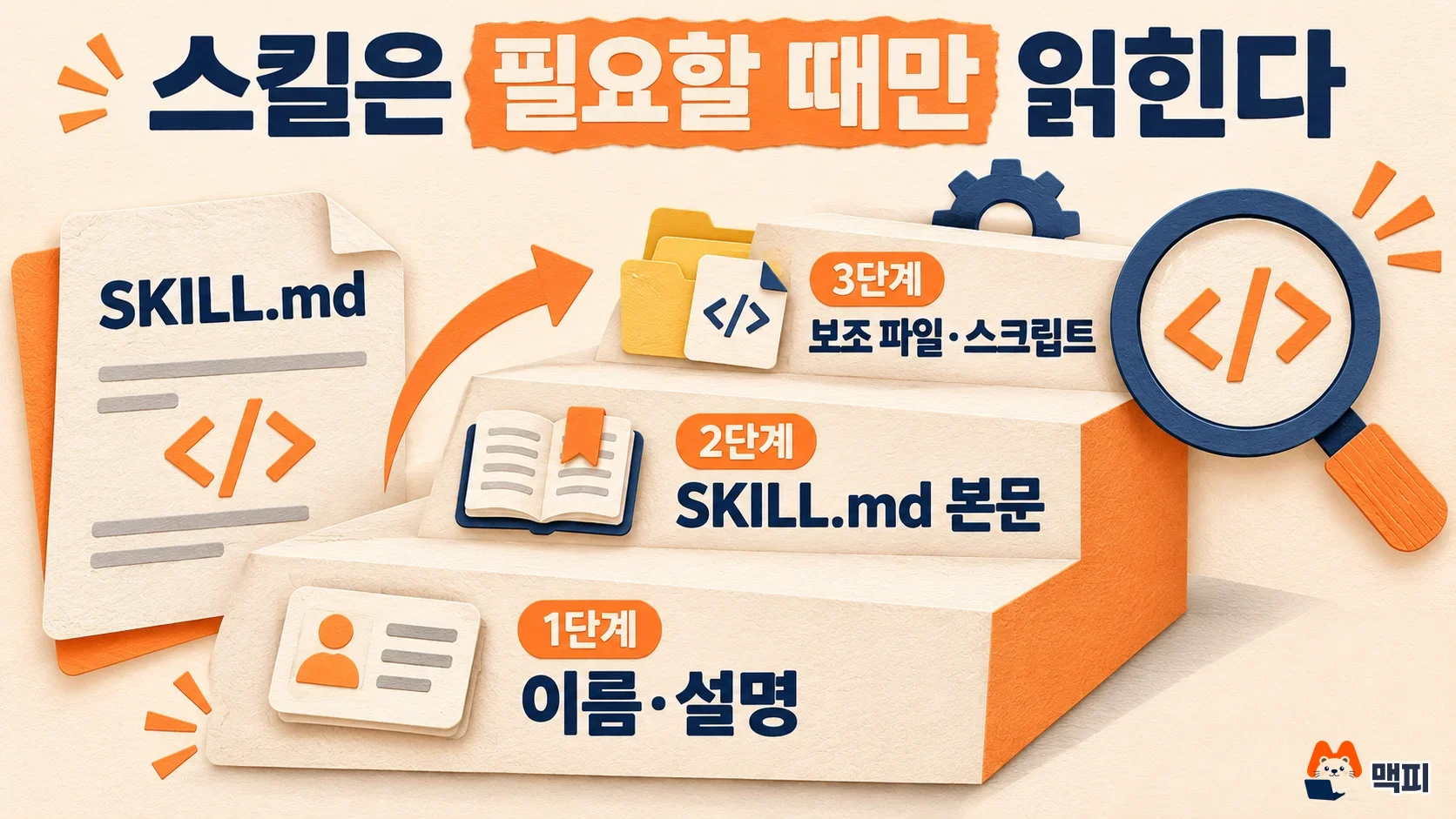
A skill is not read all at once. The docs call this progressive disclosure, and each level is read at a different time, as the table below shows.
| Level | When it is read | Token cost | Content |
|---|---|---|---|
| Level 1: Name and description | Always (at startup) | About 100 tokens per skill | name and description at the top of SKILL.md |
| Level 2: Body | When the skill is selected | Under 5,000 tokens | Task steps and instructions in the SKILL.md body |
| Level 3: Supporting files | Only when needed | 0 until read | Reference docs, templates, scripts |
Thanks to this structure, installing many skills does not weigh down the conversation. If your usage runs out quickly, see also how to reduce Claude Code token usage (Korean article). According to the docs, only the name and description take up context before a skill is selected. That is why your description should show both "what it does" and "when to use it". It is the condition for the skill to be called at the right time.
Claude Skills vs MCP connectors vs plugins: which one to pick
The three are not competitors. Each has a different job. HubSpot sums it up this way: skills handle procedure, MCP connectors handle access, and plugins handle distribution.
| Type | Role | Pick it when |
|---|---|---|
| Skill | Sets the task steps, format, and tone | You want the same procedure applied to repeat work |
| MCP connector | Connects to external services (files, calendar, CRM, and so on) | You need live data that is not in the conversation |
| Plugin | Lets people install skills, connectors, and commands as one bundle | Several people need the same setup at once |
For a weekly sales check, for example, a connector pulls deal status from the CRM, a skill decides which items to summarize and in what format, and a plugin hands both to your teammates in one step. The HubSpot article recommends you start with the smallest unit that solves the problem. A safe order is to build one skill first, then add a connector when you need a data connection.

How to create a skill in Claude Code
In Claude Code, a folder you create in the file system becomes a skill. If you have not installed Claude Code yet, start with Claude Code installation and pricing (Korean article). The locations in the Claude Code docs are as follows.
| Scope | Path | Applies to |
|---|---|---|
| Personal | ~/.claude/skills/<스킬 이름>/SKILL.md | All projects on this computer |
| Project | .claude/skills/<스킬 이름>/SKILL.md | That repository (shared with your team when committed) |
- Create a folder in the terminal. Example:
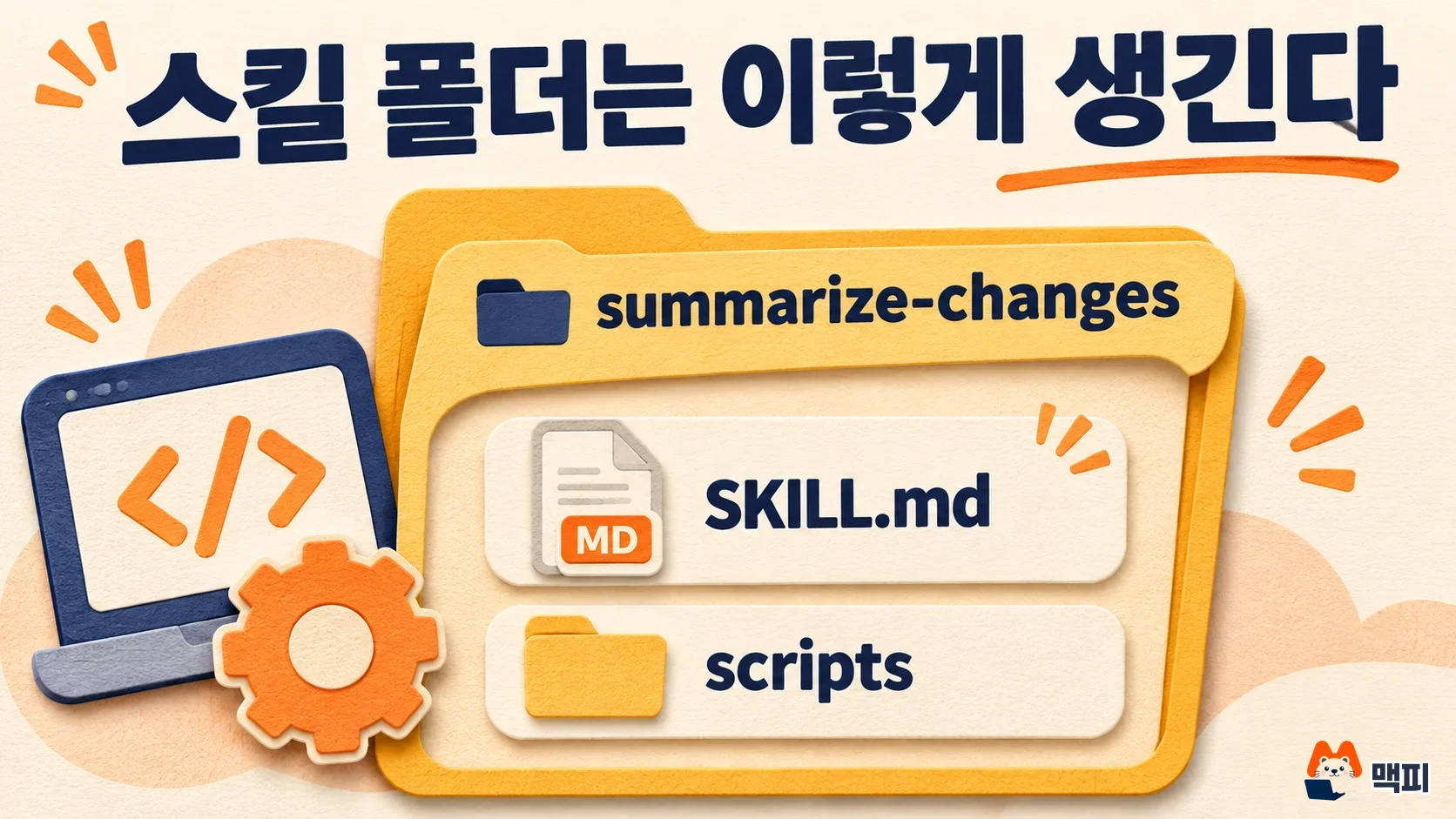
mkdir -p ~/.claude/skills/summarize-changes - Create
SKILL.mdinside it, and write a description block wrapped in---at the top. The docs example writes both "what it does" and "when to use it", likedescription: 커밋되지 않은 변경 사항을 요약하고 위험 요소를 표시한다. 사용자가 변경 내용을 묻거나 커밋 메시지를 요청할 때 사용한다.(in English: summarizes uncommitted changes and flags risks; use it when the user asks about changes or requests a commit message). - Below the description block, write the steps Claude should follow in Markdown. Example: "Summarize the changes in 2 to 3 items, and flag missing error handling and hardcoded values."
- If you need supporting files (
reference.md,scripts/), put them in the same folder and link them from SKILL.md. The docs recommend keeping SKILL.md under 500 lines.
There are naming rules too. According to the platform docs, name must use only lowercase letters, numbers, and hyphens up to 64 characters, and description must be 1,024 characters or fewer. Reserved words such as "claude" and "anthropic" cannot be used in the name. The Claude Code docs say that if you omit name, the folder name becomes the command name.
Here is how to check that it was built correctly. Type /skills in Claude Code and see whether your skill appears in the list. Then run it directly by name, such as /summarize-changes, or ask a question that matches the description and see whether the skill gets called. If you edit SKILL.md during a session, the change is picked up automatically, but a newly created top-level skills folder must be recognized with /reload-skills. For tasks with side effects, such as deployment, you can add disable-model-invocation: true to the frontmatter so the skill runs only when you call it yourself.
How to use skills on claude.ai (web and app)
On the web, code execution must be turned on first. If you wonder about limits by plan, check Claude plan pricing and usage limits (Korean article) first. According to the Claude help center, on personal plans you turn on "Code execution and file creation" under Capabilities in settings, and then switch each skill on or off under Customize > Skills. Built-in skills such as Excel, Word, PowerPoint, and PDF are used by Claude automatically when a request fits, so you do not call them yourself.
To use a custom skill, compress the folder into a ZIP and upload it. In Customize > Skills, click "+", then "+ Create skill", and choose the ZIP with "Upload a skill". If the upload fails, check the causes the help center lists first: file size over the limit, a folder name that does not match the skill name, a missing skill.md, or characters that are not allowed in the name or description. The menu name may appear as Settings > Features depending on your app version.
Skills in the three places are managed separately. The platform docs state that custom skills do not sync across claude.ai, the API, and Claude Code. On claude.ai, a skill applies only to the individual user, so each teammate must upload their own. On the API, the whole workspace can use it. In Claude Code, you share it by committing the project folder or distribute it as a plugin.
Check the risks before you use a skill
A skill contains instructions and code, so it needs the same care as installing a program. The docs say to use only skills from trusted sources, such as ones you made yourself or got from Anthropic, and warn that a malicious skill can misuse tools or send data out. For a skill downloaded from the internet, open not only SKILL.md but also the bundled scripts and any calls to external addresses. Turn it on only after you confirm nothing behaves differently from its description. Be especially careful with skills that fetch content from an external URL, because that content can change over time.
Frequently asked questions
Can I use Claude Skills for free?
The help center says skills are available on all plans, including the free plan, but code execution must be turned on. The platform docs, however, list uploading custom skills as a Pro-and-above feature. The surest way is to check whether an upload option exists in the Customize menu of your own account before you upload.
How is a skill different from a regular prompt?
A prompt is an instruction used in one conversation only. A skill is an instruction that is saved and loaded automatically when a request matches. If you often ask for the same format, it is better to move it into a skill.
What happens to my existing .claude/commands files?
According to the Claude Code docs, an existing .claude/commands/deploy.md keeps working as /deploy. A skill is that same idea with supporting files and invocation control added.
Found this useful? Share it
Latest posts
Kakao Share Thumbnail Not Showing? Here's the Fix (JavaScript SDK 2025)
Learn why Kakao Share thumbnails don't appear even with a valid imageUrl, and fix it using scrapImage to convert your URL into a KAGE CDN URL. Step-by-step guide.
How to Generate CRM User Manuals in 20 Minutes with Claude Code Sub-Agents
Learn how Claude Code sub-agents can analyze your CRM codebase and auto-generate user manuals and visual guidebooks in just 20 minutes. See the real-world results.
GEO Generative Engine Optimization: The Complete 2025 AI Marketing Strategy Guide
Learn what GEO (Generative Engine Optimization) is, how it differs from traditional SEO, and discover 5 proven AI marketing strategies to get cited by AI search engines in 2025.
Related projects
Get new posts by email
Insights on marketing, analytics, and dev, delivered to your inbox.