
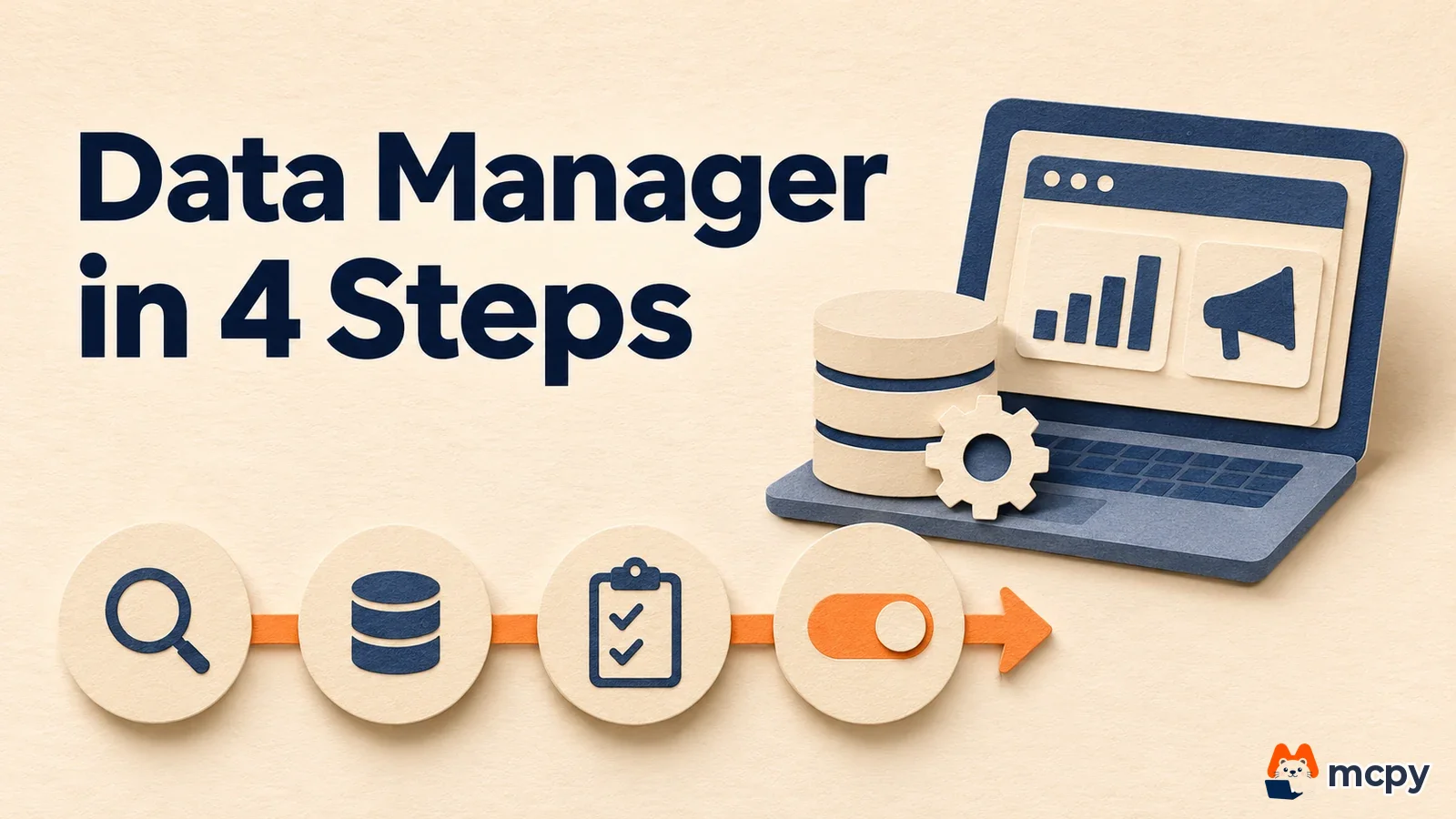
To activate a Google Ads Data Manager connection, check the source status in the Data manager tool, fix the settings and field mapping if needed, then add a conversion goal on the new conversion action screen. The Google Ads channel posted a tutorial on October 27, 2026 that shows this order (Google Ads official YouTube).
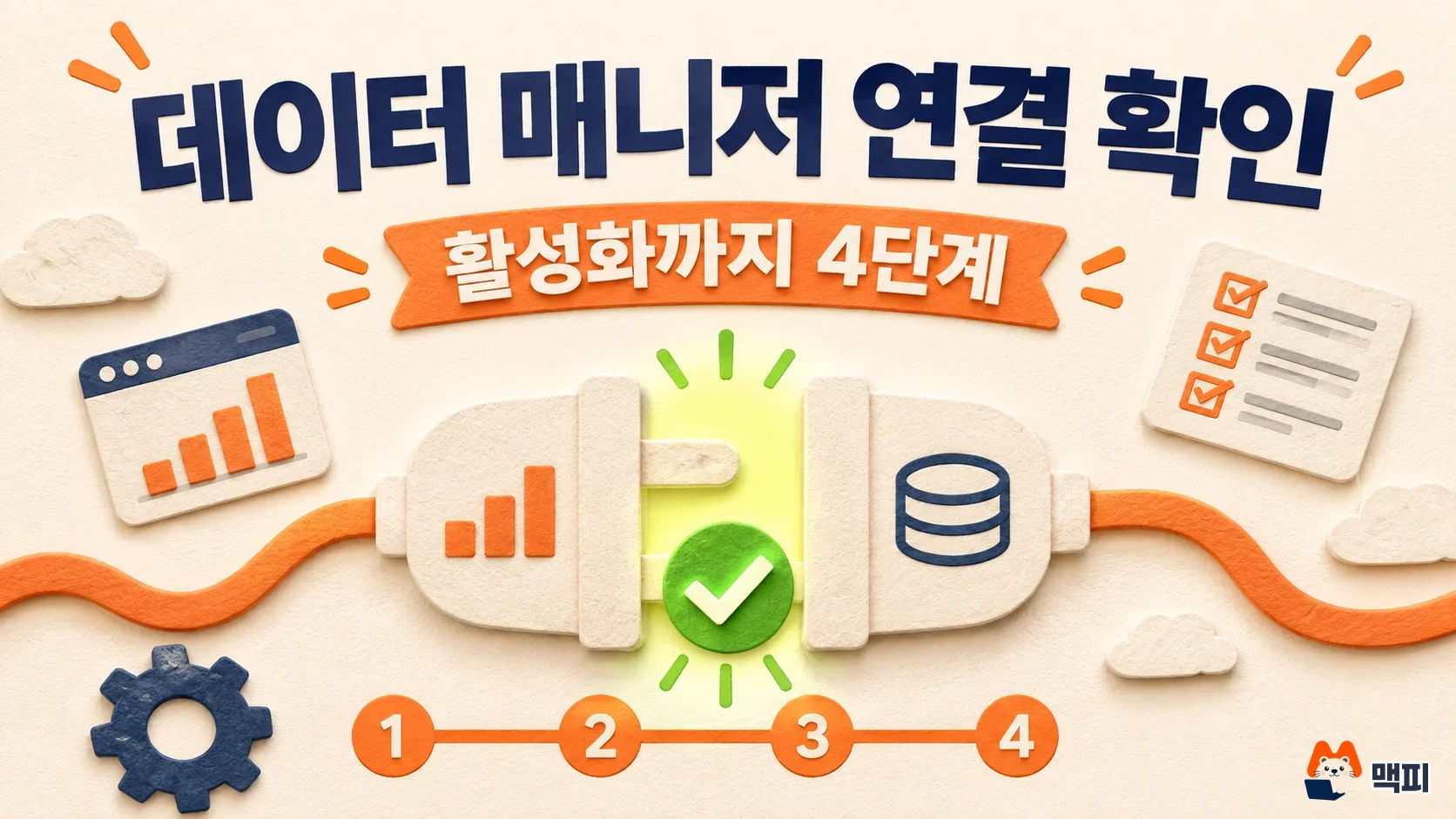
Why a Google Ads Data Manager connection takes more than an upload
You upload a customer list or CRM data, but nothing shows up in the conversion report. It is hard to know where to start looking. It is like shipping a parcel. Sending it is not enough. The address and the delivery confirmation on the other end must match before it counts as delivered. Google Ads also treats data arriving and data being used as conversions as two separate things. This is only an analogy, so check the real status labels and error rules in your own account.
The official video explains the difference this way: "Uploading data is not enough. It must be linked to a conversion action so Google Ads can track performance" (official video description). Data Manager is presented as one place to connect, activate, and troubleshoot data sources across Google products. A source you connect once can be reused for several purposes (Google Ads Help Center). For example, you can use BigQuery (Google's data warehouse) data for enhanced conversions, then use the same connection for Customer Match targeting.
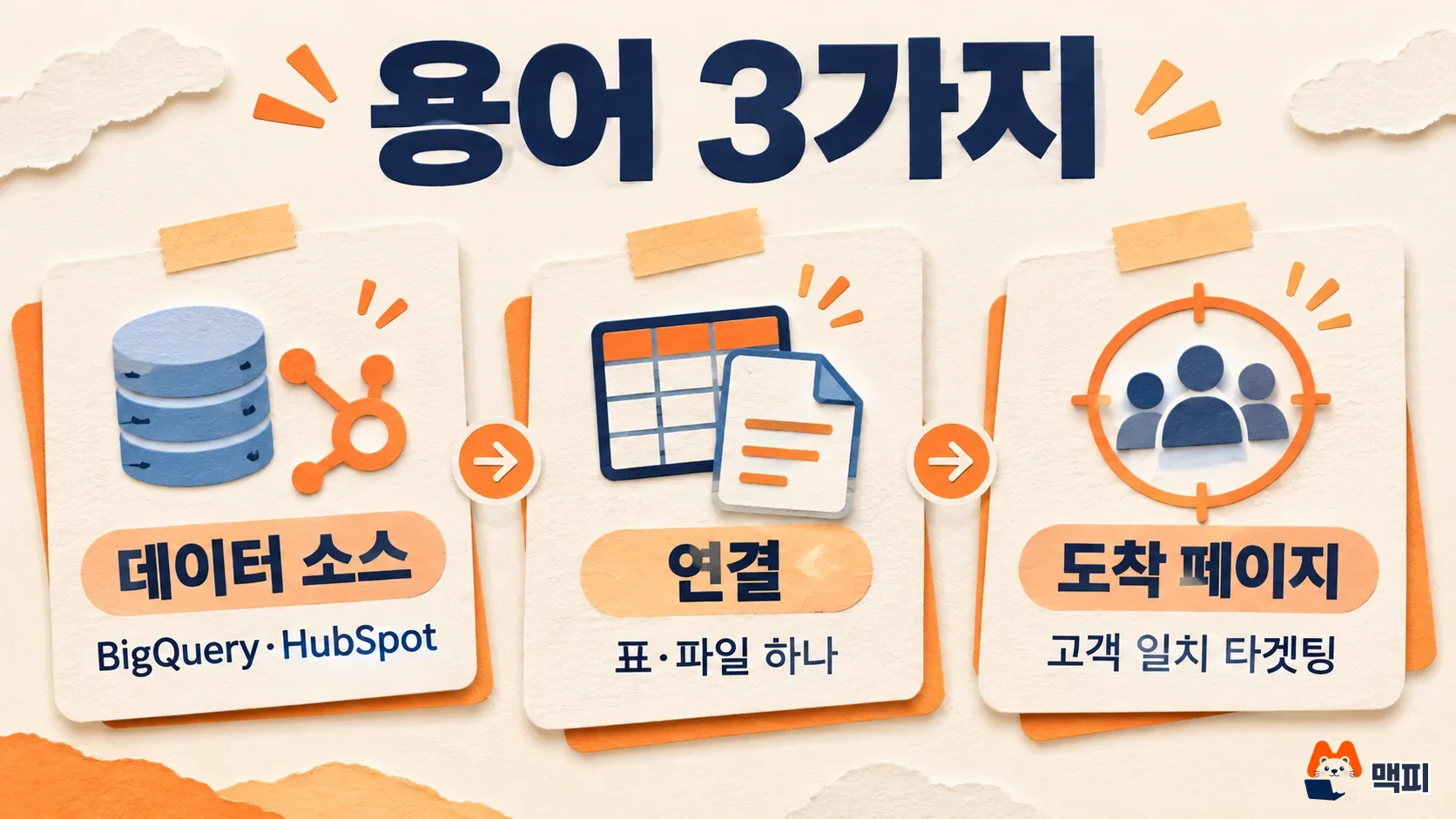
The help page splits the terms into three.
| Term | Meaning | Example |
|---|---|---|
| Data source | A connected product, an imported file, or an external service integration | BigQuery, HubSpot |
| Connection | An individual data object imported from a data source | One table, one file |
| Destination | The Google product or feature where the imported data is activated | Customer Match targeting |
How to open Data Manager and check connection status
To open Data Manager, click the Tools icon in the left navigation panel of Google Ads, then click Data manager (labeled Data manager in the English interface) (Google Ads Help Center). The video says this page shows every data source that uploaded successfully, its status, and any linked conversion actions or user lists, all in one view.
In this list, look at the status of each source and whether it has a conversion action or user list linked to it.
How to fix connection settings and field mapping
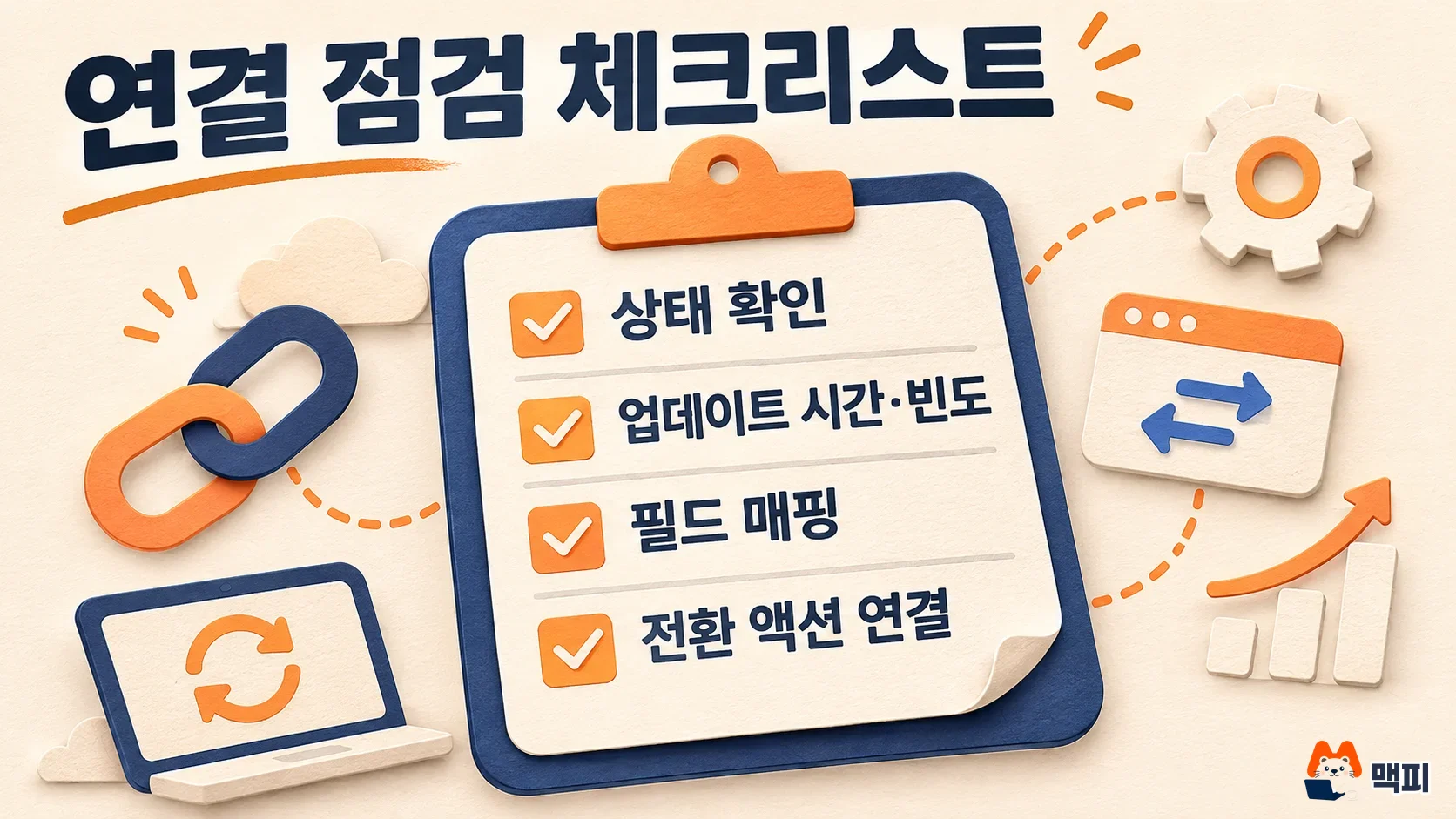
Select the source you want to fix, and the connection management screen for that source opens. According to the video, you can change the data source name, the time and frequency of data updates, and which fields map to what (official video). Field mapping means pairing the columns in your file or table with the items Google reads.
For connections that pull from an external server or database (Amazon Redshift, MySQL, Oracle, PostgreSQL, SFTP, Snowflake, and others), you must allow the IP address ranges Google lists in your firewall (Google Ads Help Center, English).
How to link a conversion goal and activate the source
The video stresses the conversion goal step the most. On the new conversion action screen, pick the conversion goal that fits your campaign and data source, click Add, then click Save and continue. If the data has no errors, the new data source is activated (official video).
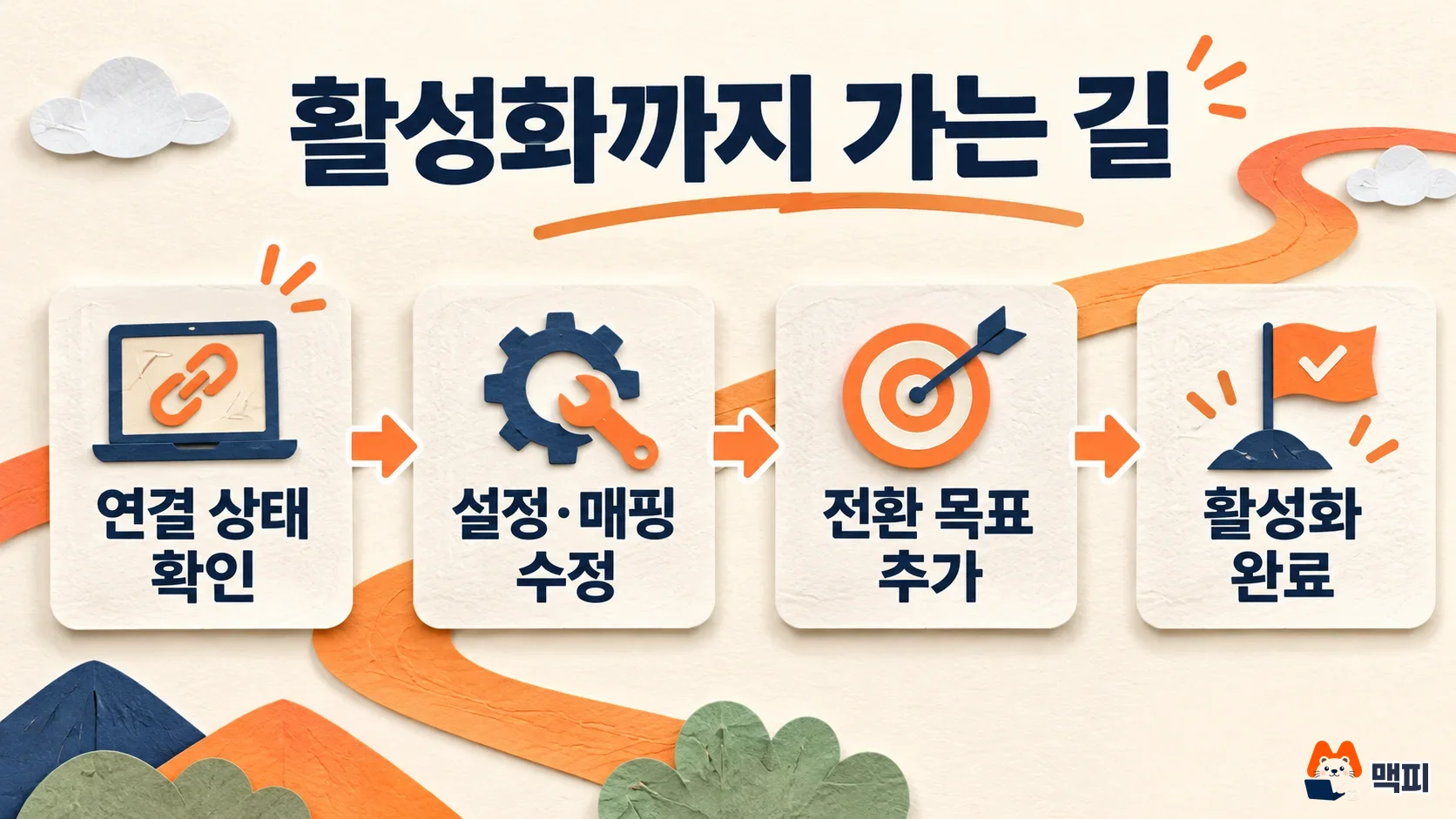
- Check the source list and status in the Data manager tool.
- Click the source you want to fix and adjust its name, update time and frequency, and field mapping.
- On the new conversion action screen, pick a conversion goal, then click Add and Save and continue.
- Check that there are no errors. If there are none, the new data source is activated.
To verify, look at the source list in the Data manager tool and see whether a conversion action appears linked to that source. The video explains that this list shows each source's status and its linked conversion actions (official video). To see how this connection feeds bidding quality in campaigns like Demand Gen, continue with how to raise Demand Gen data strength (in Korean).
Check your consent settings when you use customer data
If your source uploads customer data, also review the consent settings on the Data manager tool page. In this menu you choose the default setting for personal data collected by website tags or uploaded. The limited data processing setting sits under the website data item in the consent settings (Google Ads Help Center). The video description also says campaigns run on data collected with consent (official video description).
Frequently asked questions
The audience data source option is missing from Audience Manager. Where did it go?
According to the help page, the Data sources tab in Audience Manager no longer has this option. Check it on the Data manager tool page instead.
What should I check first if I uploaded data but it is not activated?
First check whether a conversion action is linked to the source, and check the field mapping on the connection management screen. The video says activation requires that there be no errors.
Can I use the same connection for other purposes?
Yes. The help page says a data source you connect once can be reused across several Google destinations.
Found this useful? Share it
Latest posts
Kakao Share Thumbnail Not Showing? Here's the Fix (JavaScript SDK 2025)
Learn why Kakao Share thumbnails don't appear even with a valid imageUrl, and fix it using scrapImage to convert your URL into a KAGE CDN URL. Step-by-step guide.
How to Generate CRM User Manuals in 20 Minutes with Claude Code Sub-Agents
Learn how Claude Code sub-agents can analyze your CRM codebase and auto-generate user manuals and visual guidebooks in just 20 minutes. See the real-world results.
GEO Generative Engine Optimization: The Complete 2025 AI Marketing Strategy Guide
Learn what GEO (Generative Engine Optimization) is, how it differs from traditional SEO, and discover 5 proven AI marketing strategies to get cited by AI search engines in 2025.
Related projects
Get new posts by email
Insights on marketing, analytics, and dev, delivered to your inbox.