
The short version in three lines
- Look at the Findings page in Security Command Center at the
organization level. Filter by
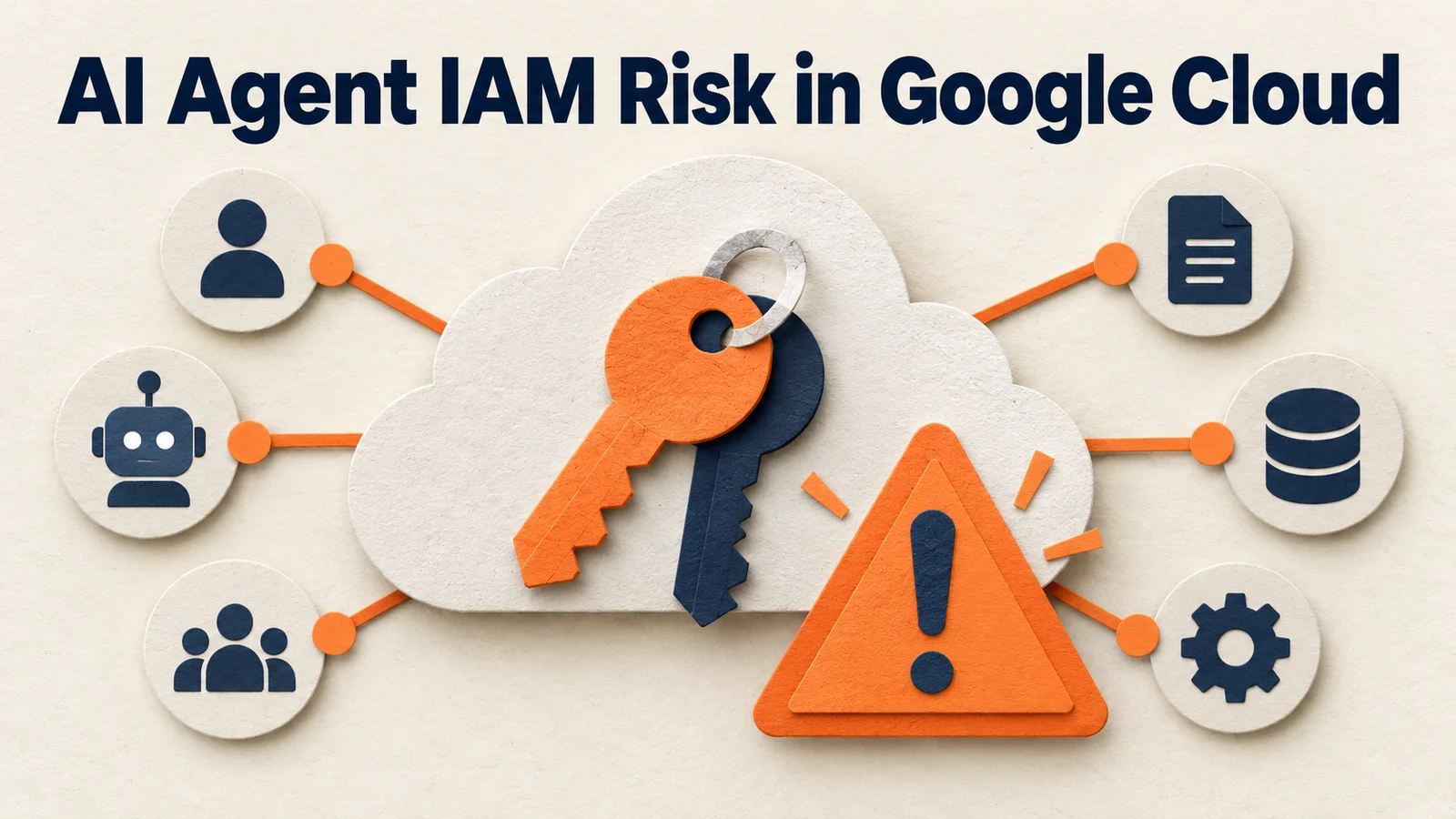
Toxic combination. - The Risk Engine detects and reports Vertex AI Reasoning Engines that can modify IAM policies and move laterally.
- In an organization-level Premium or Enterprise setup, review the exposure score and attack path, then remove IAM permissions you do not need.

The Google Cloud
release notes announced this feature on September 28, 2026. The
official wording is clear. The Risk Engine detects and reports Reasoning
Engines that can modify IAM policies and move laterally. Results appear
as Toxic combination.
The official documentation gives no separate effective date or regional rollout schedule. September 28 is the announcement date. It does not mean the feature reached every region that day.
In this article, AI agent means only Vertex AI Reasoning Engine. Not
every kind of AI agent is covered. The official resource name is
aiplatform.googleapis.com/ReasoningEngine.
What new AI agent risk does Google Cloud detect
The Risk Engine detects Reasoning Engines that can modify IAM policies and move laterally. The announcement disclosed only this condition. It did not explain the detailed detection rules.
When several security issues chain together and open a path to a
high-value resource, they are grouped as a
Toxic combination. According to Google
Cloud's explanation, this comes with an attack exposure score and an
attack path. The higher the score, the stronger the reason to look at it
first.
However, this result alone does not show that a breach actually
happened. In the official documentation, a Toxic combination
is a potential attack path. This article is a guide based only on the
official documentation. It has no synthetic demo, hypothetical case,
real attack test, or production breach example. Whether a real attack
occurred must be checked through logs and a separate security
investigation.
Enable it at the organization level to see the full attack path
The steps in this article assume an environment where Security Command Center Premium or Enterprise is activated at the organization level. The Enterprise tier is scheduled to end on May 21, 2027.
Project-level activation does not support attack path simulation. Set the console scope to the organization as well to see the full path. In a project or folder view, you can only see the exposure score.
According to the Risk
Engine support documentation, you need
`roles/securitycenter.attackPathsViewer` to view attack paths. Viewing
findings requires roles/securitycenter.findingsViewer.
High-value resources require
roles/securitycenter.assetsViewer and
roles/securitycenter.valuedResourcesViewer.
Check Toxic combination in Findings like this
Open Security Command Center in the Google Cloud console. Set the scope to the organization, then go to the Findings page.
In the filter, choose Toxic combination as the finding
type. Open the items that include a Vertex AI Reasoning Engine. Look at
these three things.
- Check the attack exposure score.
- Check the principals and IAM permissions shown in the attack path.
- Check the high-value resource at the end of the path.
You do not need to turn on Toxic combination detection
separately. But if your high-value resource settings do not match their
real importance, the priorities will be off too. Following the management
documentation, it is best to first review your high-value resource
set and the viewing permissions.
After reading the finding, compare the IAM permissions with real work
Do not stop after noting the exposure score. Compare the principals and permissions in the attack path with actual work. Confirm whether that engine should keep those permissions.
Remove roles that are not needed. If a role is too broad, replace it with a role that holds only the permissions required. In its service account security guidance, Google Cloud also recommends applying least privilege to reduce lateral movement risk.
The finding may not disappear right after you fix the permissions. Attack path simulation runs about every 6 hours. After the next run finishes, check the path and the exposure score again.
Separate confirmed facts from practical judgment
There are three confirmed facts. The Risk Engine detects and reports
Reasoning Engines that can modify IAM policies and move laterally.
Results appear as Toxic combination. In
organization-level environments, you can also see the attack path.
What follows is practical judgment. A finding does not mean a breach actually happened. The absence of a finding does not guarantee safety either. The Risk Engine works only on the resources and detection items in the official support list.
In the end, there is one question to ask. Is the permission shown in the attack path still needed? If not, remove it. If it must stay, record the reason and the next review date.
The safest operating rule is least privilege and a recheck
Look at whether the path is actually closed after a permission change, not at a single score. Record an owner and an expiry date for every exception permission. If the path remains after the next simulation, check the related principals and their parent roles again.
A checklist to run today
- Confirm that Security Command Center is activated at the organization level.
- Set the console scope to the organization, not a project.
- Filter Findings by
Toxic combination. - Find the results that include a Vertex AI Reasoning Engine.
- Record the attack exposure score and the high-value resource.
- Compare the IAM permissions in the attack path with their business purpose.
- Remove unneeded roles or replace them with narrower ones.
- Check the results again after the next simulation finishes.
A work brief you can reuse as is
Goal: Reduce the IAM attack paths that lead from a Vertex AI Reasoning Engine to high-value resources.
Input: The Toxic combination finding, the attack exposure
score, the attack path, and the related IAM policies.
Task: Check the principals and permissions shown in the path. Write down the actual purpose of use. Remove roles that are not needed. Replace broad roles with least-privilege ones.
Done when: In the next attack path simulation, confirm that the path is closed or the exposure score has dropped. If you keep an exception, record the justification and the next review date.
Found this useful? Share it
Latest posts
Kakao Share Thumbnail Not Showing? Here's the Fix (JavaScript SDK 2025)
Learn why Kakao Share thumbnails don't appear even with a valid imageUrl, and fix it using scrapImage to convert your URL into a KAGE CDN URL. Step-by-step guide.
How to Generate CRM User Manuals in 20 Minutes with Claude Code Sub-Agents
Learn how Claude Code sub-agents can analyze your CRM codebase and auto-generate user manuals and visual guidebooks in just 20 minutes. See the real-world results.
GEO Generative Engine Optimization: The Complete 2025 AI Marketing Strategy Guide
Learn what GEO (Generative Engine Optimization) is, how it differs from traditional SEO, and discover 5 proven AI marketing strategies to get cited by AI search engines in 2025.
Related projects
Get new posts by email
Insights on marketing, analytics, and dev, delivered to your inbox.