
Google Trends shows how interest in a search term on Google Search has changed over time and by region. You enter a term, set the region, period and search type, then compare it with other terms. As of October 4, 2026, you can compare up to 8 term groups at once, and each group can combine up to 50 terms. Below, we cover the steps, how to read the numbers, how to find related and trending searches, and how to fix a graph that does not appear.
How to use Google Trends: from entering a term to comparing
On Google Trends (trends.google.com), type a term in the search box to see an interest-over-time graph. On the same screen, you change the region and period to compare the trend.
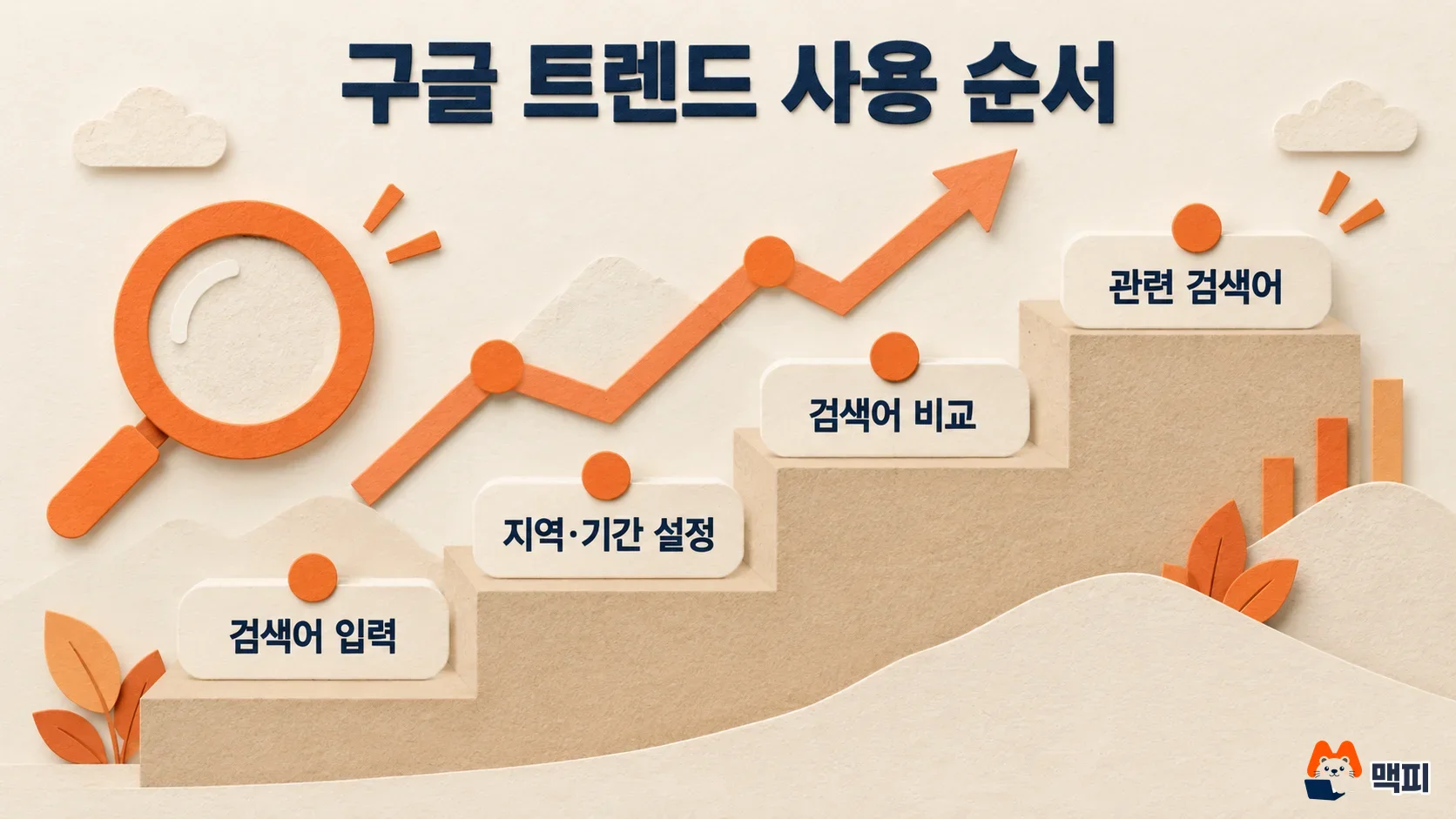
- Go to trends.google.com and type the term you want to research. The autocomplete list separates "search terms" from "topics", so pick one.
- Choose a region, either a country or a smaller area. Then choose a period, either a preset range or a custom one.
- Choose a category and a search type. For search type, pick from Web, Image, News, Shopping, or YouTube.
- Add the other terms you want to compare. All terms must use the same period and region. You cannot mix regions, such as one term in India and another in Russia.
- Scroll below the graph to check related queries and related topics.
To confirm it worked, check that the graph draws and that every compared term appears in it. If no graph appears, see the fixes in the section "Fixes when the Google Trends graph does not appear" below.
| Setting | Available values | When to use it |
|---|---|---|
| Region | Country or region | When you want to see interest in South Korea separately from other countries |
| Period | Preset range, custom range | When you want the recent trend or repeating patterns over several years |
| Category | Classification by search area | When you want to see a term only within one search area |
| Search type | Web, Image, News, Shopping, YouTube | When you want interest on YouTube or Shopping search, not Google web search |
The options in the table are the filters described in the Google Trends Explore help page.
Google Trends search term vs topic: which one to pick
In the search box autocomplete, the same word can appear as both a "search term" and a "topic". They count different things.
| Type | What it counts | Best for |
|---|---|---|
| Search term | The exact words the user typed. Other spellings or languages are excluded. | Exact product names, brand names, and narrow keywords |
| Topic | Groups many searches that point to the same concept. Spelling and language differences do not matter. | Overall interest in a person, organization, or concept |
Google recommends choosing the topic when one exists if you want to see total interest. On the other hand, if you need the search trend for that exact wording, such as an exact product name, choose the search term.

For words with several meanings, read the autocomplete description before you choose. Google's help page gives the example that the word Google could mean the company, the stock, or the act of searching.
How to read Google Trends numbers: 0 to 100 is a relative value
The numbers on the graph are not search counts. Each data point is divided by the total searches for that region and period to compare relative popularity, and the ratio is shown on a 0 to 100 scale. So a region with high search volume does not always get a high number.

The data is a sample, not all of Google Search. Google states that it is a dataset drawn from billions of searches per day and built to represent all searches. Terms with very few searches are different. Low volume is shown as "0", and the same document notes that for such terms the graph can show more statistical noise than real interest.
Because the numbers are ratios, you will not get absolute values such as monthly search volume. Read them as a way to compare interest between terms under the same region and period. If you need absolute values, use the keyword tool in an ad platform. Google Trends shows Google search data, so it does not include search trends on Naver, Korea's largest search engine. Readers in Korea should also follow the methods in the article on Search Console and Naver DataLab.
How to see Google Trends related queries and trending searches
When you enter a term, related queries appear at the bottom of the page. Top queries are the terms most often searched together in the same search session (one continuous run of searches by one person) in the selected region and period. Rising queries are the terms with the biggest increase in search volume over the requested period. Next to each rising item is the growth rate versus the previous period. If "Breakout" appears instead of a number, it means search volume grew by more than 5,000%.
To see topics that are rising right now, use the separate Trending Now page. It shows trending searches in more than 100 countries and regions and updates about every 10 minutes, and you can change the period from the last 4 hours to 7 days. Each item shows the search volume growth, the start time, and an active or ended status. Before you use a rising item as a content idea, widen the period and check again.
You can also download the results and organize them. There are features to export a chart as CSV (a table file you can open in Excel), share it by link, and embed it as HTML, and the help page also explains how to cite the data.
Fixes when the Google Trends graph does not appear
An empty graph or a "not enough data" message usually appears when you enter a term with low search volume. Google's recommended fixes are to reduce the number of terms, check the spelling, and widen the period.
| Symptom | Possible cause | How to fix it |
|---|---|---|
| No graph is generated | The term's total search volume is too low | Reduce the number of terms, check the spelling, then widen the period |
| Most values are 0 | Terms with low volume are shown as 0 | Do not judge from Google Trends alone. Check other search data too |
| Comparison does not work | Each term has a different period or region | Set the same period and region for all terms |
Small ups and downs in low-volume ranges may be statistical noise rather than real change, so do not draw conclusions from the graph shape alone for such terms.
Google Trends FAQ
Can I find monthly search volume with Google Trends?
No. Google Trends is a tool that shows the ratio to total searches on a 0 to 100 scale, so it does not show search counts. If you need monthly search volume, use the keyword tool in an ad platform.
Why does yesterday's term not appear in top or rising queries?
Top and rising queries are available only for dates at least a week old. Use the Trending Now page to see terms that just started trending.
Can I download Trending Now data too?
Yes. The Trending Now page offers a feature to export data as CSV or RSS (a format that delivers new items automatically).
Go to trends.google.com now, enter two terms you care about with the same region and period, and check the rising items in their related queries.
Found this useful? Share it
Latest posts
Kakao Share Thumbnail Not Showing? Here's the Fix (JavaScript SDK 2025)
Learn why Kakao Share thumbnails don't appear even with a valid imageUrl, and fix it using scrapImage to convert your URL into a KAGE CDN URL. Step-by-step guide.
How to Generate CRM User Manuals in 20 Minutes with Claude Code Sub-Agents
Learn how Claude Code sub-agents can analyze your CRM codebase and auto-generate user manuals and visual guidebooks in just 20 minutes. See the real-world results.
GEO Generative Engine Optimization: The Complete 2025 AI Marketing Strategy Guide
Learn what GEO (Generative Engine Optimization) is, how it differs from traditional SEO, and discover 5 proven AI marketing strategies to get cited by AI search engines in 2025.
Related projects
Get new posts by email
Insights on marketing, analytics, and dev, delivered to your inbox.