
Microsoft Clarity is a free web analytics tool that shows visitor clicks and scrolls as heatmaps and session replays. According to the Microsoft FAQ, it is free forever and has no traffic limit. You add a tracking code to your site, and you can see where visitors click and where they stop. Google Analytics (GA4) tells you in numbers "how many people came." Clarity shows you "what those people did on the page."

Clarity shows what visitors actually do on your pages
A high landing page bounce rate is just a number. It does not tell you what to fix. Think of a people counter at a shop entrance. It tells you how many customers walked in, but not whether they hesitated at a shelf or could not find a sign. Watching the store CCTV shows you the reason. Clarity plays a similar role for a website. Both GA4 and Clarity collect records of visitor behavior, but GA4 gives you totals and Clarity keeps the scenes. Because these scene recordings involve visitor data, check your privacy settings first.
The Microsoft Clarity FAQ describes the tool as offering session recordings, heatmaps and machine-learning-based insights. The same document states that Clarity is free forever, with no traffic limit and no limit on the number of sites. It also does not sample your visitor data.
| Feature | What it shows | When to use it |
|---|---|---|
| Session recording | Replays one visitor's mouse movement, clicks and scrolling | To see what happened just before a visitor left |
| Heatmap | Combines the clicks and scrolls of many visitors on one screen | To decide where to place buttons and copy |
| Insights | A summary of user behavior analyzed with machine learning | To scan overall trends before watching sessions one by one |
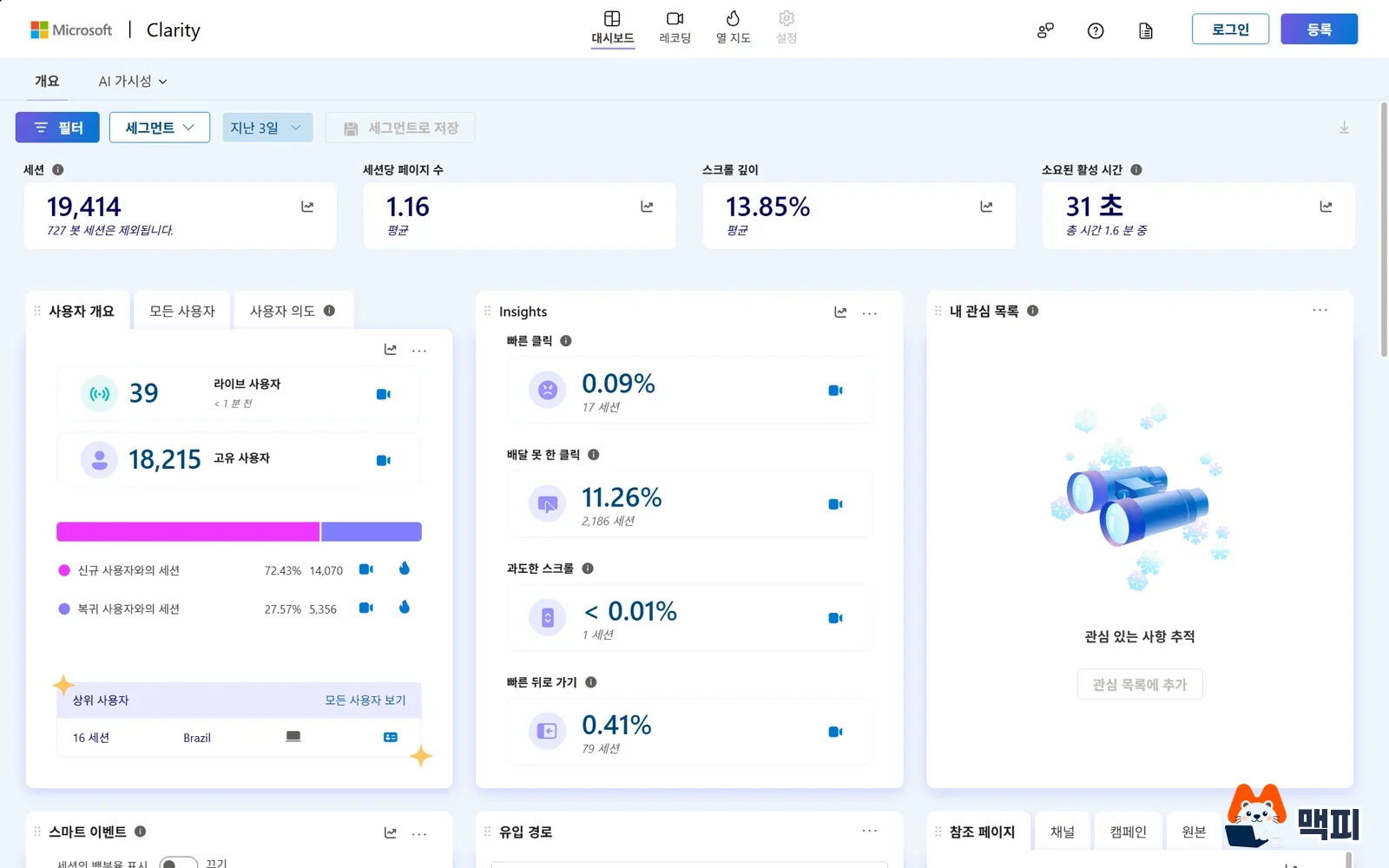
This is what the Clarity home screen looks like. In the top menu, Dashboard, Recordings and Heatmaps correspond to the session recordings and heatmaps described above. The dashboard shows the session count and, as percentages, friction signals picked out by machine learning, such as quick backs and dead clicks.
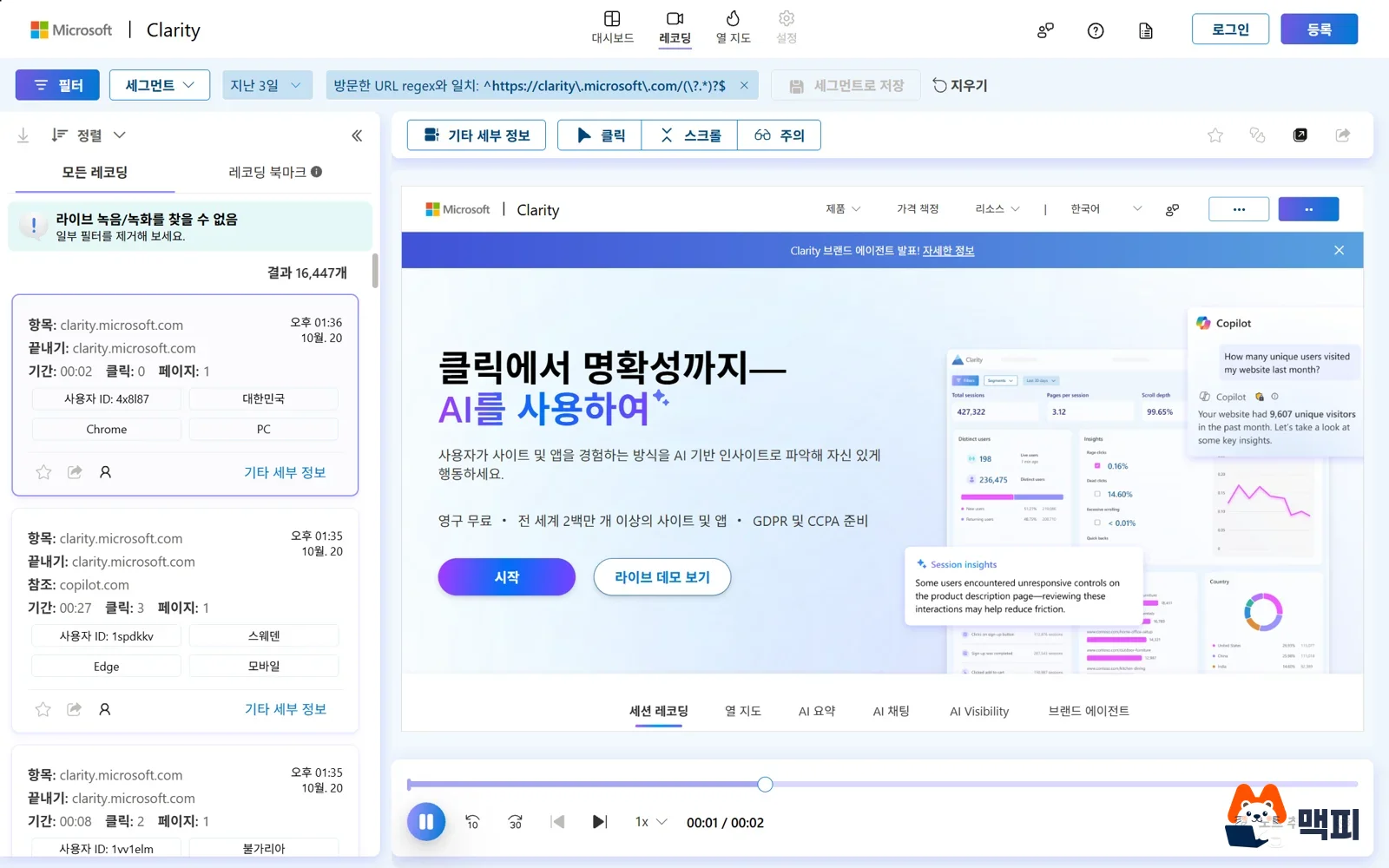
To watch a session recording, open the Recordings menu and pick a session from the list. The list shows visit time, duration, click count, browser and device. This makes it easy to filter for mobile visits only or visits with many clicks. The playback bar at the bottom lets you change speed and skip ahead.
How to install Clarity and check that it works
According to the Clarity setup guide, you create a project in Clarity and then choose a method under Settings > Setup. Microsoft's documentation lists three methods. The first is an integration with an external platform such as WordPress or an online store builder. The second is pasting the tracking code directly into your site's head section. The third is the NPM package for JavaScript projects. There is also a Share code menu for sending the code to a developer.
- Log in at clarity.microsoft.com, create a new project and enter your site address.
- Choose an install method under Settings > Setup. If your platform is not in the list of external platforms, copy the code with Get tracking code.
- Paste the copied code inside the <head> of your site and save.
- Open your site and click through a few pages. Then check the real-time view in the Clarity dashboard to see whether visitors are being counted.
If you already use Google Tag Manager, it is easier to manage Clarity as a tag instead of pasting the code by hand. According to Microsoft's setup guide, the Clarity setup screen detects a GTM integration automatically. On Finish setup, you pick the account and container, then click Create and publish to publish the tag. For installing GTM itself, start with how to install Google Tag Manager.

You can confirm the install in two ways. One is to watch live visitors in the dashboard, as in step 4 above. The other is to right-click on your site, open Inspect, and look for a collect request in the Network tab. According to the same document, seeing a POST request to https://www.clarity.ms/collect while you use the site means it works. If both places are empty, check the page source first to confirm the pasted code is actually inside the head of the page you saved.
How to read Clarity heatmaps
A heatmap opens right away when you choose a page address under Heatmaps. According to the heatmaps overview, there is no generation wait time and no minimum traffic requirement. The available types are click maps, scroll maps, area maps, conversion maps and attention maps. To start, two of them are enough.
| Type | How to read it | What to do next |
|---|---|---|
| Click map | Elements that get clicked often are shown in darker color. You can view dead clicks (clicks with no response) and rage clicks (repeated clicks in a short time) separately | Find elements with many dead clicks, then add a link or fix the button that does not respond |
| Scroll map | Colors show how far down the page visitors went, and the average fold (the edge of what is visible before scrolling) is marked | Move key buttons and copy above the zone most visitors reach |
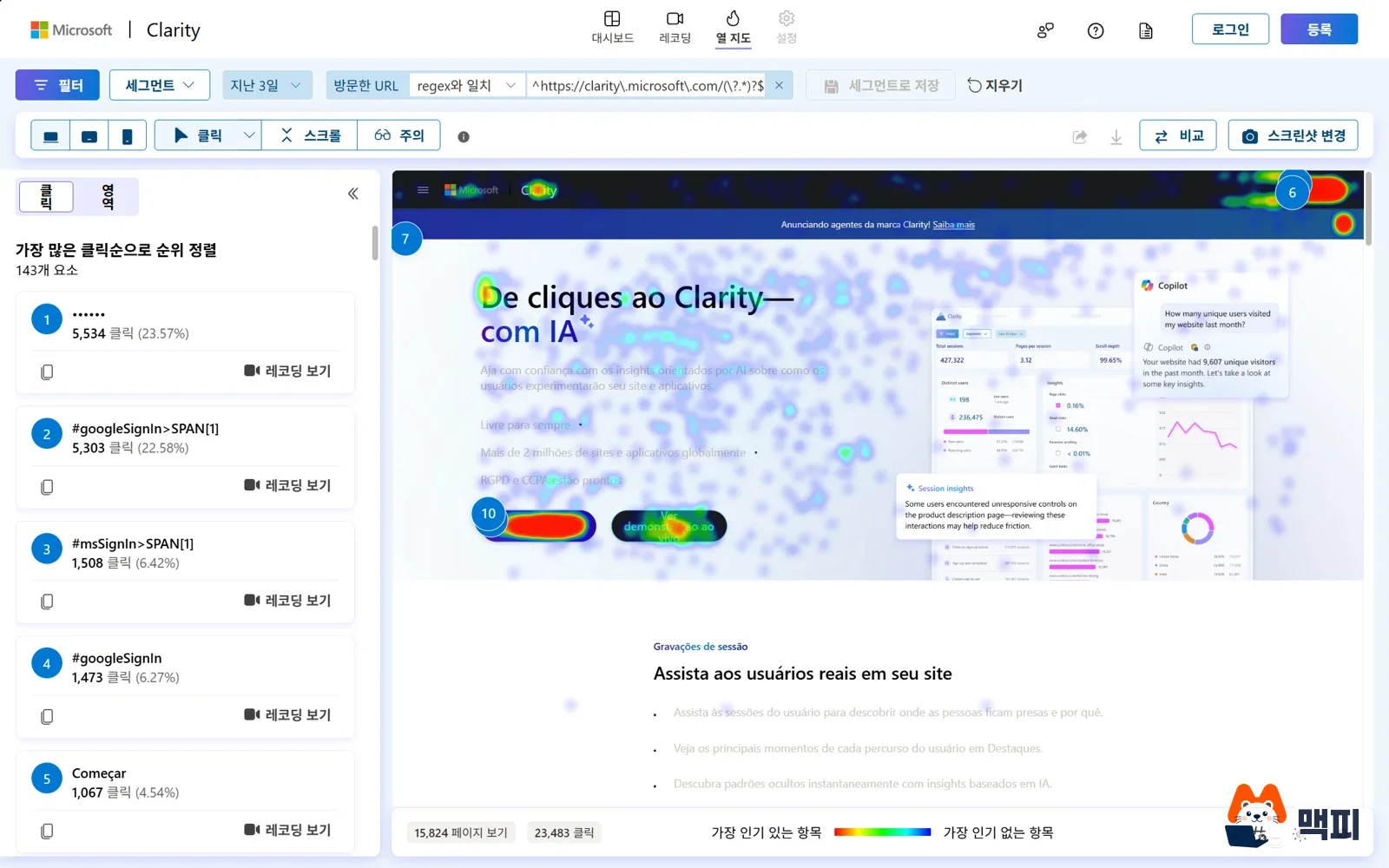
Here is what a real click map looks like. The list on the left is ordered by the most clicked elements, and the red blotches on the page at right mark where clicks are concentrated. Click View recordings in the list to jump straight to session recordings of visitors who clicked that element.
To switch to the scroll map, click Scroll in the top menu. Going from red to green and blue, fewer visitors saw that section. The table on the left shows the reach rate for each section, and the average fold marker appears on the page.
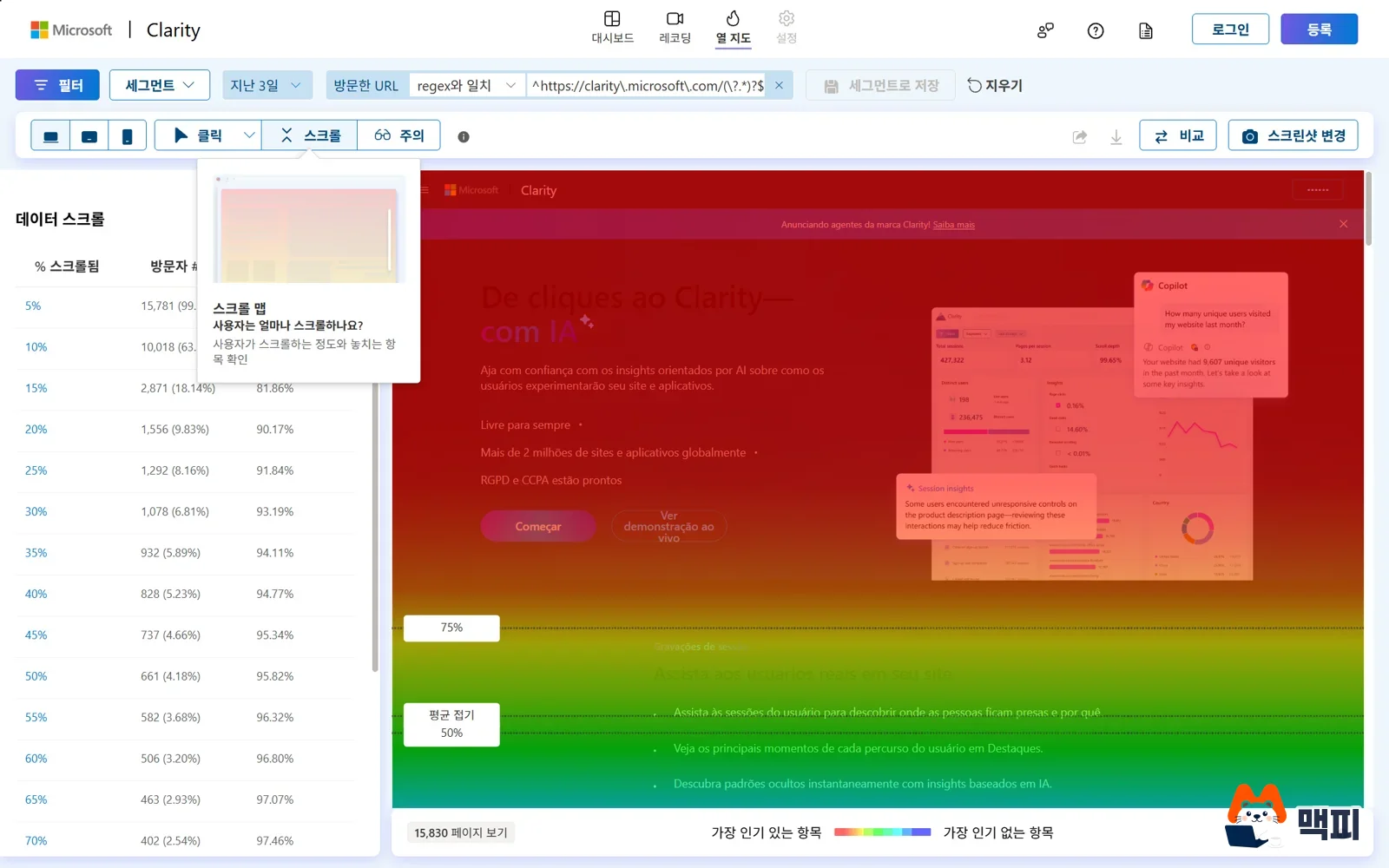
With few visitors, the behavior of just a handful of people shapes the map. Start with one landing page that gets plenty of traffic. Here is a check you can do yourself. First, look at the scroll map to see whether your key button sits below the average fold. Move the button up, then reopen the map for the same page with a different date range and compare whether clicks increased. The documentation also describes a heatmap comparison feature that overlays the before and after.
How to connect Clarity to GA4
When you connect Clarity and GA4, you can view GA4 data inside Clarity. The steps in the GA integration guide are as follows.
- In Clarity, choose your project and go to Settings > Setup.
- Under Google Analytics integration, click Get Started.
- In the Google sign-in window, choose the account that owns your GA4 property.
- Select the property to import and click Save. You return to the settings screen.
You can connect only one property to each project. To pause the connection, turn off the Active switch on the same screen. If you disconnect it completely, you have to set it up again from the start. To check the numbers on the GA4 side, follow the measurement ID and real-time report check in how to sign up for and install GA4. You can consider the integration done when the GA integration shows as Active on the Clarity Setup screen. After that, find pages with many exits in GA4, then open the Clarity heatmap and session recordings for that page address.

Privacy and consent settings when using Clarity
Even a Korean site can get visitors from Europe. Microsoft's documentation states that from October 31, 2025, visits from the European Economic Area (EEA), the UK and Switzerland need a valid consent signal for Clarity features to work fully. Without consent, cookies cannot be used, so page views within the same visit are split into separate sessions. The documentation says there is no impact if you have no visitors from those regions. Policies can change, so revisit the consent mode guide from time to time.
There are three more conditions to know. According to the Clarity FAQ, text typed into input boxes is masked in every masking mode, and you must not use Clarity on sites or apps aimed at people under 18. Recording data can be viewed for up to 30 days from the time of recording. The setup screen also says sensitive content is masked by default during collection. Because this tool records visitor behavior, check before installing that your site's privacy notice mentions this collection.
Frequently asked questions
Does using Clarity slow down my site?
Clarity loads extra JavaScript on your site, so you cannot assume there is no effect on speed. Measure your page load speed before and after installing, and compare the results.
Can I use Clarity without GA4?
Yes. The GA integration is optional. Clarity works on its own for heatmaps and session recordings.
How is it different from Search Console, which I already use?
Search Console shows impressions and clicks in search results. Clarity shows behavior after visitors arrive on your site. For how to read the search side, see how to read the Search Console performance report.
Found this useful? Share it
Latest posts
Kakao Share Thumbnail Not Showing? Here's the Fix (JavaScript SDK 2025)
Learn why Kakao Share thumbnails don't appear even with a valid imageUrl, and fix it using scrapImage to convert your URL into a KAGE CDN URL. Step-by-step guide.
How to Generate CRM User Manuals in 20 Minutes with Claude Code Sub-Agents
Learn how Claude Code sub-agents can analyze your CRM codebase and auto-generate user manuals and visual guidebooks in just 20 minutes. See the real-world results.
GEO Generative Engine Optimization: The Complete 2025 AI Marketing Strategy Guide
Learn what GEO (Generative Engine Optimization) is, how it differs from traditional SEO, and discover 5 proven AI marketing strategies to get cited by AI search engines in 2025.
Related projects
Get new posts by email
Insights on marketing, analytics, and dev, delivered to your inbox.