
The Naver ads management system is the ad platform where you run search ads and display ads in the Naver Advertiser Center (ads.naver.com). Naver is Korea's largest search engine. Its official help page calls this service the Naver Advertiser Center and describes it as an account management service for running search ads and display ads. Once you finish member signup and ad account creation with one Naver ID, you can manage both ad types in one place. In its Advertiser Center notice, Naver announced that it would merge the search ad and display ad platforms into one on March 30, 2026. This article is current as of October 3, 2026.
How to log in to the Naver ads management system
When you log in to the Advertiser Center, you enter the ad platform. After the merger, you no longer access search ads and display ads separately. As the notice describes, you enter one platform and pick search ads or display ads from the left menu. There is no account selection screen. You are connected straight to the ad account you used most recently.

The first thing you see after login is the dashboard. According to the notice, the dashboard summarizes key metrics such as total cost, clicks and total conversions, along with ad spend status. If the dashboard opens after login, you are in. To see which account you are working in, check the account layer in the top menu bar.
How to sign up for the Naver ads management system
Signup has two steps: Advertiser Center member signup and ad account creation. The member signup help page says you can complete member signup on its own, but you need an ad account to run ads.

- In the Advertiser Center, click [Sign up] and choose [Sign up with Naver ID].
- Log in with your Naver ID and password, then agree to the terms on the "1. Naver Advertiser Center member signup" page.
- Enter your member details and verify. This completes the Advertiser Center member signup.
- On the "2. Create Naver ad account" page, choose either business advertiser or individual advertiser, then enter the advertiser details.
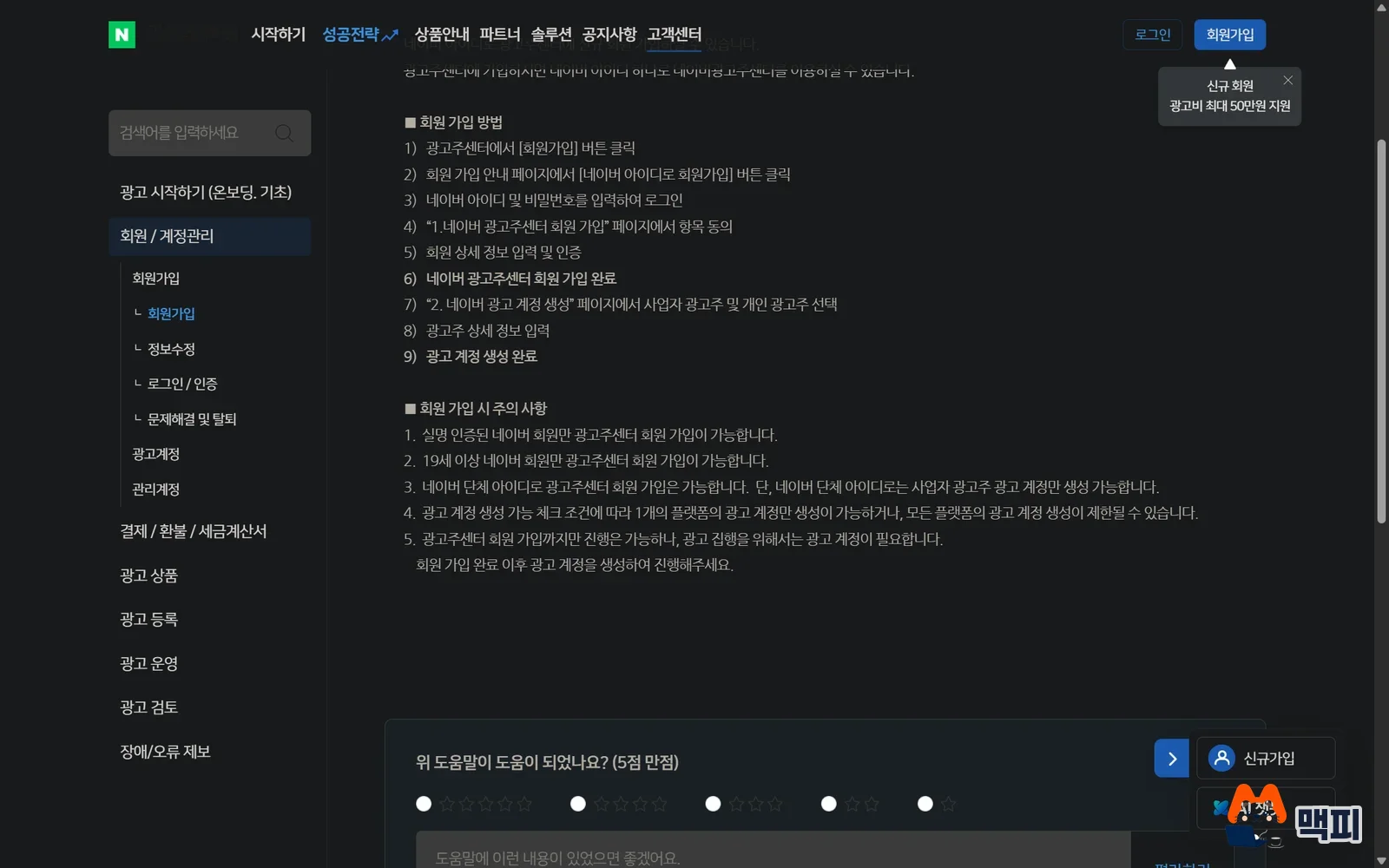
According to the cautions on the same help page, you must be a Naver member aged 19 or older with real-name verification. A group ID can also sign up, but it can only create business advertiser accounts. Depending on the ad account creation conditions, you may be able to create an account for only one platform, or account creation may be restricted for all platforms.
After you create an account, follow the signup and registration procedure help. Under [Create ad], choose "Start ads quickly" or "Choose a goal and start" to register an ad. Registering an ad means entering a campaign, ad group, keywords and creatives, in that order.
How to switch and add accounts when you have several ad accounts
If you have several permissions, you are connected automatically to the ad account you used most recently, as the help page explains. To switch, pick the ad account you want in the account layer in the top menu bar. If you logged in with a manager account, as an agency would, you can jump straight to a linked account from the sub-account list in the account layer.
If you are already a member and only need another account, the help path is: open the Advertiser Center, click your Naver ID on the right of the header, open the ad account tab in the account layer, then add an account. If you exceed the maximum number of accounts you can belong to as a member, you see the "Ad account creation has been restricted" message. The same restriction applies when you exceed the limit for accounts where you are the account owner. Clean up existing accounts or transfer permissions, then try again.
What changed in the 2026 unified ad platform
The merger combines the screens. It does not blend every feature into one. According to the FAQ in the notice, campaign registration and management, business channel registration and conversion tracking setup are still provided separately for search ads and display ads, as before. Only the dashboard, all campaigns, business diagnosis and create ad treat the two ad types as one.
| Item | What changed |
|---|---|
| Access | You enter search ads and display ads through one platform and choose from the left menu. The name of performance display ads changes to display ads. |
| All campaigns | You compare campaign results for both ad types on one screen. Detailed data by day of week, time of day and conversion type, plus attributed conversion metrics, which only search ads had before, are added. |
| Starting ads | Three entry points are added. "Choose a goal and start" suggests a matching campaign once you pick a goal. Business diagnosis recommends ads and a budget from 3 questions. "Start ads quickly" registers Power Link, ADVoost Shopping and Place ads with minimal input. |
| Menu names | Business channel management becomes component management. Search ad premium log analysis becomes conversion tracking. Performance display ad report becomes reports. |
| Ended or reworked | Search ad management TIP is reworked into recommendations in Insights (limited beta release on March 30). The search ad review progress menu and the option to start ADVoost Shopping from shopping search ads end. ADVoost Shopping campaigns are used the same way under display ads. |
| Limits and settings | The maximum number of display ad campaigns drops from 10,000 to 1,000 (deleted campaigns are not counted). Column customization settings save up to 5 sets. Existing user settings are reset. |
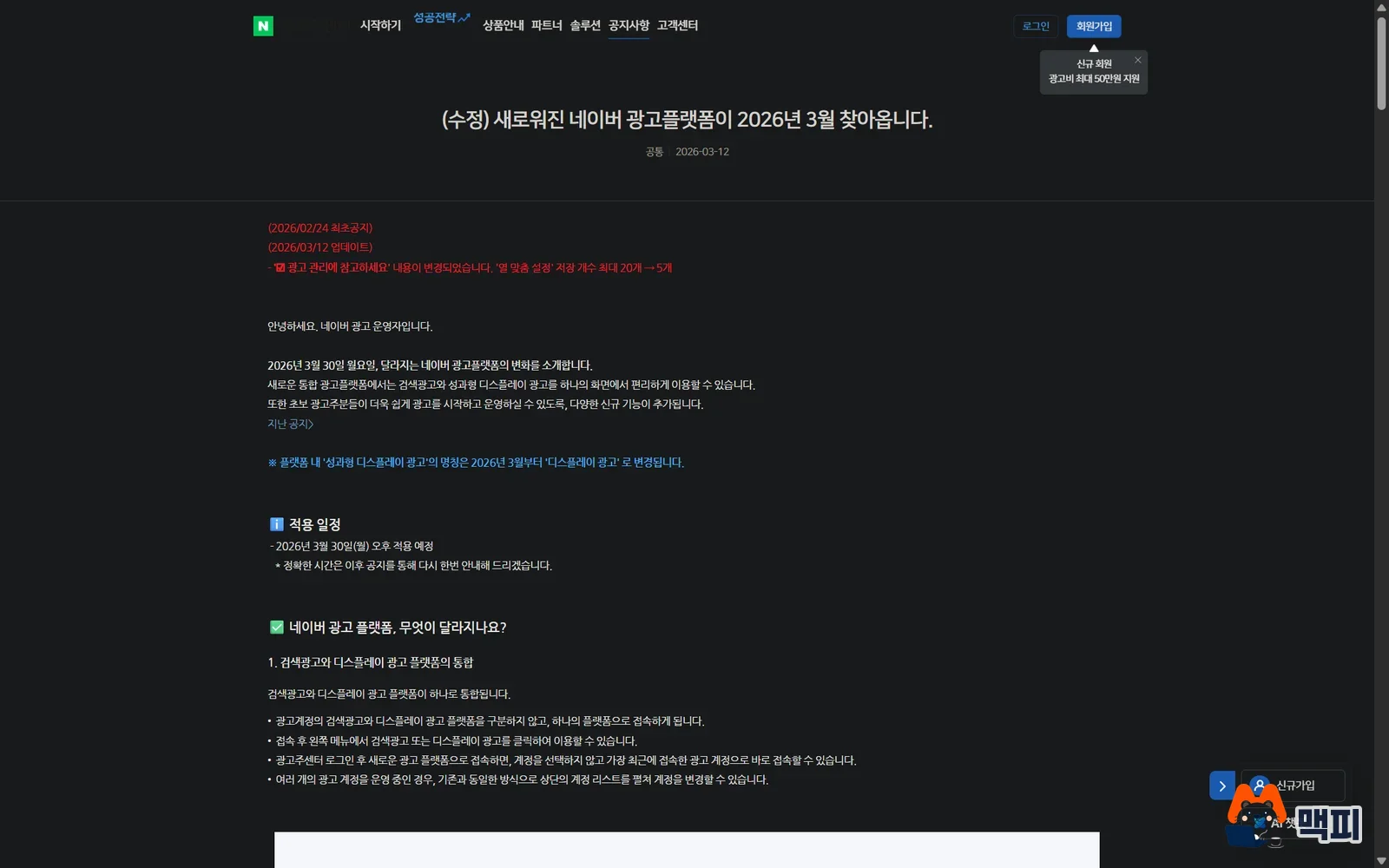
Everything in the table comes from the Advertiser Center notice. The notice was first posted on February 24, 2026. On March 12, the number of saved column customization sets was corrected from 20 to 5.
Where people get stuck with login and signup
- You finish member signup and then try to create an ad. Running ads requires an ad account, so complete "2. Create Naver ad account", which follows member signup.
- You search by the old menu names. If you cannot find business channel management or premium log analysis, look under component management and conversion tracking.
- You think your saved view settings disappeared. The default settings for search ads and the column customization settings for display ads were reset, so save them again in column customization.
- You try to create an individual advertiser account with a group ID. A group ID can only create business advertiser accounts.
- You do not realize you are editing ads in a different account. Login connects you straight to the account you used last, so check the current account in the top account layer before you start work.
Naver ads management system FAQ
Do I need to register my existing search ads again on the unified platform?
No, you do not. According to the FAQ in the notice, all the ad information you already registered is kept, and your ads keep running without interruption.
Can I edit an ad created with "Start ads quickly" later?
Yes, you can. The same notice says campaigns registered this way can have their campaign settings and budget edited like regular campaigns. After registration, check them in the ad management menu.
If I have many ad accounts, can I see my most-used accounts first?
Yes. According to the Advertiser Center help, if you mark a linked ad account as a favorite on the account management page, your list of favorite accounts appears on the main home page after login.
Your task for today is to log in to the Advertiser Center and confirm that the ad account in the top account layer is the one you plan to work in. If you do not have an ad account yet, finish ad account creation right after member signup.
Sources: Naver Advertiser Center notice on the renewed Naver ad platform, how to sign up as a member, signup and registration procedure, what is the Naver Advertiser Center, accessing the Advertiser Center, adding an account, adding a new ad account. Checked on October 3, 2026. Images labeled "screenshot" are official Advertiser Center screens. The other images are generated illustrations for explanation.
Found this useful? Share it
Latest posts
Kakao Share Thumbnail Not Showing? Here's the Fix (JavaScript SDK 2025)
Learn why Kakao Share thumbnails don't appear even with a valid imageUrl, and fix it using scrapImage to convert your URL into a KAGE CDN URL. Step-by-step guide.
How to Generate CRM User Manuals in 20 Minutes with Claude Code Sub-Agents
Learn how Claude Code sub-agents can analyze your CRM codebase and auto-generate user manuals and visual guidebooks in just 20 minutes. See the real-world results.
GEO Generative Engine Optimization: The Complete 2025 AI Marketing Strategy Guide
Learn what GEO (Generative Engine Optimization) is, how it differs from traditional SEO, and discover 5 proven AI marketing strategies to get cited by AI search engines in 2025.
Related projects
Get new posts by email
Insights on marketing, analytics, and dev, delivered to your inbox.