

The Naver Keyword Tool lives in Naver Ads Manager (Korea's largest search engine's advertiser center) under [Search Ads > Tools > Keyword Tool]. Enter a keyword and it shows related keywords with monthly search volume for PC and mobile. To check search volume, type your keyword on this screen and click [Search]. As of October 4, 2026, related keyword lookup and keyword adding in the Keyword Tool are supported only for the Power Link campaign type. Below you will find the lookup steps, how to read the results table, how to add keywords to an ad group, and the points where first-time users get stuck.
What the Naver Keyword Tool is: where to open it and what you can see
The Keyword Tool is the screen for finding new keywords to advertise on. Open it from Naver Ads Manager > Search Ads > Tools > Keyword Tool. When you enter a keyword, a table shows metrics for each related keyword, such as monthly search volume, average monthly clicks, and average monthly click-through rate.
There are four lookup criteria, and you must specify at least one of keyword or website. You can also combine two or more criteria.
| Lookup criterion | How to enter | When to use |
|---|---|---|
| Keyword | One per line, up to 5, each 1 to 30 characters | When you want to see search volume and related keywords right away |
| Website | Select a website business channel registered in your ad account | When you want keywords related to your own site |
| Industry | Choose in order: major category > middle category > minor category (optional) | When you want more accurate recommendations |
| Season month / season theme | Multiple can be set together (optional) | When you are looking for seasonal keywords |
The table summarizes the related keyword lookup help page. Related keywords are results pulled by the statistics system from keyword information on your business channel website, keyword click data, keywords you have purchased, and more.
How to use the Naver Keyword Tool: steps to check keyword search volume
If you already have keywords in mind, look them up in this order.
- Log in to Naver Ads Manager and open [Search Ads > Tools > Keyword Tool].
- Under 'Related keyword lookup criteria', check Keyword and enter the keywords you want to check, one per line. A notice appears if you go over 5, so enter 5 or fewer.
- Check website, industry, or season month / season theme only when you need them to add conditions.
- Click [Search] and the 'Related keyword results' table appears. To reset your conditions and start over, use [Clear inputs].

After the lookup, up to 100 related keywords appear per page, and the [Download] button lets you export all the looked-up related keywords to Excel. You can also narrow the list by entering conditions in the 'Enter a filter' field above the results.
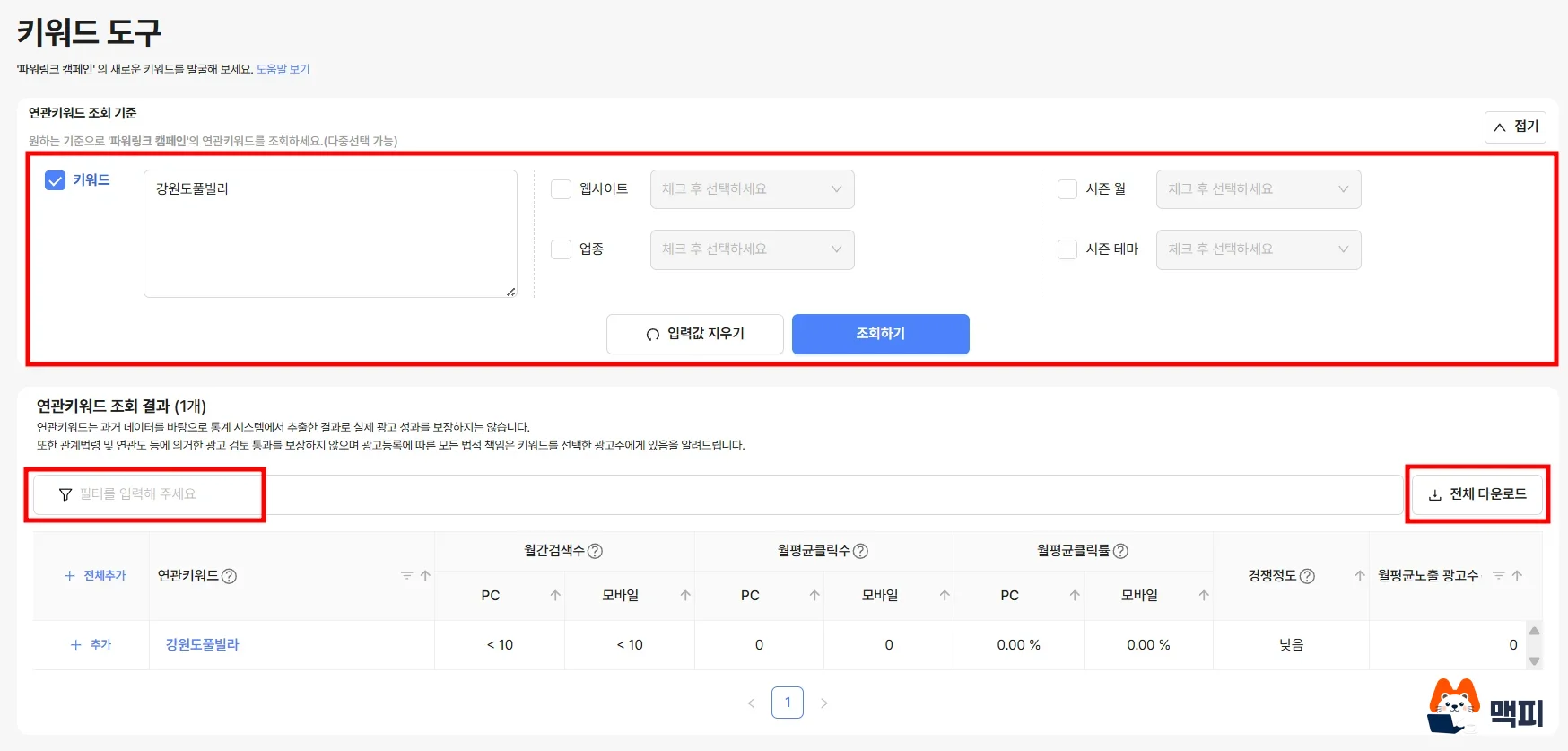
To confirm the lookup worked, check the 'Related keyword results (N)' count above the table and the related keyword in the first row. If the keyword you entered does not appear in the table, recheck the keywords in the input field and your lookup conditions.
How to read keyword search volume results: monthly search volume and competition
What each column in the results table means is laid out in the Keyword Tool screen layout help page.
| Column | Meaning |
|---|---|
| Related keyword | Name of the discovered keyword |
| Monthly search volume (PC / Mobile) | Average monthly searches. Values under 10 are shown as '< 10' |
| Avg. monthly clicks (PC / Mobile) | Average monthly clicks |
| Avg. monthly click rate (PC / Mobile) | Average monthly click-through rate (%) |
| Competition | Keyword competition index |
| Avg. monthly ads shown | Average number of ads shown for the keyword per month |
Monthly search volume is split into PC and mobile, so if you need the total search volume for a keyword, add the two numbers. '< 10' is not an exact value. It only means the number is below 10, so do not turn it into 0 when you add. Note it separately as 'under 10'.
Click a keyword name to see more detail. Clicking a looked-up related keyword shows the monthly search trend for the past year and user statistics by gender and age group. This is useful for filtering out keywords whose searches spike in only certain months. Each metric column can be sorted, so you can sort by monthly search volume and scan from the top to shortlist candidates quickly.
These numbers are only values within Naver. Related keywords are statistical results extracted from past data, and they do not guarantee actual ad performance or passing ad review. For how to view search data with Naver DataLab and Google Search Console, see our article on Google Search Console and Naver DataLab.
Add keywords to an ad group and view monthly estimated performance
Once you find useful keywords, you can add them to an ad group straight from the results table. Click [+Add] on a keyword row, or click [Add all] to take everything on the current page. Selected keywords collect in 'Selected keywords N/100' on the right, and you can select up to 100 at a time.
- After selecting at least one keyword, click [Add now].
- Choose the campaign, then select the ad group to register in. Only ad groups of the Power Link campaign type are eligible.
- When you save, the keywords are registered, and the bid is set to the ad group's default bid.
To confirm registration is done, open [Search Ads > Ad Management], go to the 'Keywords' tab in the ad group details, check that the keywords you just added are in the list, and confirm the bid matches the group's default bid. If you want to run different bids, edit them per keyword at this step.
If you want a sense of cost before registering, use [View monthly estimated performance]. Enter a bid and run the lookup to see monthly estimated performance in the table below, and you can view it split by PC or mobile. The table shows estimated impressions, estimated clicks, estimated average cost per click (excluding VAT), and estimated ad spend.
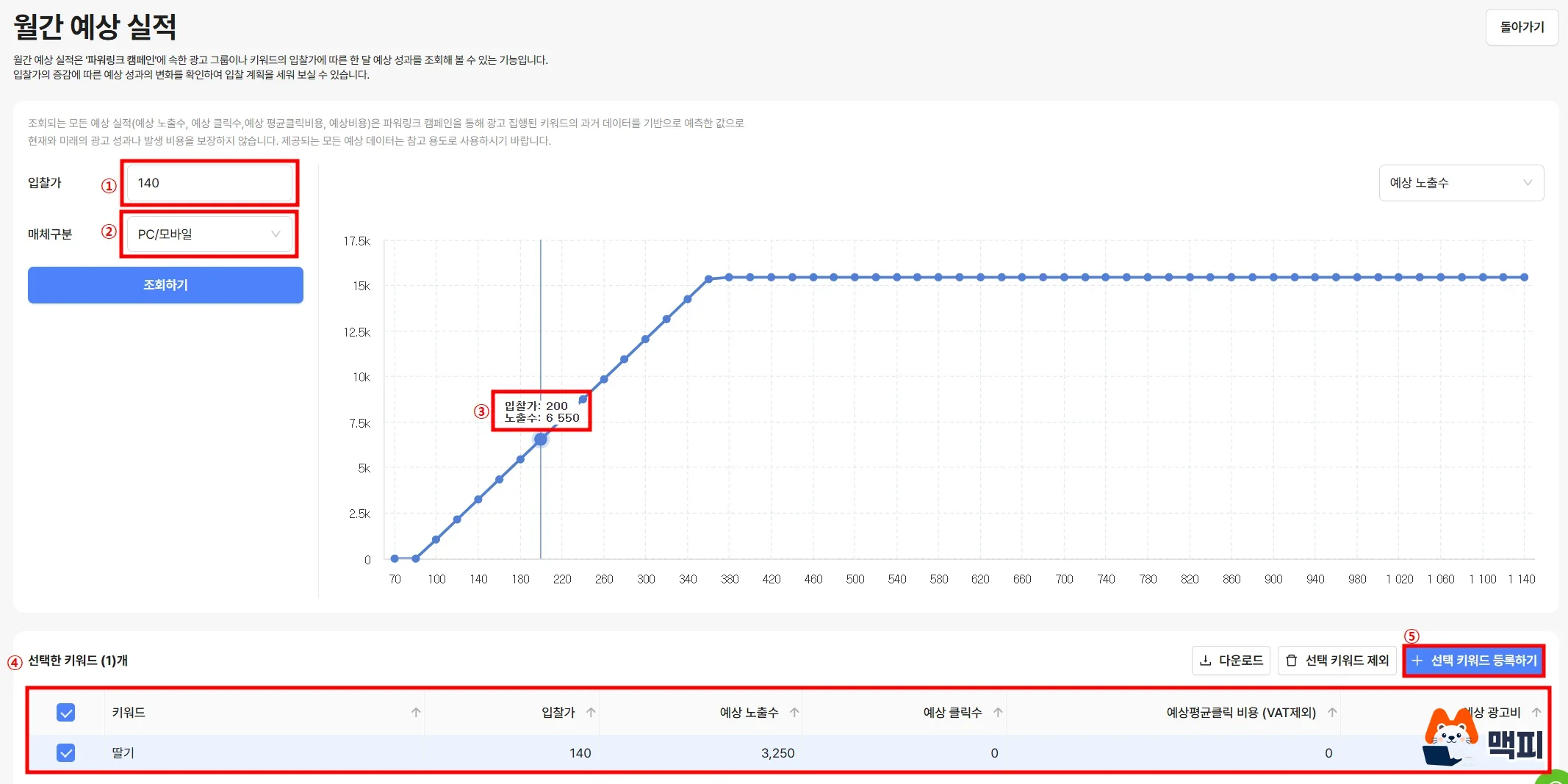
Note that these estimates are predicted from past data (the last 4 weeks) of keywords run in Power Link campaigns. The help page also says they do not guarantee current or future ad performance or costs, and should be used for reference only.
You can also see the same related keywords inside an ad group, so it is easy to get confused about where to look. Here is how the uses divide.
| Location | What you can do |
|---|---|
| Tools > Keyword Tool | Look up related keywords broadly by keyword, website, industry, and season, and download them to Excel. |
| Ad group > Keywords tab > [New keyword] | In the related keywords area on the right, use the [Related keywords by ad group] and [Related keywords by keyword] tabs to see monthly search volume and add keywords right away. If you need a wider variety of keywords, go to the Keyword Tool. |
| Keyword Tool > [View monthly estimated performance] | Change the bid and see estimated impressions, clicks, and cost. |

Common mistakes when using the Naver Keyword Tool for the first time
- Entering too many keywords at once. You can look up 5 keywords at a time, each up to 30 characters. A notice appears if you go over 5, and an error message appears if you go over 30 characters. Split your keywords into groups of 5 by topic.
- Not being able to select the website condition. If no website business channel is registered, you cannot select a website. In that case, look up by keyword only, or register a website business channel in your ad account first.
- Trying to use it for ads other than Power Link. Related keyword lookup and keyword adding are supported only for the Power Link campaign type. You cannot add keywords with [Add now] to ad groups of other types.
- Reading estimated performance as a promised number. Monthly estimated performance is an estimate based on the past 4 weeks of data. When you plan a budget, adjust bids by watching real results after launch.
Naver Keyword Tool FAQ
Can I download Keyword Tool results to Excel?
Yes. Click [Download all] at the top right of the results table and the lookup results download as an Excel file.
Does '< 10' in monthly search volume mean there are no searches at all?
No. If average monthly searches are under 10, it is shown as '< 10', which means below 10, not 0.
Where can I see PC and mobile search volume combined?
The results table shows PC and mobile separately and has no total column. Add the two numbers yourself to get the total search volume.
Open the Keyword Tool in Ads Manager now, enter 5 keywords you care about, click [Search], and sort by monthly search volume from highest to lowest.
Found this useful? Share it
Latest posts
Kakao Share Thumbnail Not Showing? Here's the Fix (JavaScript SDK 2025)
Learn why Kakao Share thumbnails don't appear even with a valid imageUrl, and fix it using scrapImage to convert your URL into a KAGE CDN URL. Step-by-step guide.
How to Generate CRM User Manuals in 20 Minutes with Claude Code Sub-Agents
Learn how Claude Code sub-agents can analyze your CRM codebase and auto-generate user manuals and visual guidebooks in just 20 minutes. See the real-world results.
GEO Generative Engine Optimization: The Complete 2025 AI Marketing Strategy Guide
Learn what GEO (Generative Engine Optimization) is, how it differs from traditional SEO, and discover 5 proven AI marketing strategies to get cited by AI search engines in 2025.
Related projects
Get new posts by email
Insights on marketing, analytics, and dev, delivered to your inbox.