
Naver Place ads show your business in the map and Place areas of Naver, Korea's largest search engine, and you pay only when a click happens (CPC). According to the Naver Ads advertiser center help page, registering and showing an ad is free, and you set a bid from KRW 50 to 5,000 (excluding VAT). As of October 3, 2026, this guide covers the setup steps, the cost structure, and the difference between manual operation and ADVoost Place (automatic operation, beta), which became the default for new ad groups on September 16.
Naver Place ad placements and eligible business types
Place ads are native ads mixed into the Place area. Depending on the keyword, 1 to 12 ads appear in PC and mobile integrated search where Place shows up, on Place service pages, and in the lists and marker areas of the PC map web and the map app. They also run in search results and content areas of affiliated partner media (Help 1044). The ad is built from the business information registered in Smart Place, Naver's free business listing tool, so your business must be registered first.
Unlike Power Link, Naver's keyword search ads, you do not register keywords yourself. Your ad is matched automatically to keywords related to your business (Help 1353), so what you set in the ad group is the bid, the daily budget, and the operation mode.
Most business types can advertise, but gambling venues, entertainment bars, and adult product sellers cannot register or run ads, and businesses such as gas stations and convenience stores are also excluded because they are judged unsuitable given how people search for information. Medical institutions such as hospitals, clinics, Korean medicine clinics, and dental clinics must get medical ad pre-review from their trade association and register the review approval number.
Naver Place ad cost: bids and daily budget
Impressions alone cost nothing. Charges apply to clicks that go to the business page, and to clicks on the call, booking, save, directions icon, visitor review, and Place Plus (beta) items. Clicks on the directions start icon and the share icon are not charged.
| Item | Details | Source |
|---|---|---|
| Billing method | Pay per click (CPC), free to register and show | Help 1044 |
| Bid range | KRW 50 to 5,000, in KRW 10 steps, excluding VAT | Help 1353 |
| Where to set the bid | Default bid in the ad group advanced options. If you set nothing, it bids KRW 50 | Help 1353 |
| Daily budget cap | KRW 100,000 per ad group, KRW 100,000 per campaign | Help 1353 |
| Daily budget default | Campaign KRW 30,000, ad group KRW 30,000 | Help 1319 |
The bid is the maximum you can pay for one click, and it applies equally to every placement where the ad runs, including integrated search, map search, and partner media. The daily budget is not a perfect cap either. Even after the ad group switches to "paused" on reaching the budget, it takes time to drop out of search results, and clicks during that time mean the actual charge can exceed the daily budget you set.
How to start Naver Place ads
Start from Search Ads in the Naver Ads advertiser center by clicking [Create ad]. The status of your Smart Place business information must be "Normally reflected" before you can pick the business to advertise.
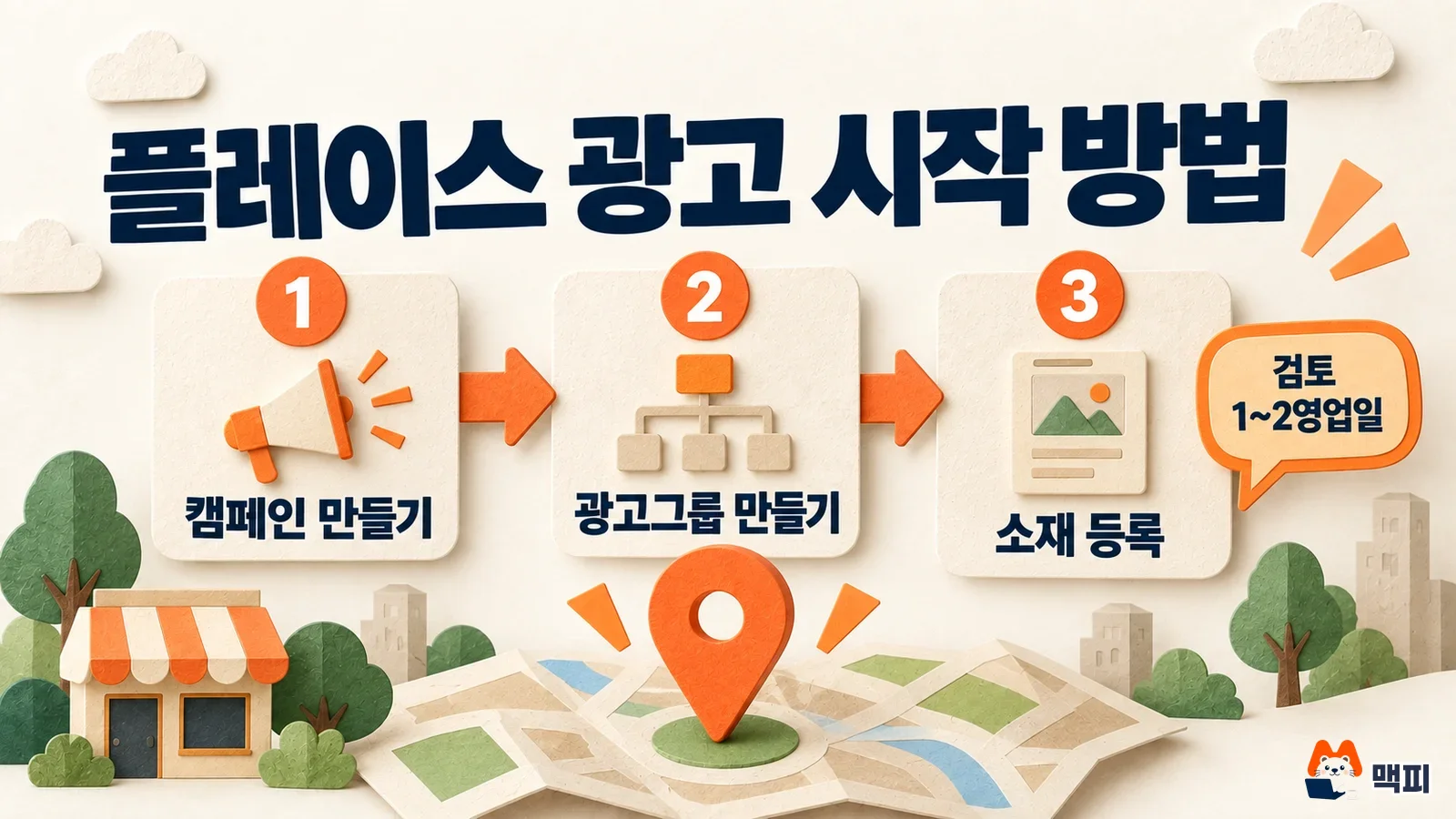
- Create a campaign: Choose "Place type" as the campaign type and set the daily budget. The default is KRW 30,000.
- Create an ad group: The ad group type is "Place search". Pick the business to advertise, or if this is your first time, go to "Create new", click [Agree and verify] and verify with your Naver ID to import the business information. Then choose the operation mode. The default is ADVoost Place automatic operation. Switch to manual operation if you want to set the bid, targeting, and creative yourself.
- Create the ad (creative): With automatic operation, the creative is generated from Smart Place information. With manual operation, you register a business promo phrase (up to 16 characters) and images (up to 3, image 1 required). You can create up to 5 creatives per ad group.
Clicking [Create ad] starts the review. It only proceeds if you have a Biz Money balance (Naver's prepaid ad credit), and it finishes within 1 to 2 business days. After approval, it takes up to 3 more hours to be reflected in impressions. The promo phrase and images you enter in the advertiser center are used only for the ad and do not affect how your business information appears in Smart Place. Edit the business name, address, and business hours in Smart Place (Help 1319).
On the ad group creation screen, you can see a list of keywords your ad is expected to appear for, based on the registered business information. You can check and edit this list only when creating the ad group, so it is better to switch off any unwanted keywords right there.
ADVoost Place automatic vs manual operation compared
ADVoost Place is not a separate product. It is one operation mode of Place ads. In its September 9, 2026 notice, Naver described it as a feature that automates bidding, targeting, and creative generation through auto bidding, auto targeting, and auto creative generation. It was applied to the advertiser center from the afternoon of September 16. It is currently in beta and will be applied to the Smart Place center in stages later, though the notice adds that the schedule may change for internal reasons. Billing is CPC, the same as manual operation.
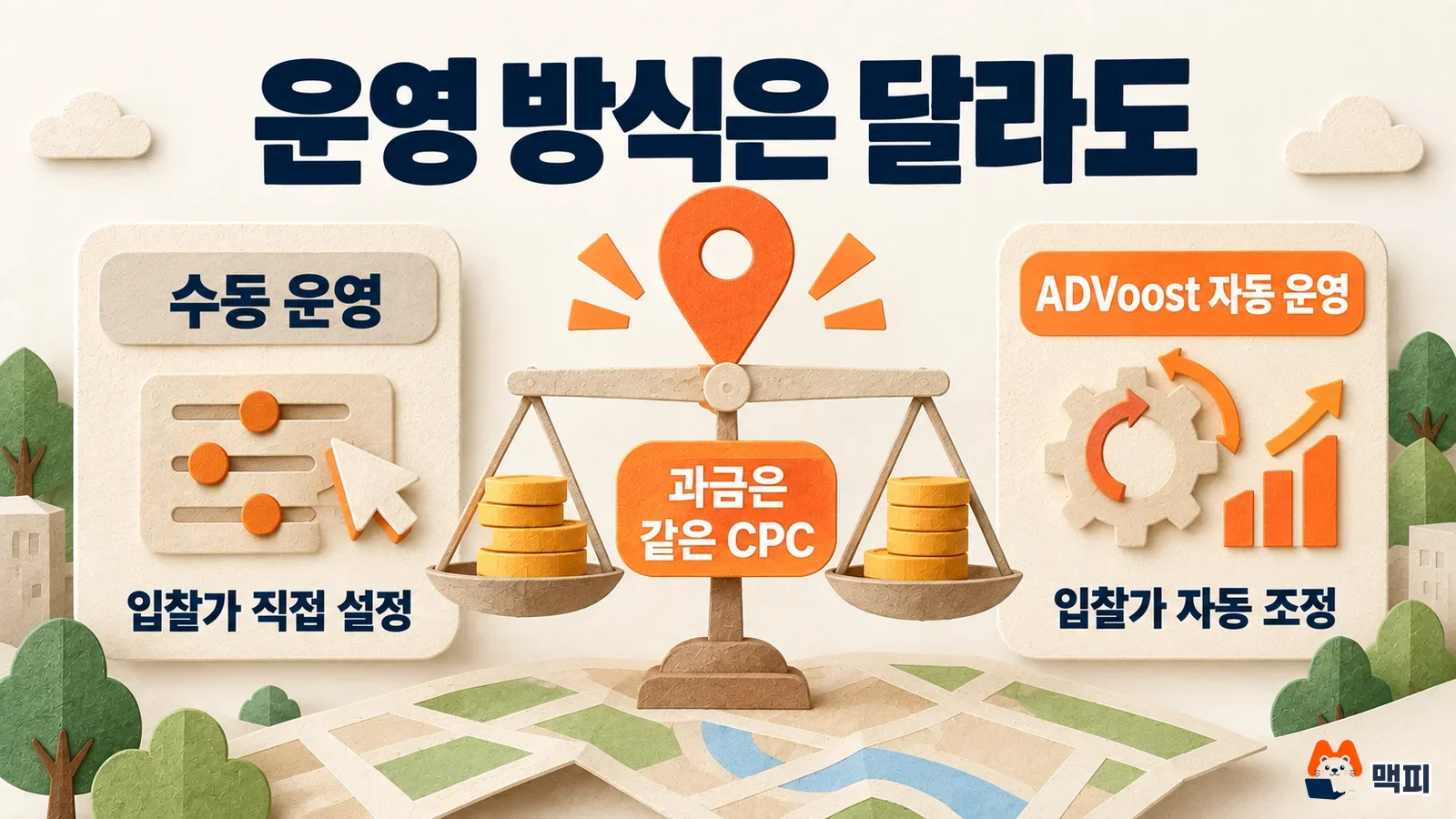
| Item | Manual operation | ADVoost automatic operation (beta) |
|---|---|---|
| Bid | Set it yourself (KRW 50 to 5,000) | Cannot be set. Adjusted automatically in real time to maximize clicks within the daily budget |
| Targeting | Set region, media, gender, age group, and day/time yourself | Region, gender, age group, and media cannot be set. Only day and time can be set, and this condition takes priority over auto targeting |
| Creative | Register the promo phrase and images yourself | Generated automatically from Smart Place information, cannot be edited in the advertiser center |
| Billing | CPC | CPC |
The table reproduces the cautions from the original notice, which has more conditions that affect your choice. Existing ad groups are not switched automatically and stay as they are. Automatic operation is selected by default only when you create a new ad group. Ad groups with auto bidding cannot use the even daily budget distribution option, and the full daily budget may be spent. The business needs at least 1 image in Smart Place, and if you delete all images during operation, delivery may stop. Hospital and clinic categories that require ad review cannot use it.
Choose manual operation if you need to cap the cost per click through your bid, or if you target only certain regions or ages. Automatic operation is worth trying if you have no time to adjust bids and your Smart Place photos and information are well filled in. Because automatic operation can spend the whole budget, it is safer to start with a low daily budget.
Checking Place ad results and what to check when ads do not show
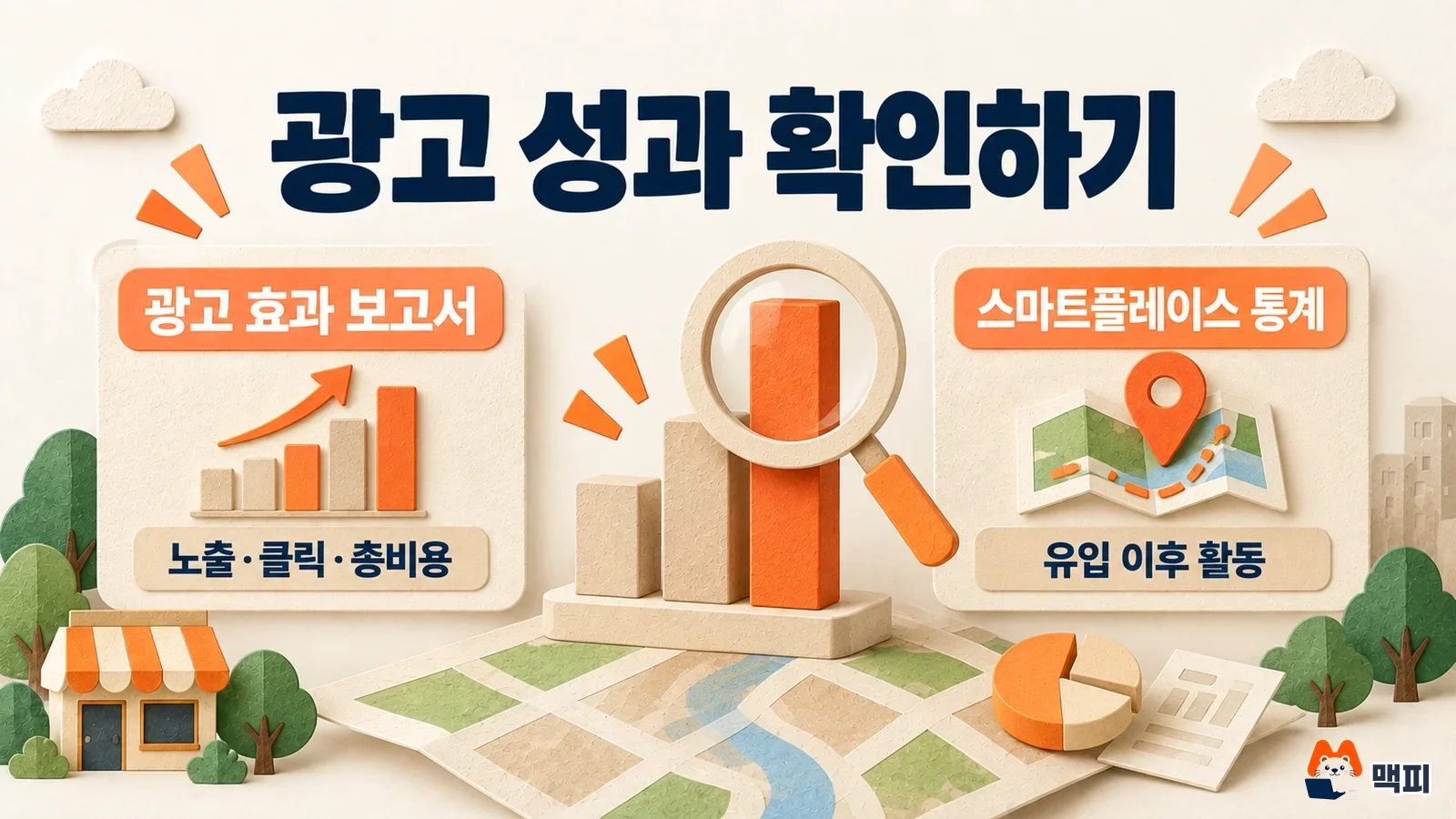
Check whether the ad is running in the advertiser center, and check what people did after clicking in Smart Place.
| Where to check | What you can see |
|---|---|
| The ad performance report in the advertiser center | Impressions, clicks, click-through rate, total cost |
| Smart Place statistics | Visits after arriving from the ad, bookings and orders, and Smart Call. You can view ad traffic separately |
If clicks rose in the report but bookings or calls in Smart Place statistics did not, it is a sign to fix the photos, menu, and business hours on your Place page before touching the ad. The ad only brings people as far as the click.
When your ad does not show, first go through the items on the impression check help page in order. The help page says real-time delivery is hard to verify. If several businesses bid on the same search term, only other businesses' ads may show in your own search environment by chance, so judge by the impressions in the report.
- Biz Money balance: Review proceeds only if there is a balance, so if nothing happens after you create an ad, check your top-up first.
- Reflection time: It takes up to 3 hours for impressions to reflect, after review approval and also after you change the operation status or strategy.
- Excluded search terms and strategy: Ads do not run on search terms you registered as excluded, and narrow region, media, gender, or age group strategies also reduce impressions.
- Ad rank: In integrated search, rank is set by bid and quality index, so if it is low, check the average ad bid of nearby businesses in the same category with the bid support tool.
- Smart Place status: If the business information registered in Place is not in the "Can be shown" status, the ad will not run either.
You have two things to do now. Check in Smart Place that your business status is "Normally reflected", and decide whether to keep automatic operation or switch to manual when you create a new ad group in the advertiser center.
Update (October 19, 2026): Test of a redesigned restaurant list search result
In its October 19, 2026 notice, Naver said it will test a redesign of the restaurant category list results on Naver mobile integrated search from Thursday, October 29, 2026 to Thursday, November 12, 2026. The change applies to all Place service search results, so Place ads change with it. During the test, only some users will see the new screen, and whether and when it goes live will be announced separately based on the results. The schedule may change for internal reasons.
| What changes | Redesign details |
|---|---|
| Badge area | Booking/order availability, neighborhood booking rank, rising booking/order, newly opened, and many repeat visits are gathered in a badge area under the business name |
| Benefit information | Coupon, membership, and Naver Booking benefits that used to appear in the promo phrase area move to a benefit card under the image |
| Place Plus popular menu | Moves from a separate card to a single line above the business image |
| Marks beside the business name | The Naver Pay, delivery, Talk Talk, and coupon marks no longer appear |
| Image size | The height of the business image is partly reduced. The type of ad image and the display order stay the same |
The notice does not say that bids, billing, or ad display order will change. Badges, benefits, and popular menus appear based on the Place service whether or not you advertise, so there is no reason to raise ad spend just to earn a badge. This redesign applies only to restaurant category search results, and other categories are not covered by the notice.
Restaurant advertisers have two things to do before the test. If you put coupon, membership, or Naver Booking benefits in your promo phrase, they will now show separately in the benefit card, so recheck the promo phrase so it describes what makes your business distinct, and check that the key part of the business image is not cropped when the height shrinks. During the test period (October 29 to November 12), compare impressions and clicks in the ad performance report and bookings and calls in Smart Place statistics side by side with the period before the test to see the change. Only some users see the new screen, so not seeing it on your own phone does not mean it has not been applied. Detailed images of the changed screen will be added to the notice before the test starts, so check the original notice.
Naver Place ads FAQ
Are Smart Place ads a different product from Place ads?
They are the same ad. You link the business information registered in Smart Place and run it as a "Place type" campaign in Search Ads in the advertiser center (Help 1044). The notice says Naver is preparing a staged rollout so you can also register and run ads from the Smart Place center.
Can I choose the keywords my Place ad appears for?
Keywords are not registered. Instead, you can register excluded search terms per ad group to remove keywords you do not want (Help 1353), and you can also exclude them from the expected keyword list on the ad group creation screen. This list does not guarantee impressions, and after the group is created it can no longer be viewed or edited.
Official help pages checked on October 3, 2026 (Help 1044 last updated September 21, 2026, and 1319 last updated September 16, 2026). Naver can change bids, limits, and ADVoost conditions, so recheck the guidance on the advertiser center screen before you create an ad. The images are generated illustrations for explanation and are not actual advertiser center screens.
Found this useful? Share it
Latest posts
Kakao Share Thumbnail Not Showing? Here's the Fix (JavaScript SDK 2025)
Learn why Kakao Share thumbnails don't appear even with a valid imageUrl, and fix it using scrapImage to convert your URL into a KAGE CDN URL. Step-by-step guide.
How to Generate CRM User Manuals in 20 Minutes with Claude Code Sub-Agents
Learn how Claude Code sub-agents can analyze your CRM codebase and auto-generate user manuals and visual guidebooks in just 20 minutes. See the real-world results.
GEO Generative Engine Optimization: The Complete 2025 AI Marketing Strategy Guide
Learn what GEO (Generative Engine Optimization) is, how it differs from traditional SEO, and discover 5 proven AI marketing strategies to get cited by AI search engines in 2025.
Related projects
Get new posts by email
Insights on marketing, analytics, and dev, delivered to your inbox.