
ChatGPT image generation means asking for a scene in the chat window and refining the result with follow-up requests until it is done. You can also upload a photo you already have and describe what to change, all in the same chat. As of October 7, 2026, the OpenAI images help page covers both creating new images and editing existing ones. Free accounts can use it, but image generation has its own limit, separate from chat.
How to create images in ChatGPT
There are two ways to start. You can ask during a chat, for example "Draw an illustration of a cat reading a book." Or you can pick Images from More in the input box. If you open Images in the sidebar and click Templates, you see templates by category. You choose one and then add the details you want.
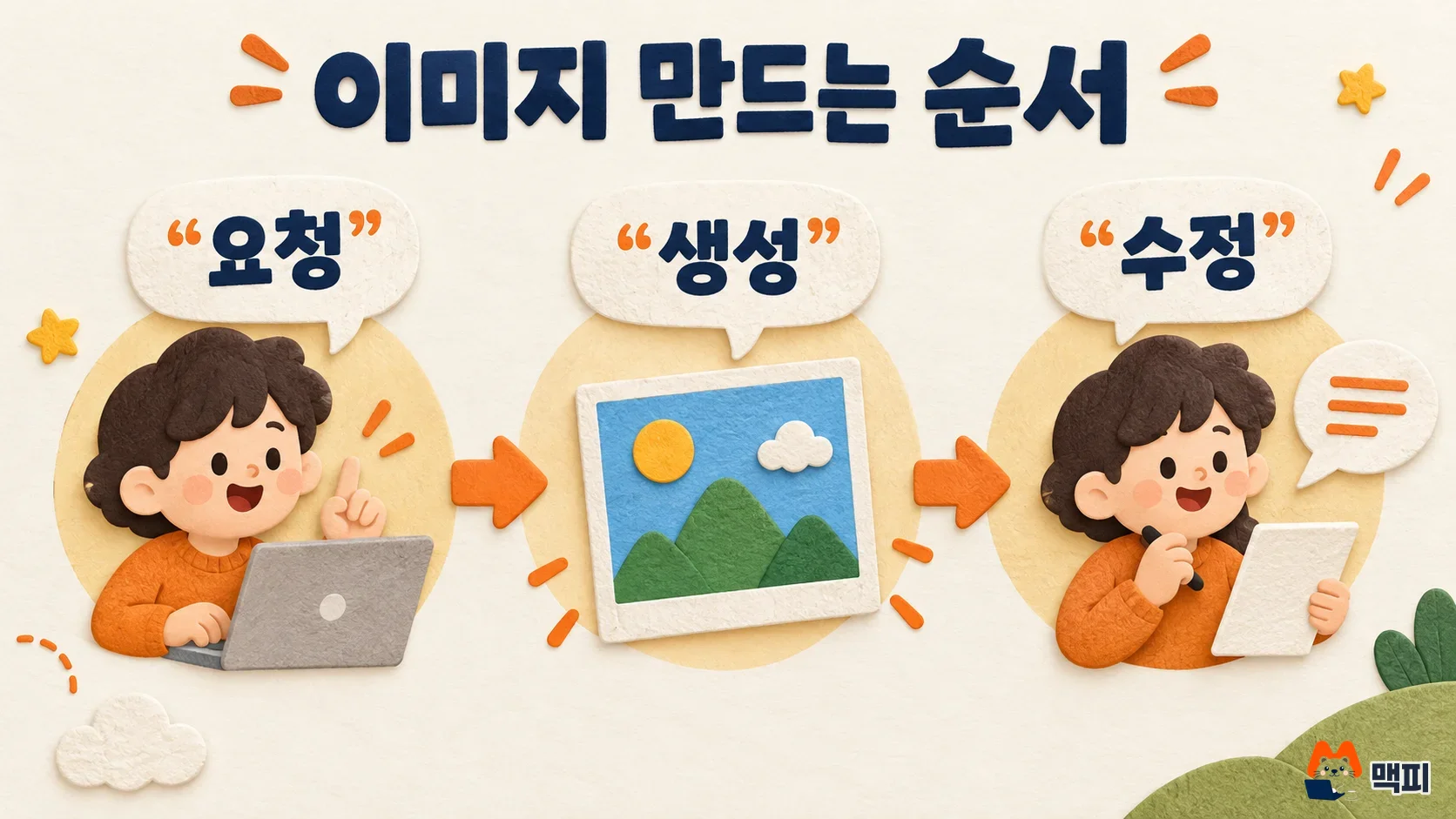
- In the ChatGPT chat window, write the scene you want. Put who does what, the background and the mood in one sentence.
- When the image appears, check whether you like it. In the same chat, ask only for what to change, such as "Make the background simpler" or "Make the colors brighter."
- When it is done, open the image and download it.
If the image shows up in the chat and you can open and download it, generation worked. If you see a limit notice instead of an image, check the free limit section below.
You set the aspect ratio with the ratio selector in the input box, or by writing something like "16:9" in the prompt. According to the OpenAI help page, you can create images in any ratio. Decide where the image will be used first, for example landscape for a blog hero image, or square or portrait for an Instagram feed. Then request that ratio, and you will redo fewer images.
How to edit and transform photos in ChatGPT
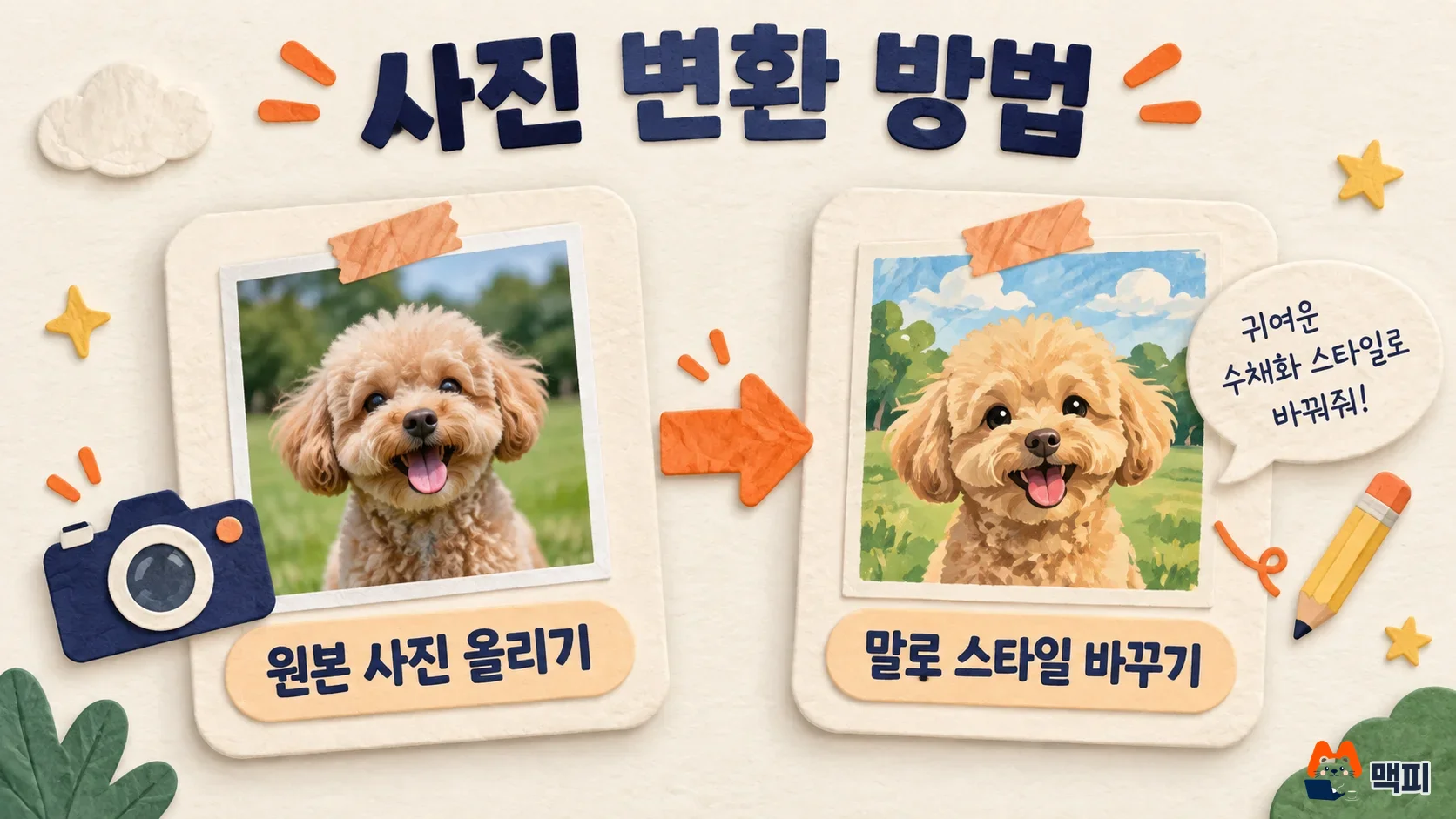
Photo transformation means uploading an existing photo and describing what you want to change. The OpenAI help page says to pick an image ChatGPT made or upload an existing one, then describe the change. There is no separate style-transfer button. Instead, you write the result you want, such as "in a watercolor style" or "in a cartoon style."
| What you want to do | How to do it | Example request |
|---|---|---|
| Change the overall mood of a photo | Upload the photo and describe the new look | "Change this photo to look like a watercolor painting" |
| Fix only part of an image | Click the image, mark the area with the Select tool at the top right, and write the change | "Make the background of the marked area white" |
| Adjust only the feel | Keep asking in the same chat | "Keep the composition and make the colors softer" |
How to select an area with the Select tool is explained in the editing section of the images help page. When you like the result, zoom in and compare it with the original to check that faces or product shapes are unchanged. For product photos, it matters most that logos and text have not changed.
How to write ChatGPT image prompts
A prompt (the request text you give an AI) gives steadier results when you put the subject, background, style and ratio in one sentence, in that order. The examples below are the author's own, and actual results differ each time.
- Subject and background: "A marketer looking at a laptop on a desk, bright office background"
- Style: "Paper cut-out style illustration, mainly blue and orange"
- Ratio and use: "16:9 landscape for a blog hero image"
The ChatGPT Images 2.5 announcement promotes better text rendering. Still, Korean-language text can come out misspelled. Put the exact wording in quotation marks, keep it short, and read the result yourself. If a letter is wrong, ask for only that fix, such as "Change the text on the second line to 'Maekpi'."
ChatGPT image generation free limit
Free accounts can create images, but the number is limited. The free plan FAQ explains that features such as file uploads, image generation and voice have usage limits separate from chat, and that ChatGPT tells you when you reach one. The official documents do not fix a number of images per day, so this article does not state one either.
The ChatGPT pricing page marks image generation on the free plan as limited, and says paid plans such as Go and Plus offer a higher image generation limit. If you hit the limit often, first refine your prompts so they work in one go and cut down on repeat requests before you upgrade.
What to check after saving a generated image
Images made with ChatGPT carry markers that disclose their origin. According to the OpenAI help page, ChatGPT images include C2PA metadata (an international standard record of the tool and time of creation) and a SynthID watermark. Use the image on the assumption that people can tell it was made with AI when you put it in ads or product detail pages.
The OpenAI terms of use say the user owns the Output (what the AI produces). Even so, images that show trademarks or real people need a separate check. The image is ready to use when it matches the scene you intended, the text is accurate and the downloaded file opens.
Common mistakes in ChatGPT image generation
| Mistake | Resulting problem | How to fix it |
|---|---|---|
| Requesting without deciding where it will be used | The ratio is wrong and you have to redo it | Set the ratio first with the selector or "16:9" |
| One long request | Unwanted elements get mixed in | Create one scene, then ask only for the parts to change |
| Long Korean text with no check | It gets published with misspellings | Keep it short and read it yourself before downloading |
| Commercial use without checking the terms | Trademark or real-person issues can arise | Go through the pre-save checklist |
ChatGPT image generation FAQ
What should I do if image generation fails and a limit notice appears?
You have reached the free limit. Try again after some time, or upgrade to a paid plan. The free plan FAQ states that ChatGPT notifies you when you reach a limit.
Can ChatGPT turn my photo into a cartoon style?
Yes. Upload the photo and describe the result you want, such as "Change this to a cartoon style." There is no dedicated style-transfer feature. You set the style in your request.
Can I fix only part of a ChatGPT image?
Yes. Click the image, mark the area to fix with the Select tool at the top right, and write what to change.
Found this useful? Share it
Latest posts
Kakao Share Thumbnail Not Showing? Here's the Fix (JavaScript SDK 2025)
Learn why Kakao Share thumbnails don't appear even with a valid imageUrl, and fix it using scrapImage to convert your URL into a KAGE CDN URL. Step-by-step guide.
How to Generate CRM User Manuals in 20 Minutes with Claude Code Sub-Agents
Learn how Claude Code sub-agents can analyze your CRM codebase and auto-generate user manuals and visual guidebooks in just 20 minutes. See the real-world results.
GEO Generative Engine Optimization: The Complete 2025 AI Marketing Strategy Guide
Learn what GEO (Generative Engine Optimization) is, how it differs from traditional SEO, and discover 5 proven AI marketing strategies to get cited by AI search engines in 2025.
Related projects
Get new posts by email
Insights on marketing, analytics, and dev, delivered to your inbox.