

Gemini Deep Research turns a single question into a research plan, finds and reads the web and the sources you choose, and organizes the findings into a report. According to Google's overview page, it works in the order of planning, searching, reasoning, and reporting. Accounts without a subscription can use it, and a report usually arrives within 5 to 10 minutes. Everything below is based on Google Help as of October 7, 2026.
How to start Gemini Deep Research
Google Help lists the requirements: you must be 18 or older and signed in to Gemini. Go to gemini.google.com, click the Deep Research button in the input box, write your request, and submit it. Gemini shows you a research plan first.
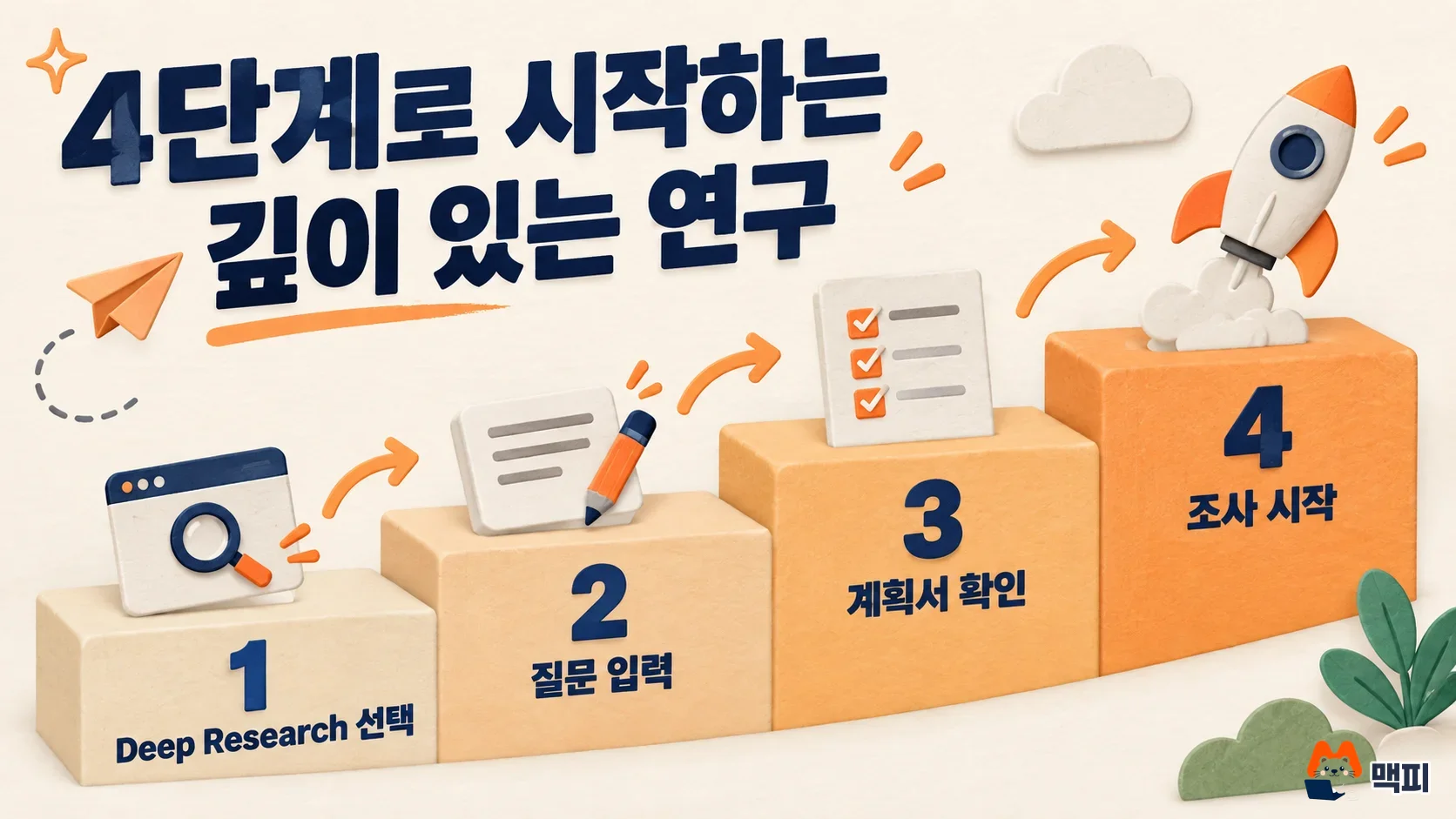
- Sign in at gemini.google.com and click Deep Research in the input box.
- Enter the topic and what you want in the report, then submit.
- Read the plan Gemini creates. According to the help page, you can click Edit plan to change it before the report is generated.
- Click Start research and wait. Complex research can take longer.
Step 3 is the biggest difference from a regular answer. You can fix the direction before the report exists. If the plan misses something you want to know, add it here. That is better than rerunning the research after you get the report. When the report is ready, you can open it. If the items in your plan appear in the report, it went as intended.
How to write a Deep Research prompt
One request and one plan review set the research direction. If you state the purpose, scope, and format in your request up front, the plan comes out right from the start. The example below is an illustration of what a marketer might write. It is not the result of an actual run.
| Element | What to write | Example input |
|---|---|---|
| Purpose | Where the report will be used | Material for next month's ad budget meeting |
| Scope | Subject, period, and region | Ad products from Naver (Korea's largest search engine), Kakao (Korea's top messaging app), and Meta in the 2026 Korean market |
| Comparison criteria | Items to compare | Minimum budget, targeting method, performance measurement |
| Format | Shape of the output | A table by item, a 3-line summary, and source links |
Joined together, this becomes: "I'll use this for next month's ad budget meeting. Compare the Naver, Kakao, and Meta ad products in the 2026 Korean market by minimum budget, targeting method, and performance measurement. Put it in a table by item with a 3-line summary, and attach source links." If you mix two or more topics, the plan gets long and hard to read. One question per report is easier to check.
Choosing sources and attaching files in Deep Research
According to the help page, Deep Research uses Google Search by default. From the source menu in the input box, you can add Gmail, Google Drive, NotebookLM notebooks, and files you upload. Upload files and images with your request using the add file button. To use Gmail and Drive, Google Workspace must be connected to the Gemini app.

If you only need public information, leave the default setting. If you need to look at your company's data together with market information, add sources. For example, upload last quarter's ad results PDF and ask, "Compare these results with the industry average." Email and Drive may contain customer or internal information. Before you share a report, check whether that content got mixed in.
How to review and save a Deep Research report
When the report is ready, click Open to read it in the Canvas view. From the same view you can ask follow-up questions or export it to Docs. The Create button in the same view can turn the report into an AI audio overview so you can listen to it. You can also share it or copy the text.

Before you use a report in a meeting, check the numbers and dates against the original links yourself. Figures that go into meeting material, such as prices, limits, and market share, need to be opened to confirm that the report and the source show the same value. Keep only the confirmed values in the document you export to Docs, and delete any sentence you cannot find in the source.
Deep Research usage and limits by plan
The feature table in Google's Gemini app help marks Deep Research as available for accounts with no subscription and for AI Plus, AI Pro, and AI Ultra. However, the same help page says that without a subscription, you may not be able to use compute-heavy features like Deep Research during high-demand periods.
| Plan | Deep Research access | Notes |
|---|---|---|
| No subscription | Available | May be unavailable during high-demand periods |
| Google AI Plus | Available | Standard limits apply |
| Google AI Pro and Ultra | Available | The help page says daily research limits are higher and reports can be of better quality |
Limits apply to the number of daily research requests and concurrent runs, and the help page gives no specific counts. Usage limits in the Gemini app refresh every 5 hours and continue until you reach the weekly limit. Deep Research is classified as a feature that uses more of your allowance. For plan prices, see the Gemini plan comparison. For the model change for personal accounts without a subscription starting October 9, see the summary of the free Gemini changes on October 9.
Frequently asked questions
How is Gemini Deep Research different from a regular answer?
A regular answer responds right away to your request. Deep Research builds a research plan, reads multiple sources, and then pulls everything into a report. That is why results take a few minutes.
Can I run Deep Research on material organized in NotebookLM?
NotebookLM notebooks are in the help page's source list, so you can select them from the source menu. For how to use NotebookLM, see the NotebookLM guide and source limits.
Is there a separate benefit for students?
Google's overview page says students get much broader Deep Research use for one year. Check that page for eligible countries and verification requirements.
Found this useful? Share it
Latest posts
Kakao Share Thumbnail Not Showing? Here's the Fix (JavaScript SDK 2025)
Learn why Kakao Share thumbnails don't appear even with a valid imageUrl, and fix it using scrapImage to convert your URL into a KAGE CDN URL. Step-by-step guide.
How to Generate CRM User Manuals in 20 Minutes with Claude Code Sub-Agents
Learn how Claude Code sub-agents can analyze your CRM codebase and auto-generate user manuals and visual guidebooks in just 20 minutes. See the real-world results.
GEO Generative Engine Optimization: The Complete 2025 AI Marketing Strategy Guide
Learn what GEO (Generative Engine Optimization) is, how it differs from traditional SEO, and discover 5 proven AI marketing strategies to get cited by AI search engines in 2025.
Related projects
Get new posts by email
Insights on marketing, analytics, and dev, delivered to your inbox.