
Read these three lines first
- Yes, it works. You can attach an
https://name.cloud.runaddress to a Cloud Run service without DNS or an external load balancer. - The preview was announced on September 28, 2026. Your existing
run.appaddress keeps working. - It does not replace a domain you own. The default limit is 50 per project, and Terraform and internal-only services are not supported.

Google Cloud announced the custom URL preview in the Cloud Run release notes of September 28, 2026. The notes give no separate effective date or regional rollout schedule. When I rechecked on September 29, the official setup guide was live.
This feature does not connect a domain you own. Instead, you pick a subdomain
under cloud.run, which Google manages.
For public services that need a brand domain, existing domain mappings or a load balancer are still the right choice. For demos and review tools, where a short address matters, custom URLs are worth considering.
This article reviews the official documentation only. I did not create an address in a real project or test HTTPS and authentication. The commands and checklist below are steps for you to verify yourself. They are not experiment results on success rate, propagation time, or cost savings.
You do not need DNS setup to create a new address
The default Cloud Run address includes the service name, project number, and region. It is long and hard to remember.
With a custom URL, you can add one more https://name.cloud.run address.
You need no DNS records and no external Application Load Balancer.
The release notes also say there is no extra cost.
The address is reachable from anywhere in the world. You can attach several addresses to one service. You can also change the mapping without deploying a new version of the service. All of this comes from the official setup guide.
It is still a preview, though. Supported scope and specs may change. It is safer to validate on a small service before you switch your main production address.
It serves a different purpose from existing custom domains
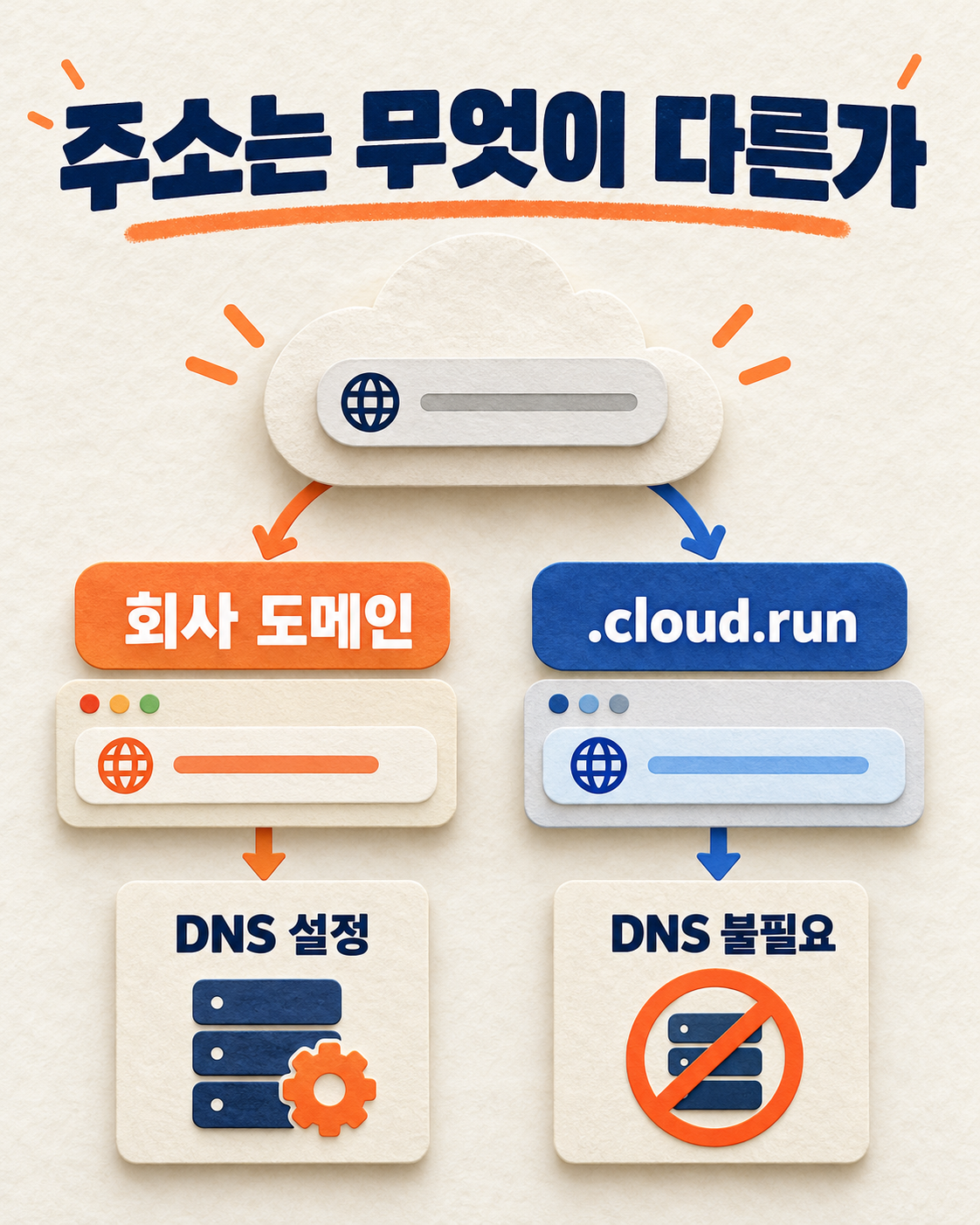
Existing domain mappings connect a domain you own, such as api.example.com.
They require domain ownership verification and DNS setup.
A custom URL uses a subdomain of a Google domain, such as example.cloud.run. There is no DNS work,
but you cannot use your company domain.
For public services where the brand address matters, keep your existing domain or load balancer. For demo and review environments and internal operations tools, a custom URL is a good first candidate.
Google does not require you to start with demo and review environments. That advice is an operational judgment based on the feature differences.
You can attach an address in the console or with gcloud
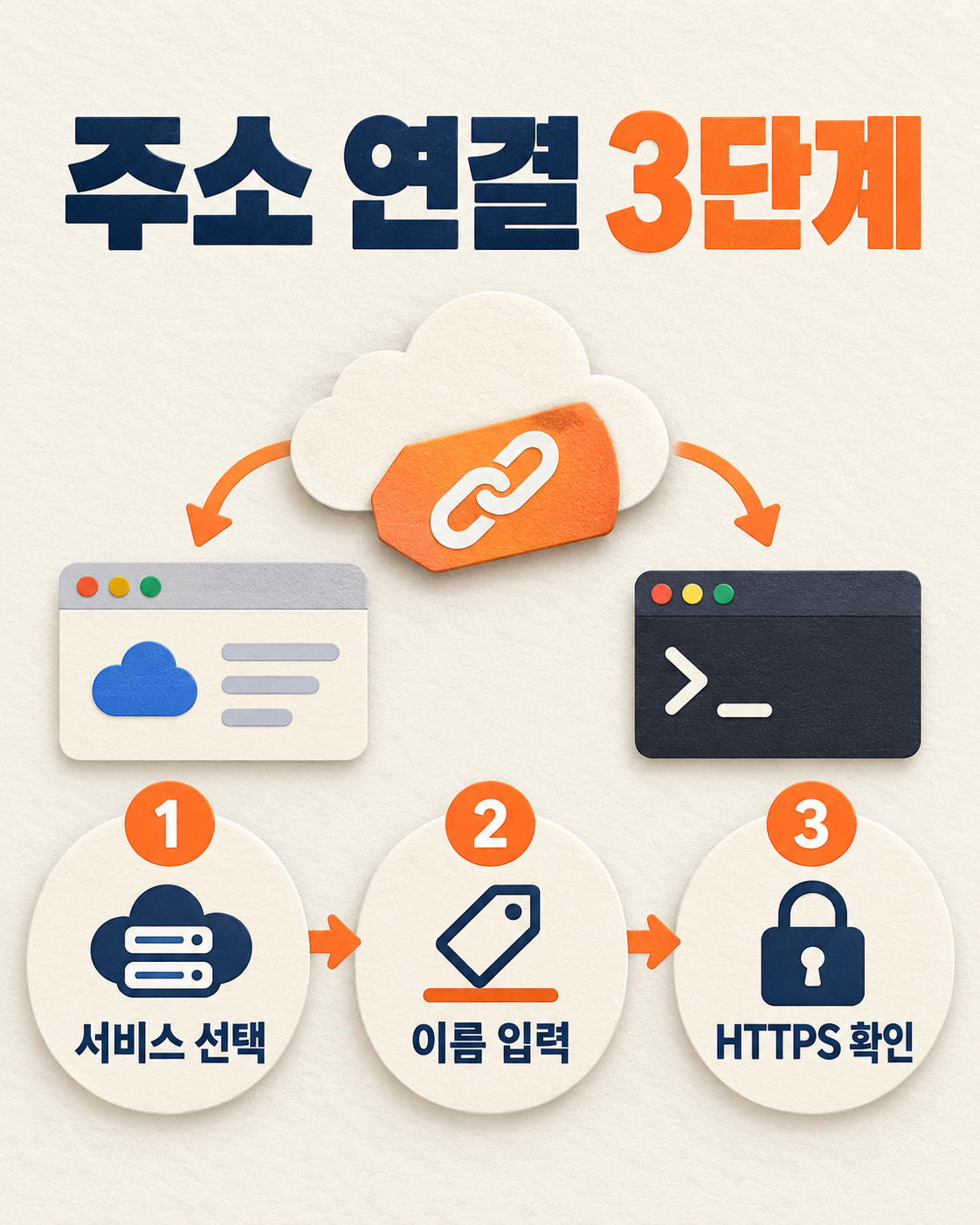
In the console, open the domain mappings screen for your Cloud Run service.
Click Add custom URL, then choose the service and the name you want.
When you deploy a new service, you can also attach the address in the custom URL section.
For an existing service, use this command.
gcloud beta run domain-mappings create \
  --service=SERVICE_NAME \
  --domain=CUSTOM_URL_DOMAIN.cloud.run
Creating, updating, and deleting require the roles/run.admin role
on the project. You can recheck the command and permission requirements in the official custom URL
guide.
Right after you create an address, you may see temporary routing errors for a few seconds. The official guide mentions this possibility too. Do not rely on the creation-complete message alone. Send a real HTTPS request to confirm.
Check the 50-per-project limit and the 6 to 63 character rule first
The default limit is 50 per project. A subdomain must be between 6 and 63 characters long.
You can use letters, numbers, and hyphens. A name cannot start or end with a hyphen. Some names are reserved.
Services with ingress restricted to Internal or
Internal and Cloud Load Balancing are not
supported.
Terraform is not supported yet either. The official guide warns against using the preview
domain_mapping resource as a workaround. In automated
deployments, you need to manage the console or gcloud beta command as a separate
step.

To move an address, you must delete it and recreate it
There is no command to switch an address directly to another service. You have to delete the existing mapping and recreate it on the new service.
Once you delete an address, another user can claim it right away. Google also advises against deleting addresses often.
Deleting a Cloud Run service does not automatically remove its address mapping. When you retire an address, check the service and the mapping separately.
When moving an important address, prepare the new service first. Delete the existing mapping during a low-traffic period and recreate it immediately. After recreating, check the HTTPS response and the authentication path. This order is an operational recommendation based on the official delete-and-recreate requirement.

In a preview, it is safer to start with a small service
You do not need to change your existing production address right away. This is a preview, and Terraform is not supported.
Test on one low-impact service first. After attaching a short address, check external access, authentication, redirects, and log collection. I have not measured the results of this procedure, so record whether it succeeds in your real environment.
For example, if you change the URL of a collection endpoint, also check browser tags, allowed domains, CORS, and cookie scope. This is a general change-management example, not an actual test result. A custom URL does not change these settings for you.
Use this checklist before you apply it
- Confirm that the service allows external ingress.
- Confirm that you have Cloud Run Admin permission on the project.
- Confirm that the name you want follows the 6 to 63 character rule.
- Check how many mappings the project already has.
- Decide whether to manage it through the console or
gcloud beta. - Do not force it into Terraform state.
- After creation, check the real HTTPS response.
- Check authentication, CORS, redirects, and logs.
- Document the delete-and-recreate order before you move an address.
I have not run this checklist in a real project yet. Each team should record results and errors in a test environment, then decide whether to roll it out to production.
A work brief you can reuse as is
Goal: Safely attach a short cloud.run address to a Cloud Run service.
Inputs: Project ID, service name, desired subdomain, ingress setting, and owner.
Tasks: Check the supported conditions and permissions. Attach the address in the console or with
gcloud beta. Test the HTTPS and authentication flow.
Done when: The new address responds correctly. The existing address still works as intended. Nothing is missing from logs or redirects. The address owner and change procedure are recorded.
Official sources
Found this useful? Share it
Latest posts
Kakao Share Thumbnail Not Showing? Here's the Fix (JavaScript SDK 2025)
Learn why Kakao Share thumbnails don't appear even with a valid imageUrl, and fix it using scrapImage to convert your URL into a KAGE CDN URL. Step-by-step guide.
How to Generate CRM User Manuals in 20 Minutes with Claude Code Sub-Agents
Learn how Claude Code sub-agents can analyze your CRM codebase and auto-generate user manuals and visual guidebooks in just 20 minutes. See the real-world results.
GEO Generative Engine Optimization: The Complete 2025 AI Marketing Strategy Guide
Learn what GEO (Generative Engine Optimization) is, how it differs from traditional SEO, and discover 5 proven AI marketing strategies to get cited by AI search engines in 2025.
Related projects
Get new posts by email
Insights on marketing, analytics, and dev, delivered to your inbox.