
As of September 30, 2026, install Python by downloading the latest stable release, 3.14.7 (released August 5), from python.org. On Windows 10 or later, one line with the Python Install Manager finishes the job: py install 3.14 (per the official Windows docs). After installing, check the version with py --version. Then summarize an ad report CSV with a 15-line script, and you will use five core Python syntax features in one go. This guide follows that exact order.
The short version in three lines
- Version to download: 3.14.7. Support for 3.10 ends in October 2026.
- Windows install: starting with 3.14 (released October 7, 2025), the official tool is the Python Install Manager. The old "full installer" and "Python launcher" are marked as deprecated.
- First run: create a virtual environment (
.venv) for each project folder, then calculate CPA per campaign using only the standard librarycsvmodule.
The sources I checked are the python.org download page and the official Python docs for Windows usage, the virtual environment tutorial, and the csv module. I ran the example script on a sample CSV to confirm the output format. This guide covers Windows 10 or later only. macOS and Linux are not covered. I could not reproduce the Windows installer screens myself, so the commands and troubleshooting items follow the official docs.
The Python to download now is 3.14.7
The python.org download page lists 3.14.7 as the latest stable release. It came out on August 5, 2026. On the same page, 3.14 and 3.13 are in the bugfix stage, and 3.12 and earlier are in the security-fix stage. Python 3.10 is listed as reaching end of support in October 2026, and the page gives only the month, not an exact date. If your PC runs 3.10, MCPY thinks you should upgrade this month (MCPY recommendation).
If you are just starting out, download 3.14 (MCPY recommendation). If your company tools or libraries state that they support only a specific version, use that version first. MCPY left Anaconda and the free-threaded build (3.14t) off the first-install list. You do not need them to learn the basics, and more choices at the start means more places to get stuck.
On Windows, three commands finish the install
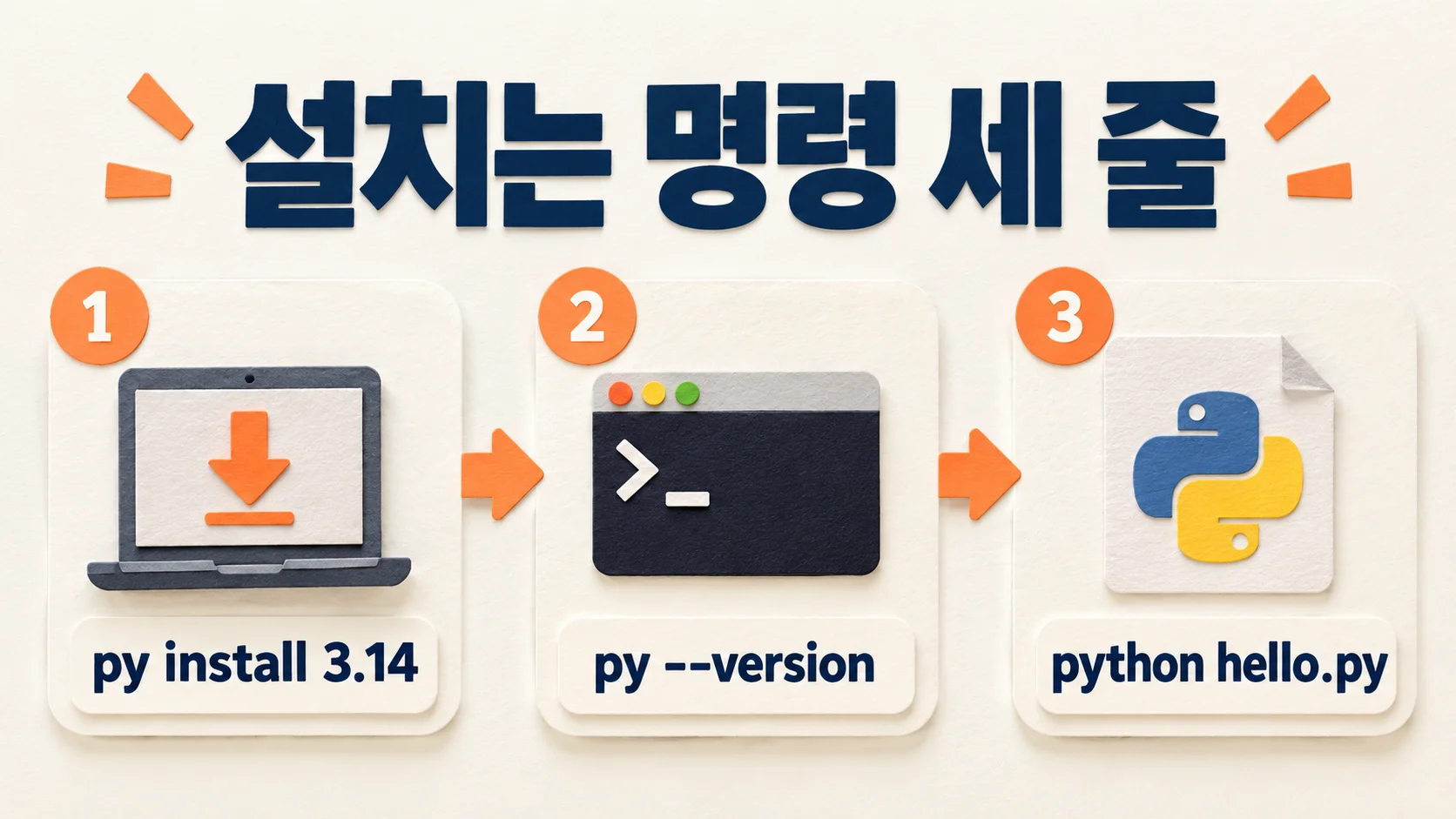
The Python Install Manager is a tool that downloads and manages the Python runtime (the program that actually executes your code). Per the official docs, Python 3.14 is supported on Windows 10 or later. Get the install manager from the Microsoft Store or python.org, then type the following in a terminal (Command Prompt or PowerShell), in order.
py install 3.14installs the Python 3.14 runtime.py --versionchecks the installed version.python hello.pyruns ahello.pyfile you created in Notepad.
If you use winget, you can also get the install manager with winget install 9NQ7512CXL7T -e (this is the package ID given in the official docs). py list shows the runtimes currently installed.
Only one line is needed inside hello.py.
print("안녕, 파이썬")When the python command fails, check three things
Here is the official troubleshooting guidance, condensed.
pythoncommand not found: confirm the install manager is installed. Then open "Manage app execution aliases" in Windows Settings and check that the Python-related entries are turned on.- The wrong version runs: check the value of the
PYTHON_MANAGER_DEFAULTenvironment variable, and check whether an older Python install is still present. - Conflict with the old
py.exe: find "Python launcher" in the installed apps list and uninstall it.
If the installer asks about PATH (the list that decides which folders' programs you can call directly by name), MCPY recommends saying yes to adding it. The official docs say this option is offered at the first runtime install. Per the official docs, the default location is %LocalAppData%\Python\bin.
Create one virtual environment per project
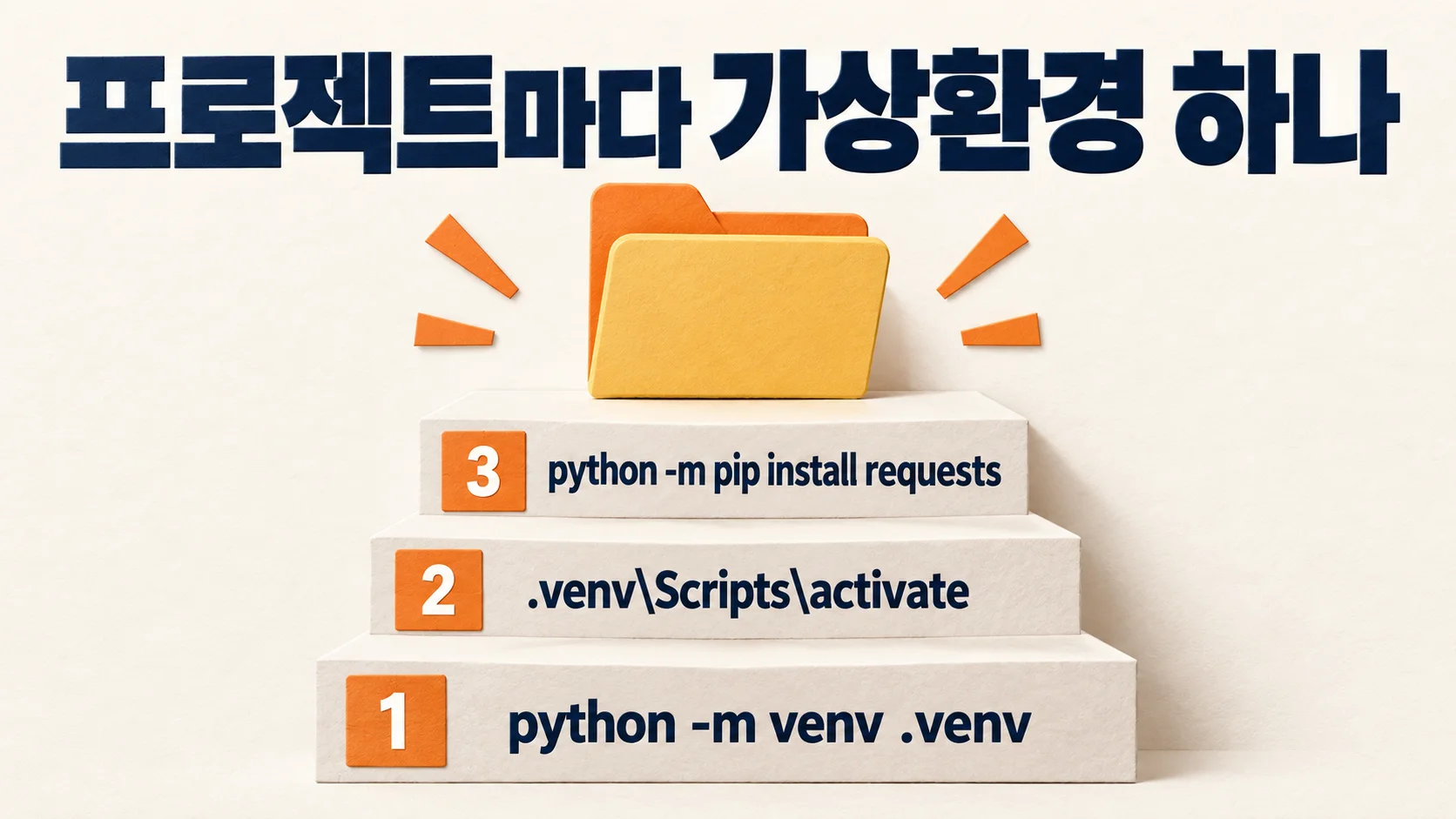
A virtual environment is a folder that holds each project's libraries separately. One project can pin requests 2.6.0 while another uses the latest version, and they never collide. The steps from the official tutorial are below.
python -m venv .venvcreates.venvin the current folder..venv\Scripts\activateactivates it. If(.venv)appears at the start of your prompt, it worked. In PowerShell, use.venv\Scripts\Activate.ps1.python -m pip install requestsinstalls the library you need.
To rebuild the same environment on another PC later, save the list with python -m pip freeze > requirements.txt. Then run python -m pip install -r requirements.txt on the new PC. When you are done, turn the environment off with deactivate. If PowerShell says script execution is blocked, open Command Prompt and try again. This tip is not in the official docs. It is a common case, and I could not verify it myself.
A first script that summarizes an ad report CSV
Reading one useful script is faster than memorizing basic syntax on its own. Say the ad_report.csv you downloaded from an ad manager looks like the sample below. The top line holds the column names. (In this file, 캠페인 means campaign, 비용 means cost, 클릭 means clicks, and 전환 means conversions.)
캠페인,비용,클릭,전환
브랜드검색,120000,340,12
쇼핑,250000,610,20
브랜드검색,80000,210,5
리타겟팅,90000,150,0
Create report.py in the same folder and paste in the following. If a campaign appears on several rows, it adds them up and calculates CPA (cost per acquisition, the cost of getting one conversion).
import csv
from collections import defaultdict

cost = defaultdict(int)
conv = defaultdict(int)

with open("ad_report.csv", encoding="utf-8-sig", newline="") as f:
    for row in csv.DictReader(f):
        name = row["캠페인"]
        cost[name] += int(row["비용"])
        conv[name] += int(row["전환"])

for name in cost:
    cpa = cost[name] / conv[name] if conv[name] else 0
    print(f"{name}: 비용 {cost[name]:,}원, 전환 {conv[name]}건, CPA {cpa:,.0f}원")
When you run python report.py, the sample produces this output.
브랜드검색: 비용 200,000원, 전환 17건, CPA 11,765원
쇼핑: 비용 250,000원, 전환 20건, CPA 12,500원
리타겟팅: 비용 90,000원, 전환 0건, CPA 0원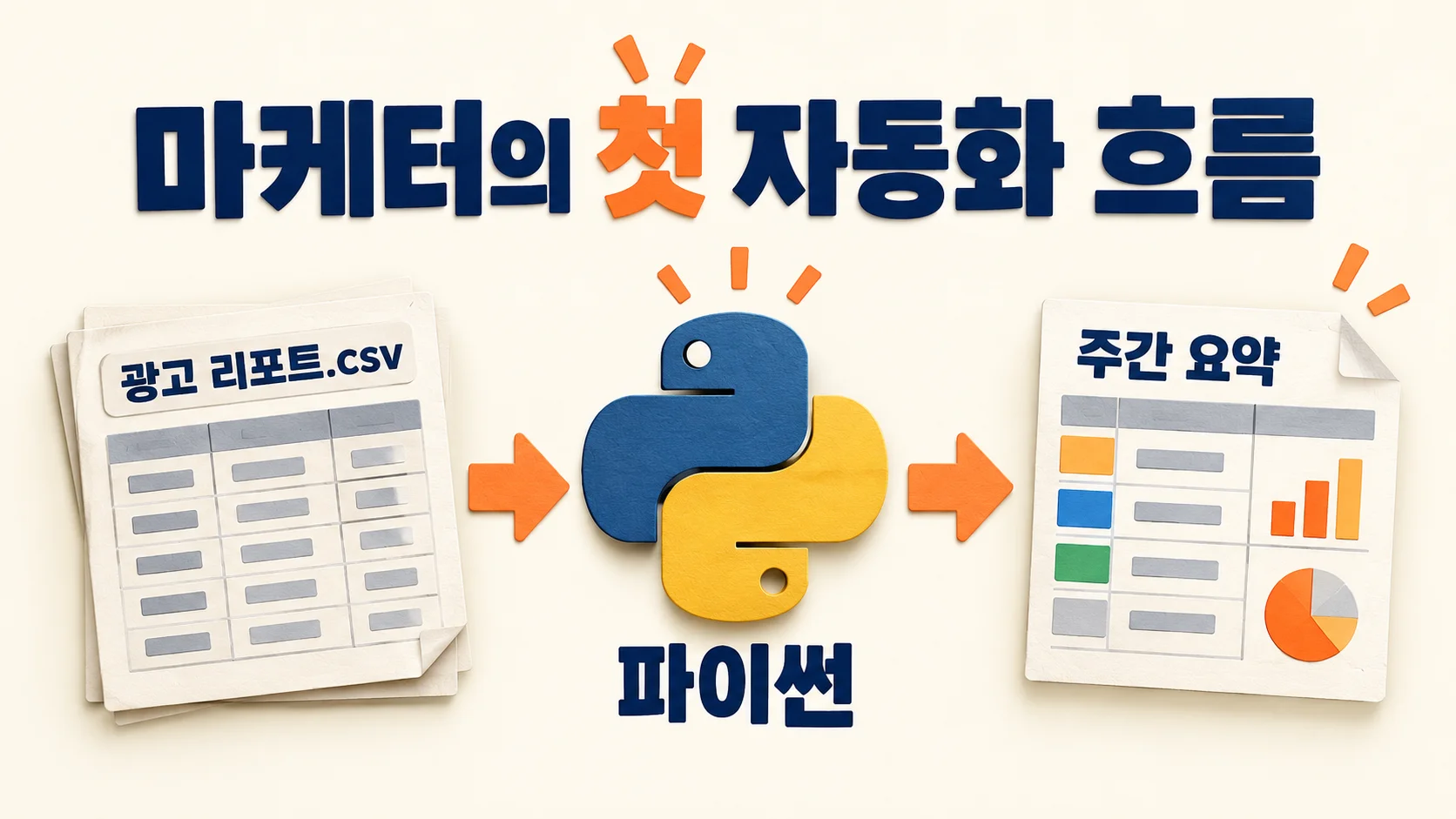
The basic syntax used in the code
- Variables: names attached to values, like
nameandcpa. The=sign means "store", not "equals". - Dictionaries: boxes where you look up a value by a label (a key), like
cost[name].defaultdict(int)makes a key you have not seen before start at 0. - Loops:
for row in ...takes each CSV row one at a time and runs the indented lines below it. Indentation is part of the syntax. If the number of spaces is off, you get anIndentationError. - Conditional expressions:
A if condition else Bavoids the divide-by-zero error (ZeroDivisionError) when there are 0 conversions. - f-strings: the
fbefore the string and the curly braces{}insert values.:,adds thousands separators.
The csv module docs say it is always safe to specify newline='' when opening the file. The code above does that. You must change the column names 캠페인, 비용, and 전환 to match the first line of your own file. If they differ, you get a KeyError.
What to check if you work in Korea
- Download sites: searching for "파이썬 다운로드" (Python download) also returns sites that offer the installer on their own. Check first that the address bar says
python.org. - CSV encoding: it is commonly reported that Excel on Korean Windows saves "CSV (comma delimited)" as cp949, a legacy Korean encoding. (This paragraph is general knowledge, not from the official docs, and MCPY could not verify it directly.) If the code above shows garbled characters or a
UnicodeDecodeError, change it toencoding="cp949". A file saved as "CSV UTF-8" opens withutf-8-sig. This varies by file, and MCPY could not check every case. - Column names: the CSV files from the Naver (Korea's largest search engine), Kakao, and Google ad managers use different column names and orders. For each platform, edit
row["..."]in the script to fit that file.
Common mistakes
- Running
pip installwithout activating the virtual environment. The library lands in the global install, and versions get mixed up later. First check that(.venv)shows in your prompt. - Using
pipinstead ofpython -m pip, which can install into a different Python. The official tutorial also uses thepython -m pipform. - Naming your file
csv.py. It clashes with the standard module, andimport csvloads your own file. Name it something likereport.py. - Only reading the example with your eyes (MCPY recommendation: type it yourself). Deliberately break one column name and see the
KeyErroryourself. That is how you learn to read error messages.
What to do today
This week, run py install 3.14. Then download last week's report from your own ad account as a CSV, change only the column names in report.py, and run it. Once you get your first result, the next step is saving the output back to a CSV. Install commands and versions change often, so check the latest version on the python.org download page once more before you run anything.
Official sources referenced
Found this useful? Share it
Latest posts
Kakao Share Thumbnail Not Showing? Here's the Fix (JavaScript SDK 2025)
Learn why Kakao Share thumbnails don't appear even with a valid imageUrl, and fix it using scrapImage to convert your URL into a KAGE CDN URL. Step-by-step guide.
How to Generate CRM User Manuals in 20 Minutes with Claude Code Sub-Agents
Learn how Claude Code sub-agents can analyze your CRM codebase and auto-generate user manuals and visual guidebooks in just 20 minutes. See the real-world results.
GEO Generative Engine Optimization: The Complete 2025 AI Marketing Strategy Guide
Learn what GEO (Generative Engine Optimization) is, how it differs from traditional SEO, and discover 5 proven AI marketing strategies to get cited by AI search engines in 2025.
Related projects
Get new posts by email
Insights on marketing, analytics, and dev, delivered to your inbox.