
GPT-6 Intelligent UI is a feature that lets ChatGPT turn an answer into more than text: buttons, input forms, charts and calculators, depending on your question. It is part of the GPT-6 Chat update that OpenAI announced on October 7, 2026. Paid plans get it in the Chat tab on a rolling basis from October 7, and Free and Go plans from October 8 (as of October 8, 2026). There is no per-question switch. You pick GPT-6 in the model menu, and ChatGPT builds a screen when it needs one.

What changes with GPT-6 Intelligent UI
According to OpenAI's announcement, GPT-6 mixes text, visuals and interactive elements to fit the question. A comparison appears as side-by-side panels. An explanation of how something works appears as a diagram where you can change the values. If text answers better, it answers with text only. Ask for a Sunday roast lamb plan and you get a timeline next to the recipe. Ask for a road trip route and you get a map with the stops marked.
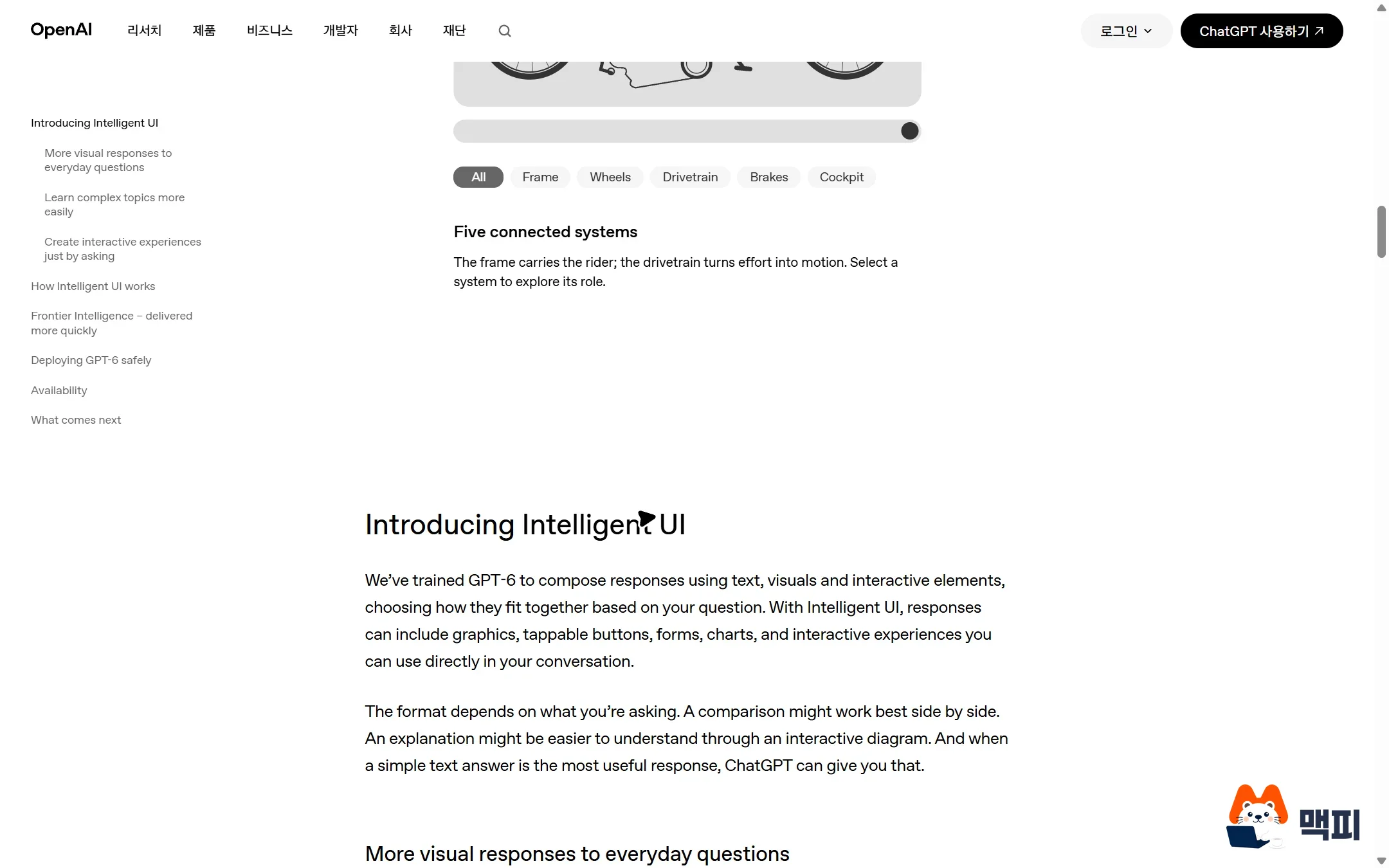
You can also build simple tools right inside the chat. The announcement gives examples such as a calculator that shows how savings grow, a bill splitter for dinner with friends, and a game played inside the chat window. Screens are assembled from a set of components that OpenAI built, and they appear step by step even before the answer is fully generated.
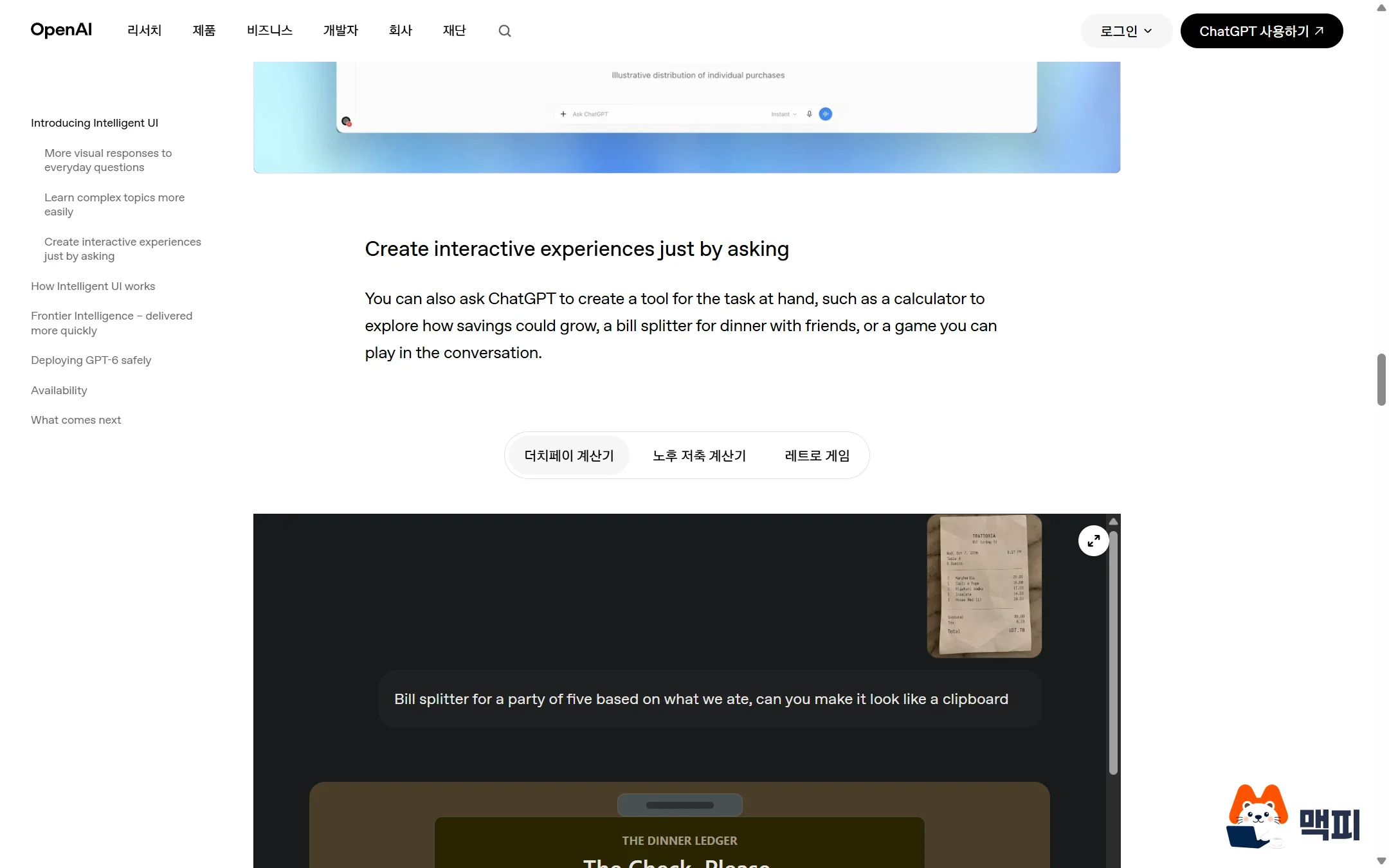
We tried it in ChatGPT. After selecting GPT-6, we asked: "Four friends had dinner. Make me a split-the-bill calculator that takes the total and gives the amount per person." A calculator card with an input field and amount buttons appeared right below the text answer. The default of 120,000 KRW gave 30,000 KRW per person. Pressing the "200,000 KRW" button changed the result to 50,000 KRW per person instantly.
Response speed also changed. The announcement says that for questions that need web search, GPT-6 Instant starts answering 44% sooner on average than GPT-5.6 Instant. The model does not finish thinking before it answers. It sends partial answers while it is still thinking.
GPT-6 availability by plan
The model you get depends on your plan. The announcement says Plus, Pro, Business and Enterprise use GPT-6 Sol, while Free and Go use GPT-6 Luna. Both models are tuned for everyday conversation.
| Plan | Rollout start | Model used in Chat | Thinking levels that support Intelligent UI |
|---|---|---|---|
| Plus | Rolling out from Oct 7 | GPT-6 Sol | Instant, Medium, High |
| Pro | Rolling out from Oct 7 | GPT-6 Sol | Instant, Medium, High, Extra High |
| Business | Rolling out from Oct 7 | GPT-6 Sol | Instant, Medium, High, Extra High |
| Enterprise | Rolling out from Oct 7, varies by organization admin settings | GPT-6 Sol | Instant, Medium, High, Extra High |
| Free, Go | Rolling out from Oct 8 | GPT-6 Luna | Instant (Medium and above are not listed in the table) |
The announcement says the rollout happens globally in stages. The thinking levels follow the per-plan table in the OpenAI model help article. That article says Intelligent UI supports Instant through Extra High and does not support the Pro level. The Pro level stays with GPT-6 Astra. The same help article still lists Instant for Free and Go as GPT-5.6 Luna, so the model you see can differ by account during the rollout.
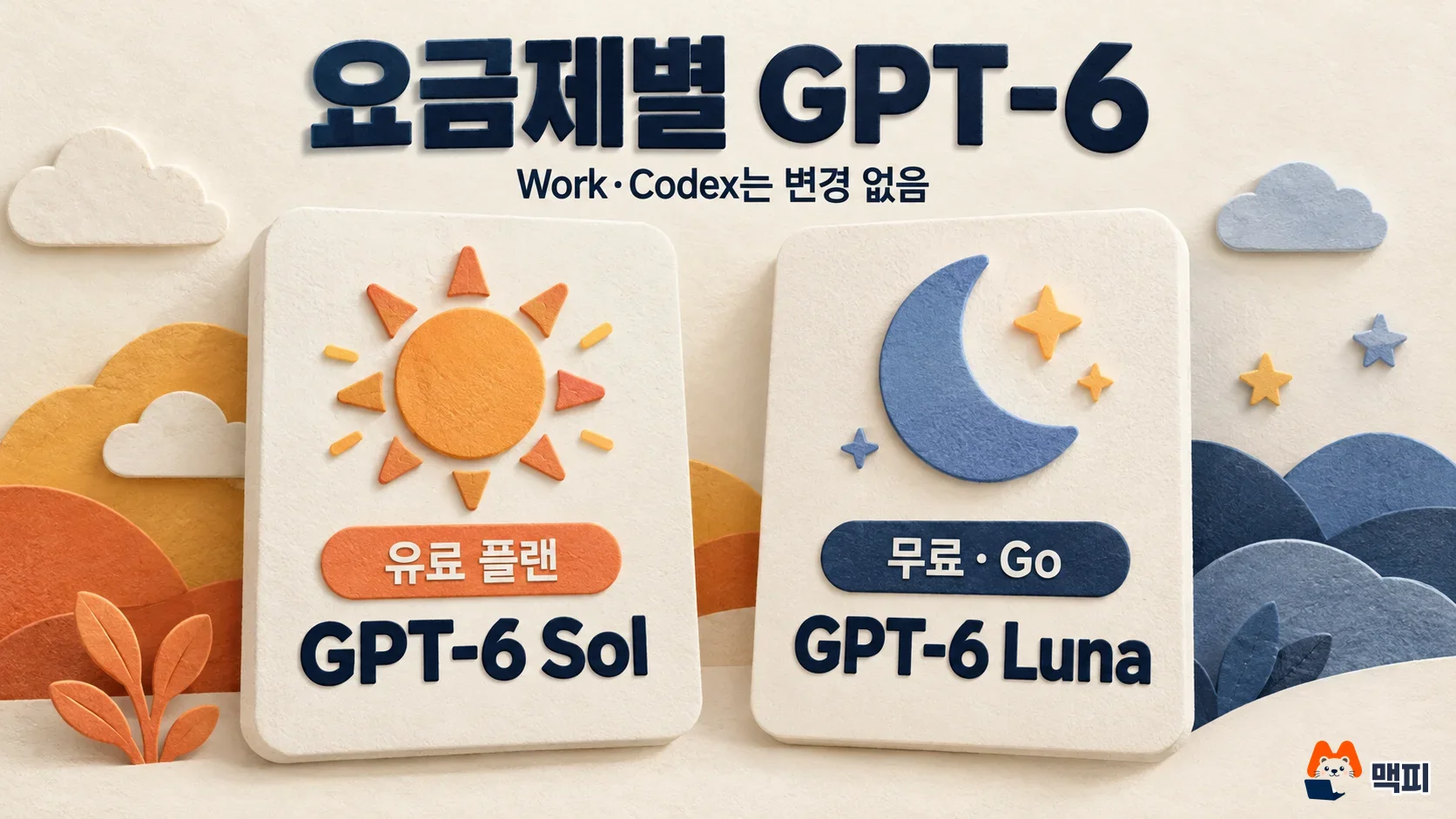
Work and Codex are not part of this update. The announcement says the models used by those two products do not change, so anyone running work automation in Work or Codex keeps the current model.
How to use GPT-6 Intelligent UI in ChatGPT
The steps are: update the app, pick the model, then ask. The help article says that if GPT-6 does not appear in the model menu, it may not be available on your account yet. In that case, update the app and check the menu again.

- Go to chatgpt.com on the web, or update the mobile app to the latest version. The help article says it works on the web and in updated apps. The older macOS and Windows desktop apps are not supported, so use the web instead.
- Pick GPT-6 in the model menu. According to the help article, GPT-6 takes the place of Latest in the menu. If you had selected Latest, you are moved to GPT-6 at the same thinking level. If you picked GPT-5.6 Sol directly, that choice stays on GPT-5.6.
- Use the Thinking slider to choose one level from Instant to Extra High. If you choose Pro, Intelligent UI does not appear.
- Ask a question where a screen would help. The help article says no special prompt is needed. ChatGPT builds a screen when it decides one is useful.

To check that it works, see whether screen elements appear inside the answer. Try one request where a screen should help, like the examples below (examples written by the author).
- "Show me with a calculator how much I would have after saving 500,000 KRW a month for 3 years at different interest rates"
- "Six of us are splitting a 240,000 KRW team dinner bill, and two people did not drink. Make it a bill-splitting tool"
- "Compare Naver Search Ads (Naver is Korea's largest search engine) and Meta Ads side by side in a table and a chart"
For questions where text works better, you may get a text-only answer with no screen. This is not an error. It is the behavior the announcement describes.
What to check when GPT-6 Intelligent UI does not appear
The first case is expecting a screen while the Pro level is selected. According to the help article, the Pro level runs on GPT-6 Astra and does not support Intelligent UI, so move the Thinking slider to somewhere between Instant and Extra High. The second case is using the older macOS or Windows desktop app. Those apps are not supported per the help article, so open chatgpt.com on the web. The third case is having picked GPT-5.6 Sol directly in the model menu. That choice is not moved to GPT-6, so switch to GPT-6 in the menu. If you still see no GPT-6 entry after checking these, the rollout has probably not reached your account yet. On mobile, check that you have the latest version from the app store.
GPT-6 Intelligent UI FAQ
Does Intelligent UI use up more of my quota?
The help article says Intelligent UI has no separate usage limit. Your existing model, tool and plan limits apply as before. On Free and Go, everyday text chat is unlimited, while file uploads, image generation and voice have separate limits.
How do I get fewer visual elements and more text?
On the web, open Settings and turn off Layout and visuals to reduce visual elements. However, the help article says some visual elements may still appear, and the setting does not switch ChatGPT to a text-only mode.
Does GPT-6 remove the existing models?
The help article says this GPT-6 rollout does not remove models you could already choose. You can keep using GPT-5.6 Sol by selecting it directly in the model menu.
Found this useful? Share it
Latest posts
Kakao Share Thumbnail Not Showing? Here's the Fix (JavaScript SDK 2025)
Learn why Kakao Share thumbnails don't appear even with a valid imageUrl, and fix it using scrapImage to convert your URL into a KAGE CDN URL. Step-by-step guide.
How to Generate CRM User Manuals in 20 Minutes with Claude Code Sub-Agents
Learn how Claude Code sub-agents can analyze your CRM codebase and auto-generate user manuals and visual guidebooks in just 20 minutes. See the real-world results.
GEO Generative Engine Optimization: The Complete 2025 AI Marketing Strategy Guide
Learn what GEO (Generative Engine Optimization) is, how it differs from traditional SEO, and discover 5 proven AI marketing strategies to get cited by AI search engines in 2025.
Related projects
Get new posts by email
Insights on marketing, analytics, and dev, delivered to your inbox.