
Naver Brand Search Ads show a single ad at the top of integrated search results when someone searches an advertiser's brand keyword. They are not billed per click. They are a fixed-fee, term-based product where you pay the amount up front before the contract starts. Only one ad is shown for the purchased keyword, and base prices start at KRW 1,000,000 to KRW 10,900,000 depending on the product (VAT not included). Naver is Korea's largest search engine. This article follows the Naver Ad Center help pages as read on October 3, 2026. It covers the cost structure, keyword rules, the steps from registration to contract, and the amount you get back when you cancel.
Naver Brand Search Ads: where they appear and how they are billed
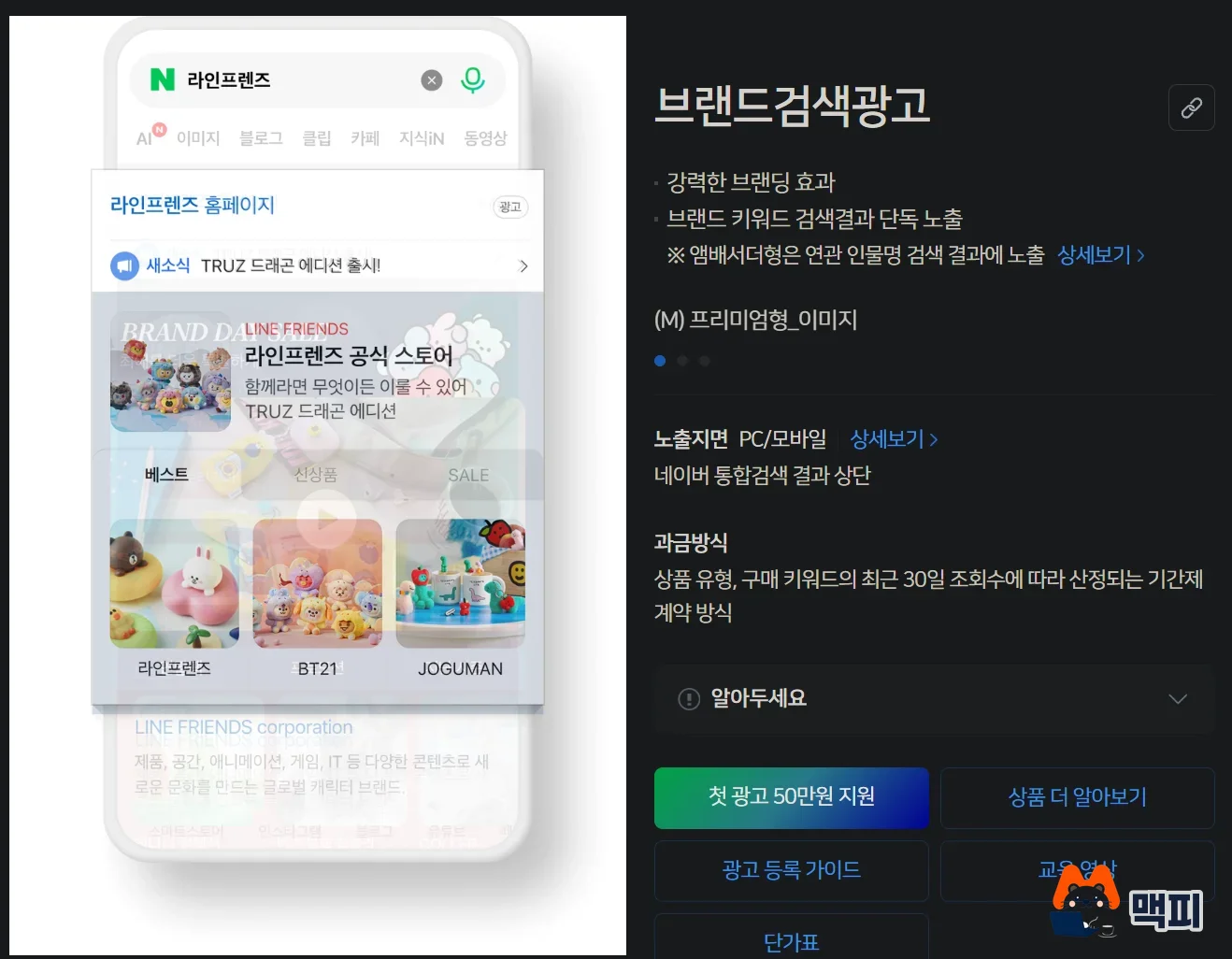
Brand Search is a fixed-fee product that can only run on brand keywords directly tied to the advertiser, such as a company name or product name. Your ad shows only after you register the ad information, pass review and sign a contract. At the contract step you set the display period, check the contract ad cost and pay. The ad appears at the top of integrated search on PC or mobile, depending on the product type you bought. However, the help page states that the ad may not appear at the top depending on how the search term is typed or on content that takes priority for some keywords.
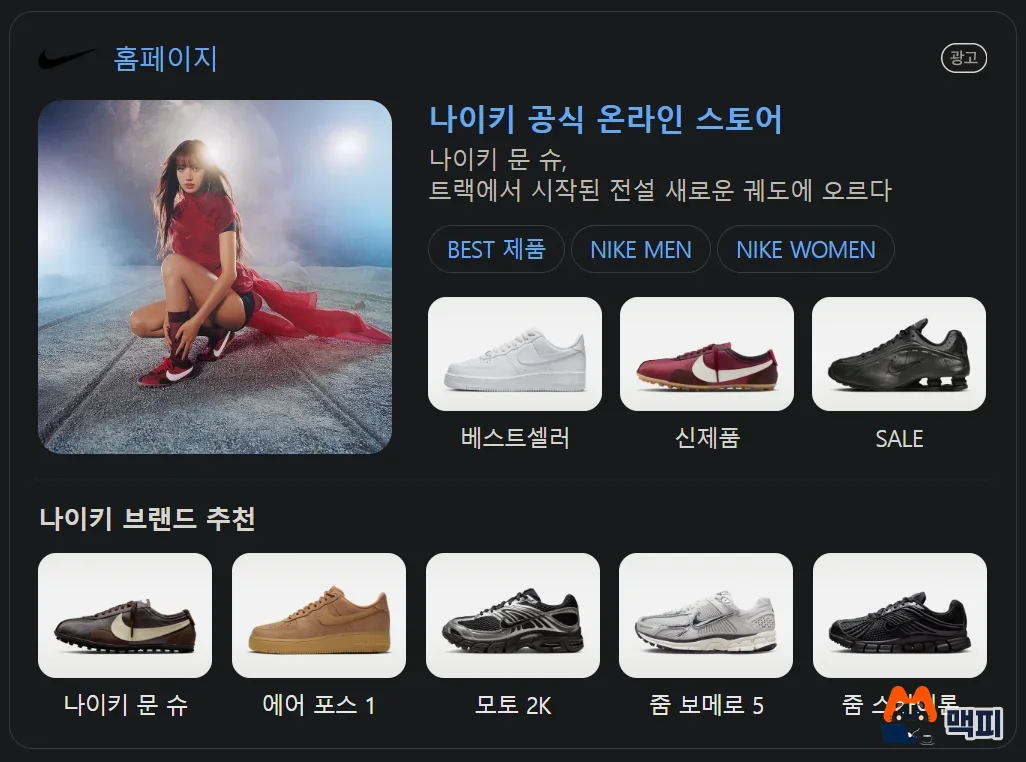
Integrated search results are shown in this order: Brand Search, content provided directly by Naver (person info, exchange rates, weather and more), Power Link, and Biz Site. Each search ad product bills differently, so here is a side-by-side view.
| Product | Billing method | Placement |
|---|---|---|
| Power Link | Cost per click (CPC) | PC, mobile |
| Brand Search | Term contract priced by product type and the keyword's search volume over the last 30 days | PC, mobile, top of integrated search |
| New Product Search | Weekly bidding | Mobile |
| Place Search | Cost per click | PC, mobile, only for businesses registered on Smart Place |
The table is taken from the search ad product introduction page. If you want to understand the Power Link cost structure, also read the Ad Center's monthly ad cost help page.

Naver Brand Search Ads cost: how the price is set
The Brand Search ad cost is set by three things: the product type, the total search volume of your keywords over the last 30 days, and the display period (minimum 7 days, maximum 90 days). Because there is no limit on impressions or clicks during the contract period, you pay nothing extra when clicks are high. The same help page says the price is fixed using the search volume of the 30 days before the contract date. If volume rises after launch, you are not charged more. If it falls, you get no compensation.
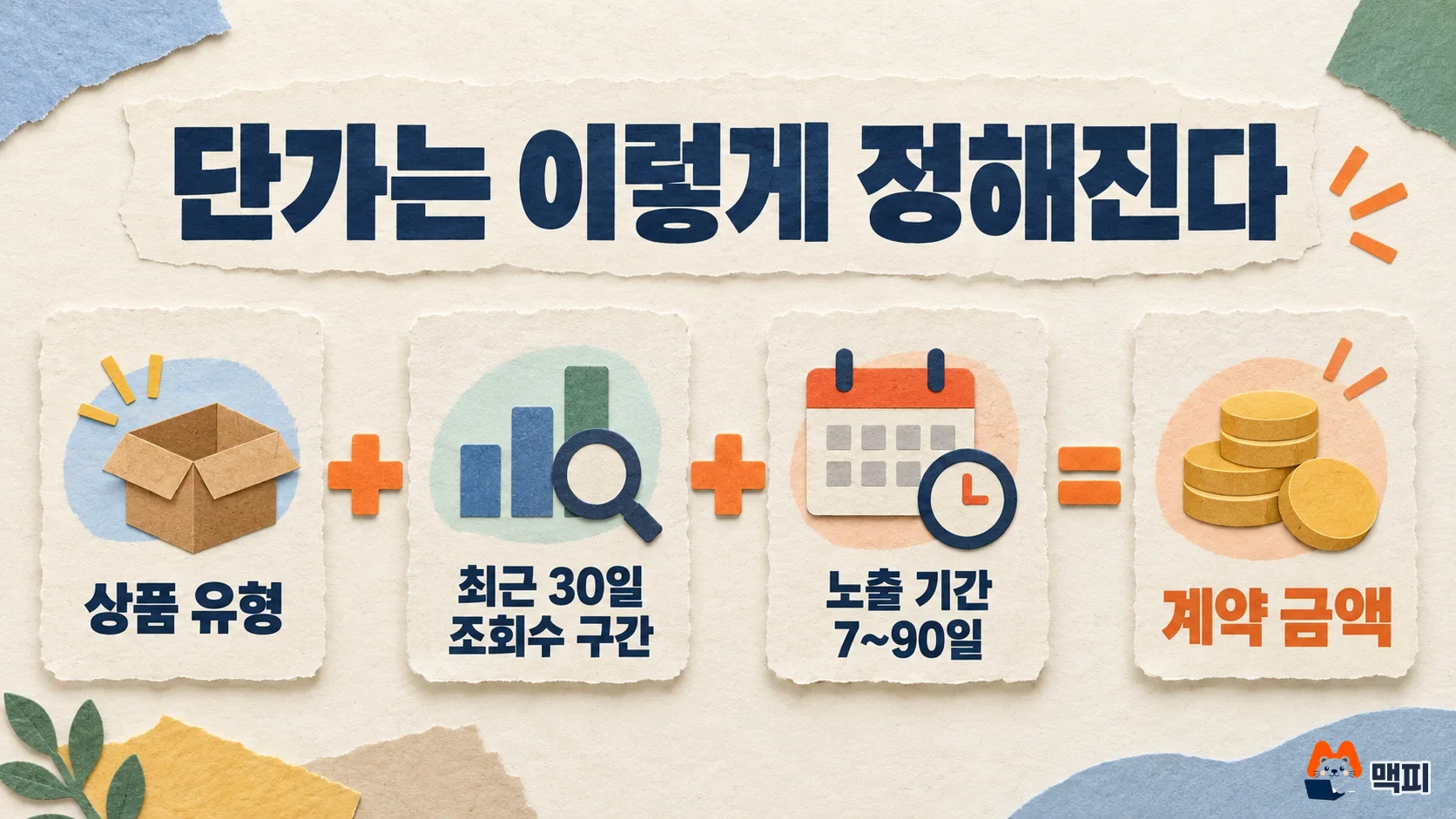
The minimum ad cost differs by product type. The help page gives examples of a minimum price of KRW 1,000,000 for the PC Lite type and KRW 7,500,000 for the Mobile Premium type Brand Zone (both VAT not included). The higher the search volume of your keywords, the higher the price, so the amount changes by volume tier even within the same product type.
| Condition (PC Lite type) | Price (excluding VAT) |
|---|---|
| Base search volume tier 0 to 8,000 | KRW 1,000,000 |
| Base search volume tier 22,101 to 29,100 | KRW 4,200,000 |
| Base search volume tier 8,001 to 15,700, 30 days | KRW 2,000,000 (base price) |
| Same tier, 15 days | KRW 1,000,000 (prorated) |
| Same tier, 7 days | KRW 1,000,000 (the prorated amount is about KRW 460,000, but the minimum tier price applies) |
These numbers are examples from the cost help page. The base price is for 30 days. If you change the period, the price is prorated by day. But if the prorated amount is lower than the base price of the lowest search volume tier, that lowest tier price applies. In other words, even a short 7-day run never goes below the lowest tier price. For new contracts, the help page explains that the full lowest-tier amount is charged because the product takes heavy internal and external resources to write and review creatives.
You can see your own price on the registration screen. Click [Check keyword info] under the keyword input box. It shows each keyword's recent search volume, the group search volume total and the estimated cost for that volume. The group search volume total cannot exceed the contractable search volume of the ad group, so if the total goes over the limit, you need to cut keywords. A detailed price sheet is available as the price file in the Ad Center, and the update date written in that file is November 20, 2024. During promotions, prices and display periods can differ, so treat the estimate on the contract screen as the final reference.
Brand Search Ads keyword rules: which keywords you can buy
A keyword must be a brand keyword directly tied to the advertiser. You cannot run ads on generic keywords that are not brand keywords, and you register at least 1 and up to 30 keywords per ad group (contract). Brand name typos and English typos can also be bought if they can be confirmed as the same brand. Common nouns generally cannot be purchased. They are sold conditionally after review, only when the search intent is clearly the brand.
Only one advertiser's ad can appear for a keyword, so only keywords where the searcher's intent is clear enough are allowed. In the help page example, a keyword like 'Seoul National University Hospital' is allowed because the brand is unique, but a keyword like 'Cheongdam Eye Clinic' is not allowed because it is unclear which clinic the user is looking for. For chain stores, individual branches cannot buy the keyword. Only the headquarters can advertise, using the headquarters site. Even after passing review, ads can be restricted if a keyword dispute arises or if the keyword is found not to meet the review criteria.
You also choose the ad group type along with the keywords. The general type is registered with a website business channel. The Brand Zone type can only be bought by brands that have joined the Naver Shopping Brand Package and run their own Brand Store. The Ambassador type, which shows on searches for a person's name, is only for advertisers with a formal ad contract with that person. It runs from a minimum of 7 days to a maximum of 31 days and uses the 7-day base price, so its contract terms differ from standard Brand Search.
How to run Naver Brand Search Ads: from registration to contract
Start by clicking [Create ad] under Naver Ad Center > Search Ads. Registration has three steps: campaign, ad group, and ad (keywords and creative). Even after you finish registration, your ad runs only after you pass review and then sign the contract and pay.

- Choose 'Brand Search/New Product Search' as the campaign type and enter a name of 1 to 30 characters.
- Choose the ad group name, URL, target medium (PC or mobile) and template. To show on both media, create a separate ad group for each medium.
- Enter one keyword per line and use [Check keyword info] to see whether you can contract it and the estimated quote. If you need to prove the link to your brand, attach an explanation or documents under 'Request review'.
- Add the image or video, text and link URL that fit the template, then click [Create ad].
- After you pass review, go to Sign contract, enter a contract name (1 to 15 characters) and the planned ad date, click [Check purchase amount], and pay.
The ad group is the basic unit of a contract, so you cannot edit the ad group type, URL, target medium or template later. Only the name can be changed. If you need a change, create a new ad group. Business channel review usually takes 1 business day, and keyword and creative review takes 1 to 3 business days. Review does not start if your Biz Money balance is too low, so top it up before you register.
In the contract, you set a minimum of 7 days and a maximum of 90 days in day units, and you can only pick a start date within 60 days of the contract date. To run longer than 90 days, add a new contract in 90-day blocks. After the contract is signed, you cannot change the period. To change it, cancel the contract and sign again. If a contract is already running, a [Sign contract] button appears in the ad group list when 10 or fewer display days remain, and if more than 10 days remain, add a new contract under Tools > Brand/New Product Search contract management.
Where to check that the contract went through
First check that the ad group's business channel shows 'Eligible to run' and that at least one keyword and one creative have each passed review. A contract needs one eligible keyword and one creative before you can sign it, and if you do not sign, the ad does not run even if it passed review. After signing, check the status under [Tools > Brand/New Product Search contract management]. The contract statuses are Pending, Running, Canceled while running, Canceled before running, Cancel pending, and Ended, six in total. Before the start date it is Pending, and on the start date it changes to Running. After the start date, search the brand keyword you bought on PC or mobile and see whether the ad appears at the top. This is a supplementary check, not an official procedure. As noted above, the ad may not appear at the top depending on how the search term is typed, so do not conclude something is wrong because you did not see it once.
Brand Search Ads contract cancellation and refund calculation
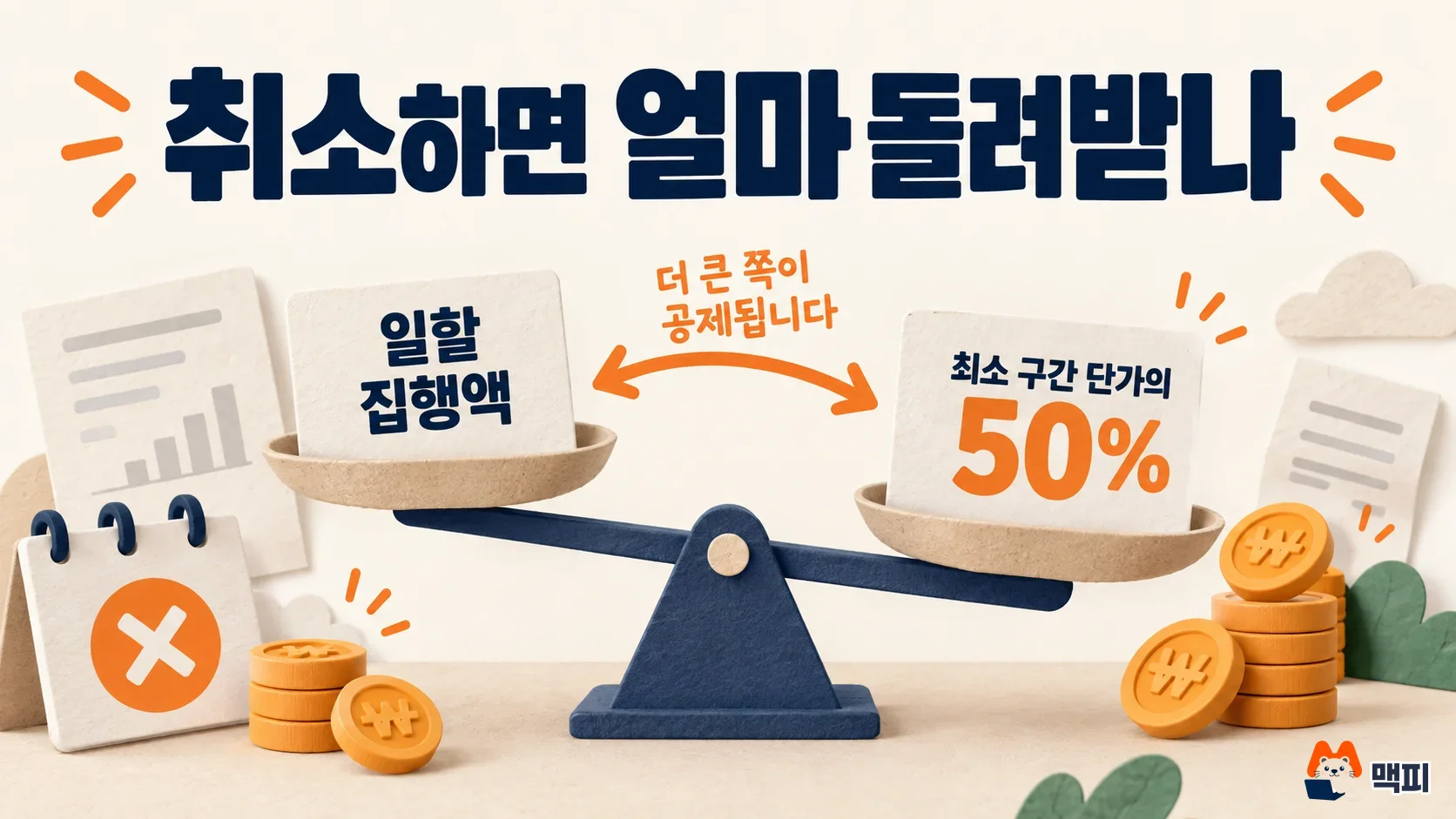
If you cancel before the ad runs, the full ad cost is refunded. If you cancel while it is running, the refund is prorated. If the prorated amount already run is less than 50% of the product's lowest tier price, 50% of the lowest tier price is deducted. The formula is: refundable amount = contract amount − MAX[prorated amount run until the cancellation date, lowest tier price × 1/2]. The refund is credited to your Biz Money at the same time the contract is canceled.
| Example (official help page) | Calculation | Refund |
|---|---|---|
| Mobile Lite type, tier 0 to 8,000, 30-day contract, canceled on day 12 | KRW 1,000,000 − MAX[KRW 1,000,000 × 12/30, KRW 1,000,000 × 1/2] | KRW 500,000 |
| Mobile Lite type, base search volume 40,000, 30-day contract of KRW 6,200,000, canceled on day 3 | KRW 6,200,000 − MAX[KRW 6,200,000 × 3/30, KRW 1,000,000 × 1/2] | KRW 5,580,000 |
In the first example, 12 days of running equals KRW 400,000. But half of the lowest tier price, KRW 500,000, is larger, so KRW 500,000 is deducted. You request cancellation with [Cancel contract] under [Search Ads > Tools > Brand/New Product Search contract management], and if the ad is running, you pick the end date. The ad stops at 0:00 the day after the end date you choose, and you cannot withdraw the request once submitted. The refund rules are based on list-price examples quoted in the help page, so promotional contracts may differ.
Common mistakes first-time Brand Search advertisers make
- Waiting for review without topping up Biz Money. If the balance is too low, review does not even start. Check your balance under [Payment management > Biz Money management] before you register.
- Seeing 'Not contracted' after payment and assuming it failed. Even after you finish the contract and payment, the ad group list shows 'Not contracted' until the display start date. Check the contract management screen for 'Pending'.
- Trying to cover PC and mobile in one ad group. You cannot change the target medium after creating the ad group, so adding a medium later means creating a new ad group and registering keywords and creatives again. We recommend splitting ad groups by medium from the start (operational tip).
- Missing the renewal timing and losing exposure. Sign a new contract before the contract end date to run without a break. The [Sign contract] button appears when 10 or fewer days remain, so we recommend booking then (operational tip).
- Picking the wrong contract to cancel. If you have several contracts, confirm exactly which one it is before you submit the cancellation. You cannot withdraw it after submitting.
Brand Search Ads FAQ
Can I add keywords while the ad is running?
Yes. An added keyword runs from the time it passes review until the contract end date. You can add keywords only while the count stays within 30 and the group search volume total does not exceed the contract's base search volume.
Do creatives and keywords get reviewed again when I renew?
If you use creatives and keywords that already passed review, you can add a new contract without re-review. If you renew before the contract end date, exposure does not break.
Can I use the KRW 500,000 first-ad-cost support on Brand Search?
Only for ads run through the Ad Center, Brand Search is also eligible. Purchases made on the Naver ad platform (NOSP) are excluded. Paid ad spend over 60 days from your Ad Center sign-up date is added up, and you get up to KRW 500,000 as a Biz Coupon. You must apply for it yourself.
Before you sign, use [Check keyword info] on the registration screen to see your brand keyword's group search volume and estimated quote.
Found this useful? Share it
Latest posts
Kakao Share Thumbnail Not Showing? Here's the Fix (JavaScript SDK 2025)
Learn why Kakao Share thumbnails don't appear even with a valid imageUrl, and fix it using scrapImage to convert your URL into a KAGE CDN URL. Step-by-step guide.
How to Generate CRM User Manuals in 20 Minutes with Claude Code Sub-Agents
Learn how Claude Code sub-agents can analyze your CRM codebase and auto-generate user manuals and visual guidebooks in just 20 minutes. See the real-world results.
GEO Generative Engine Optimization: The Complete 2025 AI Marketing Strategy Guide
Learn what GEO (Generative Engine Optimization) is, how it differs from traditional SEO, and discover 5 proven AI marketing strategies to get cited by AI search engines in 2025.
Related projects
Get new posts by email
Insights on marketing, analytics, and dev, delivered to your inbox.