
Naver Shopping Search Ads show products registered on Naver Shopping in search results and shopping placements, and you pay only when the ad is clicked. As of October 4, 2026, the official help page describes this as a shopping-specific search ad where creatives (the products you register as ads) are matched to keywords automatically, billed per click (CPC). Naver is Korea's largest search engine. The bid is a minimum of 50 KRW and a maximum of 100,000 KRW (excluding VAT). A seller listed on Naver Shopping creates the ad in the Advertiser Center in 3 steps. The ad starts once it passes review, and you need Biz Money, the prepaid balance used for ad spend, in your account.
What Naver Shopping Search Ads are: product ads with no keyword registration
With Power Link (Naver's keyword text ads), the advertiser picks keywords. With Shopping Search Ads, you pick products. In an ad group you do not set keywords directly. You add products registered on Naver Shopping as creatives, and the system shows the ad for related search terms based on information such as the product name and category. That is why you cannot specify which search terms each product appears for. If there are search terms you do not want, register them in the 'Excluded keywords' menu to block them.
Ads run in the shopping area of Naver integrated search, Naver Shopping search, image search, recommendation areas, and external partner placements. The number of ads per placement is listed in the guide to Shopping Mall Product-type placements. The layout is not fixed. In a notice dated September 3, 2026, Naver said that the number and position of ad, regular, and Super Reward products are not guaranteed and are shown dynamically based on user response. New placements keep being added. In a notice dated September 30, 2026, Naver said that Shopping Search Ads will newly appear in the Naver Cafe home feed (mobile web deploys on September 30 and the app on October 7). The default setting for this media is ON, so if you do not want it, set it as a restricted media under Advanced options when editing the ad group.

Naver Shopping Search Ads come in 3 types
Ad types are split into Shopping Mall Product-type, Product Catalog-type, and Shopping Brand-type, and who can advertise differs by type. The type used by sellers who are listed on Naver Shopping and sell products is the Shopping Mall Product-type.
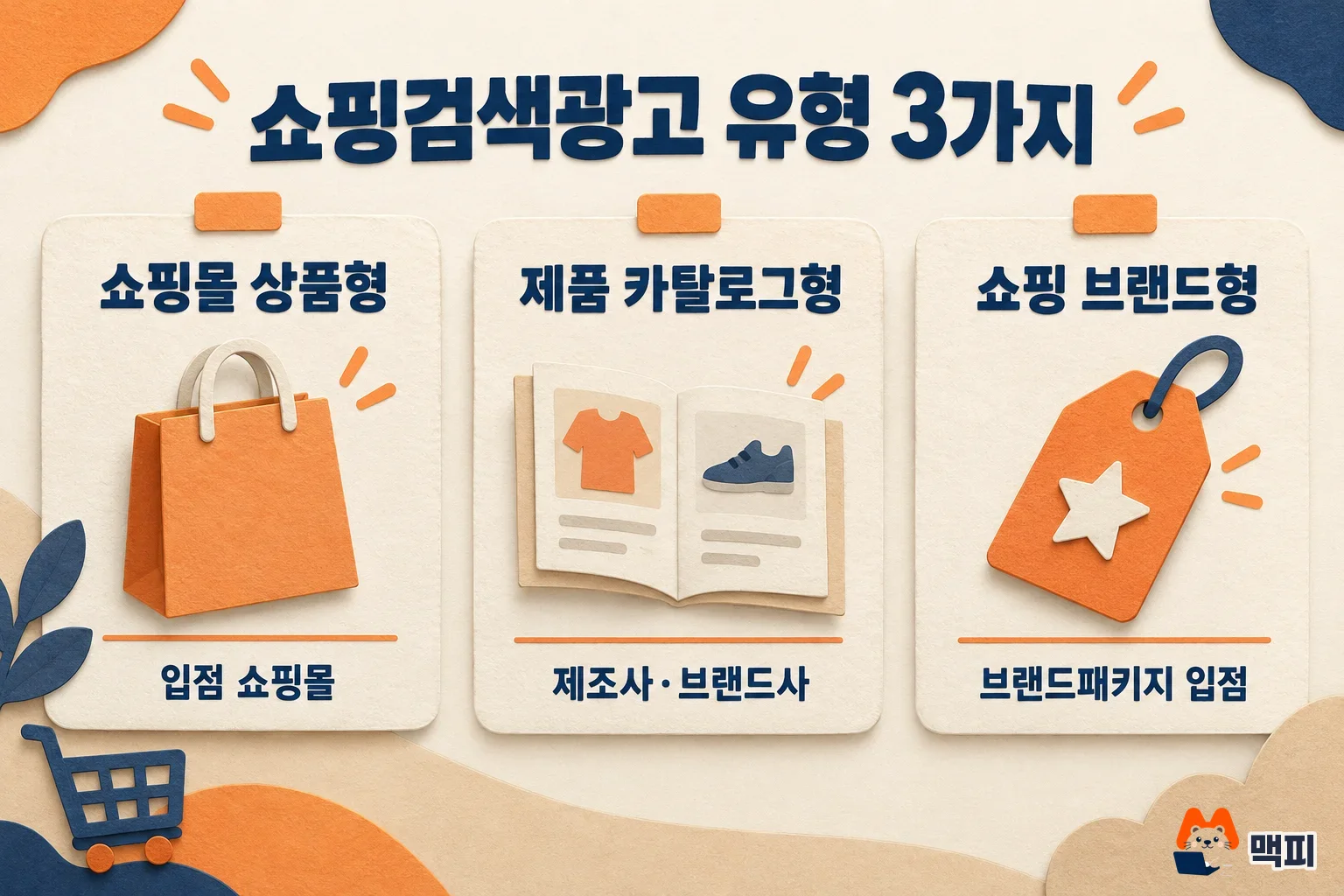
| Type | Who can advertise | Keywords | Bid range |
|---|---|---|---|
| Shopping Mall Product-type | Products sold in the store by shopping mall advertisers listed on Naver | Cannot be registered, matched automatically from product information | 50 KRW to 100,000 KRW |
| Product Catalog-type | Manufacturers and brand owners, and holders of an exclusive domestic distribution contract after submitting proof documents. The product must have a catalog page on Naver Shopping | Cannot be registered, matched automatically | 50 KRW to 100,000 KRW |
| Shopping Brand-type | Brand owners that passed Naver Shopping review and joined the Brand Package. Distributors and sellers cannot apply | Registered directly, with a bid per keyword | 300 KRW to 100,000 KRW |
Even with the Shopping Mall Product-type, you cannot advertise every product. Some product groups, such as duty-free products, the books category, and products that minors cannot buy, are restricted from advertising even if they are registered on Naver Shopping.
Before you start, get listed on Naver Shopping and sync your products
Shopping Search Ads do not create ad products separately. They bring products registered on Naver Shopping into ads, so you must already be listed on Naver price comparison. There are three listing methods: CPC Package, CPS Package, and Smart Store. Smart Store adds a 2% sales-linked fee only on sales made through price comparison, and there is no separate price comparison listing fee (Naver Pay fees are separate).
For Smart Store, you must set whether the product is registered on Naver price comparison when you register it in Smart Store Center, and if the 'Price comparison site' item is not checked, the product information is not synced to Naver Shopping. For your own shopping mall (CPC Package listing), you must register an EP (product DB URL) in Shopping Partner Center, a product information file that organizes product name, price, and shipping fee in the agreed format, and review takes 1 to 2 business days. When you change product information, you edit it at the source, Naver Shopping, not in the Advertiser Center. This is because the information shown in the ad is the same as the product information shown on Naver Shopping.
On the search ads side, the prerequisite is signing up for the Advertiser Center. Only Naver members aged 19 or older who have completed real-name verification can sign up, and after sign-up a shopping mall verifies with its Shopping Partner Center ID.
How to create Shopping Search Ads: 3 steps for Shopping Mall Product-type, then verify
The Shopping Mall Product-type starts from [Create ad] at the top left of the Naver Advertiser Center and finishes in 3 steps: campaign, ad group, and ad (creative).
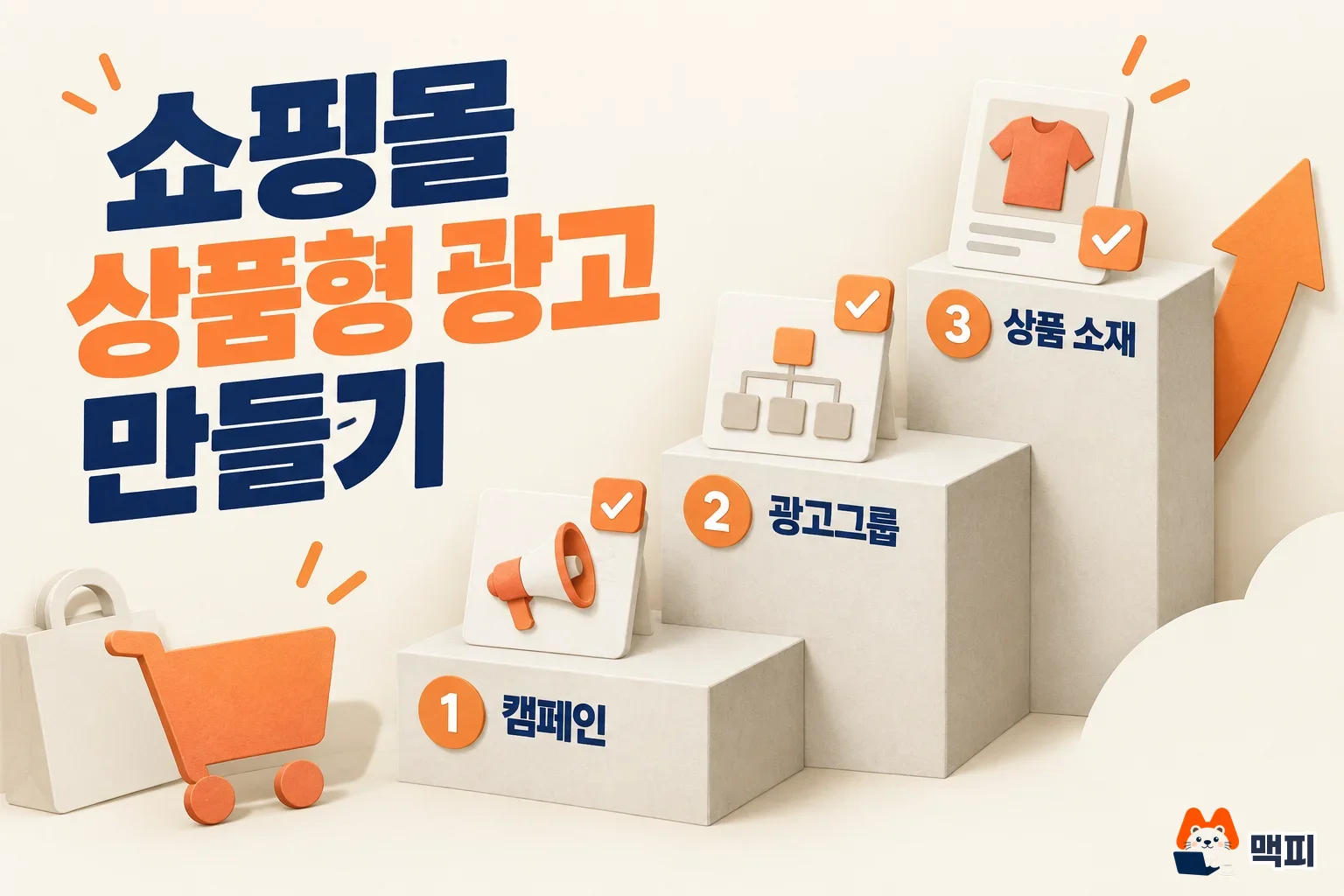
- Create a campaign: enter the campaign type and name (1 to 30 characters) and set a daily budget.
- Create an ad group: choose Shopping Mall Product-type as the group type. Enter the ad group name, shopping mall, default bid, and daily budget. Verify the shopping mall with your Shopping Partner Center ID. If your Naver Shopping and search ads sign-up details differ, verify by SMS to the phone number on your Naver Shopping account.
- Create the ad: search for a product registered on Naver Shopping by product name, category, or product ID, click [+Add], then click [Create ad].
To add products to an existing ad group, go to campaign name > ad group name > the Creatives tab and click '+ New creative'. After you create the ad, review begins. If you have a Biz Money balance and creative registration is complete, review usually finishes within 1 business day. If ad quality or legal issues need a closer look, it can take up to 5 business days. Without Biz Money, review does not even start, so before creating an ad, top up by credit card (from 100 KRW), cash deposit, or Naver Pay bank account quick payment (from 10,000 KRW).
Check success in two places. If the creative status is 'Available to serve', it has passed review. Once ads start serving, you can see impressions, clicks, average cost per click, and total cost by campaign in the ad management menu. Today's data is reflected in real-time metrics within 20 minutes, and finalized results can be checked after 48 hours, so do not judge by small numbers on day one.
Bids and cost: rank is set by bid and quality index
A bid is the maximum amount you are willing to pay per click, and for Shopping Search Ads you enter it directly from 50 KRW to 100,000 KRW. If you do not set a default bid for the ad group, it is set to the minimum of 50 KRW. If you enter a bid for an individual product (creative), that value takes priority over the group default. PC and mobile bid weights are adjusted between 10% and 500%.
Ad rank is determined by considering your bid and quality index together, and up to 100 ads are shown. The quality index is assigned to each creative and reflects click-through rate, relevance between the product and the ad creative, and user response to the product. In the Advertiser Center it appears as a 7-level bar. 1 to 2 bars is low, 3 to 5 is medium, and 6 to 7 is high. Because rank is not set by the bid alone, when exposure is weak, check the bid along with the click-through rate and product-creative relevance that feed the quality index.
Billing is CPC, where each click is deducted from the Biz Money you topped up in advance. Even for listings under the CPC method, the sales fee for Naver Shopping exposure (Shopping CPC) is not charged, so click costs do not stack. Invalid clicks generated by programs or automation tools are not charged. However, if valid clicks continue after your topped-up Biz Money runs out, a negative balance builds up and is settled from your next top-up, so keep a comfortable balance or set up auto top-up.

How to check when Naver Shopping Search Ads do not show
If there are no impressions, check in the order below, and if you just changed a setting, wait first. The official guide says that after passing review, changing operating status, or changing a bid, it can take up to 2 hours before ads show, and reflecting Naver Shopping product information in the ad takes up to 1 day.
- Check the Biz Money balance and creative status. With no balance, review does not proceed, and creatives that are not in an eligible status do not serve.
- Check whether the campaign's budget allocation is set to 'Even exposure'. It is the first item on the official list of causes for no exposure.
- Check the bid and quality index. If you do not make the top 100, the ad does not show. If you registered the same product in multiple ad groups, only the one creative with the highest rank index is shown.
- Check that the search term you want is not in the excluded keywords.
- In the Advertiser Center, go to Search Ads > Tools > Ad Exposure Diagnosis > Shopping Search (exposure status diagnosis) to see the creative's expected exposure rank and the reason it is not showing. Diagnosis is hard if the creative is under review or in a restricted status.
Common mistakes when you first run Shopping Search Ads
- Trying to register keywords on the Shopping Mall Product-type: this type does not allow direct keyword registration. To refine exposure, work on product information and excluded keywords. The type where you register keywords directly is the Shopping Brand-type.
- Trying to fix product information in the Advertiser Center: product information in the ad is the same as on Naver Shopping, so edit it in Product Management in Smart Store Center or in Shopping Partner Center.
- Putting shipping or discount phrases in the product name: phrases like domestic shipping, free shipping, discount, and sale can get the ad restricted. Use only attributes of the product itself in the name.
- Registering the same product in multiple ad groups: by product ID, only the one creative with the highest rank index is shown, so the other registrations are useless.
Update (October 12, 2026): Shopping Search Ads also appear on the Naver Main mobile Car and Tech topic board
In its October 12, 2026 notice, Naver said that from Tuesday, October 20, 2026, Shopping Mall Product-type Shopping Search Ads and ADVoost Shopping ads will appear across the entire 'CAR&LIFE' block of the Car and Tech topic board on Naver Main mobile. The CAR&LIFE guaranteed-exposure ads that ran in this block will end, and shopping ads will fill the space. The schedule may change for internal reasons, the notice said.
Ad registration, ranking calculation, and billing rules stay the same, and this module is shown only to logged-in users. The notice lists no action advertisers need to take. However, if the exposure setting for the Naver Main mobile media is ON, ads can run in this placement, so check the media setting before the 20th for any ad group you do not want there.
Shopping Search Ads FAQ
What if my ad shows for search terms I do not want?
Register them as excluded keywords (search terms you do not want ads shown for). You can set up to 70 excluded keywords. However, where ads show without a search term, such as category browsing, ads can still run even if you register excluded keywords.
What should I do with the ad if a product sells out?
Turn it off yourself in the Advertiser Center. Even after a product sells out, it takes time for the ad to stop, and clicks in between are treated as valid, so the official help page recommends that advertisers manually set the ad to OFF right away when a product is out of stock.
When does a Smart Store product edit show up in the ad?
It can take 2 to 8 hours for the edit to reach Naver Shopping, and up to 24 hours to sync to the Advertiser Center. Review can be delayed in the meantime, so clean up product information before you create the ad.
Your to-do today: confirm the 'Price comparison site' checkbox for the products you want to advertise in Smart Store Center, top up Biz Money in the Advertiser Center, then use [Create ad] to put one or two products into a Shopping Mall Product-type campaign.
Found this useful? Share it
Latest posts
Kakao Share Thumbnail Not Showing? Here's the Fix (JavaScript SDK 2025)
Learn why Kakao Share thumbnails don't appear even with a valid imageUrl, and fix it using scrapImage to convert your URL into a KAGE CDN URL. Step-by-step guide.
How to Generate CRM User Manuals in 20 Minutes with Claude Code Sub-Agents
Learn how Claude Code sub-agents can analyze your CRM codebase and auto-generate user manuals and visual guidebooks in just 20 minutes. See the real-world results.
GEO Generative Engine Optimization: The Complete 2025 AI Marketing Strategy Guide
Learn what GEO (Generative Engine Optimization) is, how it differs from traditional SEO, and discover 5 proven AI marketing strategies to get cited by AI search engines in 2025.
Related projects
Get new posts by email
Insights on marketing, analytics, and dev, delivered to your inbox.