

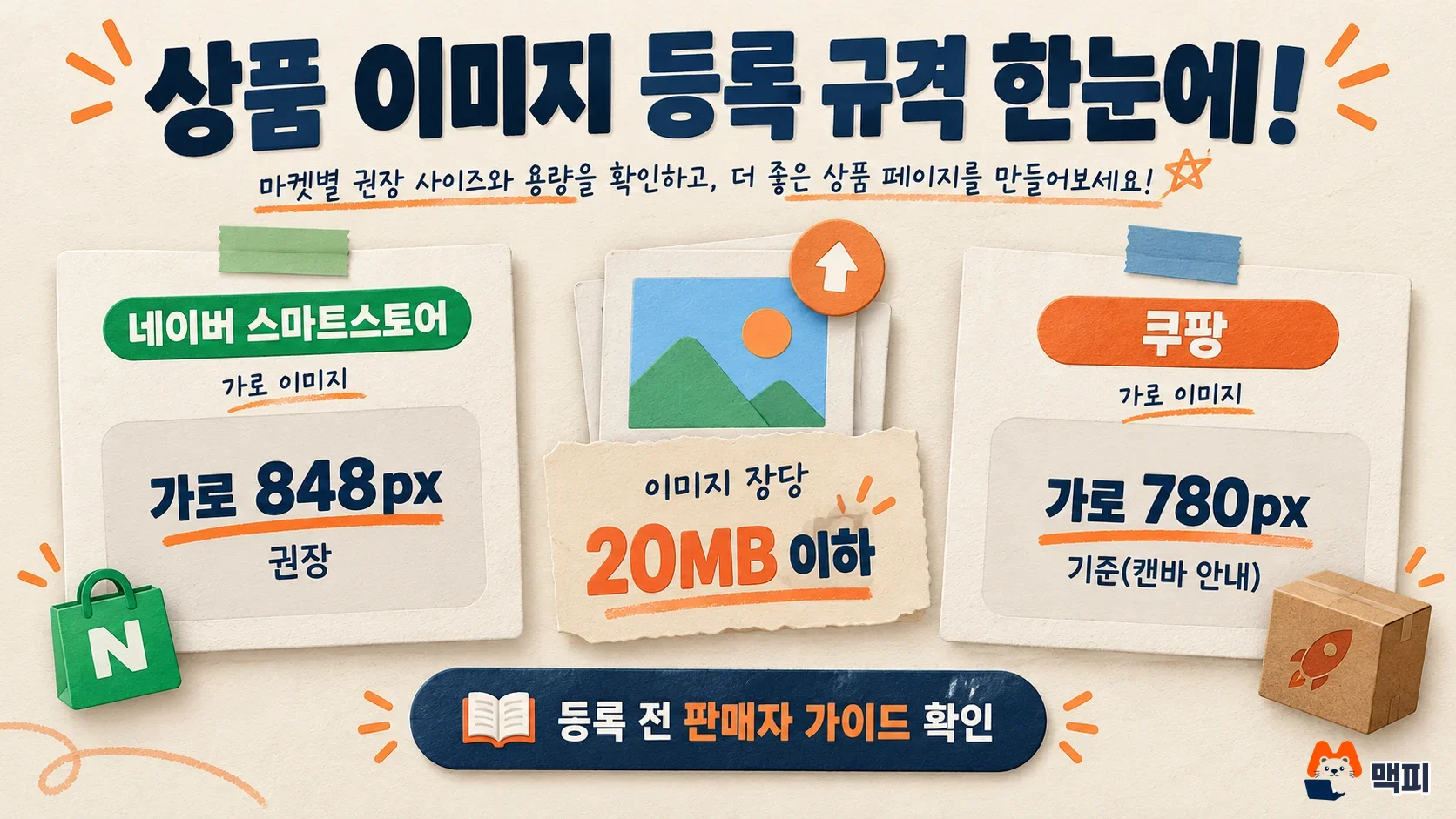
A product detail page is a long image that joins product photos and descriptions in the order a buyer decides. Making one means setting the section order, then building and uploading it to match your sales channel's specs. Naver Smartstore (Korea's largest online store platform) states in the Smartstore Center guide that the recommended detail width is 848px and each image can be up to 20MB. Coupang (a major Korean e-commerce marketplace) has a 780px width, which the Canva detail page guide gives as its standard (as of October 11, 2026). Below, we cover the section order, specs, steps in Canva and Miri Canvas, AI use, and checks after upload.
Detail page section order
According to the Canva guide, a detail page works best when it shows the product's key benefit and a main image first. After that, add the main features, material and size, how to use it, detail images, and purchase and shipping info. The benefit and main image go at the top so shoppers know what the product is before they scroll.

When you split sections, let each screen say one thing. Canva says that dividing a long detail page into meaningful sections makes it easier to read on mobile. For example, the material and size block holds only the material description and the size chart. Usage instructions move to the next block.
Detail page specs: Smartstore and Coupang sizes
Set the detail page width (px means screen pixels, and a bigger number means a wider image) to match the channel you will upload to. The Smartstore Center FAQ gives 848px as the recommended detail width. The Canva page says 860px, so the two values differ. Naver itself states 848px, so it is safest to set your working width to that.
| Item | Smartstore | Coupang |
|---|---|---|
| Detail width | Recommended 848px (Smartstore Center) | 780px standard (Canva guide) |
| File size per image | Up to 20MB | Not in the Canva guide |
| Main image | Not in that FAQ | Consider a 1000×1000px square (Canva guide) |
The Coupang value is a production standard from Canva. It is not a figure confirmed in Coupang's own seller documents. Canva also notes that platform policies and specs can change, so check the latest seller guide before you upload. When you list on Coupang, read the notes on the product registration screen as well.
Check the height too. According to the Smartstore Center FAQ, if a detail description is taller than 4000px, the first 3000px is shown and the rest appears only after the shopper clicks 'Expand detail info' at the bottom of the area. Put the key benefits and core photos within the first 3000px.
How to make a detail page: Canva and Miri Canvas
If you have no design experience, start with a template tool. The steps in the Canva guide are to pick a detail page template or start from a blank design, add product photos and text, apply your brand colors, fonts and logo, and then download the result as an image file. If you need Korean templates, you can use Miri Canvas detail page templates (a Korean design tool) the same way.
- Choose your channel first and set the width to the value in the table above.
- Fill the template blocks in section order (benefits, features, material and size, how to use, detail images, purchase and shipping).
- Clean up the product photo background. Canva describes a background remover (a feature that cuts the product out of a photo) to make the product stand out, plus tools to adjust brightness, contrast and saturation.
- Download the finished design as an image file such as JPG or PNG, and check that each file is under 20MB.
Miri Canvas says you can use its content commercially without a watermark, but it also says you must check the copyright of any elements you add yourself. If you brought in product photos or fonts from elsewhere, check the license terms first. To see whether you need a paid template, compare plans in Miri Canvas free vs Pro pricing.
How to make a detail page with AI
Use AI for draft copy and photo cleanup, and have a person check the facts. According to the Canva guide, Canva's AI writing feature, Magic Write, can quickly draft titles, intro copy and layout ideas that fit your product features and target customer. Its AI photo editing can change elements in a product photo or generate a new background.
For copy drafts, enter the product name, material, size and target customer first. Then check any claims about effects, certifications or numbers in the draft against your real product info, and fix them. Even when AI swaps the background, the product's shape and color must not look different from the real thing. We recommend using the real product photo as is and changing only the background.
How to upload to Smartstore and check it
According to the Smartstore Center FAQ, you can write the detail description directly or in HTML. Writing directly is done in SmartEditor ONE, Naver's text editing tool. Upload your finished images into the editor and arrange them in order. You cannot mix the two methods. If you start in HTML, finish in HTML. If you start in the editor, finish in the editor.
Each image can be up to 20MB. According to the SmartEditor ONE image upload guide, you can upload up to 50 images at once on Windows. If you cut a long image into sections before uploading, each file stays under the 20MB limit and it is easier to reorder them.
After registration, open the product page on your phone and check it. Look at whether the text is readable, whether the image order matches your section order, and whether the key benefit is within the first 3000px. If the height is over 4000px, you should see 'Expand detail info'.
Detail page FAQ
Can I make a detail page without Photoshop?
Yes, you can use a template tool such as Canva or Miri Canvas. Canva guides you on one screen, from picking a template to downloading the image file.
Is the Smartstore detail page size 860px or 848px?
The recommended size in the Smartstore Center FAQ is 848px wide. The 860px value comes from the Canva guide, so work to Naver's value.
Can I upload the detail page as one image?
Yes, as long as each image is no larger than 20MB. For a long page, splitting it by section makes edits easier.
Found this useful? Share it
Latest posts
Kakao Share Thumbnail Not Showing? Here's the Fix (JavaScript SDK 2025)
Learn why Kakao Share thumbnails don't appear even with a valid imageUrl, and fix it using scrapImage to convert your URL into a KAGE CDN URL. Step-by-step guide.
How to Generate CRM User Manuals in 20 Minutes with Claude Code Sub-Agents
Learn how Claude Code sub-agents can analyze your CRM codebase and auto-generate user manuals and visual guidebooks in just 20 minutes. See the real-world results.
GEO Generative Engine Optimization: The Complete 2025 AI Marketing Strategy Guide
Learn what GEO (Generative Engine Optimization) is, how it differs from traditional SEO, and discover 5 proven AI marketing strategies to get cited by AI search engines in 2025.
Related projects
Get new posts by email
Insights on marketing, analytics, and dev, delivered to your inbox.