
UTM parameters record where a visit came from in ad or newsletter links. Fill in the 3 core values, utm_source, utm_medium and utm_campaign, then check them in GA4 under Reports > Acquisition > Traffic acquisition. Building the link and checking the collected data in GA4 are one process.
Say you promote the same event page in a newsletter and on Instagram. You may still want to know which link each visit came from. Give each link different UTM values. GA4 must be installed on the landing page and collecting data, or the results will not show in reports.
Choose UTM values: source, medium, campaign
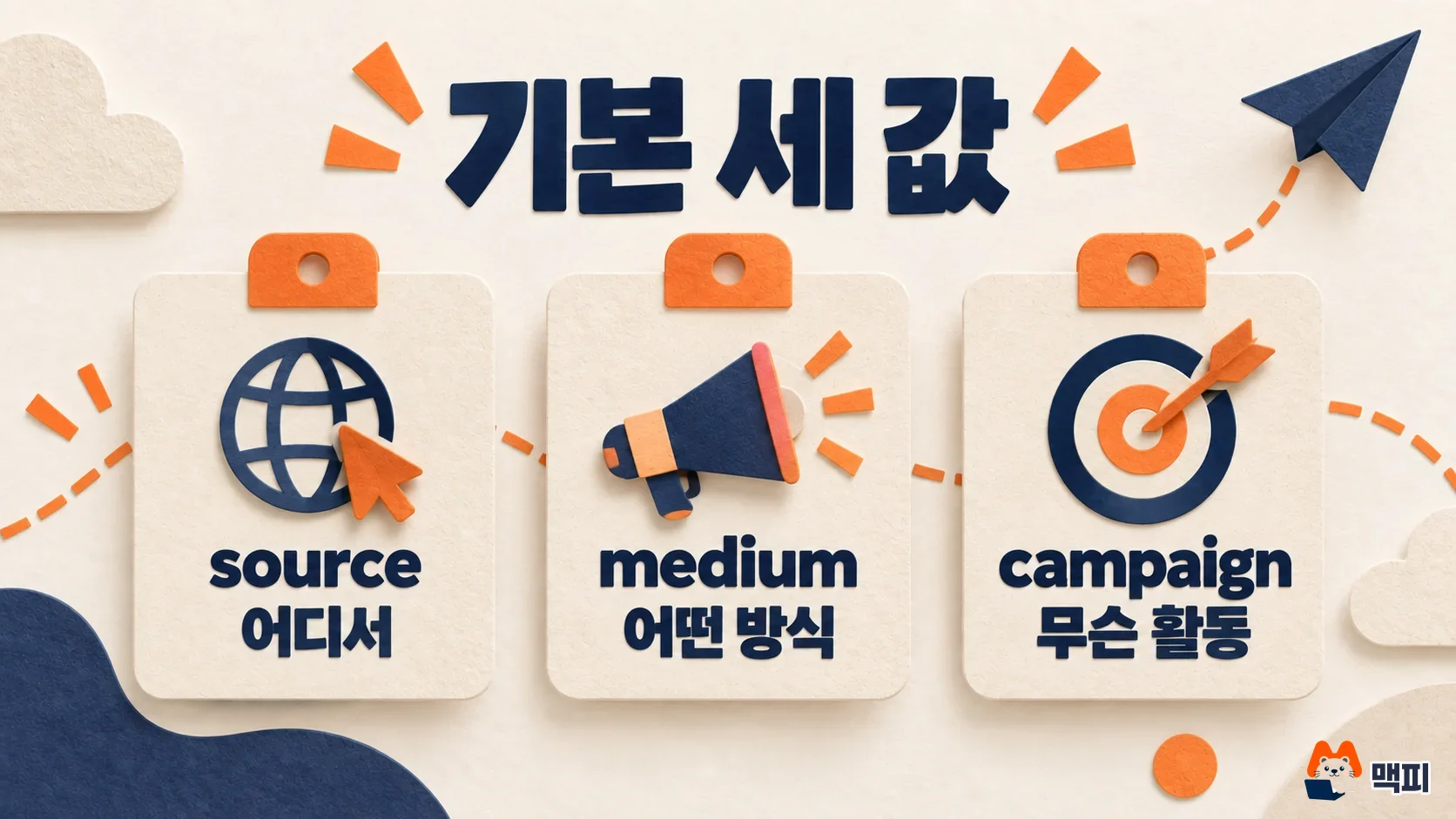
Source is where the visitor came from. Medium is how they got to you. Campaign is the name of the marketing activity. For an autumn sale, you could set them as below. This is a link-building example, not real measurement results.
| Where the link goes | utm_source | utm_medium | utm_campaign |
|---|---|---|---|
| Newsletter | newsletter | autumn-sale | |
| Instagram regular post | social | autumn-sale | |
| Naver search ads (Naver is Korea's largest search engine) | naver | cpc | autumn-sale |
Keep campaign the same for links that promote the same event. Change source and medium by channel and format. If several people build links, agree on these names first. Even a case difference such as newsletter and Newsletter is counted by GA4 as separate values.

At first, a rule of lowercase English with hyphens between words is easy to manage. If you already have a naming convention, match your existing values instead. The shape of the value matters less than using the same name for the same meaning, which makes reports easier to combine. Problems that come up when a team builds a rules sheet are covered in Even with a UTM convention, GA4 does not read your sheet.
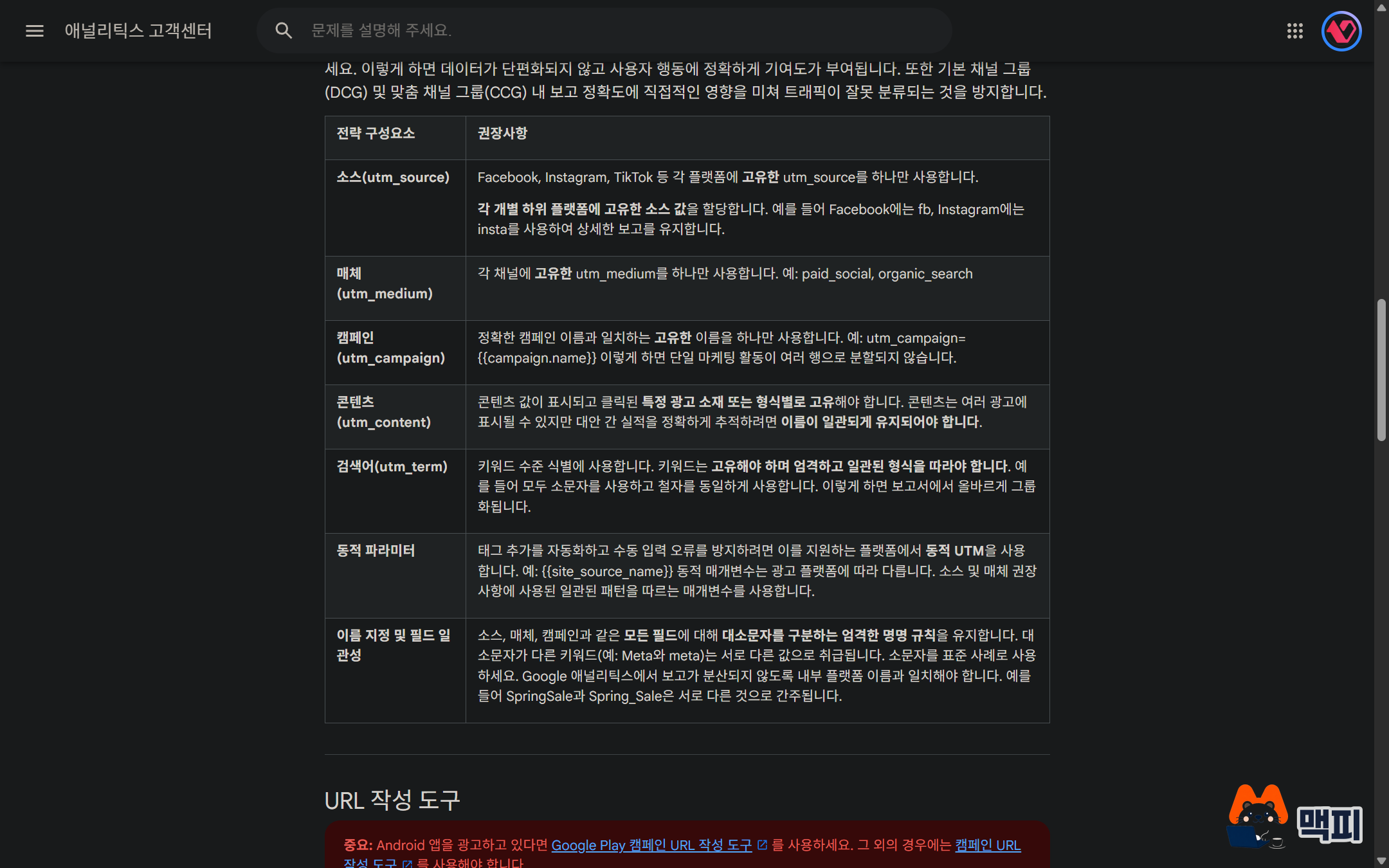
Medium also affects channel grouping. Use email for email and social for regular social posts, matching the purpose. Paid search and paid social are classified using other conditions too, such as the combination of source and medium. Do not assume cpc alone decides the channel (GA4 default channel group).
UTM parameter types: the 3 core values and optional ones
Add parameters beyond the three only when you need more detail. To compare the top button and the bottom button in a newsletter, set utm_content to top-button and bottom-button.
| Parameter | What it records | Example |
|---|---|---|
| utm_source | Where the visitor came from | newsletter, naver |
| utm_medium | How the visitor arrived | email, cpc, social |
| utm_campaign | Name of the marketing activity | autumn-sale |
| utm_id | Campaign ID | 2026-10-a |
| utm_term | Paid search keyword | running-shoes |
| utm_content | Tells creatives or links apart within one campaign | top-button |
| utm_source_platform | Platform that manages the traffic | meta-ads |
The official documentation lists 9 UTM parameters. Besides the 7 in the table, utm_creative_format and utm_marketing_tactic are not currently reported in GA4 properties. Do not try to fill in everything at the start. Decide the three core values and any needed distinctions first.
How to build a UTM link
Here is an example link for a newsletter. Put the name and value after the question mark, and join each item with &.
https://example.com/event?utm_source=newsletter&utm_medium=email&utm_campaign=autumn-sale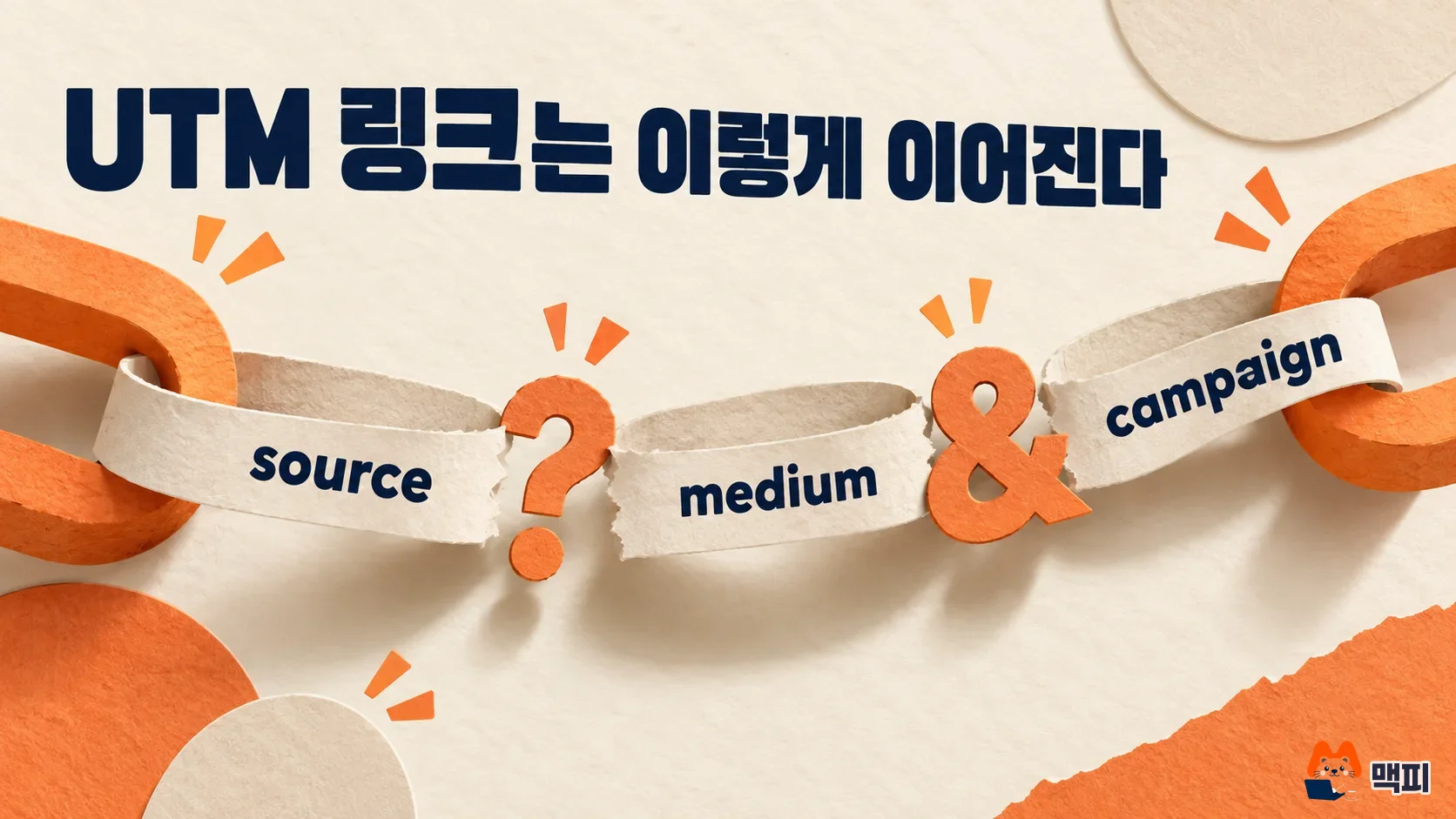
If assembling the link by hand feels unfamiliar, use Google's Campaign URL Builder. It saves you from checking whether the existing address already has a question mark before adding symbols.
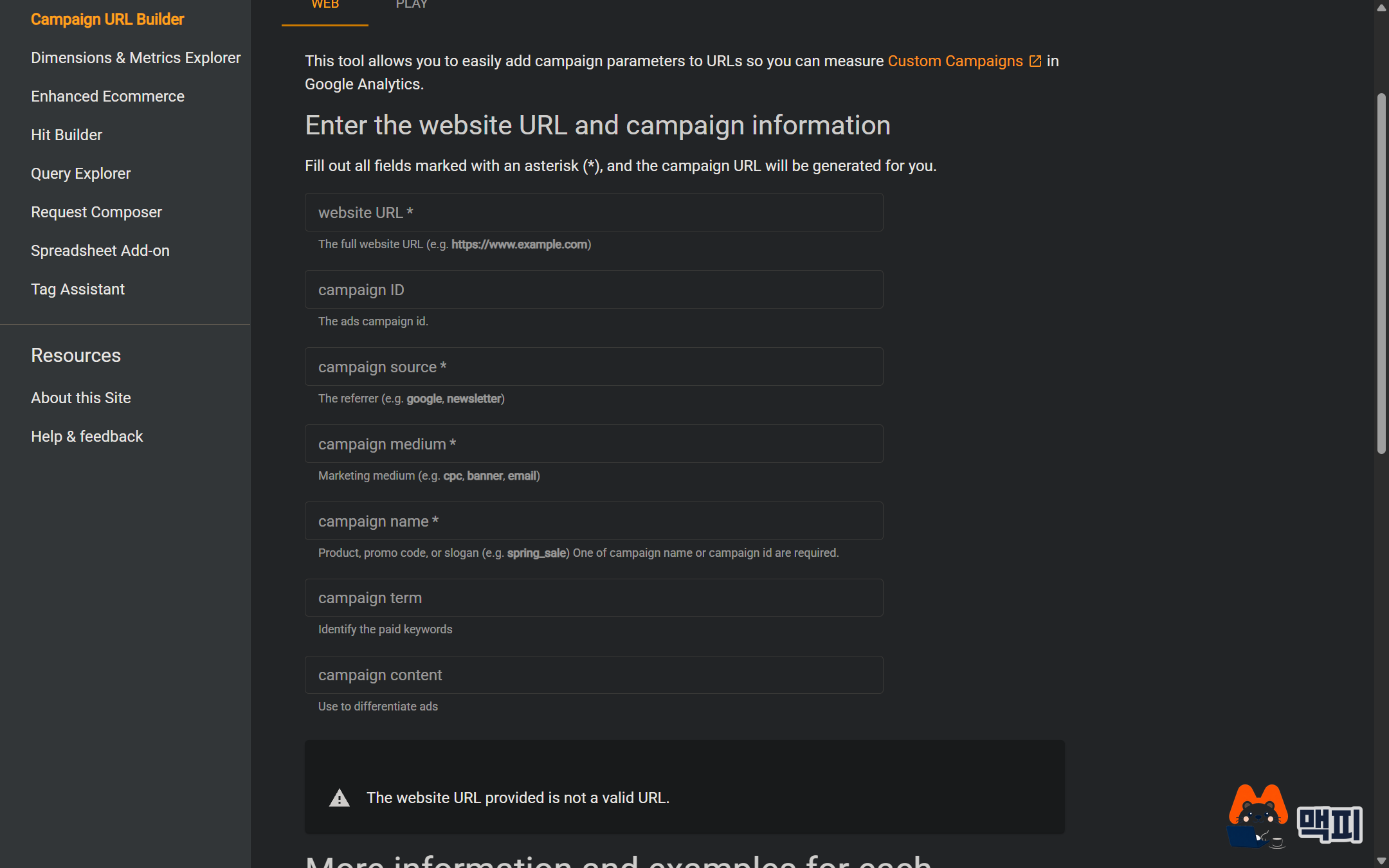
- Enter the full address of the landing page.
- Enter the source, medium and campaign you decided on. If you need to compare creatives or buttons, add content too.
- Copy the generated address and open it yourself. Check that it goes to the page you want and that the UTM values stay in the final address.
- If all is well, put it in the newsletter or post. If you used a shortened address, click it again to confirm it leads to the same destination.
When writing the link by hand, if the address already has a ?, put & before the UTM values. What you check at this step is how the link behaves. Whether GA4 collects it is checked separately in the next step.
Where to check UTM values in GA4
When testing, open the link in an environment that has not yet visited the site, such as a new browser profile. In a session that is already in progress, changing only the UTM values does not change that session's traffic source.
In GA4, open Reports > Acquisition > Traffic acquisition. Change the table dimension to Session source / medium to see combinations like newsletter / email. Change it to Session campaign to see campaign names like autumn-sale.
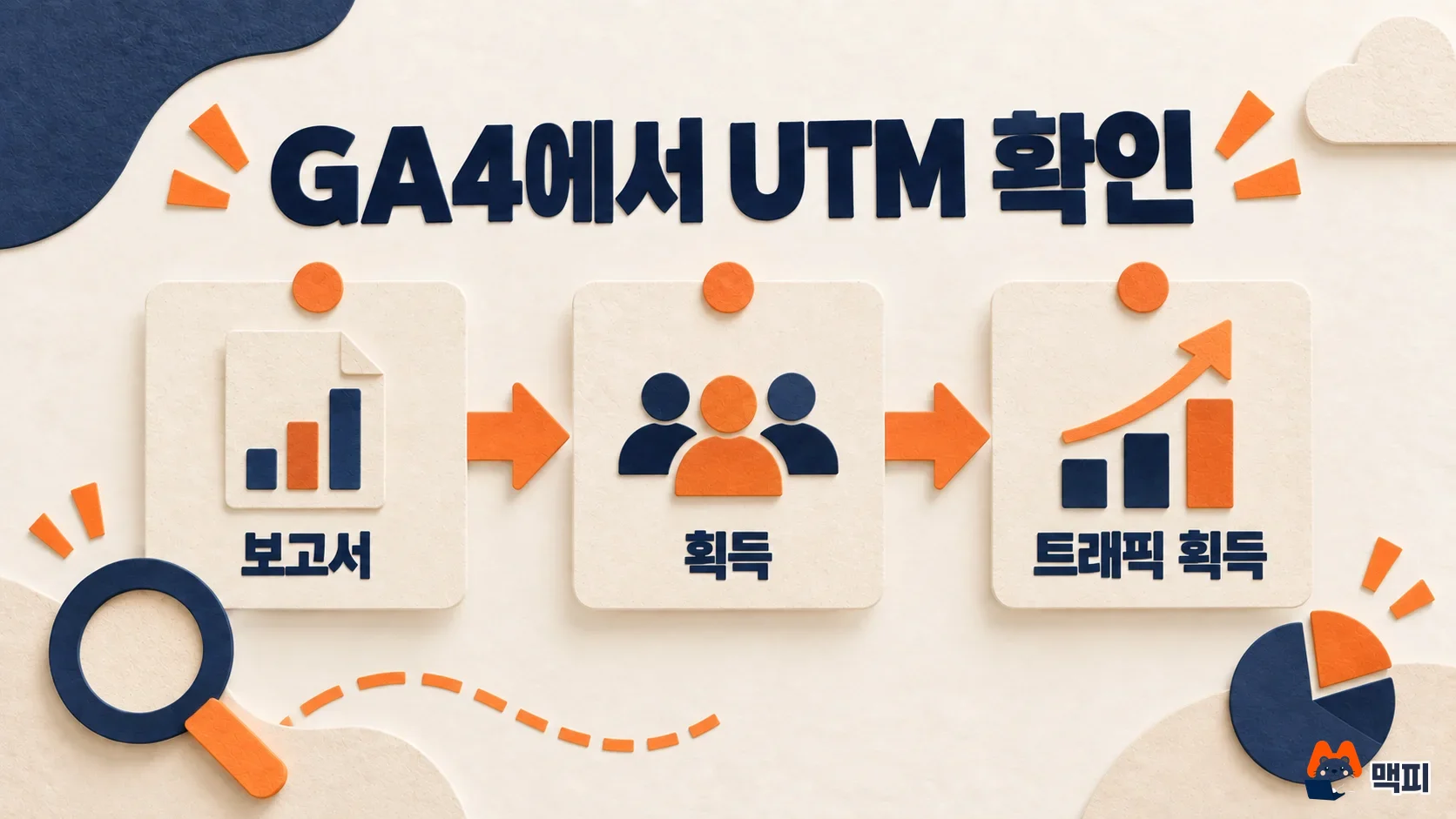
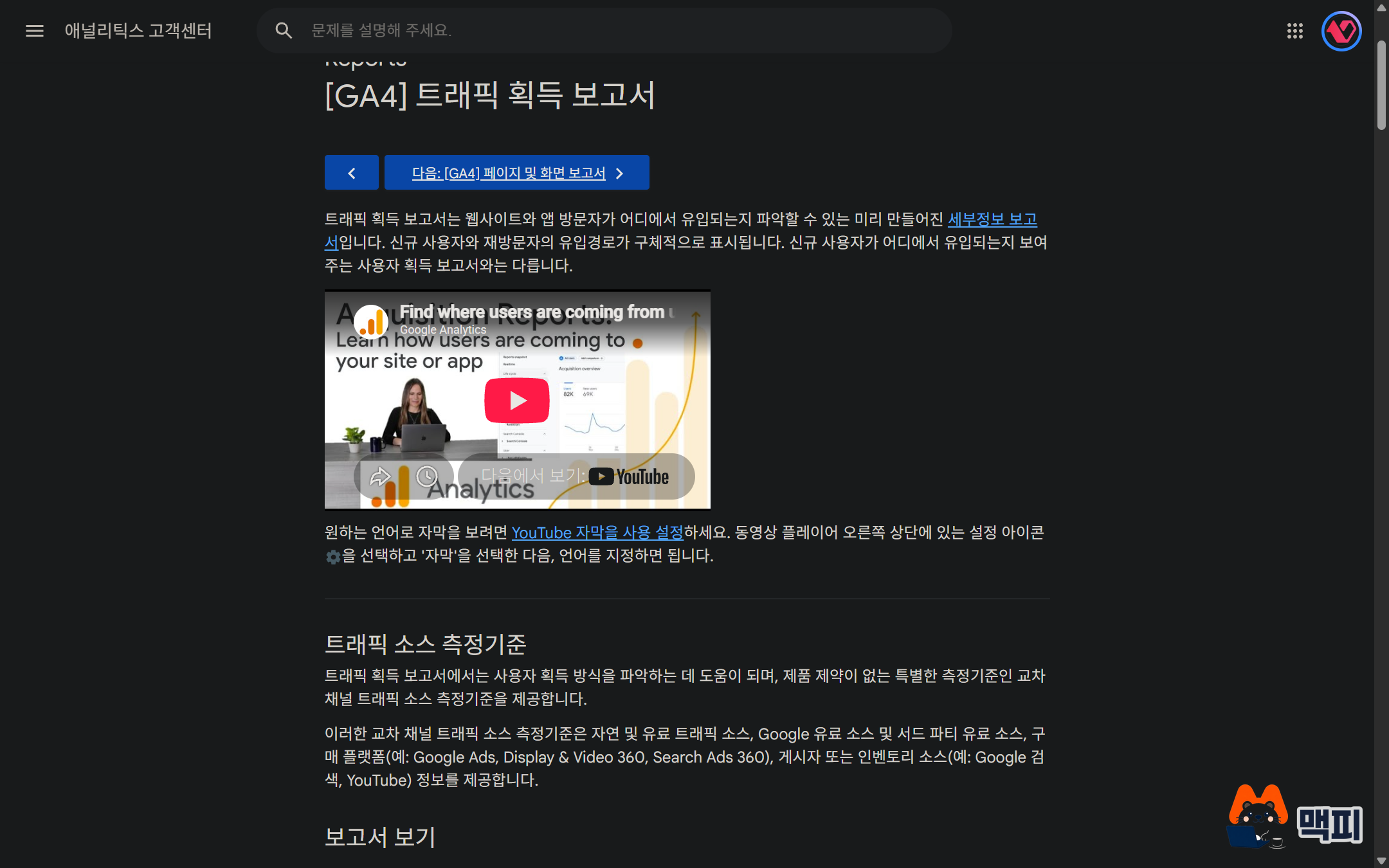
A session is a visit period in which a user interacts with the site. The Traffic acquisition report looks at the traffic source of sessions, including new and returning visits. To see what first brought a user in, use the User acquisition report.
If you cannot see the report, your account's report setup may differ or the report may have been removed from the menu. Editors and above can add the report back. Do not assume the link is wrong just because values do not appear right away. Standard reports and Explorations can take 24 to 48 hours to process data.
Use the Realtime report to confirm that visits are being collected. To see whether UTM was classified as intended, wait until the data has been processed, then compare Session source / medium and Session campaign in Traffic acquisition. If values differ, check in order the date range, the UTM left in the final address, and the GA4 collection status.
Common UTM mistakes and what to do when values look wrong
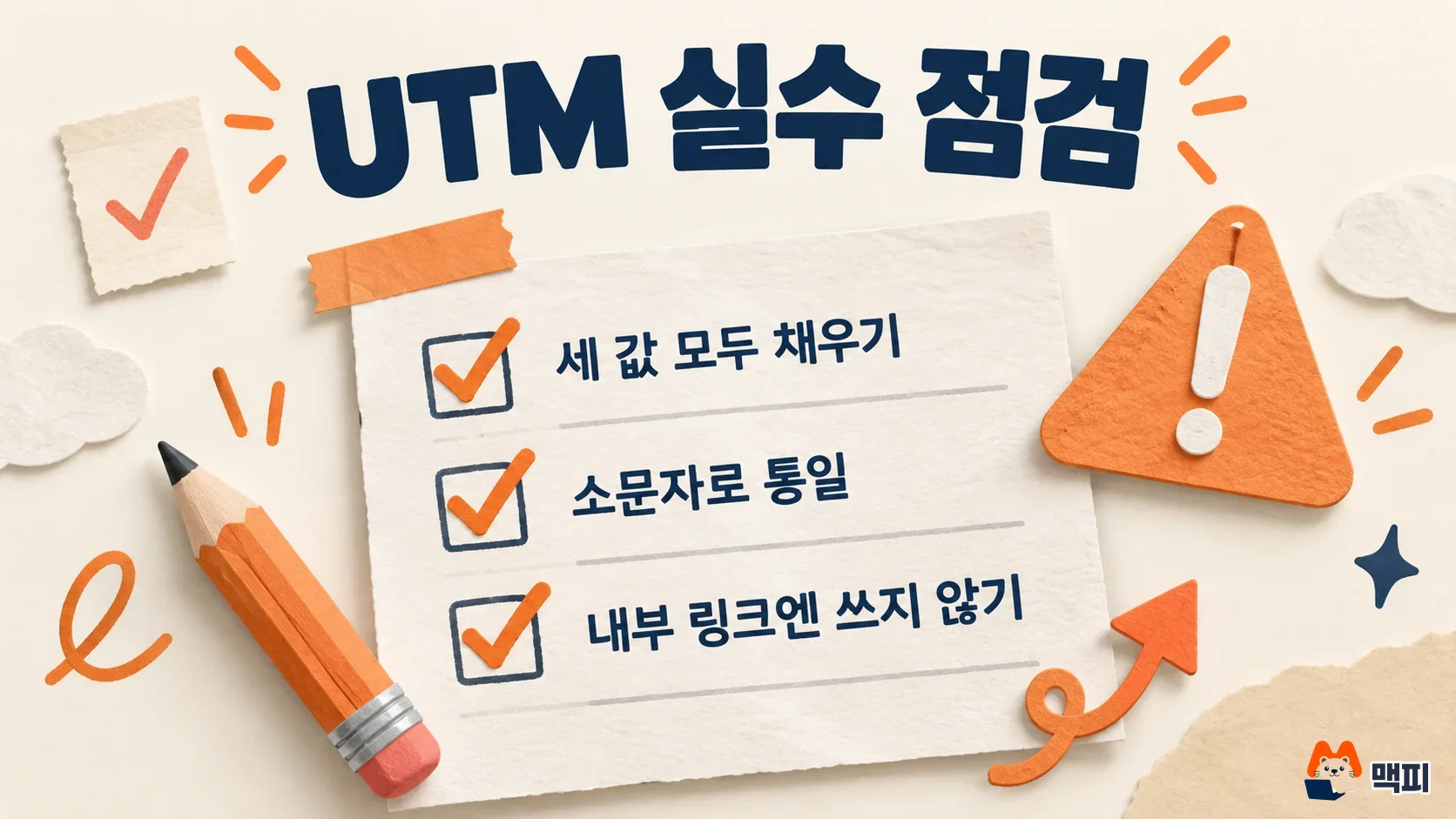
If you add only campaign and leave out source or medium, related report values may show as (not set). Fill in the three values as one set.
For Google Ads links, first check auto-tagging and the GA4 link status. When auto-tagging and manual UTM are both present and the click ID can be used normally, auto-tagging values take priority for cross-channel items such as source and medium. Adding UTM does not let you rename every report value as you wish.
Measure clicks on banners or menus inside your site with events, not UTM. If you add UTM to internal links, campaign values meant for external traffic can mix into event attribution analysis and blur the interpretation.
When GA4 meets a new campaign or traffic source in a session already in progress, it does not start a new session. That value is tied to the collected events and is not swapped in as the traffic source of the existing session. This is easy to confuse with the session rules of the old Universal Analytics. If you want to review the basic idea of the tag first, read UTM parameters: the complete basics.
If the link goes into a Naver ad or a Kakao message
Google Ads auto-tagging does not tell apart links from other Korean channels for you. For links sent from Naver search ads or Kakao messages (Kakao is Korea's main messaging app), first check whether existing UTM or automatic input settings are in place, then decide the names. If the platform already adds values automatically, do not add the same parameter twice.
If you use a shortened address or an intermediate redirect page, click the link the user actually receives and check through to the final destination. Even if the address opens normally, if UTM is dropped along the way, it is hard to analyze the traffic under the intended name.
UTM FAQ
How does GA4 classify visits without UTM?
A visit with no UTM and no other traffic source information is recorded with source (direct) and medium (not set) or (none), and is classified in the Direct channel. Visits from clicking a saved link or typing the address directly fall here.
Are addresses with UTM treated as duplicate pages in search?
If you do not specify a canonical address, Google picks the best version to show users automatically. If you add a rel="canonical" link that points to itself on the original page, you can tell Google the preferred address directly.
Pick the next link you will send, decide its source, medium and campaign, then check the landing address and the GA4 report values in that order.
Found this useful? Share it
Latest posts
Kakao Share Thumbnail Not Showing? Here's the Fix (JavaScript SDK 2025)
Learn why Kakao Share thumbnails don't appear even with a valid imageUrl, and fix it using scrapImage to convert your URL into a KAGE CDN URL. Step-by-step guide.
How to Generate CRM User Manuals in 20 Minutes with Claude Code Sub-Agents
Learn how Claude Code sub-agents can analyze your CRM codebase and auto-generate user manuals and visual guidebooks in just 20 minutes. See the real-world results.
GEO Generative Engine Optimization: The Complete 2025 AI Marketing Strategy Guide
Learn what GEO (Generative Engine Optimization) is, how it differs from traditional SEO, and discover 5 proven AI marketing strategies to get cited by AI search engines in 2025.
Related projects
Get new posts by email
Insights on marketing, analytics, and dev, delivered to your inbox.