
To create a YouTube channel, sign in to YouTube, open Settings, choose "Add or manage your channel", click "Create a channel", and set a name and handle. According to Google Help, you only need a Google Account to watch videos, like, and subscribe, but you need a channel to upload, comment, and create playlists. For a business or team channel, create it as a Brand Account from the start so you can add managers and run it together (as of October 9, 2026).
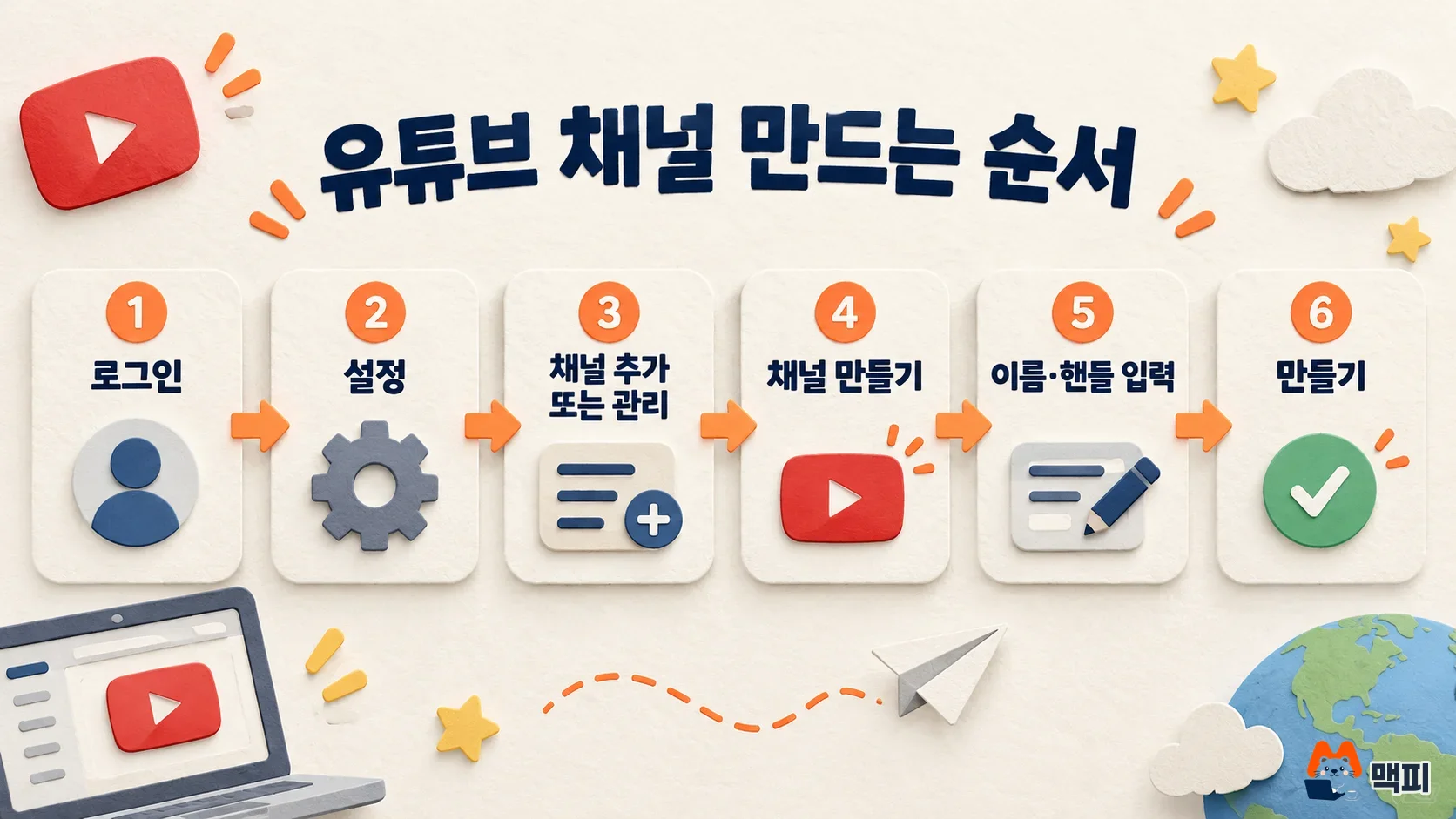
How to create a YouTube channel: 6 steps for a personal channel
The steps are the same on desktop and the mobile site. A personal channel runs under your own Google Account name and profile. It is the simplest option.
- Sign in to YouTube.
- Click your profile picture at the top right to open Settings.
- In the Account section, choose Add or manage your channel.
- Click Create a channel.
- Pick a profile picture, then enter a channel name and a handle (the @address that points to your channel).
- Click Create channel again.
After creating it, click your profile picture to check that your channel appears and that the youtube.com/@내핸들 address opens. Once you set a handle, a youtube.com/@handle address is created automatically. Accounts that use YouTube in a supervised experience may not be able to create a channel, so in that case create it with a different account.
Choose between a personal channel and a Brand Account channel
Google Help says a channel shared by several managers or owners should be connected to a Brand Account. The same method applies if you want to use a name different from your Google Account name.
| Item | Personal channel | Brand Account channel |
|---|---|---|
| Best for | Channels you run alone | Company or brand channels, and channels managed by several people |
| Where to create it | Settings > Add or manage your channel > Create a channel | Channel list > Create a new channel |
| Adding managers | You run it directly with your Google Account | Add owners and managers to run it together |
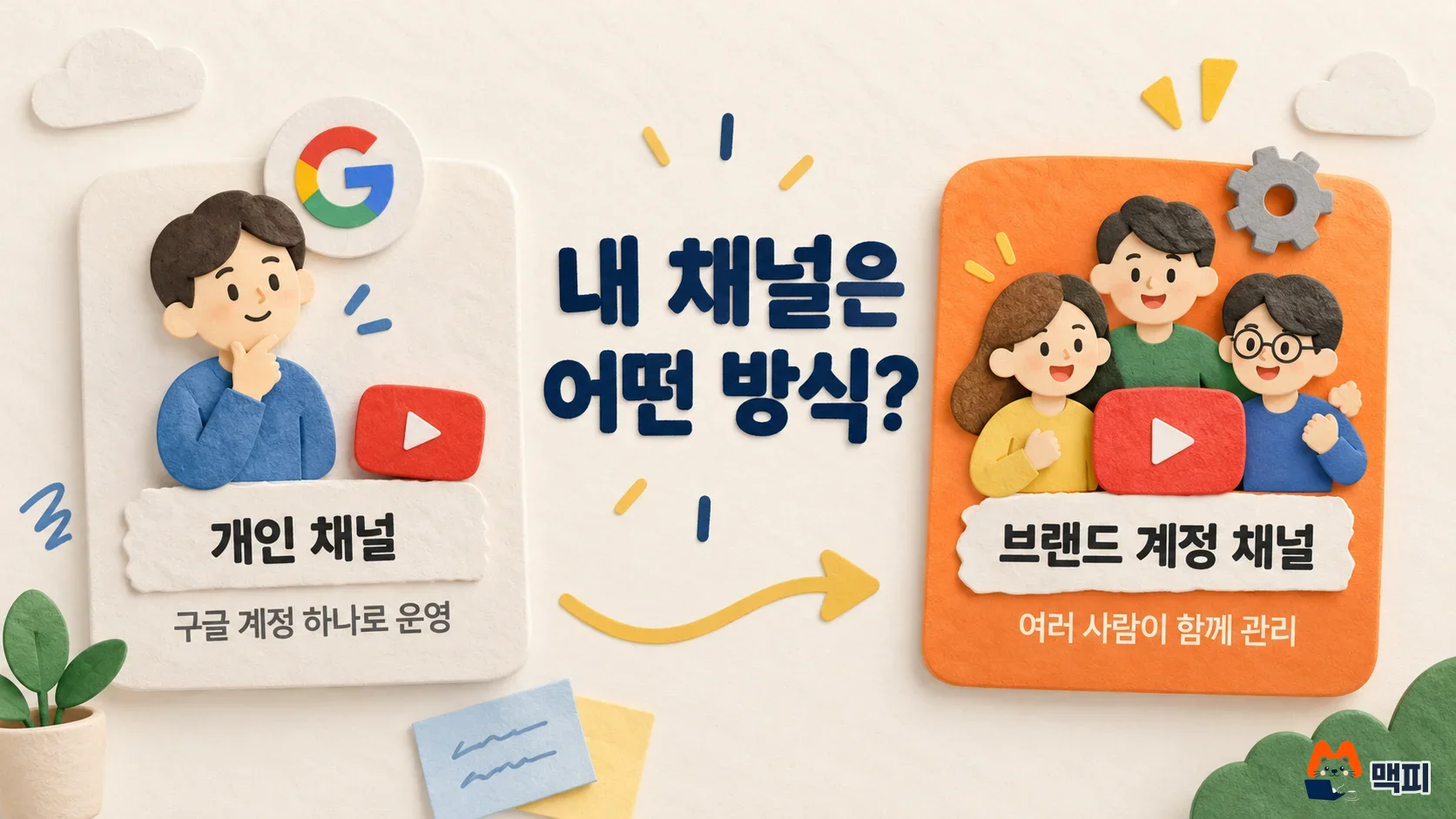
To create a brand channel, click Create a new channel in the channel list, set a profile picture, name, and handle, then click Create channel. A new Brand Account is created. Add owners and managers next if you need them. You cannot create a new channel in a Brand Account that already has one. Select that account in the list and you switch to its existing channel.
Set up your channel name, handle, profile, and banner
Right after creating the channel, go to Customization > Profile in YouTube Studio to set up your handle, profile picture, and banner. Changes only take effect after you click Publish. The photo and banner specs follow the channel branding help page.
| Item | Spec |
|---|---|
| Profile picture | JPG, GIF, BMP, or PNG (no animated GIFs), 15MB or less, displayed at 98×98 pixels, square or round image recommended |
| Minimum banner upload | 2048×1152 pixels at a 16:9 ratio |
| Recommended banner | 2560×1440 pixels, 6MB or less |
| Safe area for text and logos | Keep them within 1235×338 pixels to avoid cropping |
Banners can be cropped depending on the device and view, so keep your channel name or logo in the center. You can change your handle 2 times within 14 days, so it is better to start with a short name that matches your brand.
Add channel managers and set permissions
For a Brand Account channel, send invitations from the Permissions menu in YouTube Studio settings. Go to Settings > Permissions > Invite, enter the email, choose a role, and click Done. An invitation expires 30 days after it is sent. For a Brand Account, you first need to switch it to channel permissions.
| Role | Can do | Cannot do |
|---|---|---|
| Owner | Everything, including deleting the channel, managing permissions, and linking Google Ads | Transfer ownership |
| Manager | Manage permissions, edit channel details, publish and delete content | Delete the channel |
| Editor | Edit most things, upload and publish | Delete, manage permissions |
| Editor (limited) | Same as Editor | Access revenue data |
| Subtitles editor | Edit subtitles on eligible videos | Every other edit |
| Viewer | View channel info and revenue data | Edit |
| Viewer (limited) | Same as Viewer | Access revenue data |

Give outsourced video editors the Editor role or lower so they can upload. Give ad agencies a limited role if they do not need revenue data. This helps prevent accidents like channel deletion or permission changes.
Upload your first video and verify your phone
In the YouTube Studio app, tap Create at the top, choose a file, enter a title and visibility, select whether the video is made for kids in the next step, and then tap Upload video. Vertical or square videos of 3 minutes or less are uploaded as Shorts. You must choose the made-for-kids option because of the Children's Online Privacy Protection Act (COPPA).
Videos over 15 minutes, custom thumbnails, and live streams require you to complete phone number verification. To confirm that the visibility you chose at upload is correct, check after uploading that the video shows on your channel page.
Common mistakes when creating a YouTube channel
| Mistake | Problem | How to fix it |
|---|---|---|
| Creating a company channel as a personal channel | Google's guidance is to connect channels shared by several managers or owners to a Brand Account | Create a Brand Account channel with Create a new channel in the channel list (Help) |
| Trying to create a new channel in a Brand Account that already has one | Creation does not work | Select that Brand Account in the list and switch to the existing channel |
| Changing the handle often | You can change it only 2 times within 14 days | Set a handle that matches your brand name from the start (Help) |
| Placing text at the edge of the banner | The image is cropped depending on the device and view | Keep text and logos within 1235×338 pixels (Help) |
| Sending a permission invitation and leaving it | Invitations expire 30 days after they are sent | Ask the person to accept, and invite again if it expires |
When can you apply for YouTube monetization
Creating a channel does not earn ad revenue right away. The YouTube Partner Program requires 1,000 subscribers plus 4,000 watch hours in the past 12 months, or 10 million Shorts views in the past 90 days. To apply, click Apply now in the Earn menu in Studio, agree to the terms, and link an AdSense account. Review usually takes about 1 month. Google announced that from February 1, 2027, the bar for new applicants will rise to 8,000 watch hours or 20 million Shorts views. If you plan to run ads, first look at the YouTube ad cost benchmarks.
Once you have created your channel and uploaded your first video, the next step is to polish your profile and banner, and invite permissions if you need managers.
FAQ: Creating a YouTube channel
Do I need a channel just to watch and subscribe?
No. Watching, liking, and subscribing work with a Google Account alone. Uploading, commenting, and playlists need a channel.
What happens to the old address when I change my handle?
The old handle is kept for 14 days so you can revert, and during that time both the old and new addresses open. After 14 days, another user can pick the old handle.
Can I add managers after creating the channel?
If the channel was created with a Brand Account, you can add them anytime by sending an invitation from the Permissions menu in Studio settings. The invitation must be accepted within 30 days of the day it was sent.
Found this useful? Share it
Latest posts
Kakao Share Thumbnail Not Showing? Here's the Fix (JavaScript SDK 2025)
Learn why Kakao Share thumbnails don't appear even with a valid imageUrl, and fix it using scrapImage to convert your URL into a KAGE CDN URL. Step-by-step guide.
How to Generate CRM User Manuals in 20 Minutes with Claude Code Sub-Agents
Learn how Claude Code sub-agents can analyze your CRM codebase and auto-generate user manuals and visual guidebooks in just 20 minutes. See the real-world results.
GEO Generative Engine Optimization: The Complete 2025 AI Marketing Strategy Guide
Learn what GEO (Generative Engine Optimization) is, how it differs from traditional SEO, and discover 5 proven AI marketing strategies to get cited by AI search engines in 2025.
Related projects
Get new posts by email
Insights on marketing, analytics, and dev, delivered to your inbox.