

The Gemini inline button in the BigQuery SQL editor is a request button that appears when you select text in the query window. Google's guide shows how to use it to turn comments into SQL, explain queries and fix errors. Google Cloud announced this feature as generally available (GA) in the October 8, 2026 release notes. To use it, your project needs Gemini in BigQuery set up and your account needs the Gemini for Google Cloud User role. Prompts support English only.
What changed with the BigQuery SQL editor Gemini inline button
Google's guide first describes building queries with the SQL generation tool and the Gemini Cloud Assist chat panel next to the editor. Now, simply selecting SQL or a comment in the editor shows a Gemini button near the selection, and you pick an action there. The change is that you can make a request without leaving the spot where you are writing the query.
BigQuery Studio is the workspace inside the BigQuery console where you write and run SQL. What the release notes mark as GA is Gemini support through the inline button. The Google usage guide still lists some features inside the button (such as converting comments to SQL and SQL autocomplete) as Preview, so check the stage of each feature when you use it on a team.
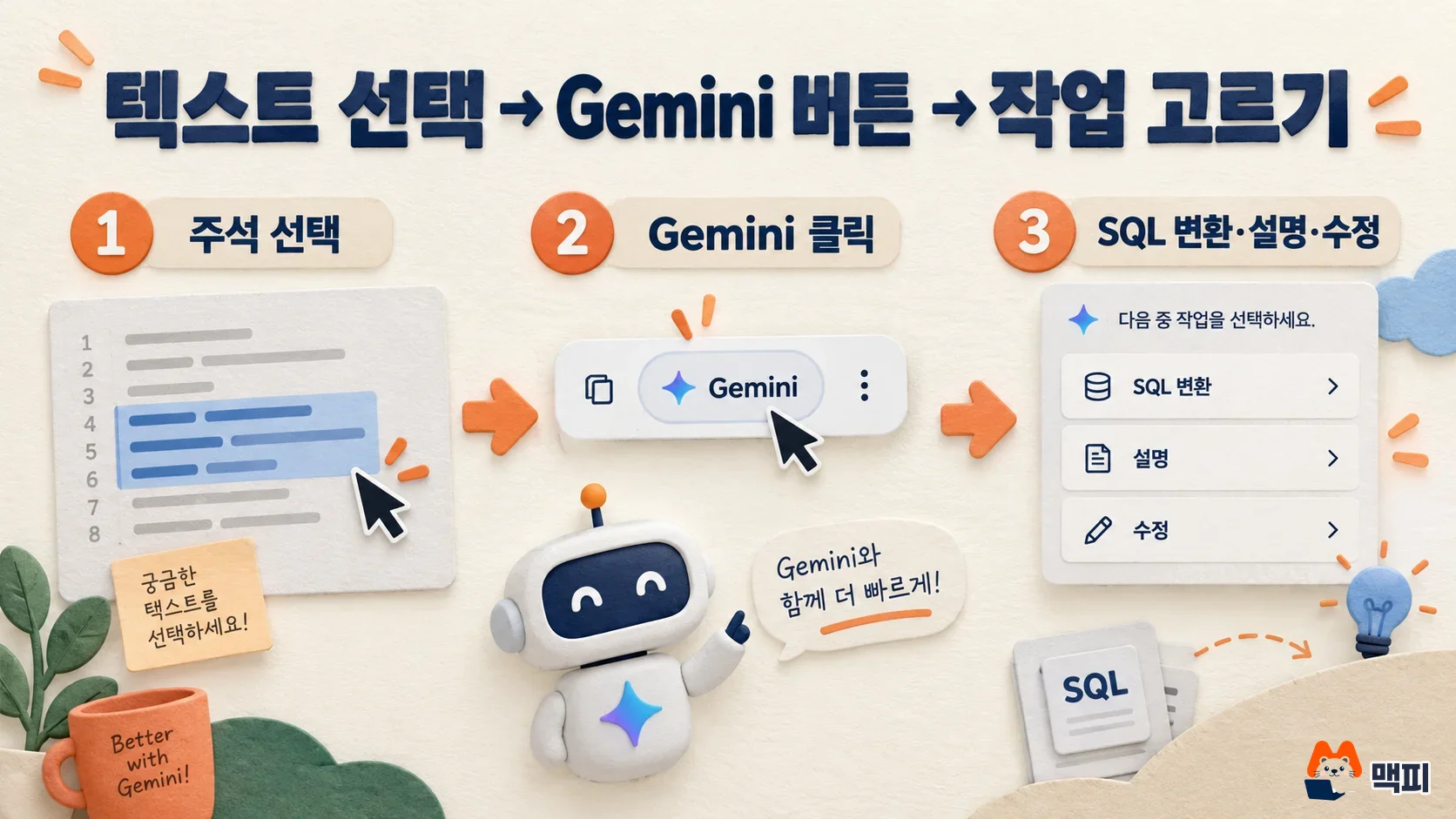
How to use Gemini in the BigQuery SQL editor
There are three steps. In a query tab, drag to select the target SQL or comment, click the Gemini button that appears around the selection, and pick the action you want from the table below. According to the Google guide, you can also open comment conversion directly with Ctrl+Shift+P (Command+Shift+P on Mac).
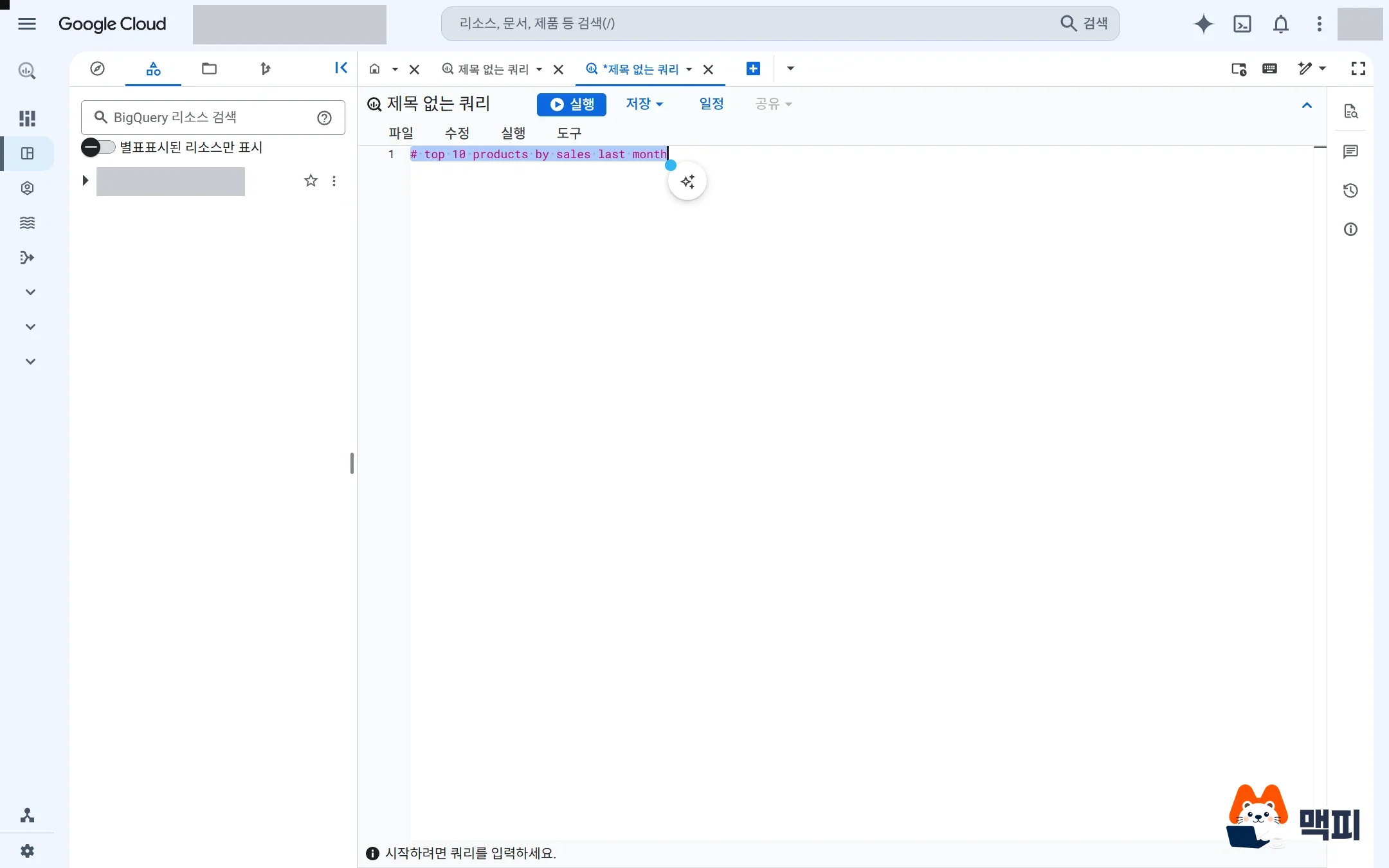
The button menu actions described in the Google guide are as follows.
| Menu | What it does | Where the result appears |
|---|---|---|
| Convert comments to SQL | Converts a natural-language comment to SQL (Preview) | Review the diff, then insert with Insert |
| Explain this query | Explains the selected query in plain language | Cloud panel |
| Refine > Fix it | Fixes query errors | Review the suggested fix, then apply |
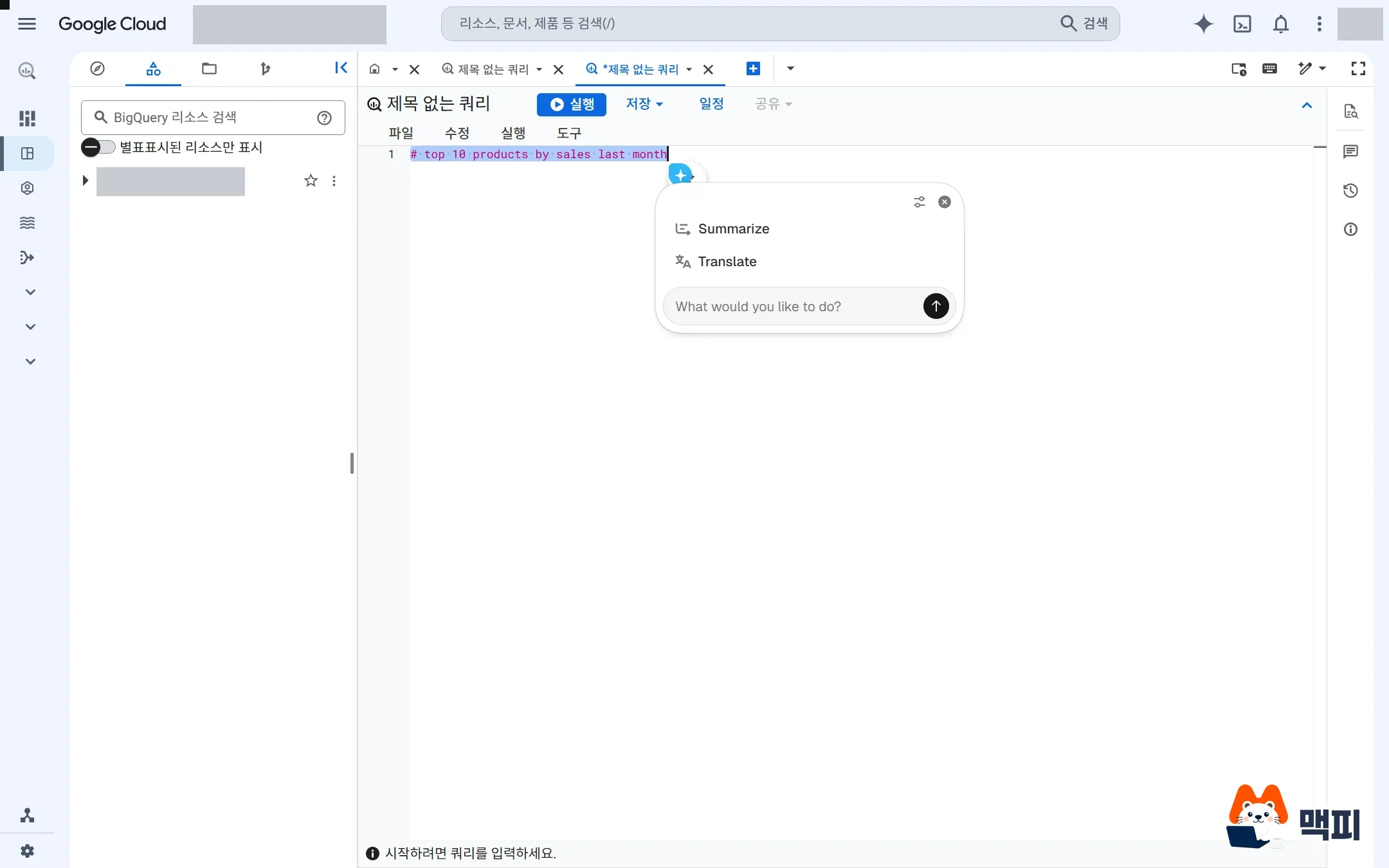
In the actual screen, the menu differed depending on what was selected. When we selected only one English comment line, the console on October 9, 2026 showed Summarize, Translate and a "What would you like to do?" input box instead of the items in the table above. If your menu differs from the guide, type your request in English in the input box. If the actions in the table still do not appear, check the permissions and Gemini menu settings below.
The writing tips in the guide also help you get better results. Write tables with the full path wrapped in backticks, like `프로젝트.데이터셋.테이블`, and spell out the meaning of any ambiguous column names in the prompt. Gemini refers to the metadata of recently queried tables, so querying the table you plan to use once beforehand improves the result. If you do not like the result, add a follow-up instruction such as "limit to 1000" in Refine.
Check whether it worked on the result side. Per the guide, for comment conversion, check that SQL appears in the diff view before insertion. For explanations, check that the explanation text appears in the Cloud panel. Before running a generated query, read it yourself to confirm the conditions and target tables match your intent. The Google guide also warns that generated output can look plausible but be wrong, and asks you to verify it before use.
Gemini permissions and setup in BigQuery
If the button does not appear, it is usually a setup or permission issue. The prerequisites in the guide are three items.
- Project setup: The project must have Gemini in BigQuery set up. A project admin usually does this.
- IAM role: The user needs the Gemini for Google Cloud User (
roles/cloudaicompanion.user) role at the project level. Permissions for code generation, completion and explanation are included in this role. - Turn the features on: In the Gemini menu on the toolbar, check that SQL autocomplete, auto-generation, the SQL generation tool and the explanation feature are ticked.
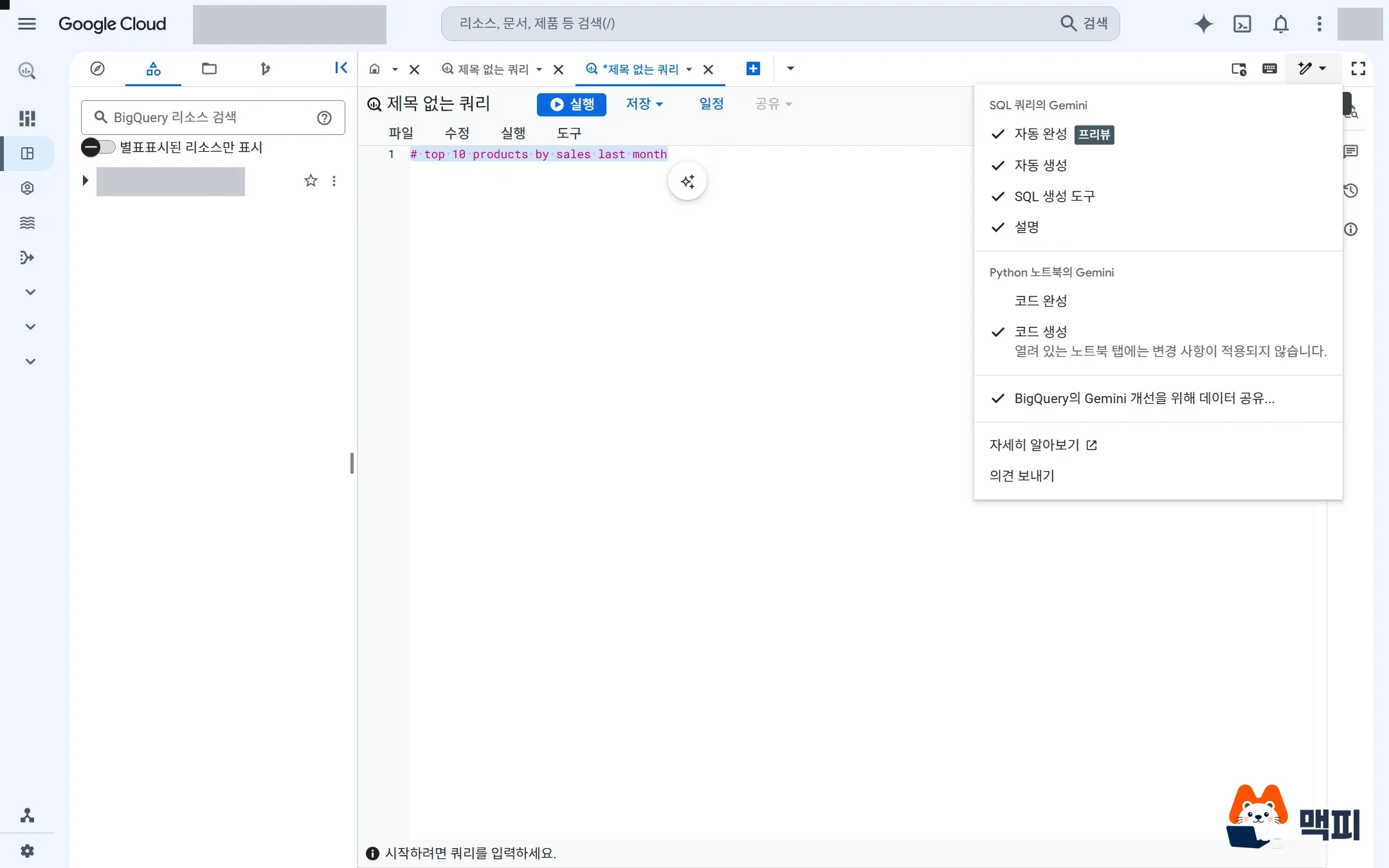
Also know how your data is handled. Google states in the guide that Gemini for Google Cloud does not use your prompts and responses to train models without your explicit permission. The option to share Preview feature prompts with Google to improve quality (Share data to improve Gemini in BigQuery) applies to the whole project, and only a project admin can change it. For pricing, see the Gemini in BigQuery pricing page.
What marketers and analysts should know
For marketers who are not comfortable with SQL, the most useful actions are explanation and error fixing. If you select a GA4 export query a colleague wrote and click Explain this query, it explains which table it reads and what it counts. For a query that throws an error, you can get a suggested fix with Fix it. If you want to know how to filter GA4 data in BigQuery, first read why GA4 internal traffic stays in BigQuery and how to filter it with a query, then ask Gemini to explain the query shown there. That order is easier to follow.
The limits are clear too. Per the Google guide, prompts support English only. Instead of writing a Korean prompt meaning "top 10 by revenue last month", write it in English, such as "top 10 products by revenue last month". Even the same prompt can produce different syntax each time, and a generated query may pick the wrong column or miss a filter. For queries used in ad spend or revenue reporting, have a person double-check the conditions and the number of result rows.
Frequently asked questions
Does BigQuery Gemini accept Korean prompts?
The Google guide says only English prompts are supported. It is safer to write your request as one English line instead of a Korean comment.
How is the inline button different from the SQL generation tool?
The SQL generation tool creates a new query from a prompt you type in the panel next to the editor. The inline button lets you select text you already wrote in the editor and make a request right away.
What should I do if the Gemini button does not appear?
Check that the features are ticked in the Gemini menu, and ask your project admin to confirm that your account has the Gemini for Google Cloud User role. If Gemini in BigQuery is not set up in the project, the admin setup comes first.
Found this useful? Share it
Latest posts
Kakao Share Thumbnail Not Showing? Here's the Fix (JavaScript SDK 2025)
Learn why Kakao Share thumbnails don't appear even with a valid imageUrl, and fix it using scrapImage to convert your URL into a KAGE CDN URL. Step-by-step guide.
How to Generate CRM User Manuals in 20 Minutes with Claude Code Sub-Agents
Learn how Claude Code sub-agents can analyze your CRM codebase and auto-generate user manuals and visual guidebooks in just 20 minutes. See the real-world results.
GEO Generative Engine Optimization: The Complete 2025 AI Marketing Strategy Guide
Learn what GEO (Generative Engine Optimization) is, how it differs from traditional SEO, and discover 5 proven AI marketing strategies to get cited by AI search engines in 2025.
Related projects
Get new posts by email
Insights on marketing, analytics, and dev, delivered to your inbox.