
You can run several Claude Code and Codex accounts at once by giving each account its own login folder. You pick the account per session, and when a limit fills, you switch to another one right away. claude-ai-accounts is an open-source tool that MCPY's author built to split two Claude accounts and two GPT accounts every day. With commands like ai claude C-WORK and ai codex G-WORK, you choose the account when you start a session in either tool (the login folder is moved with CLAUDE_CONFIG_DIR and CODEX_HOME). You see the remaining limits in one table, and you switch accounts in the way that fits each tool. According to the repository README (October 10, 2026), it works only on Linux and WSL.
Two moments when you want to split Claude Code and Codex accounts
The first is when each session has a fixed account. You want session A on your work account for the company repository and session B on your personal account for a side project, running at the same time. But Claude Code and Codex (the coding tool you use with a ChatGPT subscription) each keep one login for the whole PC (~/.claude, ~/.codex). The moment you change it, the account in every other open session changes too. There was no way to give each session its own account.
The second is when a limit fills. As the Claude Code status line docs and the Codex app-server docs both cover per-window usage, Claude and Codex each have a 5-hour limit and a weekly limit. When one account hits its limit, that session stops. Even if another account has room, you have to log out, log in, and approve in the browser again to move over.

This tool solves both cases the same way in both tools. You pick the account when you start a session with ai claude <account> or ai codex <account>, and if you need to change midway, you move over with the method for that tool. For subscription limit rules and plan differences, see Claude plan prices and usage limits (Korean). For ways to burn through limits more slowly, see how to reduce Claude Code token usage (Korean). This article is not about using less. It is about splitting accounts and moving between them when you hold more than one subscription.
How multiple accounts work: shared settings, separate logins
Both tools let you move the login folder with an environment variable. For Claude Code it is CLAUDE_CONFIG_DIR (official environment variable docs), and for Codex it is CODEX_HOME (official Codex docs). But if you split the whole folder per account, even hooks (commands that run automatically at set moments), memory, plugins, MCP (a standard for connecting AI to external tools) settings, and Codex's AGENTS.md get split too. A setting you fix in account A does not apply in B, and a B session does not know last week's memory.
According to the README, this tool keeps only the login files as real files in the account folder. It fills in the rest with links that point to each tool's original folder (~/.claude, ~/.codex). Your usual default login is left untouched.
| Item | Claude Code | Codex |
|---|---|---|
| Environment variable that moves the login folder | CLAUDE_CONFIG_DIR | CODEX_HOME |
| What stays as real files in the account folder | .credentials.json (login), .claude.json (only the account keys are kept) | auth.json (login), sessions/ (this account's conversation history) |
| What is shared through links to the original folder | settings.json, projects/, plugins/, etc. → ~/.claude | config.toml, AGENTS.md, skills/, etc. → ~/.codex |
Only the Claude .claude.json is a copy, because shared settings such as the MCP server list and the signed-in user's info are mixed in one file. On every launch, the shared settings are copied fresh, and only the account info keys are kept for that account. Codex differs in that its conversation history sessions/ builds up separately in each account folder. This difference comes up again in the midway switching section below.

How to switch Claude Code and Codex accounts midway: three cases
You cannot change the login of a running session from the outside. So the method splits into three, depending on the kind of session.
① A Claude Code session restarts in the same pane and keeps the conversation. Here is the behavior the README describes. When you click another Claude account in the band (the account table that appears above the input box), ai swap finds the claude process in the current tmux pane and reads its original launch arguments, such as the permission mode. After 0.5 seconds, it relaunches the same pane as ai claude <new account> <original arguments> --resume <this session>. The window layout, permission mode, and conversation stay the same. Only the login changes.

② Codex called from inside Claude does not need a relaunch. When you click a G- name (a GPT account) in the band, the next Codex call runs on that account. The Codex plugin lets sessions in the same folder share one relay process, so it can run under the account of whichever session started first. To avoid that, this tool puts this session's CODEX_HOME in front of the command that calls Codex and starts a separate relay process for each account.
③ A standalone Codex session restarts on the new account. Leave with /exit, then open it with ai codex <new account>. But the conversation history is separate in each account folder, so if you move to another account, you cannot pick up the earlier conversation and you start fresh. Inside the same account, you can continue with ai codex G-WORK resume. For long tasks, it is better to choose the account at the start.
Checking Claude and Codex usage limits: where the numbers come from and their limits
The remaining limits shown in the band and in ai status come from two places. Claude uses rate_limits in the status line input. According to the official docs, it holds the usage and reset time for the 5-hour and 7-day windows, and it appears for claude.ai Pro and Max subscribers after the first response (Claude Code status line docs). Codex uses account/rateLimits/read from codex app-server, which returns usage per window and the next reset time (Codex app-server docs).
| Item | Source | When it updates |
|---|---|---|
| Claude | rate_limits in the status line input | Only while you use a session with that account |
| Codex | account/rateLimits/read | Every minute, no limit used |
Both are account-wide values from the server, so usage on other PCs is counted too. However, Claude has no official way to ask for the usage of an account you are not using, so it shows the last value it saw. A value older than 1 hour is dimmed, and the elapsed time is added next to the name, like 3h ago. You could see it live by calling an undocumented private endpoint directly with the token. But that may change, and it requires opening the token file, so it was left out of the public version.
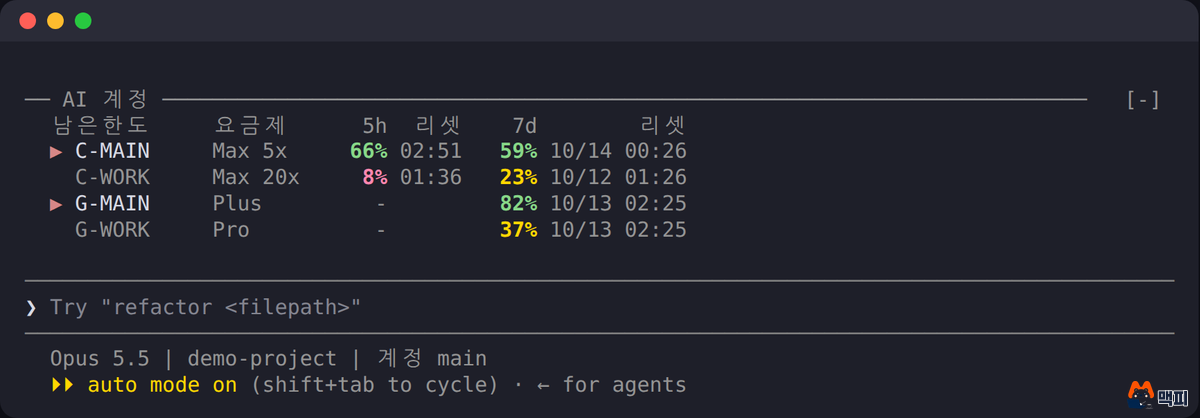
The ▶ on screen marks the account this session uses, and the color shifts from green to yellow to red as the remaining amount drops. In the demo, C-WORK has 8% left on its 5-hour limit, so it is time to move to C-MAIN (66%).
Installing claude-ai-accounts in 4 steps
You need Linux or WSL (a Linux environment inside Windows), python3, bash, Claude Code 2.1.29x (the mode feature was checked on 2.1.295), and tmux (a tool that splits a terminal into panes) for click switching. You need the Codex CLI only if you use GPT accounts, and ai claude and ai codex work even without tmux. The repository is public on GitHub under the MIT license.
- Install. Get the repository and run the installer. It is safe to run again, and it does not overwrite your existing registry or status line. The account you are logged into now is registered as
C-MAINandG-MAIN.git clone https://github.com/mcpysup-netizen/claude-ai-accounts.git cd claude-ai-accounts && ./install.sh - One status line entry. If your status line is empty, the installer connects a minimal one. If you already use a status line, add the line below to that script. It is the only channel that records Claude's remaining limits.
printf '%s' "$input" | ai record 2>/dev/null # $input = 상태줄 입력 JSON - Add accounts and log in. Enter the account id, a display name (up to 12 English characters), company or personal, and the plan.
ai add claude work C-WORK company 'Max 20x' ai login claude C-WORK # Claude가 뜨면 /login → 브라우저 승인 → /exit ai add codex work G-WORK company Pro ai login codex G-WORK - Install the mode. Start
claudeinside tmux and enter the line below at the prompt. It registers the GitHub repository as a plugin marketplace and installs from it (Claude Code plugin marketplace docs)./plugin install ai-accounts --marketplace mcpysup-netizen/claude-ai-accounts
To check that the install worked, start a session inside tmux with ai claude C-WORK and see whether the AI accounts table appears above the input box. Claude values fill in after you get the first response on that account. If you need more accounts, repeat step 3.
The ai command table: Claude Code and Codex
| What you want to do | Claude Code | Codex |
|---|---|---|
| Use the work account for this session from the start | ai claude C-WORK | ai codex G-WORK |
| Use the personal account in another terminal pane at the same time | ai claude C-MAIN | ai codex G-MAIN |
| Continue an earlier conversation | ai claude C-WORK --resume <session ID> | ai codex G-WORK resume (same account only) |
| Also set the Codex account called from inside Claude | ai claude C-WORK gpt:G-MAIN | Not applicable |
| Switch to another account midway | Click a name in the band, or /ai C-WORK | Inside Claude: click a G- name in the band Standalone: restart with ai codex <account> |
| Remaining limits for all accounts | ai status | |
| Donut chart panel | /ai | |
Any other arguments after ai claude and ai codex are passed straight through to claude and codex. For Codex usage and plans, see Codex usage and cloud task plan terms (Korean). For Claude Code install and subscription limits, check Claude Code install and plans (Korean) first.
Where account data is stored
| Location | Contents | Secrets |
|---|---|---|
~/.config/ai-accounts/accounts.json | Account id, display name, company or personal, plan, folder path | None |
~/.claude-accounts/<id>/.credentials.json | Claude login (managed directly by Claude Code) | Yes, this tool never opens it |
~/.codex-accounts/<id>/auth.json | Codex login (managed directly by the Codex CLI) | Yes, this tool never opens it |
~/.cache/ai-usage/*.json | Usage (%) and reset time | None |
According to the security section of the README, ai login only launches Claude's /login and codex login as they are. The tool makes no network requests of its own, does not call unofficial APIs, and does not extract or store tokens. It creates folders with 700 and files with 600 permissions.
Where first-time users get stuck
The points below follow the notes section of the README.
- MCP logins are separate for each account. MCP settings are shared, but the login token goes into the account's
.credentials.json. If you run automation on a new account, it can stall because there is no MCP login. For a new account, log in once to the servers you need in/mcp. The connection steps are in the Claude Code MCP docs. - claude.ai connectors (Gmail, Drive, and so on) are tied to the account. Unlike local MCP, you only see what was connected on that account.
- Moving a standalone Codex to another account does not carry the conversation over. This is because the conversation history is separate in each account folder (
~/.codex-accounts/<id>/sessions). - When clicking the band does nothing. Check that
~/.tmux.confcontainsset -g mouse on. For sessions outside tmux, the tool shows manual steps instead of the same-pane switch.
Limits and how to remove it
This follows the limitations section of the README.
- macOS and native Windows do not work yet (WSL does).
- The limit of an unused Claude account cannot be seen live. It is the last observed value. Codex is live every minute.
- The band and click switching attach only to the Claude Code screen. The standalone Codex screen has no band, so check with
ai status. - The Claude Code mode feature is at an early stage (early access), so it may break when versions go up. The on-screen text is in Korean.
To remove it, run ./install.sh --uninstall to delete the ai command and scripts, and run /plugin uninstall ai-accounts in Claude Code to remove the mode. The registry and the per-account login folders are kept so you do not lose your logins, so delete them yourself if you do not need them.
To keep work and personal accounts apart, register the accounts as company and personal in step 3, and assign them per session with ai claude and ai codex. When you see an account running low, click its name in the band in Claude Code to move to one with room. For standalone Codex, check with ai status and then restart with ai codex <account>.
Frequently asked questions
Q. Can I use two accounts at the same time in both Claude Code and Codex?
Yes. This tool splits the login folder per account, so you can run session A on a work account and session B on a personal account at the same time, using ai claude for Claude Code and ai codex for Codex.
Q. What if the limit numbers look wrong?
For a Claude account you have not used, the number is the last observed value, so check the elapsed time next to the name (3h ago). Using a session on that account once will refresh it.
Q. Where can I see the source and issues?
You can read the code and report problems as issues in the GitHub repository.
Found this useful? Share it
Latest posts
Kakao Share Thumbnail Not Showing? Here's the Fix (JavaScript SDK 2025)
Learn why Kakao Share thumbnails don't appear even with a valid imageUrl, and fix it using scrapImage to convert your URL into a KAGE CDN URL. Step-by-step guide.
How to Generate CRM User Manuals in 20 Minutes with Claude Code Sub-Agents
Learn how Claude Code sub-agents can analyze your CRM codebase and auto-generate user manuals and visual guidebooks in just 20 minutes. See the real-world results.
GEO Generative Engine Optimization: The Complete 2025 AI Marketing Strategy Guide
Learn what GEO (Generative Engine Optimization) is, how it differs from traditional SEO, and discover 5 proven AI marketing strategies to get cited by AI search engines in 2025.
Related projects
Get new posts by email
Insights on marketing, analytics, and dev, delivered to your inbox.