
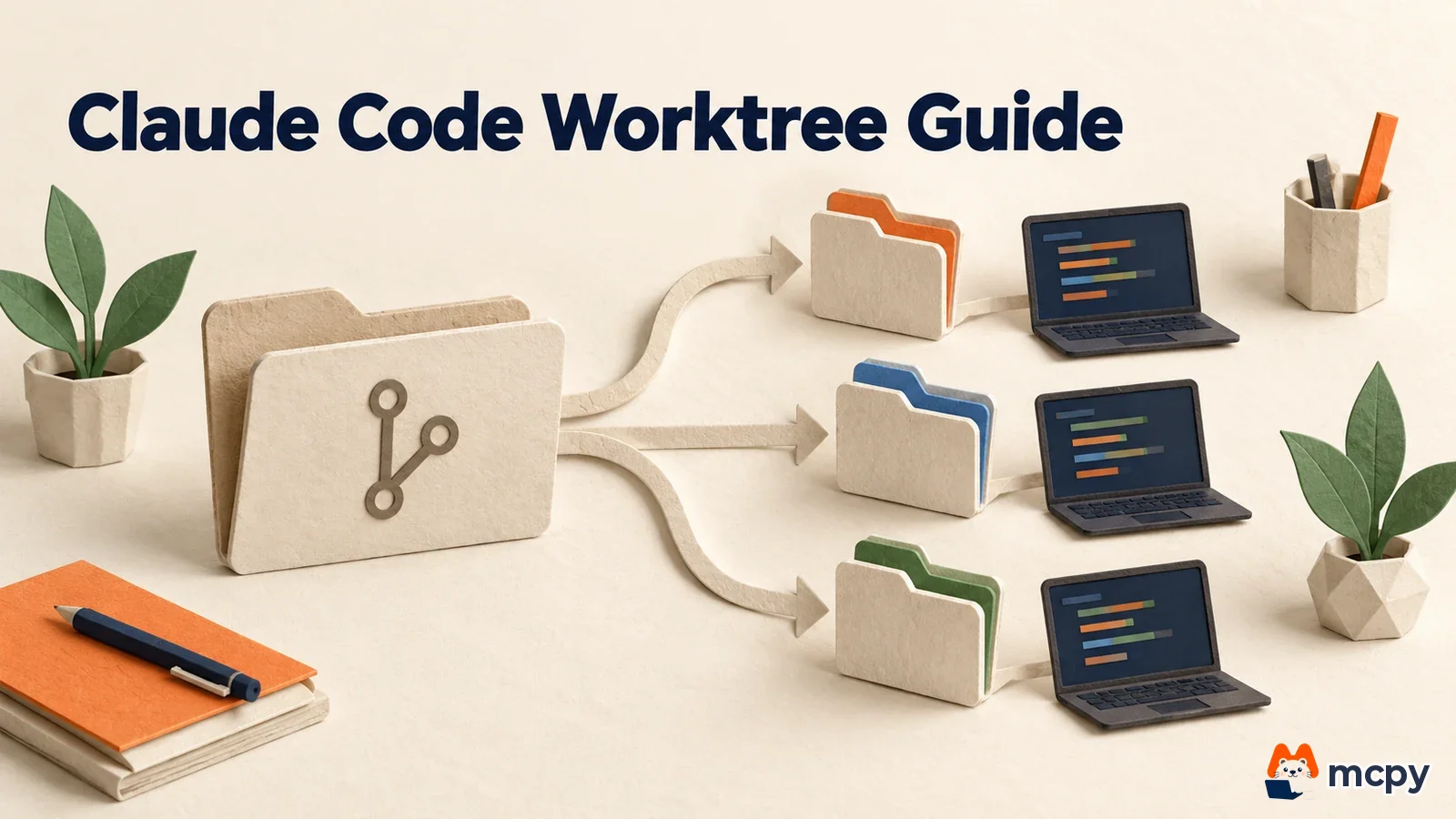
A Claude Code worktree is an isolated working folder that gives each session its own files and branch, and one line creates it: claude --worktree name (as of October 20, 2026). You can run Claude Code in two terminals at once without one session overwriting the other's edits, and when you exit with no changes, the folder is cleaned up automatically.
When you need a Claude Code worktree
Say you ask one terminal to build a login feature and another to fix a payment bug. Both sessions touch the same file, and the edits get mixed together. It is like two cooks sharing one cutting board in a single kitchen. Give each cook a board and they stop bumping into each other. A worktree works the same way: you keep one repository, but each session gets its own workbench (folder). Git's worktree feature creates multiple working folders that share the history of a single repository. It only splits the folders, though. Merging the results of the two jobs is still something a person has to do later.
The official Claude Code worktree docs describe a worktree as "a separate working directory with its own files and branch that shares repository history and remotes with the main checkout." The official example is one session building a feature while another fixes a bug.

The command to start a Claude Code worktree
If you have not installed Claude Code yet, read the Claude Code install and pricing guide first. Run the command with a name from your repository folder. According to the official docs, you can use -w instead of --worktree. The folder is created at .claude/worktrees/<name>/ in the repository root, on a branch named worktree-<name>.
claude --worktree feature-authRun the same command with a different name in another terminal and you get a second isolated session. If you leave out the name, one such as bright-running-fox is assigned automatically.
| What you want to do | Command |
|---|---|
| Start with a name | claude --worktree feature-auth |
| Start from pull request (PR) 1234 | claude --worktree "#1234" |
| Ask mid-session to "work in a worktree" | Claude creates it with the EnterWorktree tool |
| Start from a specific existing branch | git worktree add ../folder branch-name, then run claude in that folder |
Check two things before you start. First, the official workflow docs say a worktree is created from an existing commit, so the repository needs at least one commit. Without one you get the error Failed to resolve base branch "HEAD". Second, if you have never run Claude Code in that folder, an interactive launch ends with an error at the trust prompt, so run claude once first and accept it. The official docs recommend adding .claude/worktrees/ to .gitignore, so worktree contents do not show up as untracked files in the main folder.
To confirm it worked, run git worktree list. You should see two lines, the main folder and .claude/worktrees/feature-auth, each with a different branch. To test it yourself, open worktrees with different names in two terminals and have each one create a different file. Then run git status in the main folder and check that neither file appears. If neither shows up, the isolation is working.
Copy config files like .env into a worktree
A worktree is a fresh copy, so files that Git does not track, such as .env, are missing. The official docs tell you to create a .worktreeinclude file in the project root and list the files to copy. The syntax is the same as .gitignore. Only files that match a pattern and are also ignored by Git get copied, so files that are already tracked are not duplicated.
.env
.env.local
config/secrets.json
The official docs note that a worktree is a new checkout, so you need to set up your development environment there again. Ask Claude to install dependencies, or run the install command yourself. Files with secrets get copied into every new folder, so it is safer to list only the files you truly need.
Cleanup rules when you exit a worktree
When you end a session, Claude Code first checks whether the worktree holds work you would not want to lose. Here are the official cleanup rules.
| State | What happens on exit |
|---|---|
| No changes, session started without a name | The worktree and branch are deleted automatically |
| No changes, session started with a name | Claude asks whether to keep it |
| Modified or untracked files, or new commits | Claude asks whether to keep or delete. Deleting removes the folder, the branch and the work inside together |
| State cannot be determined | Claude does not delete automatically and asks |

To return to a worktree you kept, use the claude --worktree name --resume command that Claude Code prints on exit. If you ran non-interactively with the -p option, there is no exit prompt, so the worktree is not removed automatically. Delete it yourself with git worktree remove path. If it is locked and git refuses, run git worktree unlock first. To confirm cleanup is done, check that the line has disappeared from git worktree list.
Base branch and subagent settings
According to the official docs, a new worktree starts from the repository's default remote branch (usually main) by default, not from the branch you are currently on. To continue on top of your own commits that you have not pushed yet, set worktree.baseRef to "head" in your settings file. The default is "fresh", and this setting cannot take a branch name. To start from a specific branch, use the git worktree add command shown earlier.
{
  "worktree": {
    "baseRef": "head"
  }
}
Subagents (helper agents that take on parts of the work inside one session) can also use worktrees. Tell Claude "use a worktree for each agent," or put isolation: worktree at the top of a custom subagent file to always run it in isolation. A temporary worktree from a subagent that finished with no changes is deleted automatically. One that still has changes is removed by periodic cleanup when no work would be lost. Subagent worktrees also start from the default branch. If they need to run on top of work in progress, switch the baseRef above to "head".

Here is how to choose. If you open several terminals and give each a different job, use worktrees. If you split research or repeated edits inside one session, use subagents. This split follows the official docs, which say a worktree isolates file edits while a subagent divides work within a session. Copying a whole folder is different, because Git does not tie the copy to a branch the way it does with a worktree.
Common mistakes
First, you are already inside a worktree and try to edit files in the main folder. According to the official docs, an isolated session blocks edits to the main checkout path and git commands aimed at it. Do main folder work in a new session started from the main folder. Second, you choose "delete" at the exit prompt for a worktree that still has changes. The official docs say deleting removes the folder, the branch and the work inside together, so push first or choose "keep" if there is work to save. Third, in a repository set up with git lfs install --local, files show up only as pointer text. The official docs tell you to run git lfs pull inside the worktree.
Each session builds up its own conversation, so the more you run in parallel, the more you need to watch usage. Knowing why Claude Code token usage drops so fast helps you estimate the cost of parallel work. If you have two accounts, how to split Claude Code accounts across sessions can help. The structure for dividing work among several agents is covered in how to design AI agent orchestration.
Frequently asked questions
Can I use Claude Code worktrees on Windows?
Yes. The official docs list no Windows-specific install requirements. They also note that when a worktree is removed, links such as NTFS junctions are deleted but the folders they point to are kept.
Can I use worktrees in a project that does not use git?
According to the official docs, the built-in feature requires a git repository. For other version control such as SVN or Mercurial, you must define the create and cleanup logic yourself with the WorktreeCreate and WorktreeRemove hooks. In that case, .worktreeinclude does not apply.
What happens if I run it again with the same name?
According to the official docs, if the folder already exists, Claude Code opens that worktree instead of creating a new one. If the conditions are met, such as no changes, the branch still being the one it created and no commits of your own, it is reset to the default branch. Otherwise it reopens at the point where you left off.
Found this useful? Share it
Related posts
Related projects
Get new posts by email
Insights on marketing, analytics, and dev, delivered to your inbox.