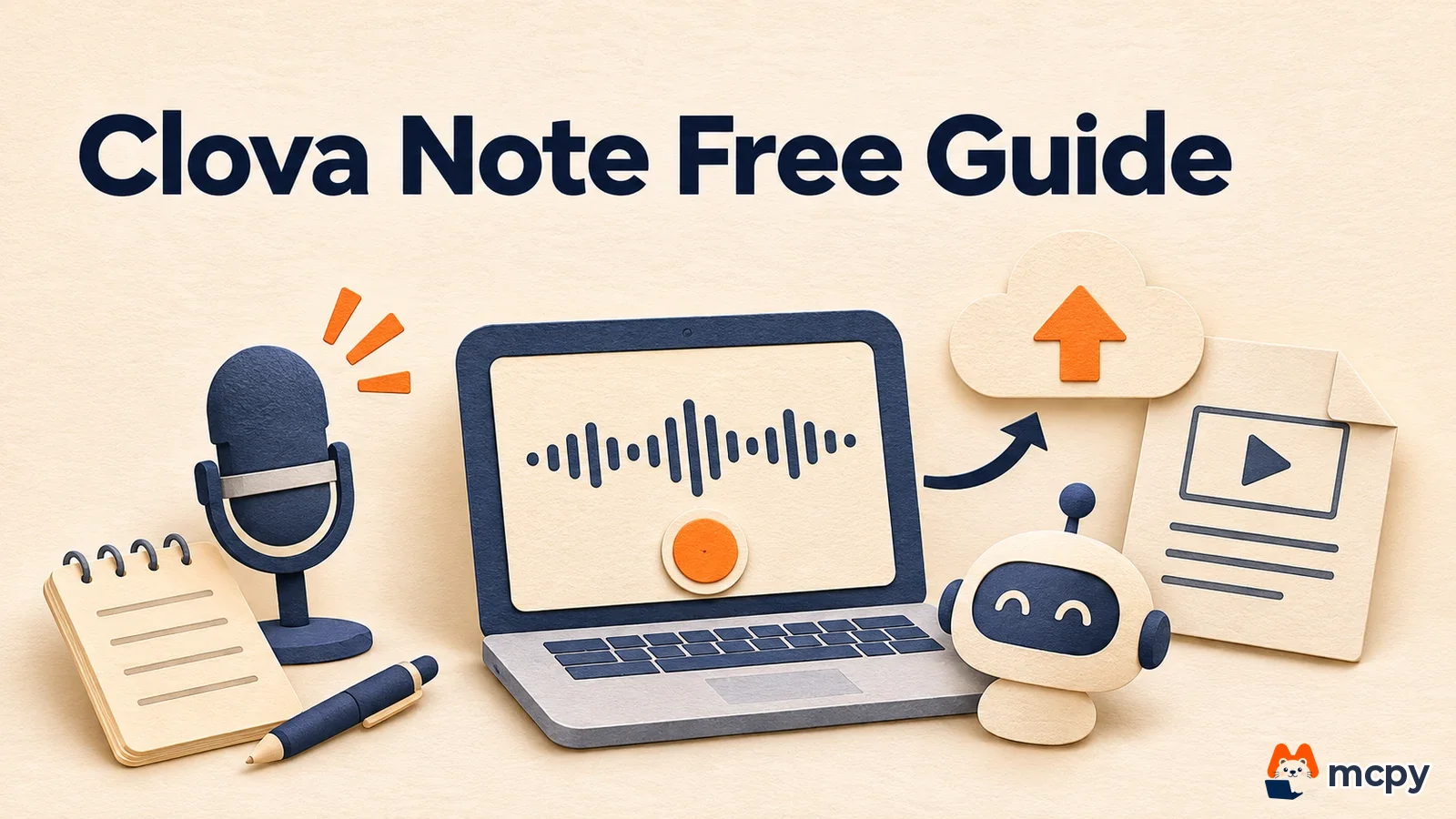
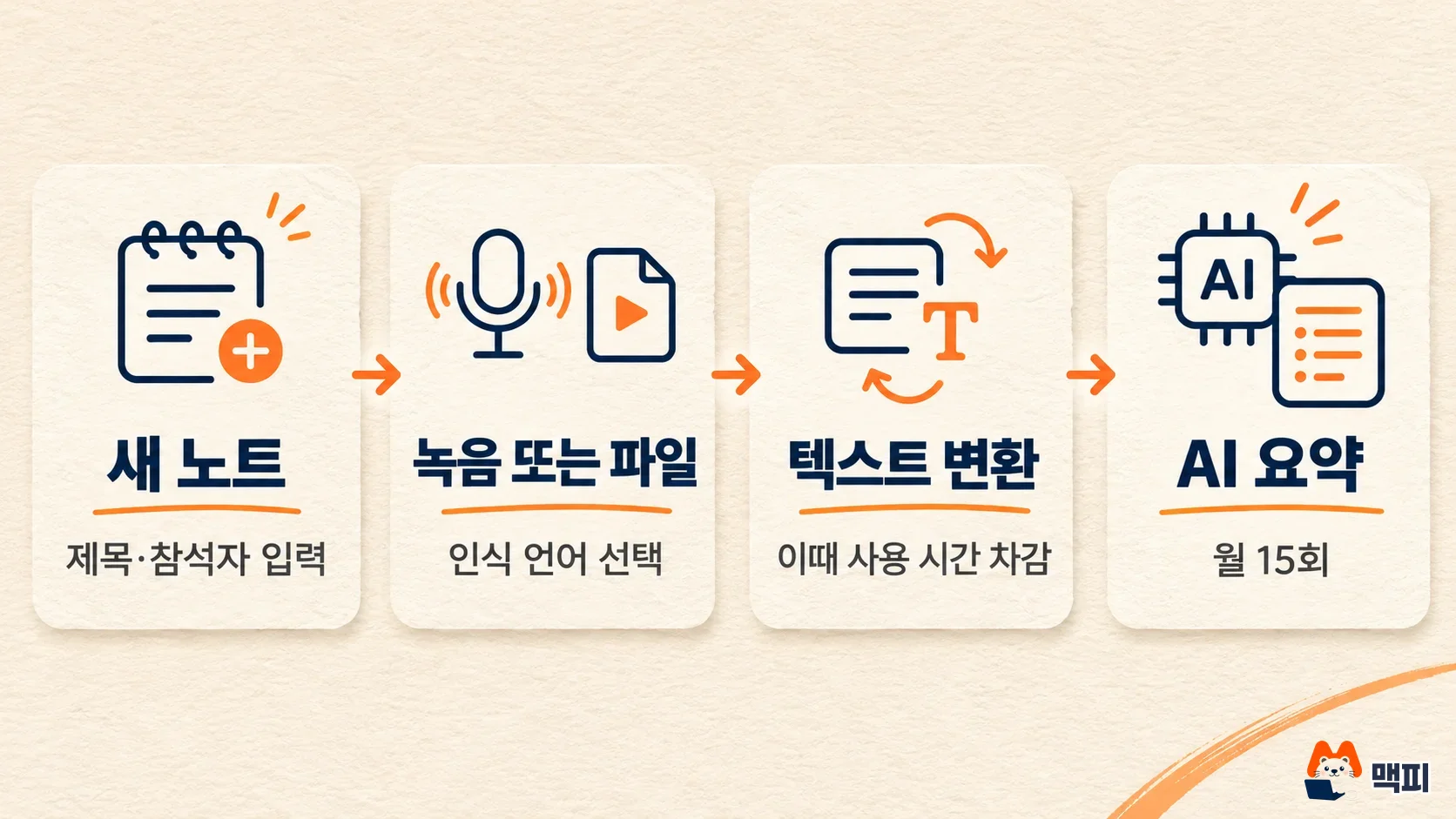
Using Clova Note is simple: log in with a Naver account (Naver is Korea's largest search portal), record or upload an audio file, and your speech becomes a text transcript and an AI summary. The personal plan is free. According to Naver's pricing page, you get 300 conversion minutes per month, 15 AI summaries per month, and up to 180 minutes per note (as of November 14, 2026). 300 minutes is 5 hours, enough to convert five one-hour meetings a month. The more common problem is not the time limit but PC recording that fails to capture sound.
How much can you use Clova Note for free
The free personal limits are listed on the pricing page as follows. Time is counted monthly, and unused time does not carry over to the next month.
| Item | Value | Meaning |
|---|---|---|
| Monthly conversion time | 300 min | Total length of audio you can turn into text per month (the pricing page calls it conversion time) |
| Monthly AI summaries | 15 | Number of times the note is automatically organized into topics, next actions and a summary |
| Length per recording or upload | 180 min | Maximum length one note can hold at a time |
| Maximum audio file size | 300MB | Size limit for a single uploaded file |
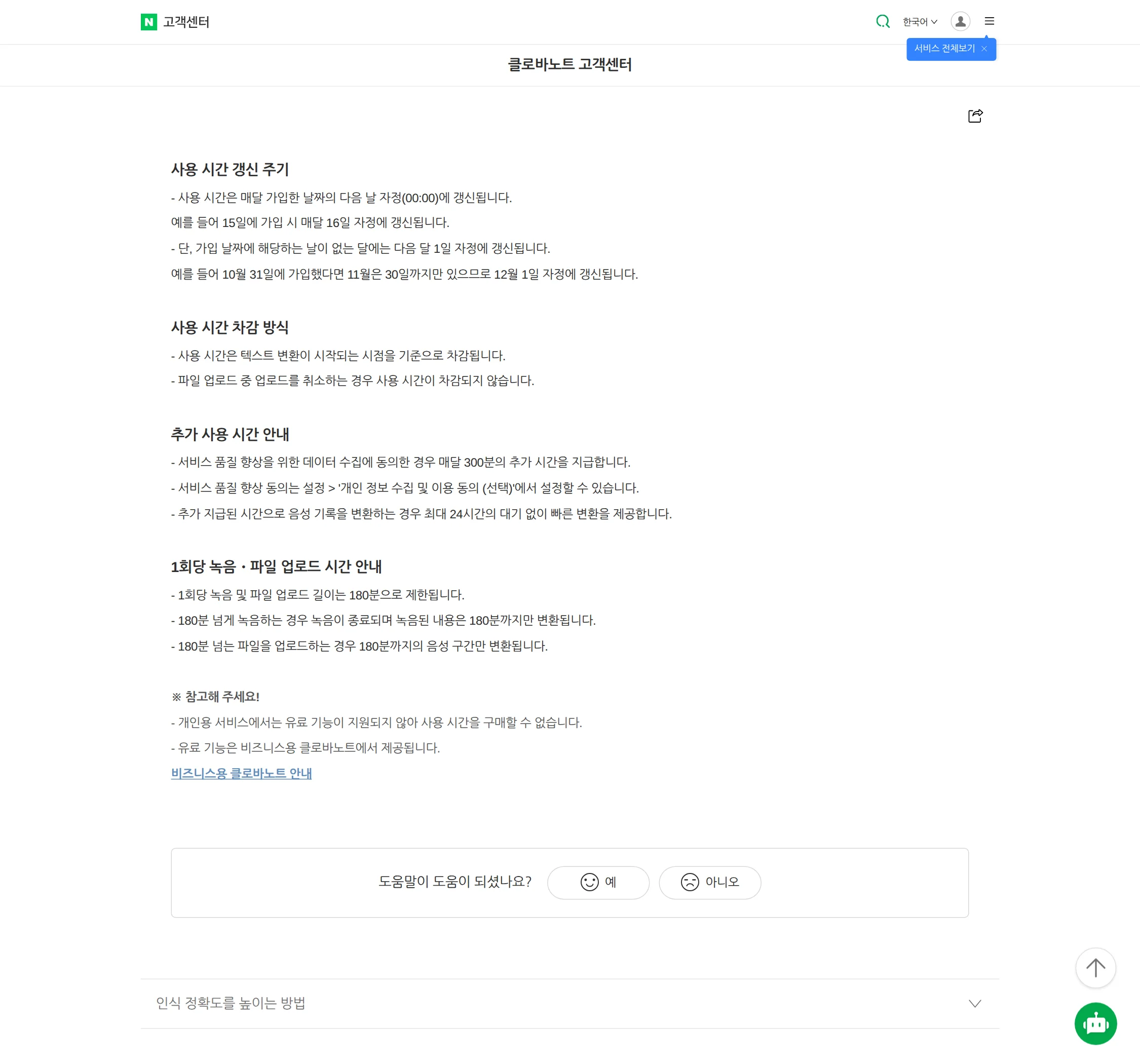
Naver's Clova Note help center page on usage time mentions a condition that adds another 300 minutes. If you agree to data collection for service quality improvement under 'Consent to collect and use personal information (optional)' in settings, you get an extra 300 minutes every month. Combining the two guides gives up to 600 minutes. This consent lets your recording data be used to improve the service. For meetings with sensitive content such as client names or personnel matters, it is better not to agree and use only the default 300 minutes. Data recorded after you consent may be used for service improvement, so it is hard to undo. If you hold such meetings often, the business plan fits better, since it states that data is not used for AI training. Naver's pricing page says data recorded in the business version (Naver Works Clova Note) is not used for AI training.
The help center says that when you convert using the extra granted time, conversion is fast and does not wait up to 24 hours.
When Clova Note usage time is deducted and reset
Usage time is deducted at the moment text conversion starts. If you cancel while a file is still uploading, no time is deducted. When you create a note, the length of the recorded or uploaded file is subtracted, so a 5-minute note reduces your balance by 5 minutes.
The reset cycle is monthly and happens at midnight on the day after your sign-up date. If you signed up on the 15th, your time refills at 0:00 on the 16th each month. In months without your sign-up day, it resets on the 1st of the next month. Someone who signed up on October 31 has no 31st in November, so the reset happens at 0:00 on December 1. It is not a bulk reset on the 1st of every month, so think of your own sign-up date first when checking remaining time.
The 180-minute limit applies per single session. If you record beyond 180 minutes, only up to 180 minutes is converted after recording ends. If you upload a file longer than 180 minutes, only the first 180 minutes is converted. For lectures over 3 hours, record in two parts or cut the file before uploading.
You can check how deduction works yourself in under 5 minutes. Run a short test with the steps below. The help page says a 5-minute note deducts 5 minutes, so you should see the same result.
- Write down your remaining usage time on the home screen or in settings.
- Upload one audio file of about 1 minute of speech. If you cancel during the upload, your time should not decrease.
- This time, let the upload finish so conversion starts.
- After conversion ends, check your remaining time again. If it dropped by about 1 minute, it works as described. If the gap is large, compare the reset date shown on screen with your sign-up date.
Steps to create a note with Clova Note recording
The steps are the same on PC and the mobile app. Korean users need no separate sign-up, only a Naver ID. The steps below are for PC and follow the guide on how to create a note by recording.
- On the Clova Note home page (clovanote.naver.com), click the 'Start for free' button or log in with your Naver ID.
- Click 'Record' under the top-left recording menu and recording starts right away. If you want to enter the title, attendees and memo first, click 'New note' and then press 'Record' when you are ready.
- Place the microphone close to the speaker. Bookmark important moments during recording and type ideas into the memo. You can also change the recognition language while recording.
- When you finish, press the stop button at the bottom right. Once the recording file is uploaded, text conversion starts automatically, and you get a notification when the transcript is ready.
Check success inside the note. Click a sentence in the transcript to play that part of the audio, and click 'AI summary' to get the main topics, next actions and a summary. A summary counts toward the 15 per month limit.
Why Clova Note PC recording misses YouTube and video call audio
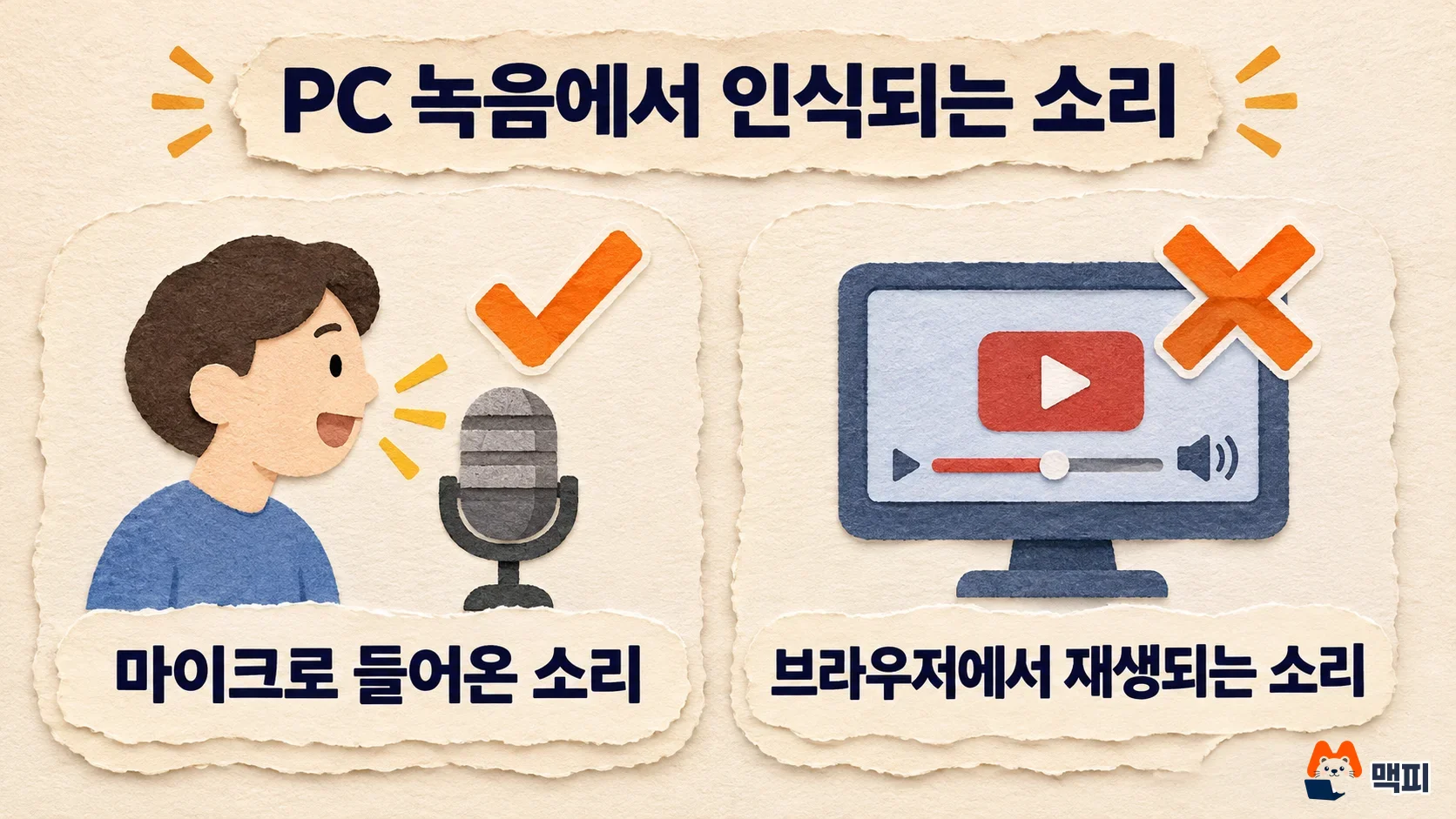
PC recording (using clovanote.naver.com in a web browser) captures only sound that comes in directly through the microphone. Naver's help center says sound played inside the browser (YouTube, lectures, video calls and so on) is not recognized. So if you keep a Zoom or Google Meet call open on your laptop and record with Clova Note, the other person's voice may be empty and only your voice remains. To capture the other side too, you can record the meeting separately and upload the file. File upload converts the sound inside the file, not microphone input, so it is not affected by this limit. If you play the audio through speakers so the microphone picks it up, check that the other person's speech is not missing from the result.
Video call linked recording is not part of the personal free plan. On the pricing page under audio input methods, free has only 'live recording and file upload', while 'video call recording' is included in the business plan (from Lite).
If recording does not start on PC, check that the microphone is connected and that you allowed microphone permission for Clova Note in your browser's site settings. The help page also asks you to follow recording etiquette and get the other person's consent when recording.
How to upload an audio file and convert it to text
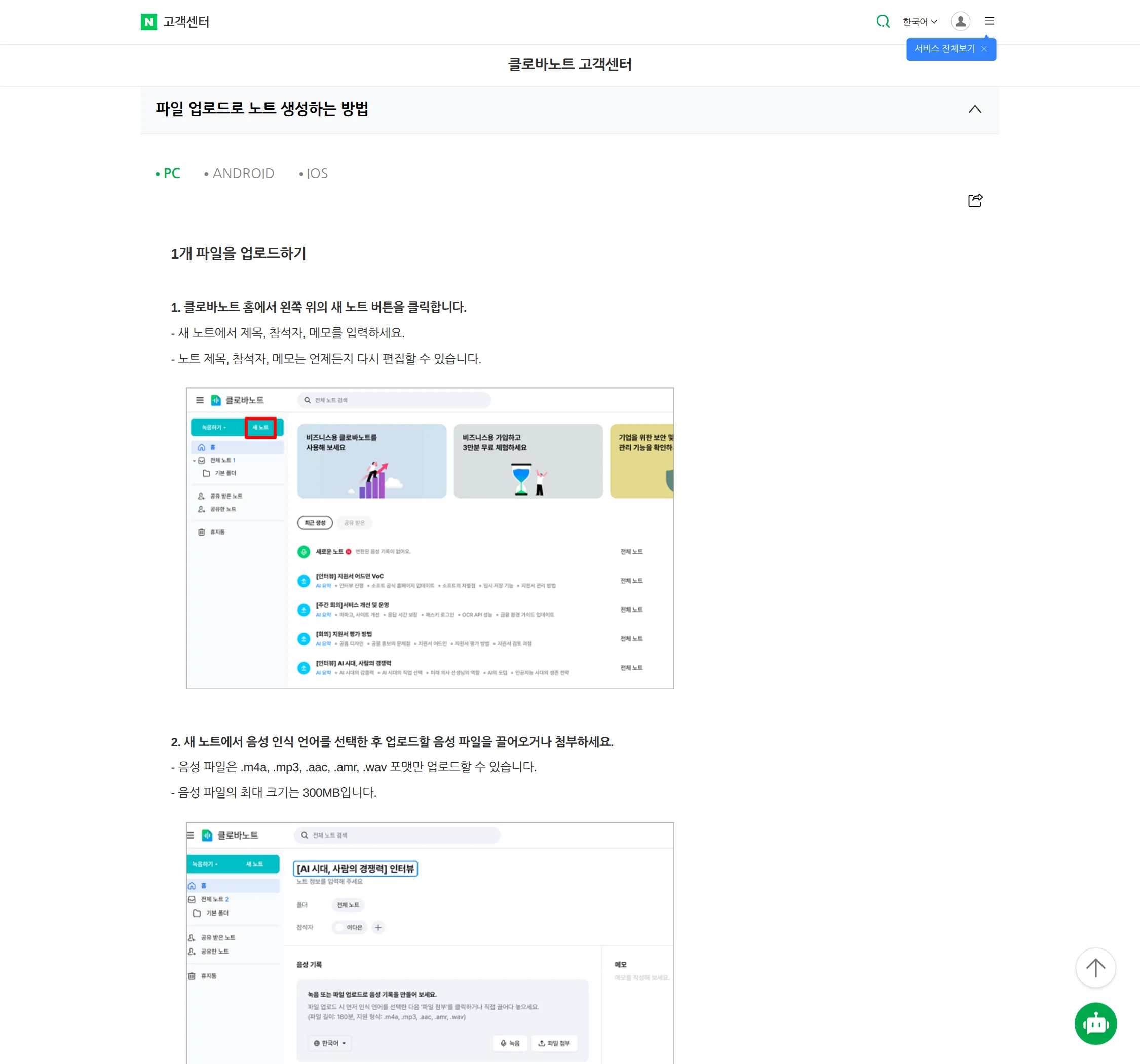
If you already have a recorded file, uploading is more reliable. Naver's guide on how to create a note by file upload goes like this.
- Click 'New note' at the top left of the Clova Note home page and enter a title, attendees and a memo. You can edit them later.
- Choose the speech recognition language (the setting that decides which language to transcribe), then drag and drop or attach the audio file. Supported formats are .m4a, .mp3, .aac, .amr and .wav, and the maximum size is 300MB.
- When the upload finishes, it is converted to text automatically and you get a notification when done. A network connection is needed during upload and conversion.
If you drag several files onto the folder screen, they upload in order and a separate note is created for each file. You can see progress at the bottom right. The recognition language you choose applies to all files equally, so if you have a mix of Korean meetings and English interviews, upload them separately.
Clova Note recognition language, sharing and downloads
If most of your speech is Korean, set 'Recognition language' in the service settings to Korean, and it applies to both PC and the mobile app. To change it for one note only, choose it on the recording screen or the file upload screen. For meetings that mix Korean and English, choose 'Korean+English'. The official recognition language setting guide lists these supported languages: Korean, Korean+English, English, Japanese, Chinese (Simplified) and Chinese (Traditional). You cannot change the recognition language of a note that has already finished uploading, so if you picked the wrong language, you must upload the file again and that time is deducted again.
You can get results out in two ways. As described in the file download guide, click 'Download' in the note to get the transcript (in various file formats, with options for speaking time, attendees and highlights), the audio file, and the summary and memo separately. According to the note sharing guide, you create a link with the note's share icon, and by default it opens only with a password. To let people open it without a password, choose 'No setting'. You can also grant access by Naver account email. People you share with cannot edit or download the note. Only the author can do that.
If free is not enough: business plans or other services instead of a paid personal plan
Personal Clova Note has no paid features, so you cannot buy more usage time. The help center says paid features are offered only in the business version (Naver Works Clova Note). If you run short on time, here are your options.
| Service / plan | Monthly price | Monthly usage | Per-session limit |
|---|---|---|---|
| Clova Note personal free | 0 KRW | 300 min conversion (extra 300 min with consent), 15 AI summaries | 180 min, 300MB |
| Clova Note Business Lite | 18,000 KRW per company (default display on the pricing page, excluding tax) | 1,000 min conversion, 25 AI summaries | 180 min |
| Clova Note Business Team | 86,500 KRW per company (excluding tax) | 6,000 min conversion, 150 AI summaries | 180 min |
| Daglo free | 0 KRW | 240 min recording transcription, 240 min file and YouTube transcription | 500MB upload |
| Daglo Pro | 11,900 KRW | - | 2GB upload |
Business plans are priced per company (domain), regardless of the number of members, and members share the time. The business version is Naver Works Clova Note, and a company admin signs up for Naver Works and then creates member accounts. A solo freelancer can use Lite for the extra time, but should first know that Naver Works sign-up and admin setup are required. The pricing page says automatic speaker identification (the feature that labels who is speaking) is only in Business and above. If you want speakers split automatically in meetings with several people, the free personal plan will not do.
Daglo includes YouTube link transcription in its free limit, so it suits people who want to turn video content into text. Clova Note offers PC web recording and file upload on the personal free plan. Upload the same 30-minute recording to both services and compare the three points below, and you can pick the one that fits your voice and meeting style.
| What to check | How to check |
|---|---|
| Proper noun recognition | Count how many of 10 company names, product names and people's names are written correctly |
| Speaker separation | Check whether speaker labels are right in sections where two or more people talk (Clova Note personal free has no automatic speaker identification) |
| Conversion time | Measure the time from upload completion to the notification |
If you already have another tool that summarizes files, such as Notion AI, also read how to use Notion AI and what each plan covers and sort out overlapping features. For how to switch an account from personal free to business and how data moves, check 'Questions about pricing' on the pricing page.
Frequently asked questions
Does leftover usage time carry over to next month?
No. According to Naver's Clova Note guide, remaining time does not roll over and expires automatically on the reset date. It also says the default time provided may change.
Can a friend edit a note I shared with them?
No. Only the note author can edit or download a shared note, and only one share link can be created per note. If you no longer want to show it, delete the link.
I picked the wrong recognition language. Can I change it in the note?
Not on a note that has already finished converting. Uploading again deducts time anew, so check the language once more on the screen before you upload.
You have two things to do today. Confirm the time deduction with a 1-minute recording, and decide whether to turn on 'Consent to collect and use personal information (optional)' in settings. Then record a real meeting or lecture and see how well it is recognized.
Found this useful? Share it
Latest posts
Kakao Share Thumbnail Not Showing? Here's the Fix (JavaScript SDK 2025)
Learn why Kakao Share thumbnails don't appear even with a valid imageUrl, and fix it using scrapImage to convert your URL into a KAGE CDN URL. Step-by-step guide.
How to Generate CRM User Manuals in 20 Minutes with Claude Code Sub-Agents
Learn how Claude Code sub-agents can analyze your CRM codebase and auto-generate user manuals and visual guidebooks in just 20 minutes. See the real-world results.
GEO Generative Engine Optimization: The Complete 2025 AI Marketing Strategy Guide
Learn what GEO (Generative Engine Optimization) is, how it differs from traditional SEO, and discover 5 proven AI marketing strategies to get cited by AI search engines in 2025.
Related projects
Get new posts by email
Insights on marketing, analytics, and dev, delivered to your inbox.