
Q. How is a session defined in GA4?
A GA4 session is a unit that bundles together the span of time during which a user interacts with a site or app. By default, a session ends after 30 minutes of no activity, and this value can be adjusted up to a maximum of 7 hours 55 minutes. Whenever a new session starts, a session_start event fires along with a ga_session_id and a ga_session_number.
Three lines you can use today
- It's normal for session count to exceed user count, it just means one person visited multiple times.
- User count isn't a count of people, it's a count of browsers (cookies), switch devices and you get logged as a different person.
- A pageview is just one type of event, it's already included inside "12,000 events."
1,000 Users, 1,400 Sessions, 12,000 Events, What Are These Numbers Actually Counting?
Anyone opening GA4 for the first time tends to stall at the same spot. At the top of the report, user count, session count, and event count sit side by side, and the three numbers don't line up at all.
Users comes out to 1,000, sessions to 1,400, events to 12,000. You only asked how many visitors there were, so why are there three different answers, and why aren't they even multiples of each other?
The short answer is that these three numbers were never counting the same thing to begin with. Users counts "who" came, sessions counts "how many times" they came, and events counts "what" they did within that.
Since the units are different, isn't it actually normal for the numbers not to match? This post is the first in a series that lays out the principles behind these three units, plus cookies, pageviews, and key events, which sit on top of them.
The Big Picture: What One Line of JavaScript Embedded on a Page Actually Does
GA4 works by embedding a single line of JavaScript code called "the Google tag (gtag.js)" on a site. Even though it looks like code, there's nothing to be intimidated by, it's just a short script that runs when the page loads.
Once this tag's config command runs, a single event called page_view is automatically sent to the server by default, with no extra setup required.
The official documentation describes what follows in four stages. When a user does something like click a link on a tagged site, Analytics receives that event and surfaces it in real-time reports first. It then processes the data, and finally that result gets reflected across the various dimensions, metrics, reports, and audience lists.
Diagram 1. The four-stage structure by which a single Google tag carries a visitor's actions all the way to the server.
There's something worth noting here: GA4 was designed from the ground up to track every single user interaction as an individual event.
That was a fundamentally different structural shift from how Universal Analytics (UA), its predecessor, used the session as its basic unit of aggregation. So in GA4, the "event" is the smallest, most fundamental unit, and sessions and users are simply ways of grouping those events together for viewing.
Events: Each Individual Action Is the Smallest Unit of Record
The official documentation defines an event as "something that lets you measure a specific interaction or occurrence happening on a website or app." A page load, a link click, a completed purchase, even an app crash, all of these are events.
Events split into four broad categories depending on their nature: automatically collected events, which get captured with zero extra code the moment a tag is placed on a site; enhanced measurement events, added once you turn on "enhanced measurement," covering things like scroll, outbound clicks, video engagement, and file downloads; recommended events, whose names and parameters are predefined; and custom events, which you only create when none of the first three can express what you need. That's four in total.
Practical trap. It's common to jump straight to building custom events, but the official guide recommends creating a custom event only when no other option fits. What happens if you duplicate an event that already exists under a different name? The same behavior later ends up split across two separate events in your counts.
Pageview: The Most Famous Event of All
A pageview isn't some separate, special unit, it's just one event with the name page_view. The Google tag's config command has send_page_view set to true by default, so it automatically fires this event every time a page opens.
Every page_view event carries along accompanying information like page_location (the full URL), page_title (the document title), and page_referrer (the previous URL). In fact, this isn't exclusive to page_view, every event carries engagement_time_msec and session_id in common.
Practical trap. On an SPA (single-page app) or infinite-scroll site where the screen changes without a full page reload, enhanced measurement detects browser history changes and fires page_view again. The official documentation itself warns that if you don't disable automatic sending and also call page_view manually, pageviews get double-counted.
Session: Like "One Trip to the Grocery Store"
A session refers to one entire visit, walking into a store, browsing around, filling up a cart, checking out, and leaving. Leave the store and come back a while later, and even if it's the same day, that counts as a second, brand-new visit, a new session.
GA4's official definition is no different. "A session is the collection of user interactions that take place within a given time frame," and by default, 30 minutes of no activity is treated as the session ending. This time window can be extended up to a maximum of 7 hours 55 minutes in the admin settings.
The moment a new session opens, a session_start event fires automatically, along with a ga_session_id (a timestamp of when the session began) that identifies that session, and a ga_session_number that counts that user's cumulative number of visits.
Diagram 2. Even two visits on the same day get split into two sessions if there's a gap of 30 minutes or more between them.
Within a session, there's also a distinction between "a real visit" and "a passing drive-by." This is called an engaged session, and it only needs to meet one of three criteria. If the session lasts longer than 10 seconds, or contains at least one key event, or has 2 or more pageviews (or screen views), it counts as an engaged session.
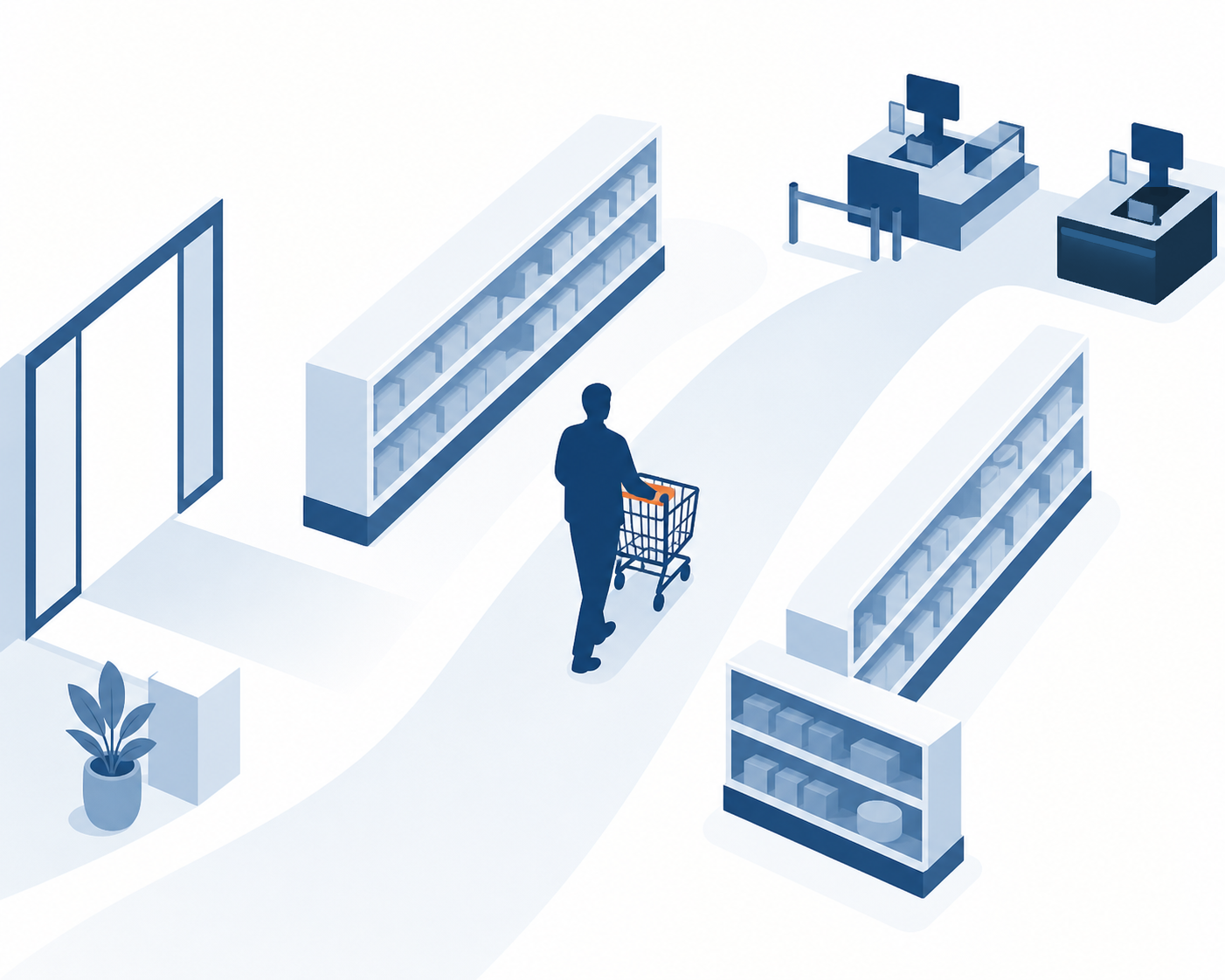
from walking into a store and browsing to checking out and leaving, that one entire visit is a session.
A "User" Isn't Actually a Person, It's a Browser
GA4's JS tag uses a 1st-party cookie to distinguish a unique user and that user's sessions. What we call a "device ID" on the web comes from the client ID stored in the _ga cookie.
To break down what a cookie actually is, think of it like a stamp pressed onto the back of your hand when you walk into a store. As long as that stamp (the client_id stored in the cookie) is still there, the store recognizes you as "the same visitor from before." If the stamp fades or you show up with a different hand, meaning the cookie expires or you arrive from a different browser, you get treated as a first-time visitor all over again.

the _ga cookie is close to an anonymous stamp pressed onto a visitor's hand, wipe it off and they become a first-time visitor again.
The _ga cookie is set to persist for 2 years by default. But that's just the aspirational value GA sets, in practice the browser itself imposes its own cap on how long a 1st-party cookie can live. Chrome caps it at a maximum of 400 days, and Safari at a maximum of 7 days, so without a repeat visit, the cookie can get wiped out far earlier than GA's 2-year setting, purely because of browser policy.
One conclusion follows naturally from this. Since a device ID is "an anonymous unique user identifier based on the browser," the same person switching between Chrome and Safari, or between a PC and a smartphone, gets logged as a fundamentally different user by default.

even the same person gets counted as a different person by GA4 when they switch devices, unless there's login linkage.
Practical trap. Is there any way to reduce this problem? On a site with a login feature, yes, planting a User-ID can reduce it. GA4's reporting identity uses the User-ID first if it's present, falls back to the device ID (client_id) if it isn't, and estimates through modeling if neither is available. A site with no login linkage will mistake every returning visitor who switches devices for a brand-new user.
Diagram 3. A user generates multiple sessions, and each session contains multiple events, the count shrinking as you move up is exactly what's normal.
Key Events: Marking "This Action Matters"
Among the countless events, the ones marked separately as especially important, the ones tied directly to revenue, are key events. The official definition is "an event that measures an action particularly important to business success," and any event that's already being collected can become a key event just by being flagged as one.
On March 27, 2024, Google officially announced it was renaming what used to be called "conversions" in GA4 to "key events." Anything already designated as a conversion carried straight over into being a key event, no reconfiguration needed.
The reason for the name change was confusion, plain and simple. Up until then, GA4 and Google Ads both used the same word, "conversion," but the two systems measured things differently, and that mismatch frequently caused the same action to show different numbers across the two. So now the terminology splits, the GA4 side calls it a key event, and only once that key event gets pulled into Google Ads and used for bid optimization does it get called a conversion.

among countless actions, the ones marked separately for being tied directly to revenue are key events.
Sorting Out the Most Common Confusions
Line up all four units against one person's single day and it clicks into place. Say someone sees an ad on their smartphone on the way to work, comes in, browses three product pages, then during lunch logs back in on their office PC and finishes checking out.
| Unit | What it counts | This day's value | Aggregation trait |
|---|---|---|---|
| Event | Individual interactions like clicks, scrolls, purchases | Several events across morning and afternoon combined | The smallest unit, everything else is just a bundle of events |
| Pageview | Just the page_view events counted separately | 3 in the morning + 1-2 in the afternoon | Just one type of event, not a separate unit |
| Session | Visit bundles split by 30 minutes of inactivity | 2 (1 morning, 1 afternoon) | A new session opens separately even if the device changes |
| User | Browser-level cookie (client_id) | 2 people, without login linkage | Only merges into 1 person with User-ID linkage |
Naver Search Ads' Premium Log Analysis works on the exact same principle. It embeds a script called wcslog.js on the site to collect and send events, and preserves the parameters carried over from an ad click all the way through to the conversion page, linking the ad to the behavior. That said, while writing this piece, I found that one link to the official guide's original document had already expired, so the current location of that documentation needs to be looked up separately before actually applying this.
In the end, GA4 and Naver share the same big picture. A tag embedded on the page generates events, and the server groups those events into sessions and users using cookies and identifiers. Only the names and cookie labels differ.
What to Check Today
The definitions are covered, so now it's time to open your own site's GA4 and check things yourself. Starting with the next entry, the series covers how to actually put these units to work in tracking.

now that you've read the definitions, it's time to go click through your own GA4 dashboard directly.
- Real-time report: how do event names and parameters actually show up? Click into one event directly and open its parameter list.
- Session timeout: are you still running the 30-minute default? Check under Admin > Data Streams > Tag Settings.
- Engaged session rate: are there pages with a lot of under-10-second bounces? Filter for the lowest-performing pages in the engagement rate report.
- Key event list: is any revenue-critical action missing? Check the key event flags in the event list and add any that are missing.
- Cross-device user duplication: do you have a login feature? If so, check whether User-ID linkage is set up, and if not, read your numbers with device-level duplication in mind.
If you only take one thing away, let it be this.
Before you trust a number, ask what it's actually counting.
Frequently Asked Questions
How is a session defined in GA4?
A GA4 session is a unit that bundles together the span of time during which a user interacts with a site or app. By default, a session ends after 30 minutes of no activity, and this value can be adjusted up to a maximum of 7 hours 55 minutes. Whenever a new session starts, a session_start event fires along with a ga_session_id and a ga_session_number.
Is GA4's user count the actual number of people?
No. GA4's default user count is a count of client_id, an anonymous browser-level identifier stored in the _ga cookie. The same person switching between Chrome and Safari, or between a PC and mobile, gets logged as a different user without login linkage (User-ID).
What's the difference between an event and a pageview?
In GA4, a pageview is just one type of event. It's an event named page_view being sent automatically, and events also include every other interaction recorded through automatic collection, enhanced measurement, or custom events, things like scrolling, clicking, and purchasing.
This post is episode 1 (the hub) of the Intro to Digital Marketing Analytics series. Once you've got the basic units, cookies, sessions, events, down, the next entries cover how to actually put these units to work in tracking.
- Next entry: UTM Parameters Basics
- Applied entry: The Dark Funnel Tracking Guide
- Advanced entries: UTM Tracking, a Live Test, Branded-Search Attribution
Once you know what an event is, designing dozens of them is what remains. The event taxonomy piece covers managing 46 events and their parameters in a single table.
Sources
- Event definition: About events, Google Help
- Four-stage event collection: About events, Google Help
- Automatic collection, enhanced measurement: [GA4] Data collection, Google Help
- page_view, send_page_view: Measure pageviews, Google Developers
- Session definition, 30-minute timeout: About Analytics sessions, Google Help
- Engaged session criteria: [GA4] Session, Google Help
- Cookies, device ID: [GA4] Cookie usage on websites, Google Help
- Device ID definition: [GA4] Device ID, Google Help
- Reporting identity: [GA4] Reporting identity, Google Help
- Conversions to key events name change: [GA4] Conversions vs. key events, Google Help
- 1st/3rd-party cookie concepts: Third-party cookies, MDN
- Naver log analysis script: Naver Ads Web Conversion Tracking Script Guide
The figures in this post (1,000 users, 1,400 sessions, 12,000 events, numbers within a single-day scenario) are illustrative examples for explanation, not measured data. The original link for the Naver log analysis guide was unreachable at the time of research and was cross-checked through search snippets instead, the current documentation location should be reconfirmed before actual use.
Found this useful? Share it
Latest posts
Kakao Share Thumbnail Not Showing? Here's the Fix (JavaScript SDK 2025)
Learn why Kakao Share thumbnails don't appear even with a valid imageUrl, and fix it using scrapImage to convert your URL into a KAGE CDN URL. Step-by-step guide.
How to Generate CRM User Manuals in 20 Minutes with Claude Code Sub-Agents
Learn how Claude Code sub-agents can analyze your CRM codebase and auto-generate user manuals and visual guidebooks in just 20 minutes. See the real-world results.
GEO Generative Engine Optimization: The Complete 2025 AI Marketing Strategy Guide
Learn what GEO (Generative Engine Optimization) is, how it differs from traditional SEO, and discover 5 proven AI marketing strategies to get cited by AI search engines in 2025.
Related projects
Get new posts by email
Insights on marketing, analytics, and dev, delivered to your inbox.