
Google Sheets canvas publishing lets you post a canvas (a mini-app view, such as a dashboard or schedule, built on top of your sheet data) as its own link, separate from the source spreadsheet. The Google Workspace Updates blog announced it on November 11, 2026 (US time). Viewers get read-only access. They can see the canvas and use its filters, and they do not need access to the source sheet. For example, you can share the sheet with a few people on the planning team and publish the canvas to the whole company. Each has its own audience.
You can now publish a Sheets canvas as its own link. The link is separate from the spreadsheet URL, and viewers get read-only access.
It is available on Business and Enterprise (Standard and Plus) and on personal Google AI Pro and Ultra. Rapid Release domains start on November 11. Scheduled Release domains start on December 2. Rollout is gradual, and it can take up to 15 days to become visible.
Anyone with edit access publishes from the web version of Sheets. There is no new admin setting. The feature follows the existing setting for publishing to the web.
Google Sheets canvas publishing changes how you share
Canvas launched in August. In its August 13 announcement, Google explained that Gemini builds a custom view on top of your spreadsheet from a plain-language request. Edits made in the canvas are reflected in the source sheet, and the reverse is also true. Until now, showing this view to someone else meant sharing the sheet itself. This update removes that requirement.
| Item | Published canvas link |
|---|---|
| Link address | Separate from the spreadsheet URL |
| Viewer permission | Read-only, can interact with the mini-app |
| Sharing the source sheet | Not required |
| Audience | Each canvas has its own setting |
| Who can publish | People with edit access to that canvas |
The official announcement gives three use cases. An event planner publishes a filterable schedule for hundreds of people, and only the planning team edits the sheet. A program manager publishes a launch schedule from a team tracker so the whole company can see milestone status. A training lead publishes a course calendar, and the training team manages the data.
Google Sheets canvas link: eligible plans and rollout schedule
| Category | Eligible |
|---|---|
| Business | Business Standard, Plus |
| Enterprise | Enterprise Standard, Plus |
| Personal | Google AI Pro, Ultra |
| Education add-on | Google AI Pro for Education |
| AI add-on | AI Expanded Access |
The table above is the eligibility list from Google's announcement. For prices and limits of personal Google AI Pro and Ultra, see the Gemini plan comparison. The start date depends on which release track your Workspace admin chose.
| Domain type | Start date | Time until visible |
|---|---|---|
| Rapid Release | November 11, 2026 | Up to 15 days |
| Scheduled Release | December 2, 2026 | Up to 15 days |
The canvas itself has conditions too. The August announcement said the feature works only on the web and only when the account language is English. There are also per-user usage limits when you create and edit canvases. The November announcement says publishing works only in the web version of Sheets and does not say these conditions change. If your account uses Korean, first check whether the canvas menu appears.
How to publish a Google Sheets canvas and check it
According to Google's announcement, you publish from the share icon in the canvas toolbar, and you can only publish canvases you have edit access to.
- Open a spreadsheet that has a canvas tab in a web browser.
- Click the share icon on the right side of the canvas toolbar (three dots joined by lines). The menu shows "Copy sheet link" and "Publish canvas".
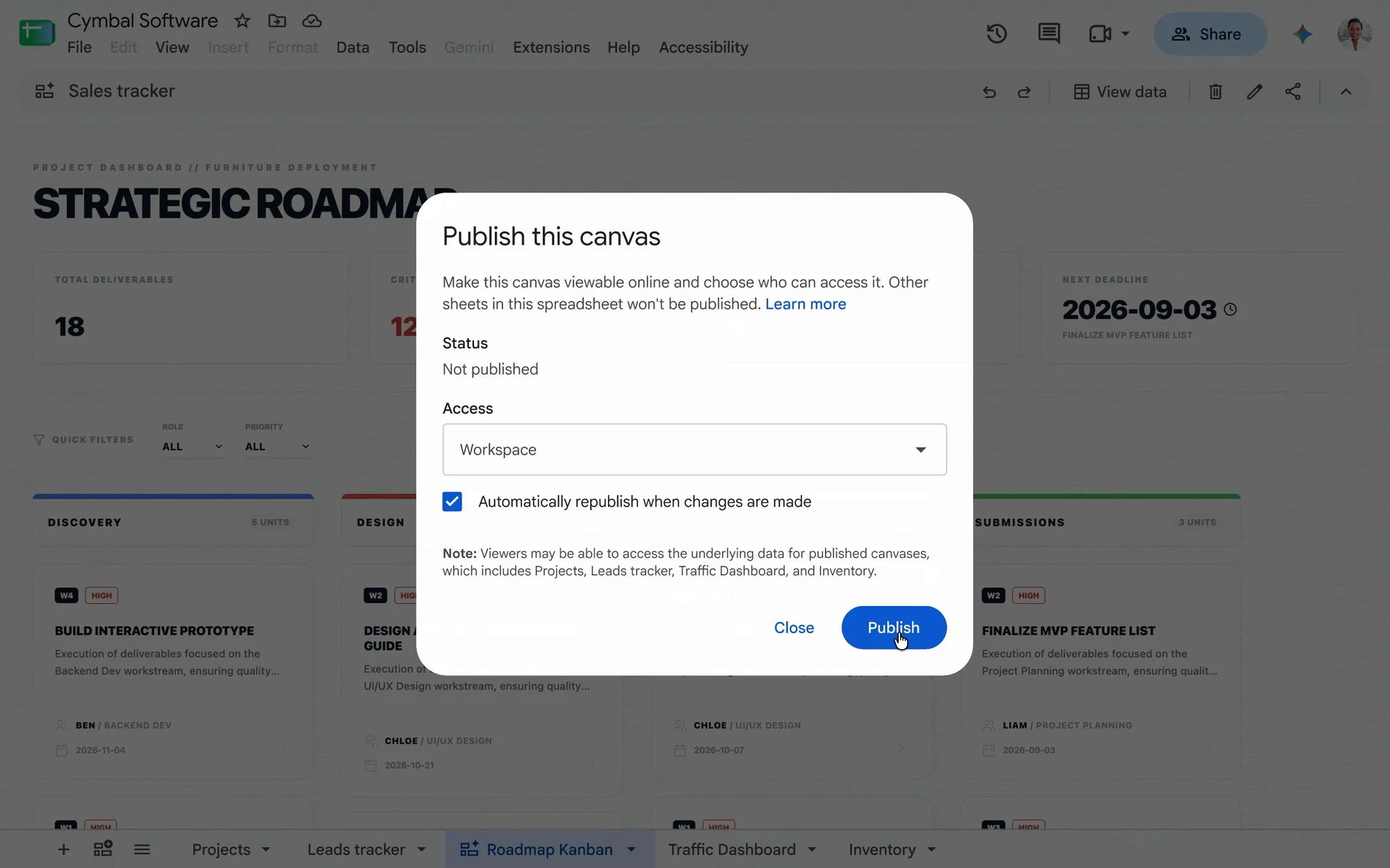
- Choose "Publish canvas" and the "Publish this canvas" window opens. Under Access, choose who can see it, decide whether to turn on "Automatically republish when changes are made", and click Publish.
- Once published, you see "Published canvas link copied to clipboard" and the link is copied.
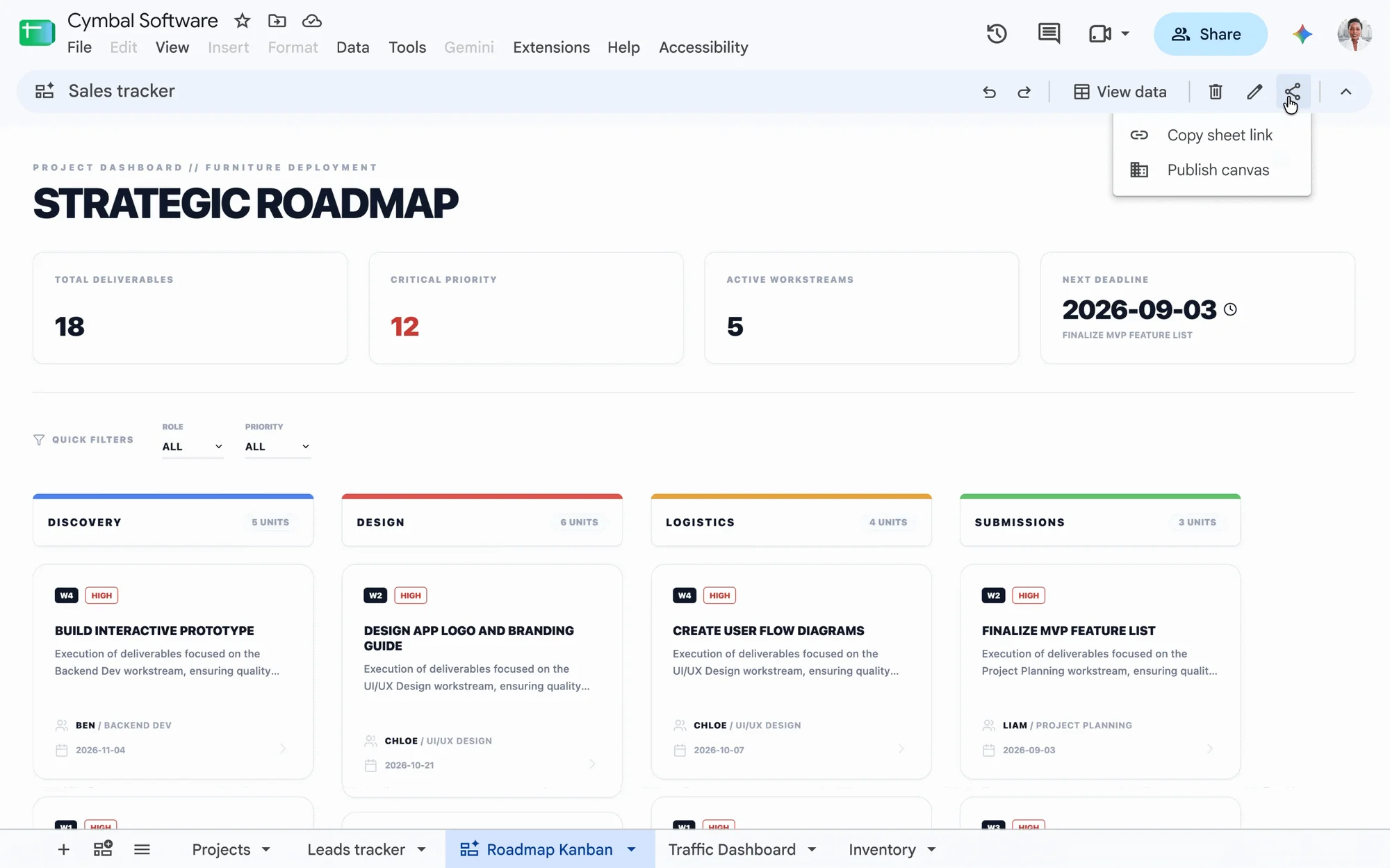
The publish window has two options. According to Google's announcement, automatic republishing republishes the canvas every time the source sheet changes, and the static view freezes the current state of the data. For example, say you publish at 10 a.m. on Wednesday and change a deadline in the sheet at 11 a.m. With automatic republishing, the deadline on the link also changes. With the static view, the link stays as it was at 10 a.m. Wednesday. Use automatic republishing for a status board people check daily. Use the static view for material that must not change, such as a confirmed event schedule.
After publishing, you can copy the link, change the audience, or stop publishing from the same share icon menu. This is not official guidance, but it helps to open the copied link from an account outside the audience or in an incognito window. Check that only the canvas appears, that editing is not possible, and that access follows the audience setting.
Check the source data and admin settings before publishing
The publish window shows two messages together (the demo screen in the announcement). The upper text says "Other sheets in this spreadsheet won't be published", meaning the other sheets in this spreadsheet are not published. The Note below says "Viewers may be able to access the underlying data for published canvases". It warns that viewers may reach the source data of the published canvas, and it lists the sheet names the canvas uses (Projects, Leads tracker, Traffic Dashboard and Inventory on the announcement screen). This means columns the canvas does not display may still be reachable. If a sheet the canvas references holds columns that must not be shown, such as customer contacts, unit prices or internal notes, you can create a separate sheet just for the canvas, copy over only the needed values, and build the canvas from that sheet. This separation is a suggestion from MCPY, not part of Google's announcement.
For admins, no new setting is created for this feature. According to Google's announcement, it uses the existing Publish to the web feature. So the external sharing setting that lets users publish Drive files to the web applies as is, and the default is allowed. To block publishing outside your organization, check the settings in the external sharing help page.
Frequently asked questions
Can I publish from the mobile app?
Not yet. Google's announcement says publishing is currently supported only in the web version of Sheets.
Can I take a published link back?
Yes. From the same share icon menu you used to publish, you can stop publishing or change the audience.
Where can I learn how to create a canvas for the first time?
According to Google's introduction post, open a sheet, choose to create a canvas in the Gemini side panel, and describe the view you want in plain language. Detailed steps are in Google's introduction post.
Are there other AI tools for spreadsheets?
MCPY's Claude Excel article covers Claude's Google Sheets extension (beta). The install requirements are summarized in how to use Claude in Excel and Google Sheets.
Found this useful? Share it
Latest posts
Kakao Share Thumbnail Not Showing? Here's the Fix (JavaScript SDK 2025)
Learn why Kakao Share thumbnails don't appear even with a valid imageUrl, and fix it using scrapImage to convert your URL into a KAGE CDN URL. Step-by-step guide.
How to Generate CRM User Manuals in 20 Minutes with Claude Code Sub-Agents
Learn how Claude Code sub-agents can analyze your CRM codebase and auto-generate user manuals and visual guidebooks in just 20 minutes. See the real-world results.
GEO Generative Engine Optimization: The Complete 2025 AI Marketing Strategy Guide
Learn what GEO (Generative Engine Optimization) is, how it differs from traditional SEO, and discover 5 proven AI marketing strategies to get cited by AI search engines in 2025.
Related projects
Get new posts by email
Insights on marketing, analytics, and dev, delivered to your inbox.