

Claude Excel means three ways to do Excel work with Claude. If you only need a file, ask for an Excel file (.xlsx) in chat. This is on by default on every plan, including Free. To let Claude edit inside a workbook you already have open, you need a paid plan (Pro or higher) and Microsoft 365 Excel. For Google Sheets, you install a separate extension (beta).
This guide compares the three as of November 11, 2026. I also gave each one the same request and checked whether formulas were actually included.
Choose the right Claude Excel option for your situation
| What you want to do | Method to use | What you need |
|---|---|---|
| Describe a table and get an Excel file | Create a file in chat | claude.ai login (Free works) |
| Find and fix formula errors in an Excel file you already have | Claude for Excel add-in (a helper program that runs inside Excel) | Pro or higher, Microsoft 365 Excel |
| Your team works in Google Sheets | Claude for Google Docs, Sheets and Slides | Pro or higher, Google account, install permission |
| Try the newly released Claude Sheets | Claude Sheets (beta means a test release before the official launch) | Paid plan, and the feature must be enabled on your account |
Most marketers and solo business owners are fine with the first option. Turning a few rows of numbers, like an ad performance table or monthly revenue, into a file needs no installation. Use the second and third options when you already have a file and need to work inside it.
Which plans support each Claude Excel method
Each official document lists different target plans. The table below copies the wording from each document. I did not claim support for any plan that the document does not list.
| Method | Plans listed in the document | Status | Source |
|---|---|---|---|
| Create a file in chat | Free, Pro, Max, Ultra, Team, Enterprise | On by default on all plans (owners of Team and Enterprise can turn it off) | Help article |
| Claude for Excel | Pro, Max, Team, Enterprise | Generally available | Official docs |
| Claude for Google Docs, Sheets and Slides | Pro, Max, Ultra, Team, Enterprise | Beta | Help article |
| Claude Sheets | All paid plans | Beta, on by default for Team, off by default for Enterprise | Announcement |
The Claude for Excel docs do not list Ultra separately. If you are on Ultra, check availability at the add-in sign-in step before you install. For prices and limits by plan, see our Claude plan comparison.
Create a Claude Excel file in chat: how to ask and how to check
Most of the setup is already done. According to the help article, on web and desktop you go to Settings > Capabilities and make sure the Code execution and file creation toggle (Create and edit files in the new interface) is on. It is on by default for Free, Pro, Max and Ultra. In Team and Enterprise organizations, owners can turn it off in Organization settings > Capabilities.

In plain terms, file creation can produce .xlsx (Excel), .pptx (PowerPoint), .docx (Word) and PDF files. You can also upload data files such as CSV for analysis. You can download files right from the chat or save them to Google Drive. Uploaded and downloaded files are each limited to 30MB. The help article says file creation uses up your plan usage faster than regular chat. If you hit limits often, split the work into smaller requests instead of asking for many sheets at once.
Write the data and the calculations you want in a single request. For example:
아래 표를 엑셀 파일로 만들어줘. 월별 ROAS(매출÷광고비)와 합계도 넣어줘.
월,광고비,매출
7월,1200000,4800000
8월,1500000,5250000
9월,1800000,7740000
10월,2000000,7000000
Always open the file in Excel and check it. Click the total cell and look at the formula bar (the line at the top that shows cell contents). If you see a formula like =SUM(B2:B5), the total updates when you change the numbers. If you only see a value, the result is fixed, so ask again: "Put the total and ROAS in as Excel formulas, not values." If you are not sure what ROAS is, read what ROAS means and how to calculate it first.
I asked Claude Excel the same thing three times: formulas were included
Many online guides advise you to ask for formulas so you do not get plain values. I tested this with the ad spend table above. Even without mentioning formulas, all three runs included them. The conditions were November 11, 2026, one run each. I counted the formula cells directly in the generated .xlsx files. I did not reopen them in Excel to recalculate.
| Run | Request | Formula cells | ROAS formula | Time and cost |
|---|---|---|---|---|
| claude.ai chat (Ultra, Opus 5.5) | No mention of "formula" | 7 | IFERROR(C2/B2,0) | Not measured |
| Claude Code (Sonnet 5.5) | No mention of "formula" | 7 | C2/B2 | 23 seconds, $0.19 |
| Claude Code (Sonnet 5.5) | Explicitly "as Excel formulas" | 7 | IF(B2=0,"",C2/B2) | 25 seconds, $0.19 |
The monthly ROAS was the same in all three files: 4.0 for July, 3.5 for August, 4.3 for September and 3.5 for October. The total ROAS was 3.81 (381%), which is total revenue of 24,790,000 KRW divided by total ad spend of 6,500,000 KRW. The check was whether it divided the totals instead of averaging the monthly ROAS values. Claude stated this calculation method in its reply.
| Month | ROAS |
|---|---|
| July | 4.0 |
| August | 3.5 |
| September | 4.3 |
| October | 3.5 |
You can run the same check in three steps. First, click a ROAS cell in your file and see whether the formula bar shows something like =C2/B2. Second, change July ad spend from 1,200,000 to 1,000,000. Third, if July ROAS changes from 4.0 to 4.8 and the total ROAS changes too, the formulas are live. If the numbers stay the same, the file holds fixed values, so ask again for formulas.
The difference worth noticing is how each file handles zero ad spend. The claude.ai file uses IFERROR(C2/B2,0), so when ad spend is 0 the ROAS cell shows 0 instead of an error. The math does not break, but it looks like "zero performance." If your table has months with paused ads, tell Claude to leave those cells blank. The second Claude Code file (Claude that runs in the terminal) left the cell blank when ad spend was 0. This test ran one request once per setup, so I cannot say formulas will be included in every case. Claude Code also builds files differently from claude.ai, so read its results separately from the claude.ai result.
Claude for Excel: fix formulas inside your own file
Use the Claude for Excel add-in when you want Claude to edit a workbook you already have open, not create a new file. The official docs list these uses: answering questions about a workbook with cell-level references, changing assumptions while keeping formula relationships, finding the cause of errors, and building models across multiple sheets. The official docs also say you can ask it to sort, filter, edit pivot tables (a feature that re-summarizes a table by category), apply conditional formatting (formatting that changes color based on conditions), and create dropdowns.
The setup steps are as follows.
- On the Claude for Microsoft 365 listing in Microsoft AppSource, click Get it now to install.
- Open Excel and turn on Claude from Tools > Add-ins on Mac, or Home > Add-ins on Windows.
- Sign in with your Claude account in the sidebar.
- In the sidebar settings, write formatting rules in the Instructions field, such as "use thousands separators for numbers." They apply to all your Excel conversations.

Two things on the install page are worth knowing before you start. The rating is 2.7 and the number of ratings is small at 23. The price field also says additional purchase may be required. That note is Microsoft's wording. The official docs explain that Claude for Excel connects to your existing Claude account and follows the same usage limits.
The limits are clear too. The official docs list data tables, macros and VBA (the programming feature for automating Excel) as unsupported. It does not run on Excel 2016 and 2019 perpetual licenses, or on Excel for iPad and Android. The top of the docs also carries a warning that after the September and October 2026 Microsoft 365 updates, some Windows users cannot see chat history and uploaded skills. Also, if a file from an outside source contains hidden instructions meant to trick the AI (prompt injection), the add-in may act in unexpected ways. The docs recommend using it only on spreadsheets you trust. If you want to build sheets and documents at once from many files in a folder on your computer, see how to use Claude Cowork.
Use Claude in Google Sheets: extension setup and edit modes
Google Sheets users install Claude from the Google Workspace Marketplace. According to the help article, you install it once and it works in Docs, Sheets and Slides. After you open a file, click Extensions > Claude > Open Claude to open the sidebar. On first use, allow the two permissions Google requests and sign in with your Claude account. It is currently in beta and works on Pro, Max, Ultra, Team and Enterprise.
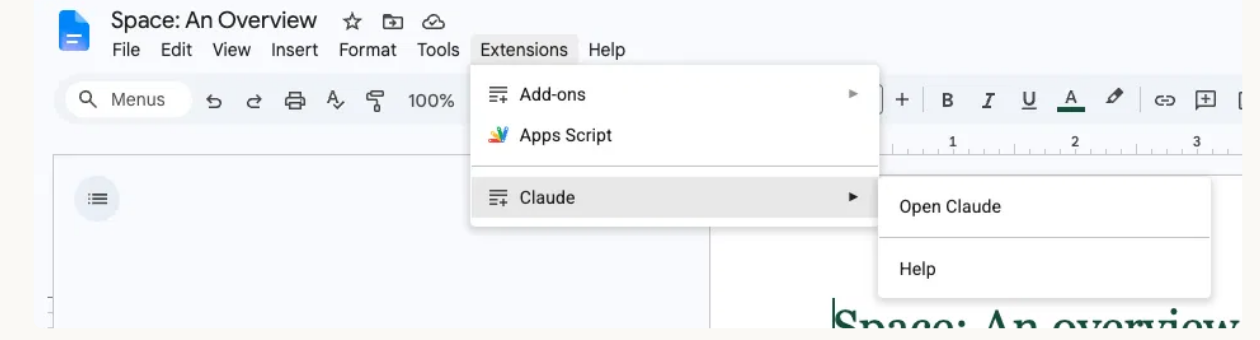
There are two edit modes. The default, Ask before edits, shows what Claude plans to do in plain language and waits until you click Allow. Accept all edits, according to the help article, makes ordinary content changes without stopping, but it asks for approval again for anything that touches links, external images, web addresses or file access permissions. Start with the default, watch what kinds of edits happen, and then switch if you want.
The limits listed in the Google Sheets help article are these. It cannot read or edit Connected Sheets tabs (a feature that links BigQuery data live to a sheet), so you need to copy the data to a regular tab. A single task runs for at most 6 minutes, so large jobs must be split. Closing the sidebar stops the task. It works only in Chrome, Edge and Safari, not Firefox. Excel files must be converted to Google format first.
What is different about the new Claude Sheets
On November 10, 2026, Anthropic released Claude Whiteboards and Claude Sheets as betas, and made the existing Claude Dashboards a generally available feature called Claude Data. Claude Sheets lets you build spreadsheets with tabs, formulas, formatting and dropdowns by prompt inside claude.ai. It summarizes what changed each time a cell is edited so you can track changes, and you can share the sheet and edit it together. Anthropic says this is still a "simple spreadsheet feature," and for advanced work it tells you to export to .xlsx or CSV and continue there, or use Claude for Excel.
The plan requirement is all paid plans. For Team, all three tools are on by default. For Enterprise, Whiteboards and Sheets are off by default. Admins can change this in Organization settings > Artifacts. The announcement does not give a rollout order. On the afternoon of November 11, I checked the sidebar and settings of a personal Ultra account, and the Sheets and Whiteboards items were not visible yet. It looks like a staged rollout, so if it is not on your account, use file creation in chat for now.
How Claude Excel compares with Microsoft and Google AI
Many readers ask whether there is any reason to use Claude when Excel and Google Sheets already have their own AI. Here is a comparison limited to what the official documents confirm. I left prices out of the table because they vary by country and subscription type.
| Product | Conditions to use (official wording) | Good to know |
|---|---|---|
| Claude for Excel | Pro, Max, Team or Enterprise plan and Microsoft 365 Excel | Usage shares the Claude account limit, macros and VBA not supported |
| Microsoft Copilot in Excel | Included in Microsoft 365 Personal and Family (announced January 17, 2025) | Monthly AI credits provided, on Family only the subscription account holder can use AI |
| Gemini in Google Sheets | Google AI Pro and Ultra, Workspace Business, Enterprise Standard and Plus and others (announced April 2026) | The feature that builds complex sheets in one go was English and US only at announcement |
If you already use Microsoft 365 Personal, trying Copilot inside Excel first costs less because it needs no extra subscription. Choose Claude when you want to keep building an Excel file, a Word document and a presentation in the same conversation, or when you already pay for a Claude plan. The fastest way to see which fits your sheets is to give both products the same real task, like the ad spend table above, and compare whether formulas were included and whether the totals are right.
Two things change when you use this in Korea. First, my test used Korean for both the request and the table headers, and all three files had the month and ROAS column names in Korean. Second, Claude prices are shown in US dollars. On the Korean screen, Pro is $22 per month (VAT included), so your KRW charge varies with the exchange rate and card fees. You can find the details in our Claude plan comparison.
Check these things before you hand work to Claude Excel
All three options share one rule: do not trust AI-made formulas blindly. The Claude for Excel docs say not to use its output for final customer deliverables, calculations used in audits, or sensitive or regulated data without human review or separate controls. As the best practices in the official docs suggest, work on a copy of the original workbook so it is easy to undo bad edits. Also think about data retention. According to the same document, inputs and outputs are deleted from servers within 30 days of being received or created, and custom retention settings set by an Enterprise organization do not apply to this add-in.
If you want to automate repeat work on the plan you already use, you can also save an instruction like "use this format for ad performance tables" with Claude Skills.
Frequently asked questions about Claude Excel
Can I upload an Excel file to Claude for analysis? File creation supports uploading data files such as CSV and TSV for analysis, up to 30MB. If you want Claude to edit an original file that contains formulas, Claude for Excel is a better fit.
Does it work with Excel files that contain macros? The official docs say Claude for Excel does not support macros and VBA. For a macro file, it is safer to give Claude only the formula parts in a copy.
Can I share an Excel file made in a chat with someone else by link? The help article says public sharing of conversations that contain file outputs is blocked on Free, Pro, Max and Ultra. You need to download the file and send it yourself.
Here is what to try today. Paste the ad spend table above into chat and get the file. Then check that the formulas are live using the formula bar and by changing a number. If you already have an Excel or Google Sheets file, test the add-in once on a copy of it.
Found this useful? Share it
Latest posts
Kakao Share Thumbnail Not Showing? Here's the Fix (JavaScript SDK 2025)
Learn why Kakao Share thumbnails don't appear even with a valid imageUrl, and fix it using scrapImage to convert your URL into a KAGE CDN URL. Step-by-step guide.
How to Generate CRM User Manuals in 20 Minutes with Claude Code Sub-Agents
Learn how Claude Code sub-agents can analyze your CRM codebase and auto-generate user manuals and visual guidebooks in just 20 minutes. See the real-world results.
GEO Generative Engine Optimization: The Complete 2025 AI Marketing Strategy Guide
Learn what GEO (Generative Engine Optimization) is, how it differs from traditional SEO, and discover 5 proven AI marketing strategies to get cited by AI search engines in 2025.
Related projects
Get new posts by email
Insights on marketing, analytics, and dev, delivered to your inbox.