
Nano Banana is the nickname of the AI model that creates and edits images in Google's Gemini app. Choose Image in the gemini.google.com sidebar, then write the scene you want as a prompt (the request text you give the AI). It works even on an account with no paid plan. The Gemini Apps Help Center shows that image generation with the latest model, Nano Banana 2, is available with no plan, Google AI Plus, Pro, and Ultra. Usage is capped by compute-based limits, and no document gives a daily image count, so this guide also covers how to check your limit. Google's documents are standing help pages, so the reference date is what we checked on October 5, 2026.
Nano Banana is Google's image model, and there are three versions
Nano Banana became known when Google released it as the Gemini app's image editing model on August 26, 2025. The first announcement focused on two things: changing clothes or backgrounds while keeping the same person or pet recognizable, and combining several photos into a new scene. More models followed. The image generation help page now names Nano Banana 2 as the model in use.
| Name | Announced | Role in the Gemini app |
|---|---|---|
| Nano Banana | August 26, 2025 | First released as an image editing model |
| Nano Banana Pro | November 20, 2025 | Used to redo an image you already made. Accounts with no plan cannot use it |
| Nano Banana 2 | February 26, 2026 | The model named in the image generation guide. Also used in Google Search, Flow, and Google Ads |
In its announcement post, Google says Nano Banana 2 renders and translates text accurately and legibly for marketing mockups and cards, and lets you pick aspect ratio and resolution from 512px to 4K. The same post says it can keep the look of 5 people and the shape of 14 objects within one task. These figures are model capabilities stated by Google. They do not mean every result will match this well.
You create an image with Nano Banana in four steps
Start in a desktop browser, signed in at gemini.google.com. The steps from the Help Center guide are below.
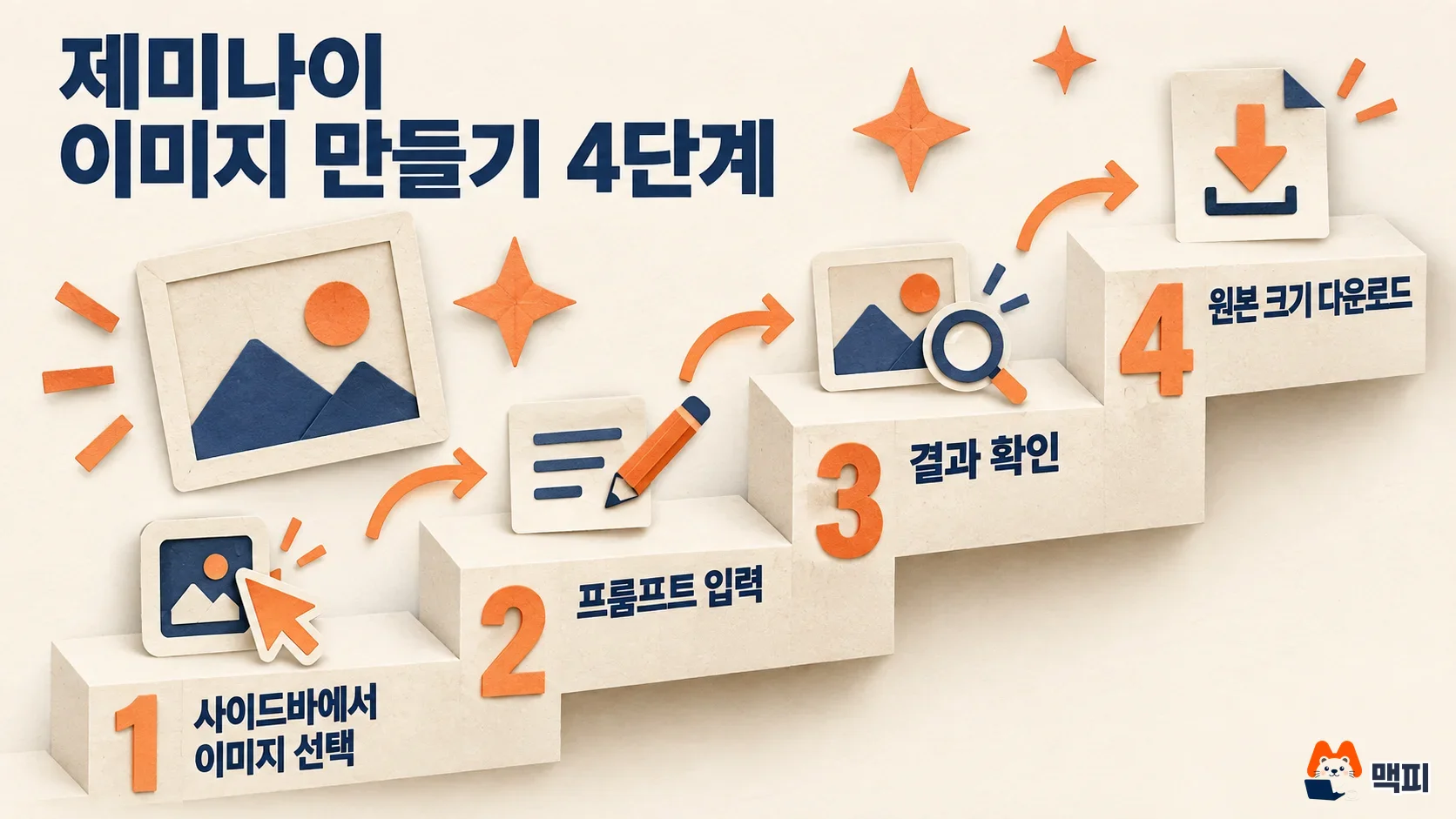
- On gemini.google.com, click the sidebar toggle at the top left.
- Choose Image from the menu.
- Pick a template, or type the scene you want as a prompt. The image is made with Nano Banana 2.
- When the result appears, hover over the image and click the full-size download button. You can also export to Docs from the More menu.
Generation is done when the image appears in the chat and you see the full-size download button. For menu names in the mobile app, follow the device-specific steps in the same Help Center page. Availability depends on the languages and countries the app supports. The same page says you must be 13 or older (including the age set by your country of residence) to create images.
A good Nano Banana prompt describes five elements
In its Nano Banana prompting tips, Google splits the image into five elements and tells you to be specific. Google's developer image generation docs also say to describe a scene instead of listing keywords.
| Element | What Google asks | Example input |
|---|---|---|
| Subject | Who or what is in it | A white cat sitting by a window |
| Composition | How is the shot framed | A view from above |
| Action | What is happening | Dozing in the sunlight |
| Location | Where does it take place | The wooden windowsill of a small cafe |
| Style | What is the overall mood | Watercolor with warm colors |
Joining the examples in the table gives: "Draw a white cat dozing in the sunlight on the wooden windowsill of a small cafe, seen from above, in a watercolor style with warm colors." This sentence is an example built from Google's five elements, not a result we ran ourselves. Make one image first, then refine it by looking at the result. Be careful when you put text inside an image. In the same post, Google lists small text, factual accuracy in diagrams, and multilingual grammar as limits it is still improving. If your image contains Korean text, keep the phrase short and read the text in the result yourself (this is the author's recommendation).
You edit an image with Nano Banana through chat
You can fix an image you already made through conversation instead of starting over. The edit steps in the Help Center start from the library.
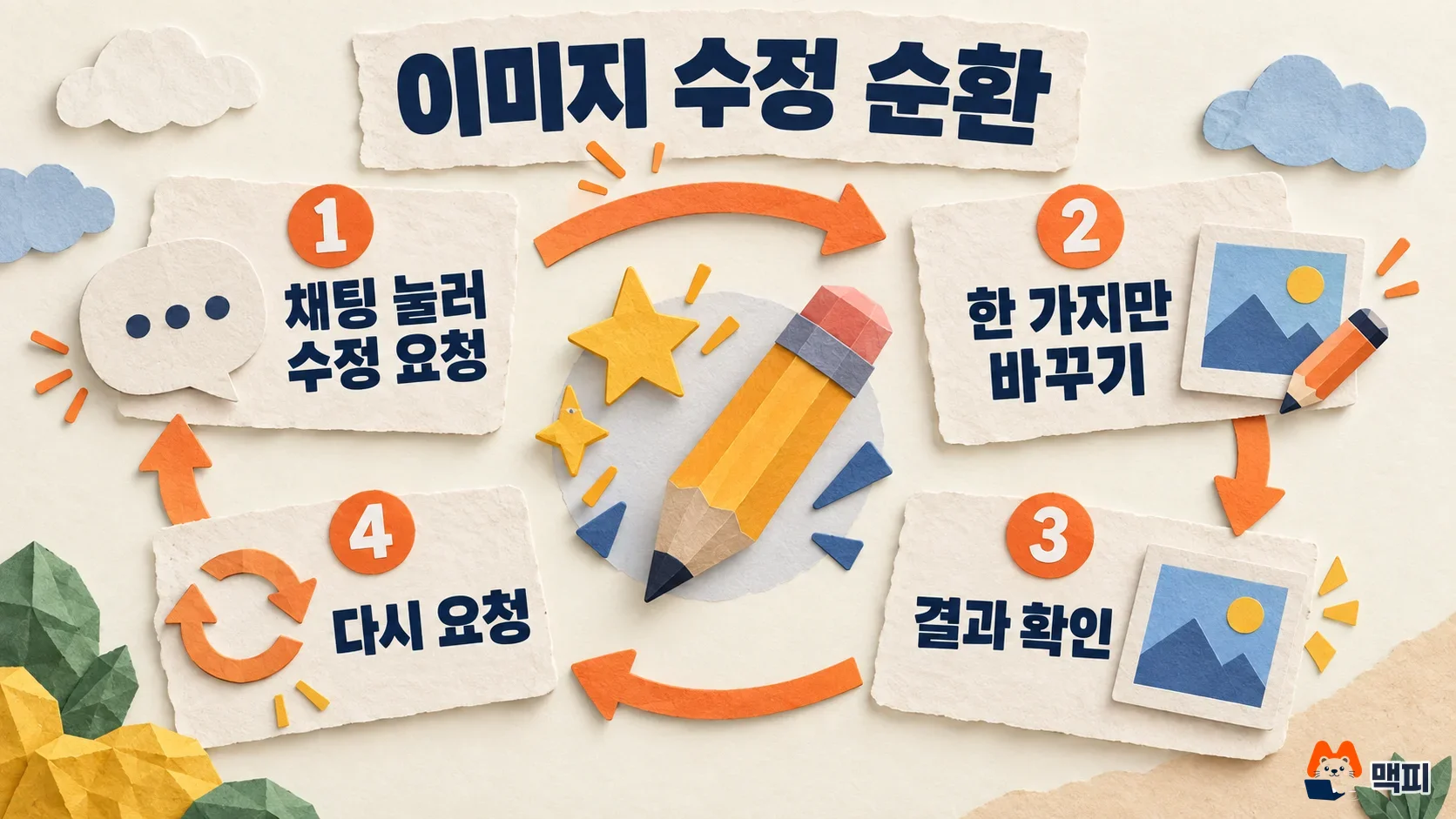
- Open the sidebar and click Library.
- Click the image you want to fix to open it.
- Click the chat below the image.
- Type what you want to change in the text box below and submit.
You must be 18 or older to edit. Say the edit directly. The example in Google's prompting tips is short and specific: "Change the man's tie to green and remove the car in the background." The tips Google published on October 2, 2025 include changing one detail at a time, such as a sofa's color, decorating a room one piece of furniture at a time through repeated edits, combining up to three photos, and restoring old photos.
The test for a good result is whether only the part you asked about changed. If the expression or background changed too, narrow your request and send it again in the same chat (this is the author's recommendation).
Plans differ in Pro redo access and usage limits
An account with no plan can still generate images. The differences are redoing with Nano Banana Pro and the usage limit. The feature table and limit multipliers from the Gemini Apps limits page are below.
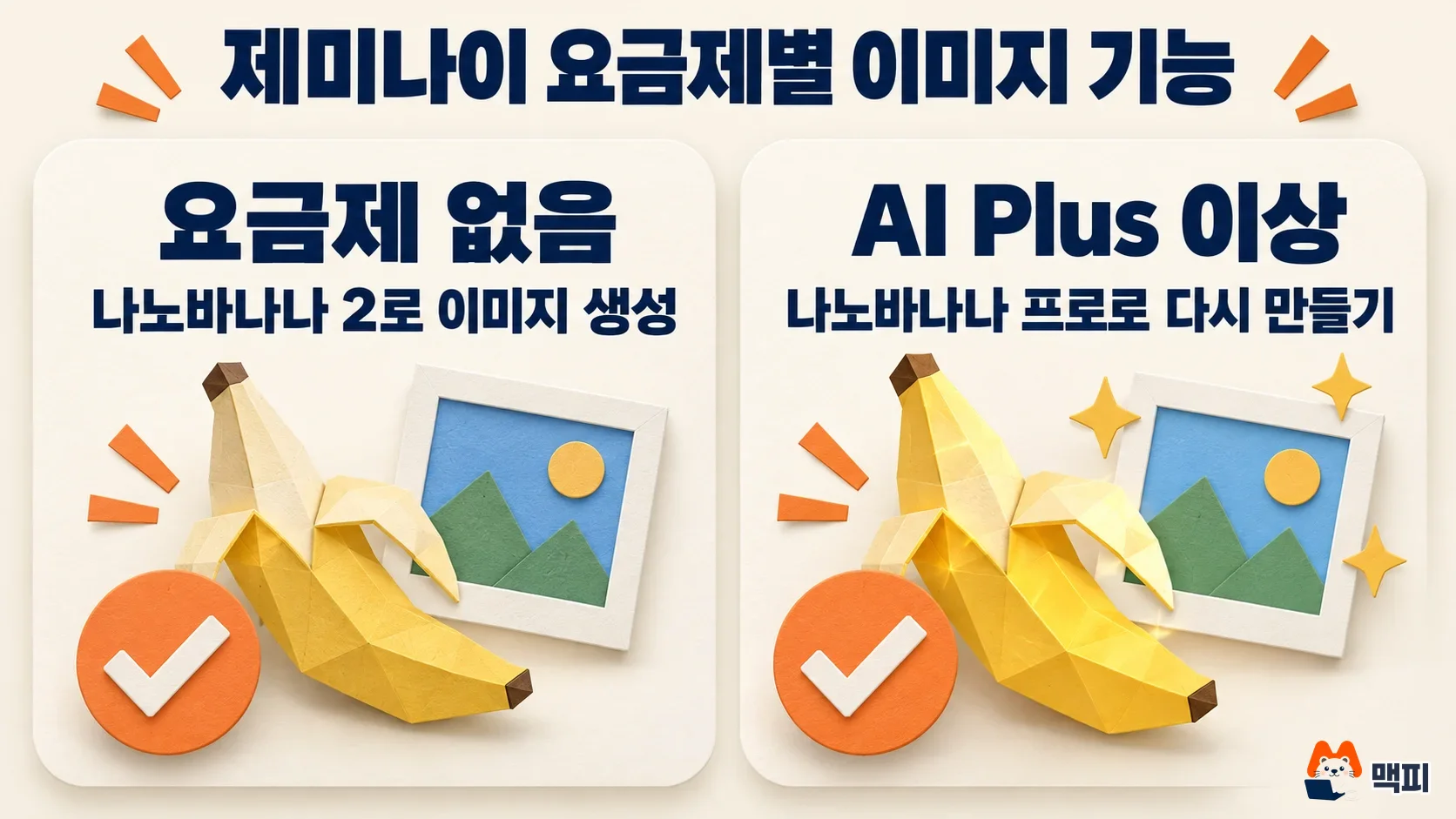
| Plan | Nano Banana 2 image generation | Redo with Nano Banana Pro | Usage limit |
|---|---|---|---|
| No plan | Yes | No | Basic limit |
| Google AI Plus | Yes | Yes | 2x basic |
| Google AI Pro | Yes | Yes | 4x basic |
| Google AI Ultra | Yes | Yes | 5x or 20x AI Pro (depending on the subscription) |
The same page explains that generating media such as images or video uses more of your quota than regular chat. The document gives no number for how many images you can make per day, so rely on the notice the app shows when you hit a limit. The Help Center says that on a day you have used your daily limit, you cannot redo an image with Nano Banana Pro.
Watermarks are another condition to know. In its August 2025 announcement, Google said every image created or edited in the Gemini app gets a visible watermark and an invisible SynthID watermark. In February 2026, it said SynthID is used together with C2PA Content Credentials. SynthID is an invisible marker Google embeds in images. C2PA Content Credentials are a standard label that lets you check whether AI was used and how. Before you post an image in an ad or a post, remember that it is marked as AI-made and check the policy of the platform you will post on.
Common mistakes when using Nano Banana
- Asking for many changes at once: if you pack color, background, and props into one sentence, it is hard to tell which part changed. Change one thing at a time and continue from the result, as in Google's tips.
- Trying to redo with Pro after hitting the limit: once you use up the Nano Banana 2 image limit assigned for that day, you cannot redo with Nano Banana Pro. Continue the next day or check your plan.
- Using Korean text in an image without checking it: Google lists small text and multilingual grammar as limits, so read the spelling yourself before you publish an image with text.
- Assuming that if you can generate, you can edit: image generation requires age 13 or older and editing requires 18 or older, so the edit feature may be blocked depending on the account's age.
Start Nano Banana with one image and one edit
First, choose Image on gemini.google.com, enter one scene as a prompt, make one image, and download it at full size. Next, open that image from the Library and change just one thing through chat to learn the edit flow. If you hit a limit, follow the app's notice, and check plans only when you need to redo with Pro.
Nano Banana FAQ
Can I use Nano Banana for free
The Google documentation shows that you can create images with Nano Banana 2 in the Gemini app with no plan. There is a usage limit, and the exact daily count is not in the document. For plan prices and full limits, see our separate comparison, Gemini plan prices and limits compared.
How do I use Nano Banana Pro
Google describes this as a feature that redoes an image with Nano Banana Pro, based on an image you already made. The Google documentation says it is available only on Google AI Plus or higher plans.
Can I combine several photos into a new image
In its tips, Google presents combining several photos into a new scene as a feature for up to three photos. When you combine your own photos, choose the number within this range.
Found this useful? Share it
Latest posts
Kakao Share Thumbnail Not Showing? Here's the Fix (JavaScript SDK 2025)
Learn why Kakao Share thumbnails don't appear even with a valid imageUrl, and fix it using scrapImage to convert your URL into a KAGE CDN URL. Step-by-step guide.
How to Generate CRM User Manuals in 20 Minutes with Claude Code Sub-Agents
Learn how Claude Code sub-agents can analyze your CRM codebase and auto-generate user manuals and visual guidebooks in just 20 minutes. See the real-world results.
GEO Generative Engine Optimization: The Complete 2025 AI Marketing Strategy Guide
Learn what GEO (Generative Engine Optimization) is, how it differs from traditional SEO, and discover 5 proven AI marketing strategies to get cited by AI search engines in 2025.
Related projects
Get new posts by email
Insights on marketing, analytics, and dev, delivered to your inbox.