
To use NotebookLM, create a new notebook, add sources like PDFs, web pages, and videos, then ask questions in chat. The free Standard limits are 100 notebooks, 50 sources per notebook, and 50 chats per day. NotebookLM is Google's AI note tool that answers only from the material you upload. Google announced the rename to Gemini Notebook in its official blog post on July 16, 2026. Everything below was checked against Google's help pages on October 5, 2026.
NotebookLM is a tool where you gather sources in one notebook and ask questions
Google's help page describes a notebook as a collection of sources for a specific project. Each notebook works on its own, so it does not draw on material from your other notebooks at the same time. A source is each individual item you add to a notebook. NotebookLM looks for answers inside those sources and attaches a citation to every response, so you can check the original text right away. If you split notebooks by purpose, such as ad report analysis or competitor research, the answers will not get mixed up.
The way you use it is the same after the rename. Google launched new features with the announcement, such as code execution and Gemini app integration. At launch, Google AI Ultra users and Workspace customers get them first, and the web version will expand to Pro users afterward. The explanations below are based on the core features listed on the help pages.
Getting started with NotebookLM takes 5 steps
While signed in with your Google account, the order the help page describes is: create a new notebook, upload or search for sources, then work in the chat and Studio panels.

- Go to the NotebookLM (Gemini Notebook) website and click Create new notebook.
- Click Add source and choose one of Google Drive, the web, Play Books, or a file from your computer. You can also find material with the search box and add it.
- Once sources are uploaded, the chat panel shows a summary of all sources. If you see the summary, the sources went in correctly.
- Type a question about your sources in the chat box. Answers carry citations that show which source they came from, so click a citation to check the original.
- In the Studio panel, create outputs such as an Audio Overview, a mind map, or a report.
If the summary does not appear or the source is empty, first check that the file format and size meet the conditions in the table below.
NotebookLM sources: what you can add and the limits
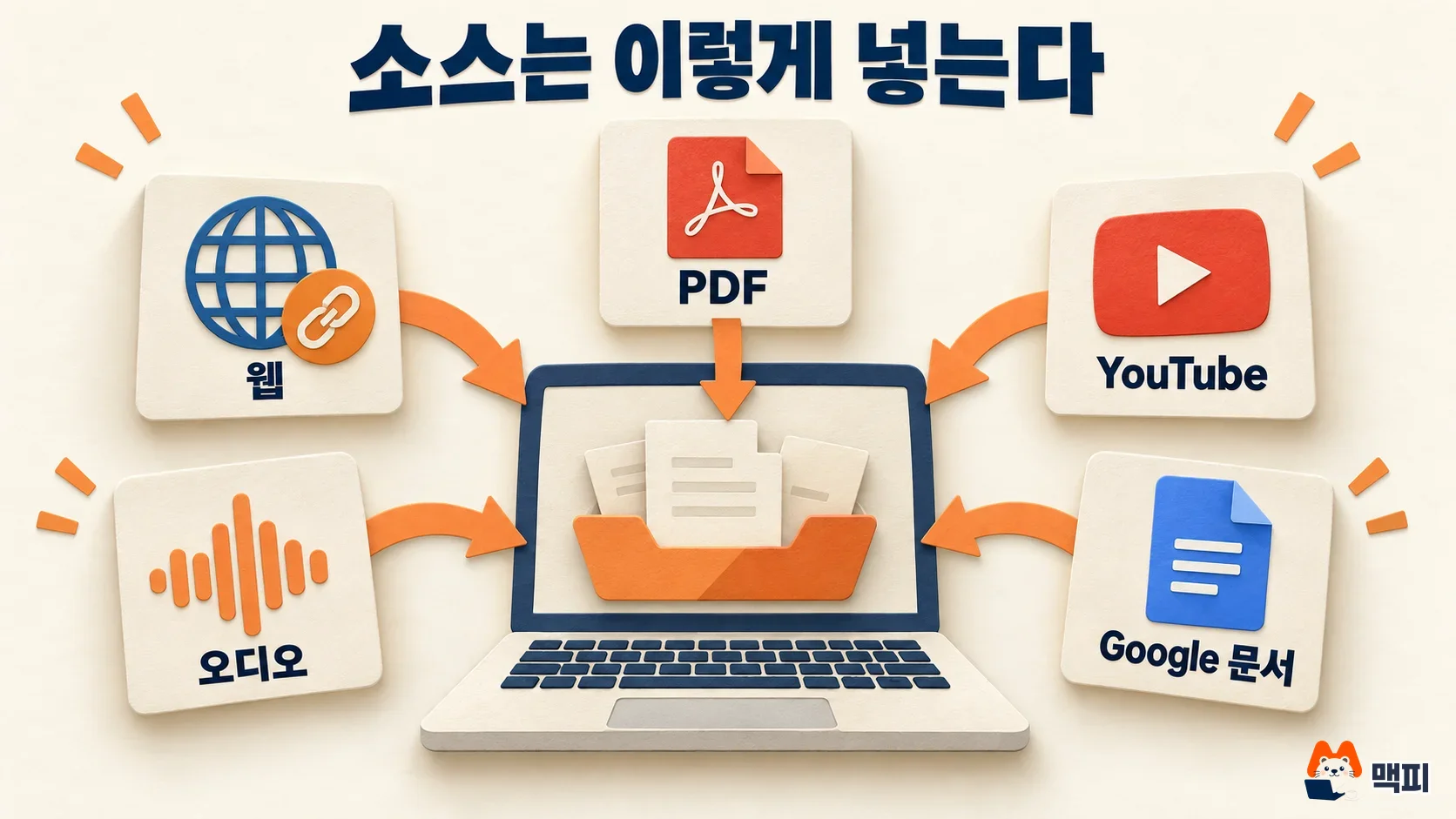
The formats listed on the supported sources help page are below. One source can be up to 500,000 words in English, and up to 200MB when uploaded as a file.
| Type | Supported | Limits to know |
|---|---|---|
| Files | docx, txt, md, pdf, csv, pptx | 500,000 words or 200MB per source |
| Google services | Docs, Slides, Sheets, Play Books | Sheets are limited to 100,000 tokens (the text units AI reads), Play Books is text only |
| Web URL | Text of the web page | Images, embedded videos, and nested pages are not imported, and paywalled pages are not supported |
| YouTube | Transcript of public videos with captions | Videos uploaded within the last 72 hours cannot be imported |
| Audio and images | Audio such as MP3 and WAV, and images such as png, jpg, and webp | - |
The same help page says pasted text and Gemini chat content can also be used as sources. The documents you upload must be ones you have the right to use.
NotebookLM Studio outputs and example uses
Studio is where outputs are created from your sources. The help page lists notes, AI audio and video overviews, mind maps, reports (FAQ, study guide, briefing document), data tables, flashcards and quizzes, slide decks, and infographics.
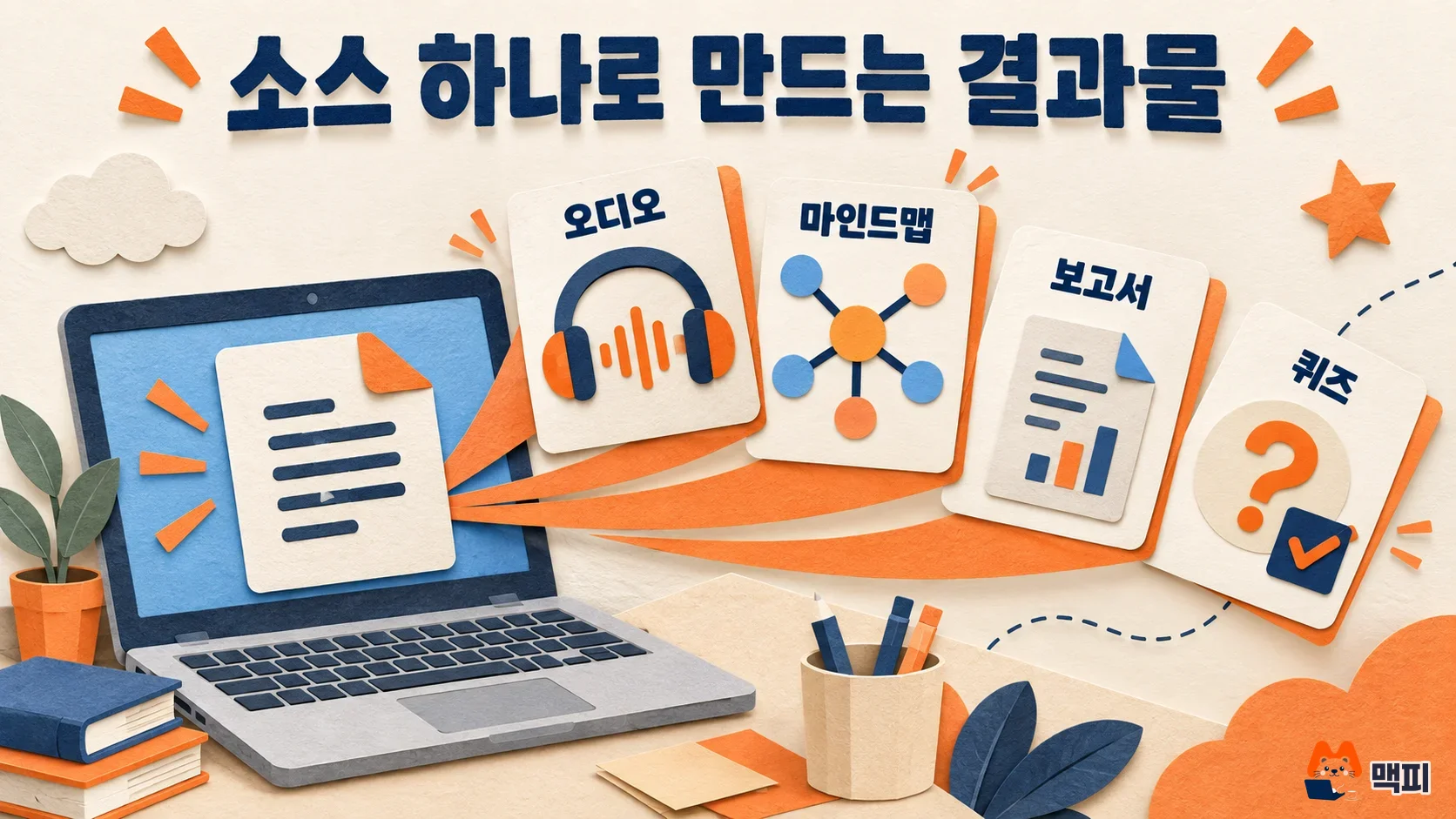
- Reports (FAQ, study guide, or briefing document): add three ad platform policy documents as sources and create a briefing document to see what changed on one page.
- Mind map: add keyword research material to see at a glance how the topic branches out.
- Audio Overview: turn a long PDF report into a summary you can listen to on the go.
- Quizzes and flashcards: check a new hire's understanding with the operations manual they need to read.
These uses are examples of applying the features on the help page to marketing work. Outputs summarize what is in your sources, so check numbers and dates once against the original source and its citations.
NotebookLM free limits: notebooks, sources, and chats
Google's limits table splits plans into Standard, Plus, Pro, and Ultra. The values for Standard, the base plan, set the free usage range. Below are only the items people hit most often. Daily quotas reset after 24 hours, and monthly quotas reset after 30 days.
| Item | Standard (free) | Plus | Pro |
|---|---|---|---|
| Notebooks | 100 per user | 200 | 500 |
| Sources | 50 per notebook | 100 | 300 |
| Chats | 50 per day | 200 per day | 500 per day |
| AI Audio Overviews | 3 per day | 6 per day | 20 per day |
| Reports, flashcards, quizzes, mind maps | 10 each per day | 20 per day | 100 per day |
| Deep Research (a feature that researches the web in multiple steps and adds the results as sources) | 10 per month | 3 per day | 20 per day |
If you stay under 50 sources per notebook and 50 chats a day, starting on Standard is fine. Consider Plus or higher when you cross these lines again and again. Check Ultra limits on Google's help page, and check Google AI plan prices on the subscription page before you pay.
Common mistakes when using NotebookLM
- Adding a YouTube video right after it is uploaded: videos less than 72 hours old cannot be imported, and videos without captions do not work either. Check first that a video a few days old has captions.
- Adding a paid article link as a web source: paywalled pages that only subscribers can see are not supported. Copy the article text and paste it in.
- Expecting table images or videos on a web page to be read: a web URL source imports text only. If you need what is inside a picture, upload it separately as an image file.
- Packing many topics into one notebook: a notebook is a project-level collection of sources, so when material with different goals is mixed, it is hard to tell which project's material an answer is based on. Make one notebook per topic.
NotebookLM frequently asked questions
Are NotebookLM and Gemini Notebook different services?
They are the same product. Google announced the new name, Gemini Notebook, for NotebookLM in its official blog post on July 16, 2026, and the help pages now use the Gemini Notebook name too.
Does sharing a notebook raise the source limit?
No. The footnote on the limits table says that sharing a notebook does not change a collaborator's source limit.
How many Audio Overviews can I create per day?
Standard allows 3 per day, Plus 6 per day, and Pro 20 per day. These values come from the same help page as the limits table above.
What to try today
Pick one or two PDF reports or policy documents you are reading now, add them as sources to a new notebook, and check that the chat panel shows a summary. Then ask one question you are curious about. Click the citations on the answer to see whether they match the original. If you are happy with it, create a report or mind map in Studio. If you hit the limits often, compare the Plus and higher values in the limits table.
Found this useful? Share it
Latest posts
Kakao Share Thumbnail Not Showing? Here's the Fix (JavaScript SDK 2025)
Learn why Kakao Share thumbnails don't appear even with a valid imageUrl, and fix it using scrapImage to convert your URL into a KAGE CDN URL. Step-by-step guide.
How to Generate CRM User Manuals in 20 Minutes with Claude Code Sub-Agents
Learn how Claude Code sub-agents can analyze your CRM codebase and auto-generate user manuals and visual guidebooks in just 20 minutes. See the real-world results.
GEO Generative Engine Optimization: The Complete 2025 AI Marketing Strategy Guide
Learn what GEO (Generative Engine Optimization) is, how it differs from traditional SEO, and discover 5 proven AI marketing strategies to get cited by AI search engines in 2025.
Related projects
Get new posts by email
Insights on marketing, analytics, and dev, delivered to your inbox.