
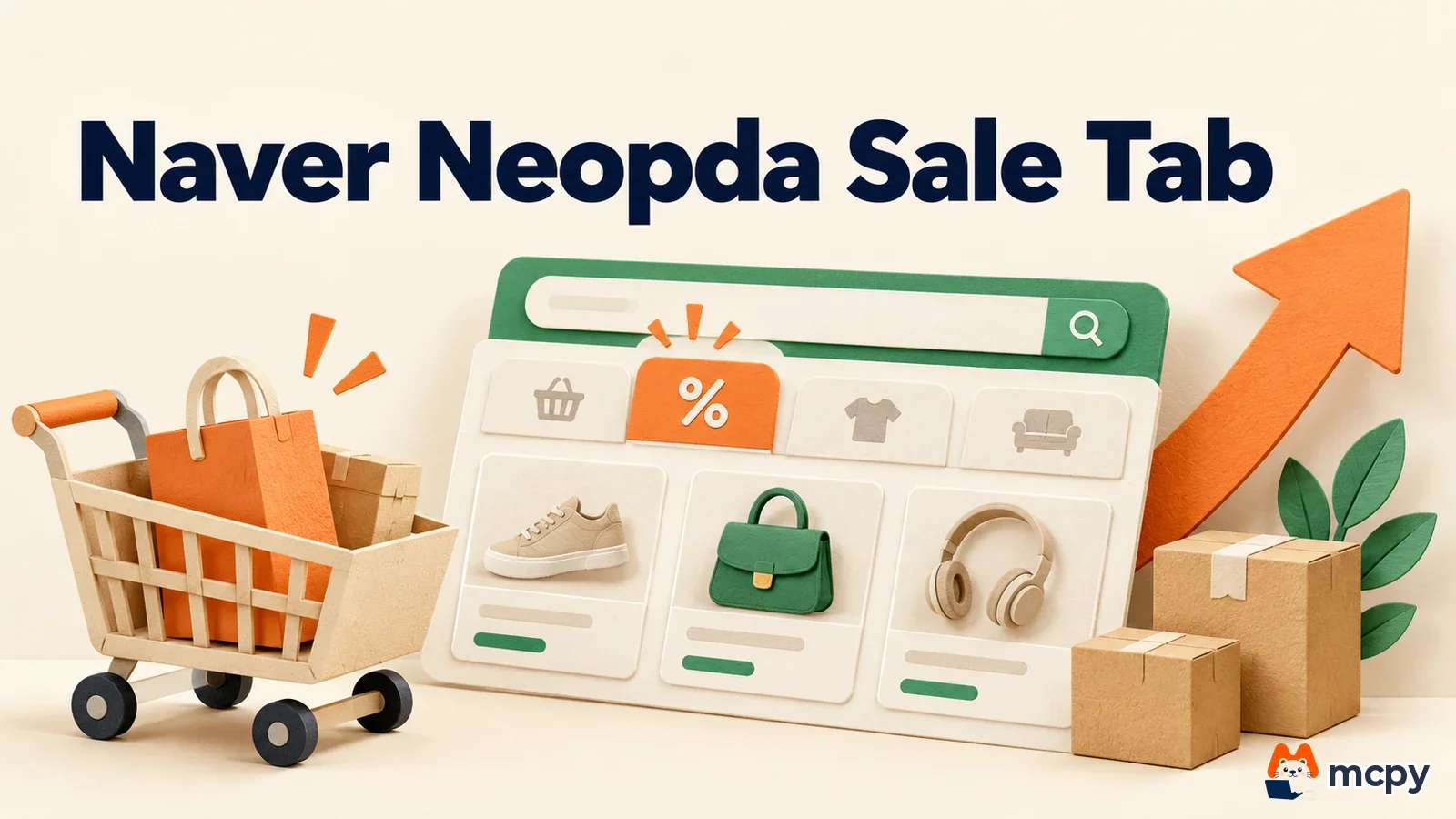
What happens to your ads when the Neopda Sale tab enters the PC main Shopping Block
The Neopda Sale tab is an event tab. During Naver's second-half "Neopda Sale" promotion (October 26 to November 6, 2026), it replaces the 'N+ Store Benefits' tab in the Shopping Block on the Naver PC main page. According to the Naver Ad Center notice, only products that joined Neopda Sale and run Shopping Search Ads or ADVoost Shopping (Naver's shopping ad operation product) appear in this tab. The Shopping Block is the area on Naver's PC home page, Korea's largest search engine, that splits shopping products into tabs. If you run Shopping Search Ads, check again whether your products appear in this tab and whether your ad settings need to change.
It is like a neighborhood market shelf that always sits in the same spot. For a holiday, a "Big Sale" sign goes up. Only goods entered in the sale are placed under the sign, and the shelf with the sign gets more foot traffic than usual. The Naver main Shopping Block works the same way. It gathers participating products in a limited-time event tab. Even if the shelf is in the same place, goods that did not join the sale are not placed there.
What changed From Monday, October 26 to Friday, November 6, the 'N+ Store Benefits' tab in the Shopping Block on the Naver PC main page runs as the 'Neopda Sale' tab.
Who is affected Advertisers who join Neopda Sale and also run ADVoost Shopping or Shopping Search Ads. Only participating products are shown in that tab.
What to do now Check that the 'Naver Main - PC' media exposure setting is on in your ad settings. The schedule may change, so check the notice again.
Neopda Sale tab schedule and placement
On October 19, 2026, Naver announced in an Ad Center notice that it would change this tab to match the second-half Neopda Sale promotion. The tab stays in its usual third position inside the Shopping Block, and it is visible to both logged-in and logged-out users. When the period ends, it returns to the original 'N+ Store Benefits' tab. The notice added that the schedule may change for internal reasons.

| Item | What the notice says |
|---|---|
| Period | Monday, October 26 to Friday, November 6, 2026, schedule subject to change |
| Placement | Third tab of the Shopping Block on the Naver PC main page |
| Eligible products | Neopda Sale products (with the Neopda Sale badge) that are running ADVoost Shopping or Shopping Search Ads |
| Users | Both logged-in and logged-out |
| Unchanged | Ad registration method, ranking calculation, billing basis |
The notice says this change comes from running a tab for the promotion period only. So there is nothing new to register and no new bidding method to learn.
Will my Shopping Search Ads appear in the Neopda Sale tab?
Two conditions must both be met. The product must have joined Neopda Sale and carry the badge. The product must also be running as ADVoost Shopping or Shopping Search Ads. The notice says participating products may get more exposure in this area without any separate setting.
| Your situation | Neopda Sale tab exposure |
|---|---|
| Joined Neopda Sale + running Shopping Search Ads or ADVoost Shopping | Eligible. It can appear if the 'Naver Main - PC' media is on |
| Joined Neopda Sale + no ads running | Not applicable, because the notice targets products with ads running |
| Running ads + did not join Neopda Sale | Does not appear in this tab (only participating products are shown) |
This notice does not explain how to join Neopda Sale or what the conditions are. If you are considering joining, check the Naver seller notices separately. The notice also has no guidance on the mobile main page. The target is written as the PC main page.
What to do now: check media settings and note the schedule
The media setting is where you choose which Naver placements your ads run on. According to the notice, ads can appear in this placement when the 'Naver Main - PC' media exposure setting is on. If that item was off in your Shopping Search Ads media settings, your products may not appear in this tab even if they are participating. If you turned off the PC main page on purpose, decide whether to leave it off or turn it on only for this period.
- In the Naver ad management system, open the media settings of your Shopping Search Ads (or ADVoost Shopping) campaign.
- Check that 'Naver Main - PC' is on.
- Confirm that the products that joined Neopda Sale are in your ad group.
- After October 26, open the third tab of the Shopping Block on the Naver main page on PC and check whether your product shows the Neopda Sale badge. The notice says the tab is shown to both logged-in and logged-out users, so also open it once in a private window where you are not logged in.

If you see your product in the tab, it is being shown. If you do not, look for the missing one among the three conditions above in order: ads running, Neopda Sale participation, and PC main media on. The notice does not say when per-placement results are reflected in ad management system reports, so checking on screen is the fastest way to confirm exposure. For the basic structure of Shopping Search Ads and the order for checking missing exposure, continue with How to start Naver Shopping Search Ads and check for missing exposure.
What to watch next
The Neopda Sale tab is scheduled to end on November 6. The notice says the schedule may change, so check the Ad Center notice again around the start date for any edits.
FAQ
Do I need to revert my ad settings after the Neopda Sale tab ends?
The notice says the original 'N+ Store Benefits' tab returns when the period ends. It also says the registration method, ranking, and billing basis stay the same. If you changed your media settings on purpose, just set them back to their original values.
Does joining Neopda Sale change my ad cost?
This notice only says the billing basis is the same as before. Any fees or conditions for joining Neopda Sale itself are outside the scope of this notice.
Found this useful? Share it
Latest posts
Kakao Share Thumbnail Not Showing? Here's the Fix (JavaScript SDK 2025)
Learn why Kakao Share thumbnails don't appear even with a valid imageUrl, and fix it using scrapImage to convert your URL into a KAGE CDN URL. Step-by-step guide.
How to Generate CRM User Manuals in 20 Minutes with Claude Code Sub-Agents
Learn how Claude Code sub-agents can analyze your CRM codebase and auto-generate user manuals and visual guidebooks in just 20 minutes. See the real-world results.
GEO Generative Engine Optimization: The Complete 2025 AI Marketing Strategy Guide
Learn what GEO (Generative Engine Optimization) is, how it differs from traditional SEO, and discover 5 proven AI marketing strategies to get cited by AI search engines in 2025.
Related projects
Get new posts by email
Insights on marketing, analytics, and dev, delivered to your inbox.