
Cloud Run release notes: what changed in vulnerability and secret detection
Cloud Run vulnerability scanning starts when you enable the Container Scanning API in the project that holds your images. You then view results on the Findings page in Security Command Center. According to the Cloud Run release notes, Google Cloud published this feature as a Preview on November 9, 2026. Check the Cloud Run release notes for the original entry. The feature finds known vulnerabilities (CVEs) and exposed secrets in the container images that services, jobs and worker pools run. If your team deploys apps on Cloud Run, you now need to decide whether to turn it on and who will read the results. Think of a building safety inspection. It does not check empty rooms. It checks the rooms where people live now. This feature works the same way. It links results to the revision (deployed version) that receives traffic or is running, not to an image that was only deployed once. Because it is a Preview, use it to add to your existing security checks, not to replace them.
What changed A Preview feature now detects vulnerabilities (CVEs) and exposed secrets in container images for Cloud Run services, jobs and worker pools.
Who is affected Teams that deploy Artifact Registry images to Cloud Run, and security owners who use Security Command Center (Google Cloud's security hub).
What to do now Enable the Container Scanning API in each project that holds images, then filter the Security Command Center Findings page by Cloud Run resource type.
The official Cloud Run release notes say the feature targets container images of services, jobs and worker pools, and that it is in Preview. According to Google's documentation, Vulnerability Assessment for Cloud Run relies on two features working together. Artifact Analysis container scanning checks Artifact Registry images and records the results. Vulnerability Assessment for Google Cloud then links those results to the Cloud Run resources that are running now.

Which Cloud Run resources are scanned
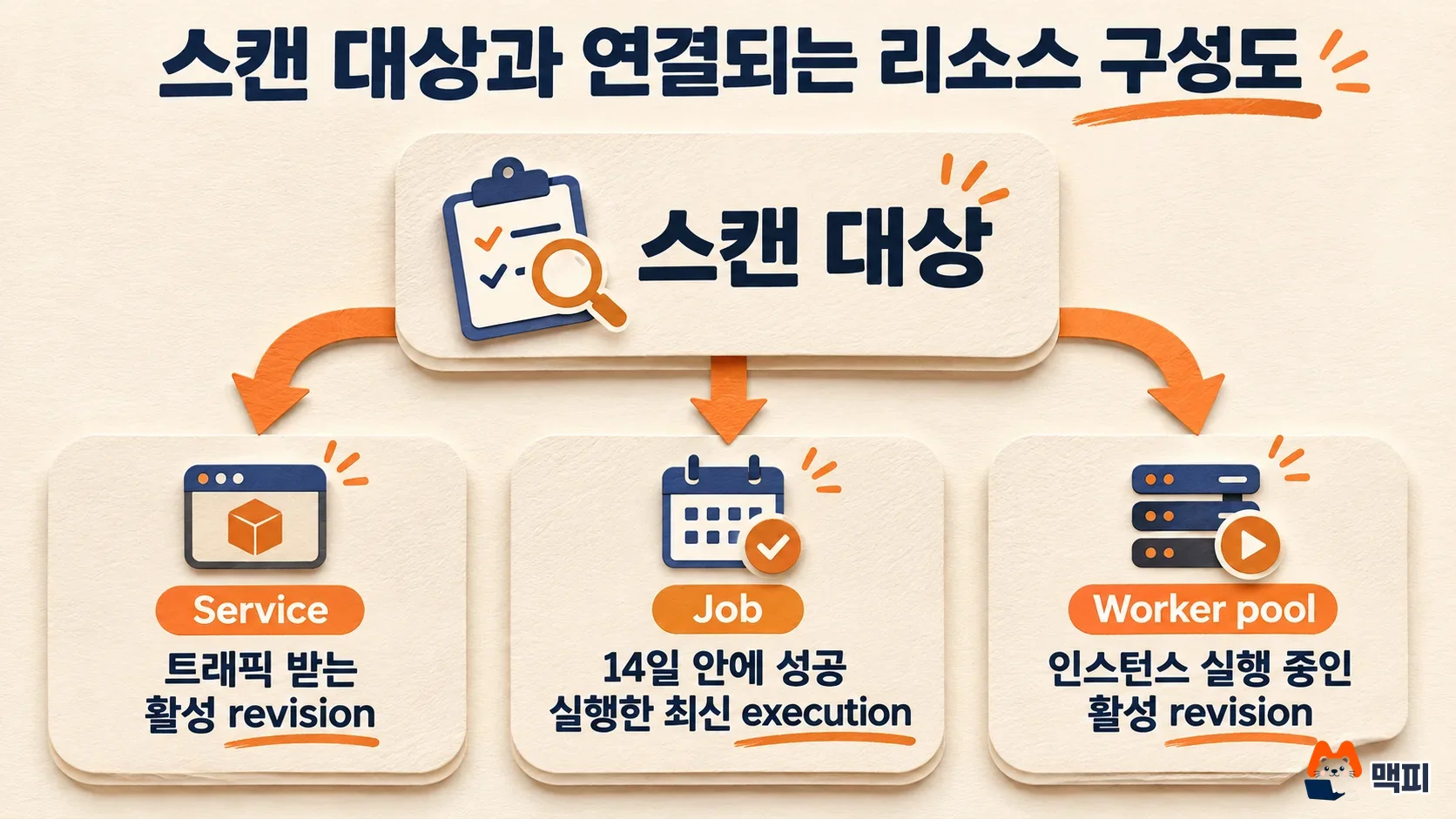
Cloud Run vulnerability scanning decides what counts as "running" separately for each resource type. The table below shows the rules from Google's documentation.
| Resource | Scan basis | What appears in results |
|---|---|---|
| Service | Active revisions that serve traffic | Full names of active revisions running the vulnerable image, up to 5 |
| Job | Image of the latest execution that started successfully within 14 days | Jobs that never ran or failed to initialize are not scanned |
| Worker pool | Active revisions that run instances | All active revisions running the vulnerable image |
Where the image lives also matters. According to Google's documentation, the image must be within the scope of Artifact Registry and Artifact Analysis container scanning in the same Google Cloud organization as the Cloud Run workload. Images from other organizations are not scanned. Verified public Google container mirrors are an exception.
Timing is another point to know. Results appear only when Artifact Analysis scans or re-analyzes the image. Deploying an image you pushed earlier does not start a new scan. The documentation says re-analysis usually happens within about 4 hours. If a service or worker pool runs for more than 30 days without an image pull, a new revision deployment or an instance cold start, scanning for new CVEs stops. Existing ACTIVE findings stay.
How to enable Cloud Run vulnerability scanning and where to see results
There are three steps: enable the API, check your Security Command Center tier, and review the results. The documentation has no gcloud command. It points to the "Enable the API" link in the console.
- Enable the Container Scanning API (
containerscanning.googleapis.com) in each project that stores images. This also enables the Artifact Analysis API (containeranalysis.googleapis.com). Turning on Vulnerability Assessment alone does not turn on container scanning for the image repository, so do not skip this step. You need theserviceusage.services.enablepermission to enable the API. - Check your Security Command Center tier. The Cloud Run documentation says Vulnerability Assessment is on by default in the Premium and Enterprise tiers. In the Standard tier, you must turn it on yourself at the organization, folder or project level. The tier documentation says Standard offers only limited Vulnerability Assessment features.
- On the Security Command Center Findings page, pick an organization, folder or project in the project selector. Then, under Resource type in the Quick filters on the left, choose one of
run.googleapis.com/Service,run.googleapis.com/Joborrun.googleapis.com/WorkerPool.
You can run a small test before rolling it out. In a test project, enable the API from step 1. Then push an image built on an old base image to Artifact Registry and deploy it as a service. After about 4 hours, filter Findings by Resource type Service. If the service shows up, the link works.
Click a finding to see the affected container name, the image digest (the image's unique identifier) and the active revision address. If you see these three values, setup worked. If Findings is empty, re-analysis may not have run yet, so check again after about 4 hours. Secret exposure findings appear on the same page. The documentation tells you to remove the secret from the container image's file system, the Dockerfile and the source code.
If you already block key leaks at the push stage on GitHub, this feature is the next line of defense. For the code repository stage, see how to handle GitHub secret scanning push protection. To narrow Google Cloud permissions, continue with our post on the Google Cloud IAM helper agent skill.
What to do when a vulnerability is found
When a finding appears, the fix is to repair the image and redeploy it. The documentation sets this order.
- Upgrade dependencies or the base image to a patched version, or remove the secret from the image, Dockerfile and source.
- Build a new image and push it to Artifact Registry.
- Deploy a new revision, or update the job or worker pool.
- If you use traffic splitting or instance splitting, move all traffic and instances to the patched revision.
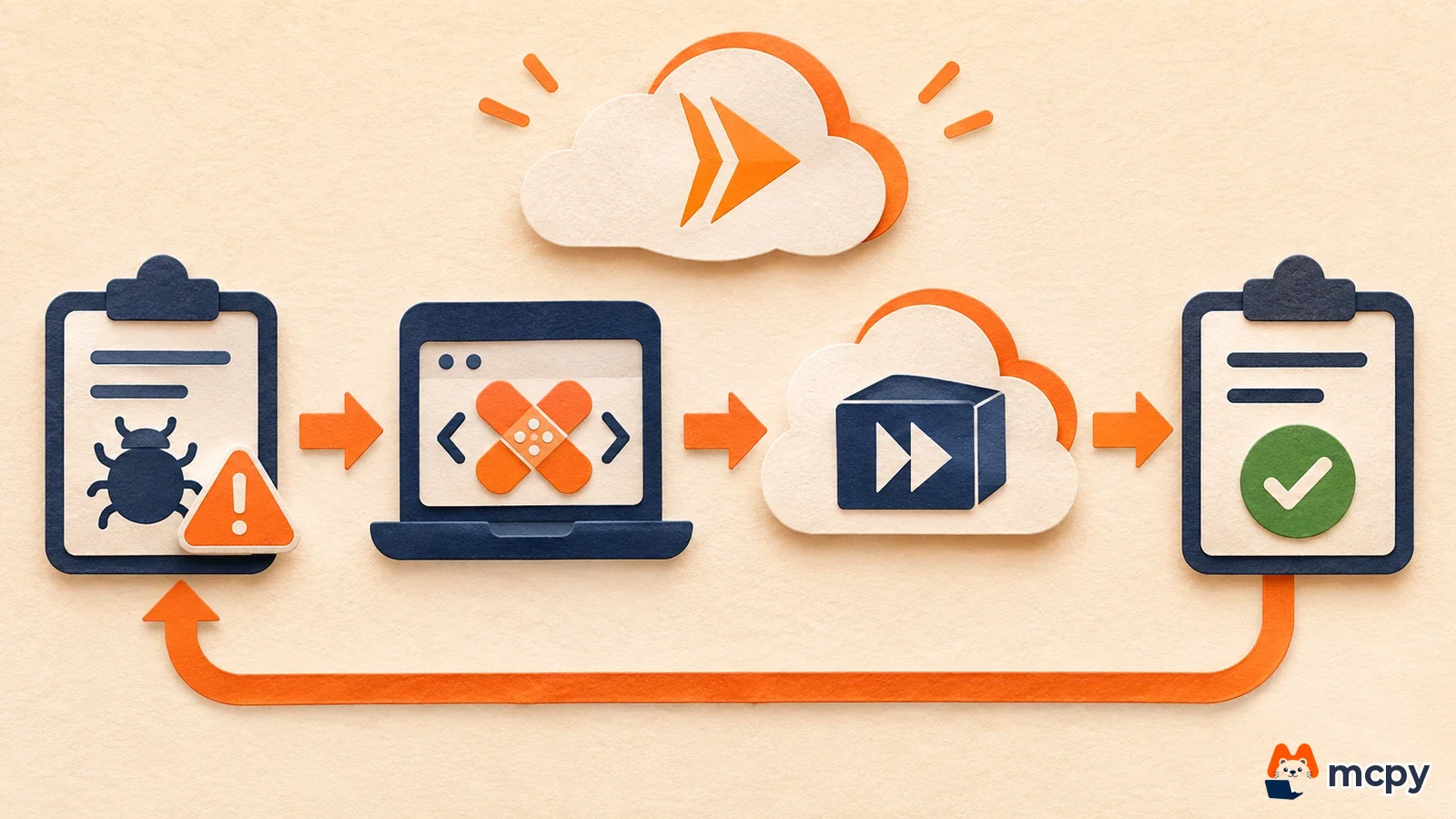
When the old revision no longer receives traffic and runs no instances, its finding changes to INACTIVE. So you can confirm a fix when the finding disappears from Findings or turns INACTIVE. If a secret was in the image, revoke that key and issue a new one, in addition to removing it from the image. People or systems that pulled the image may still hold the key. This is not a step from Google's documentation. It is a recommendation based on general key management practice.
What to watch next
The release notes do not give a general availability date. Cost depends on your Security Command Center tier. Standard has no extra charge, and Premium is pay-as-you-go or subscription (tier documentation). Before you enable it in a production project, decide which tier you use and who has Security Command Center access to read the results.
Frequently asked questions
Can I use it on the Security Command Center Standard tier?
The Cloud Run documentation says that on the Standard tier you must turn on Vulnerability Assessment yourself at the organization, folder or project level. The tier documentation says Standard offers this feature only in a limited scope, with no extra charge.
What happens to services that have not been deployed for a long time?
If a service or worker pool runs for more than 30 days without an image pull, a new revision deployment or an instance cold start, scanning for new CVEs pauses. Existing ACTIVE findings are kept.
Found this useful? Share it
Latest posts
Kakao Share Thumbnail Not Showing? Here's the Fix (JavaScript SDK 2025)
Learn why Kakao Share thumbnails don't appear even with a valid imageUrl, and fix it using scrapImage to convert your URL into a KAGE CDN URL. Step-by-step guide.
How to Generate CRM User Manuals in 20 Minutes with Claude Code Sub-Agents
Learn how Claude Code sub-agents can analyze your CRM codebase and auto-generate user manuals and visual guidebooks in just 20 minutes. See the real-world results.
GEO Generative Engine Optimization: The Complete 2025 AI Marketing Strategy Guide
Learn what GEO (Generative Engine Optimization) is, how it differs from traditional SEO, and discover 5 proven AI marketing strategies to get cited by AI search engines in 2025.
Related projects
Get new posts by email
Insights on marketing, analytics, and dev, delivered to your inbox.