
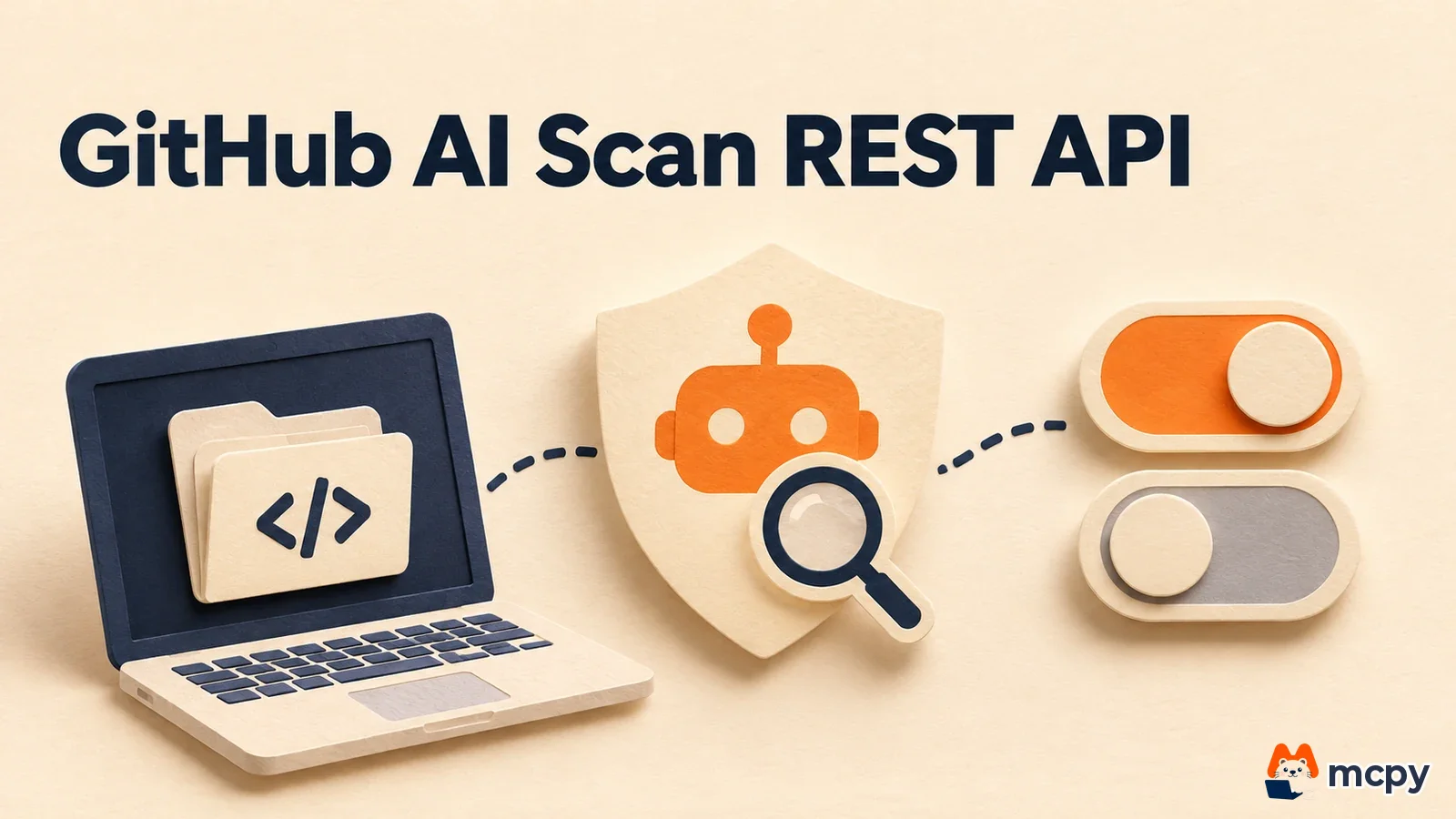
GitHub AI Scan is a code scanning feature that finds security vulnerabilities across the whole code of a repository. From November 13, 2026 (US time), you can turn the full repository scan setting on or off through the REST API. Teams with many organizations or repositories can now apply a policy with one script instead of opening each settings page. But turning the setting on does not start a scan by itself, and every scan uses AI credits. The feature is in public preview for now.
A REST API that switches the organization-level and repository-level repository_scan setting to enabled or disabled is now in public preview.
Turning the setting on and running a scan are two separate things. Someone with write access starts each scan by hand, and each one consumes Code Security AI credits.
If an enterprise policy blocks AI Scan, the request to turn it on is rejected with a 422 error. Private repositories on personal accounts and GitHub Enterprise Server are not supported.
What GitHub AI Scan repository scanning does
AI Scan finds vulnerabilities in languages and frameworks that CodeQL, GitHub's rule-based analysis tool, does not cover. It also finds issues that rules miss in languages CodeQL does support. According to the October 28 public preview announcement, it checks the full latest commit on the default branch, not only the code in a pull request (a change request). Results appear in the same code scanning alert list as CodeQL alerts. If CodeQL also scans the same repository, AI Scan skips issues that CodeQL has already reported.
AI Scan for pull requests is a separate setting. It became generally available on October 15, and its alerts are shown for information only and do not block checks from passing. This new API handles repository_scan, the full repository scan setting. It works the same way as pr_scan for pull requests.
The repository_scan API: endpoints and examples
The November 13 announcement added a repository_scan value to the existing AI Scan settings endpoints. It accepts two values: enabled and disabled.
| Scope | Read | Change | Path |
|---|---|---|---|
| Organization | GET | PATCH | /orgs/{org}/code-scanning/ai-scan |
| Repository | GET | PATCH | /repos/{owner}/{repo}/code-scanning/ai-scan |
A request that applies the setting to a whole organization looks like the example below. It is built from the paths and values in the official docs. To check whether your authentication token may call this endpoint, see the matching entry in the code scanning REST API documentation.
curl -L -X PATCH \
  -H "Accept: application/vnd.github+json" \
  -H "Authorization: Bearer $GITHUB_TOKEN" \
  -H "X-GitHub-Api-Version: 2026-03-10" \
  https://api.github.com/orgs/ORG/code-scanning/ai-scan \
  -d '{"repository_scan":"enabled"}'
Send a GET to the same path to read the current value. To change a single repository, switch the path to /repos/OWNER/REPO/code-scanning/ai-scan. To confirm the request worked, check that the repository_scan value in the response matches what you sent, and that the AI Scan menu appears on the repository's code scanning page.
How the policy flows from top to bottom
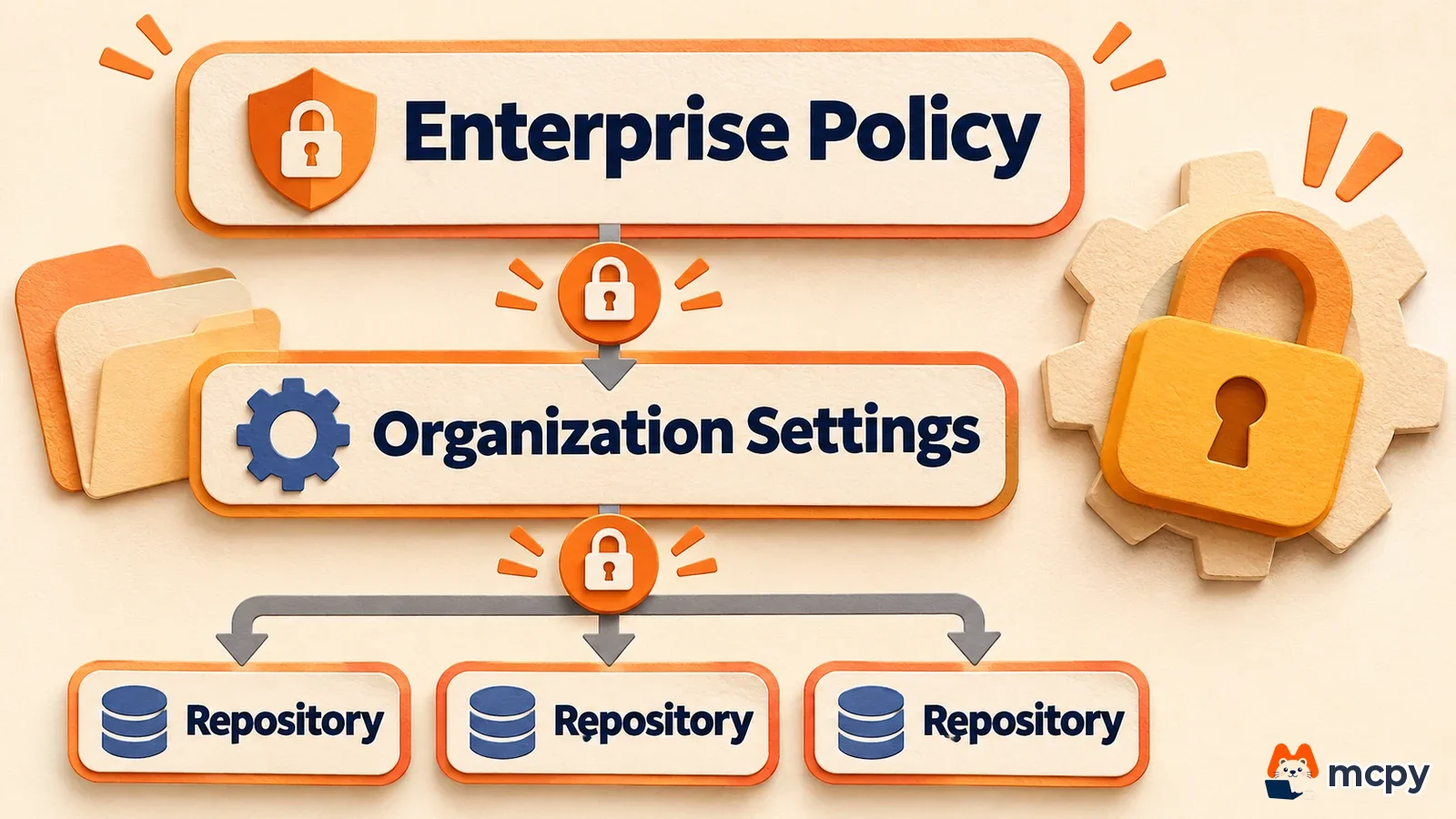
Settings flow down from enterprise to organization to repository. If a higher level blocks AI Scan, a lower level cannot turn it on. This rule is stated in the November 13 changelog entry.
| Level | What you do at this level | Result |
|---|---|---|
| Enterprise | Allow the AI Scan policy | If it is not allowed, a request to turn it on returns a 422 error |
| Organization | Set repository_scan to disabled | Repositories in the organization cannot turn it on |
| Organization | Set repository_scan to enabled | Repositories inherit it by default, and repository admins can turn it off one by one |
According to the announcement, you can also change pr_scan and repository_scan in one request. If either one is blocked, the whole request is rejected with a 422 and neither setting changes. For example, suppose you send a request that turns pull request scanning on and repository scanning off, but the organization blocks changes to repository scanning. The pull request scanning setting also stays as it was. No partial success can happen, so when a script gets a 422, it can simply read both values again to check.
Organization owners and security managers can change organization settings. Repository admins can turn off their own repository individually.
The order to run a scan after turning it on, and the cost
Turning the setting on does not start a scan. The announcement says "Turning on AI Scan for repositories doesn't start a scan". A user with write access to code scanning starts a scan from the Code scanning page of the repository, using the Start scan button in the AI Scan menu. The menu offers a standard scan and a deep scan.

According to the October 28 announcement, one scan targets a single latest commit on the default branch and runs only within a set time limit. Because of that time cap, the cost is bounded too. Usage shows up under the AI usage item in enterprise billing, under the Advanced Security product. You can also set a SKU-level budget on Code Security AI credits. When the budget runs out, you get a notice before a scan starts. Even if you apply enabled to a whole organization at once, cost only arises when someone clicks Start scan. So before you apply it, it is safer to decide which repositories to scan first and what the budget limit is.
As described in the same announcement, once alerts appear you can assign owners, link pull requests or issues, use agentic autofix, and add alerts to security campaigns. Merging a fix does not close the alert automatically. You need to scan again after the merge for fixed alerts to close. Alerts found again in a rescan stay open, and only new alerts are reported as additions.
Checking it yourself is simple. On one test repository, send the same GET request twice, before and after the PATCH, and see whether the repository_scan value changes. Once the AI Scan menu appears on the Code scanning page, run one standard scan (not deep) and check how much the usage in AI usage went up. That number becomes your cost baseline for scanning one repository.
Which accounts and plans can use it
The conditions below are based on the October 28 public preview announcement. Private repositories on personal accounts are not supported.
| Repository type | Requirement |
|---|---|
| Organization-owned public repository | Available |
| Organization-owned private or internal repository | Requires GitHub Code Security or GitHub Advanced Security |
| Personal account public repository | Turn it on in the repository settings |
| Personal account private repository | Not supported |
| GitHub Enterprise Server | Not supported (available on github.com and on Enterprise Cloud with data residency) |
According to the enterprise policy documentation, an enterprise owner must allow AI Scan first. This API handles organization-level settings, so the people who call it are organization owners and security managers.
Recommended rollout order
- Check in the enterprise policy whether AI Scan is allowed.
- In one organization, use GET to read the current
pr_scanandrepository_scanvalues and record them. - On one test repository, use PATCH to set
repository_scantoenabled, then run one standard scan with Start scan to see the cost and the alert quality. - If the results are useful, apply
enabledat the organization level, and have repository admins turn it off one by one for repositories where it does not fit.
To stop secret leaks with another GitHub security feature, read our guide to responding to GitHub secret scanning push protection. To run AI automation on GitHub, see our post on GitHub Agentic Workflows going generally available.
Frequently asked questions
Do I need a Copilot license to use AI Scan?
No. The October 28 announcement says you can use it without a GitHub Copilot license. However, private and internal organization repositories need Code Security or Advanced Security.
What should I do if a PATCH request returns a 422 error?
This means the enterprise policy does not allow AI Scan, or the organization has blocked that setting. Ask the enterprise owner to allow the policy. If you sent both settings in one request, use GET to read each one and check which is blocked.
Found this useful? Share it
Latest posts
Kakao Share Thumbnail Not Showing? Here's the Fix (JavaScript SDK 2025)
Learn why Kakao Share thumbnails don't appear even with a valid imageUrl, and fix it using scrapImage to convert your URL into a KAGE CDN URL. Step-by-step guide.
How to Generate CRM User Manuals in 20 Minutes with Claude Code Sub-Agents
Learn how Claude Code sub-agents can analyze your CRM codebase and auto-generate user manuals and visual guidebooks in just 20 minutes. See the real-world results.
GEO Generative Engine Optimization: The Complete 2025 AI Marketing Strategy Guide
Learn what GEO (Generative Engine Optimization) is, how it differs from traditional SEO, and discover 5 proven AI marketing strategies to get cited by AI search engines in 2025.
Related projects
Get new posts by email
Insights on marketing, analytics, and dev, delivered to your inbox.