
A GCP IAM deny policy no longer has to live apart from your allow rules. Google Cloud Unified Access Policies (UAP) is a new access control method that writes allow rules and deny rules together in one policy, then binds that policy to many organizations, folders and projects. Google Cloud announced it as a preview on the official blog on November 21, 2026, and there is no extra cost. If your allow and deny policies already work well, you do not need to migrate in a hurry. The official docs also say existing users can keep using them.
Unified Access Policies are a new IAM policy type in Google Cloud. You write allow and deny rules in one policy, create it, then apply it to targets through bindings. It is in preview.
One policy holds up to 100 rules and 64KB, and one resource can have up to 5 policies attached. The announcement says one policy can be bound to up to 25 projects, folders or organizations, while a separate doc says 5 per binding, so the two sources disagree.
Teams building a new organization or needing fine-grained conditional permissions can try it in a test project first. Teams whose current policies work fine can leave them as they are.
GCP IAM deny policy: what was painful until now
Until now, Google Cloud access control had separate allow policies and deny policies, and each policy was a document attached to a single resource. The announcement lists three pain points. First, allow and deny use different syntax, so defining permissions for one job means learning both. That hassle pushes people to grant broad roles wholesale. Second, policies are per resource, so applying the same standard to 25 projects means copying and managing 50 allow and deny settings in Terraform (a tool that manages infrastructure as code). Third, large enterprises often hit the 64KB size limit of a single allow policy, so they must split policies again each time they add a new team or agent.
The announcement uses this example to explain the structure: keep one policy definition and attach it to many projects through bindings.
Unified Access Policies target each of these three problems. They put allow and deny in one policy, separate the policy definition from its targets, and allow 5 policies per resource, which raises the effective limit.
Unified Access Policies at a glance: limits and numbers
The table below shows the preview limits listed in the announcement and the official docs.
| Item | Value |
|---|---|
| Size of one policy | 64KB |
| Rules per policy | 100 |
| UAP policies per resource | 5 |
| Unique principals / groups per resource | 2,500 / 500 |
| Targets per policy (announcement) | Up to 25 organizations, folders or projects |
| Targets per binding (official docs) | Up to 5 resources |
| Cost | No extra cost during preview |
The binding target numbers differ between the announcement (25) and the docs (5). A team that wants to attach to many targets at once should check the real limit in a test project first. Besides projects, folders and organizations, the docs also list AI applications in Agent Registry and the agent gateway as binding targets.
How to create a policy: build it in the console and bind it
The console takes three steps. The announcement shows this order.
- In IAM & Admin > IAM, pick an organization, folder or project, open the Unified Access Policies tab and click + Create policy.
- Enter a policy name and ID, then add rules. For each rule, set the principal, any exception principals, and allow or deny.
- In the apply step, choose the target scope and click Bind policy.
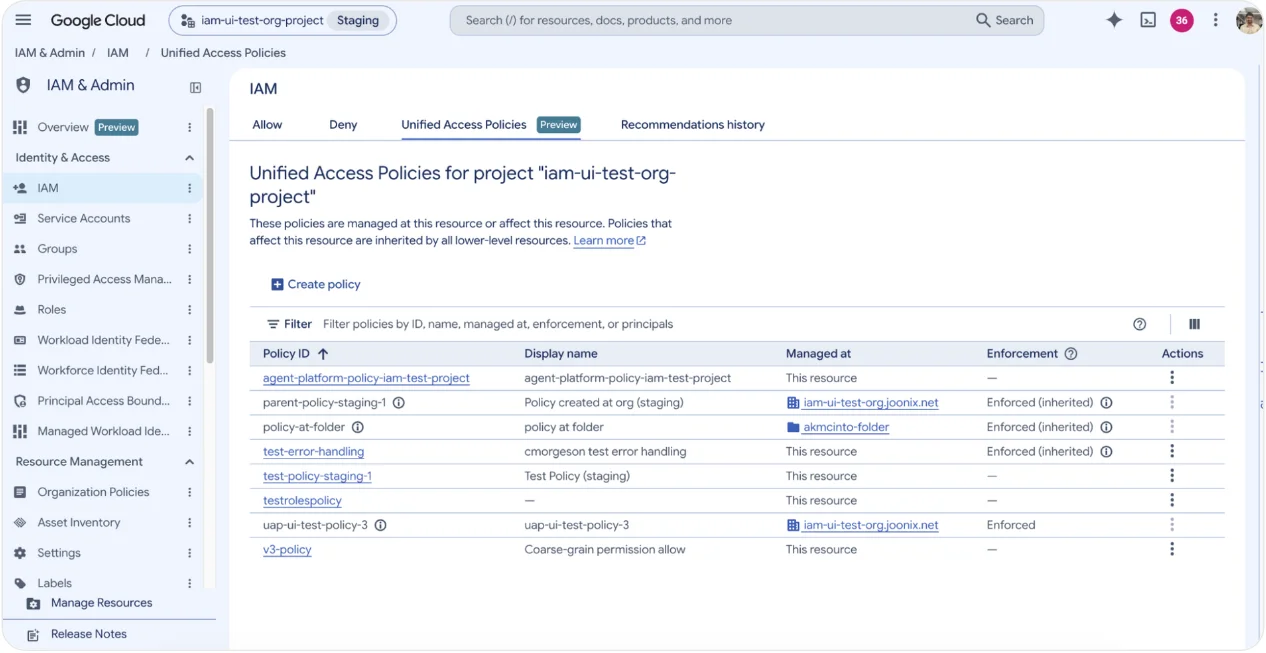
The list screen in the first step shows in one table where each policy is managed and where it applies. In the figure below, the "Managed at" column for policies attached to the project shows where the policy was created. The "Enforcement" column shows whether it is inherited from a parent organization or folder.
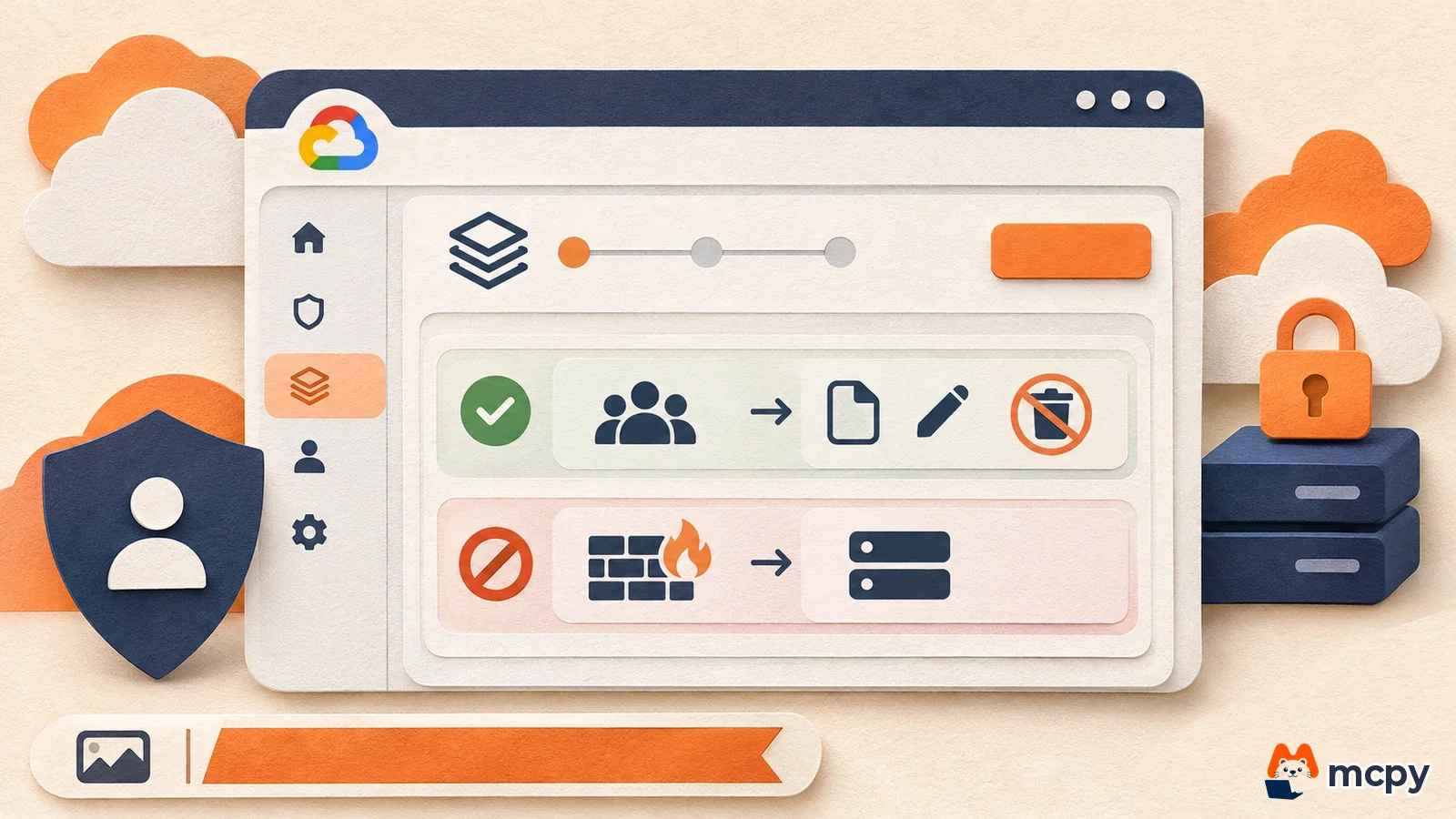
The second step is the core of this feature. In the screen below, rule 1 allows the developer group and an operations agent the roles/compute.viewer role and compute.googleapis.com/instances.* permissions, except instances.delete, and excludes a temporary contractor account as an exception principal. Rule 2 denies compute.googleapis.com/firewalls.* and exempts only the SRE emergency group. Because allow and deny sit in the same policy, you can read a rule set like "allow everything except delete, deny all firewall changes" in a single document.
A policy you create does not apply to any target until it is bound. A binding is a separate object from the policy, and one policy can have many bindings, so you can apply the same standard to many projects at once. When you bind a policy that has deny rules, the screen tells you to check existing access first. A bound policy applies to that resource and all of its child resources.

Besides the console, the gcloud command line, the Cloud IAM v3 REST API and Terraform support the same features. The console's "Show as JSON" and "View JSON" let you export the code form and move it into a pipeline. The announcement and the docs overview page have no command examples, so to automate this you need to follow the "Create and apply UAPs" guide in the docs separately.
Rule evaluation and limits: deny wins, and roles work only in allow rules
According to the official docs, at runtime Cloud IAM evaluates existing allow policies, deny policies and Unified Access Policies together. A UAP deny rule on a parent resource blocks that principal even if a UAP on a child resource allows access. The docs do not spell out the full evaluation order, so before mixing UAP with existing policies, check the result with Policy Troubleshooter. This tool supports all three policy types.
| Limit | Meaning |
|---|---|
| Roles only in allow rules | Deny rules use individual permissions or wildcards |
| Custom roles not supported | No rule can use a custom role |
| Wildcards only for permission groups that deny policies support | Prefix, suffix and substring wildcards are available depending on the service |
| Conditions attach to rules, not to bindings | Condition attributes work only with certain permissions, and a wrong one makes policy creation fail |
| Deleting a policy that has bindings is an error | If you force delete, the remaining bindings keep counting toward the per-resource limit |
| No cross-organization bindings | IAM eventually deletes existing cross-organization bindings |
If the organization policy constraint iam.managed.disableAccessPolicyBinding is on, creating bindings is blocked. When a binding fails, check this constraint first.
Agents as principals: managing AI agent permissions
The announcement stresses that this feature treats AI agents as principals, not only people and service accounts. The principal://agents.global... format in the screen example is an agent principal. The announcement says you can apply least-privilege allow and deny rules to individual agents or groups of agents instead of treating them as ordinary service accounts. It also describes pairing this with short-lived, scoped tokens. The tool for checking agent permissions is covered in Google Cloud IAM helper agent skills, and the risk of an agent moving to other resources through IAM permissions is covered in how to check AI agent IAM lateral movement. If the earlier post is about diagnosing 403 errors and trimming permissions, UAP is the place to write those trimmed permissions down as rules.
Who should use it and when: existing policies or UAP
| Situation | Choice |
|---|---|
| Organizations already using allow and deny policies well | Keep using them. The docs say so |
| Teams building a new organization | Consider UAP first (docs recommendation) |
| Teams needing fine-grained conditional permissions | Consider UAP (docs recommendation) |
| Teams with many projects copying the same policy | Bind one policy to several targets in a test project |
| Teams using many custom roles | Hard to move now. UAP does not support custom roles |
The preview falls under the pre-GA (general availability) terms, is provided "as is" and may have limited support. Do not move the core permissions of a production organization all at once. A safer order is to create one policy in a test project, bind it, and confirm with Policy Troubleshooter that only the intended access opens.
Here is how to check it yourself. In a test project, create one policy with one allow rule and one deny rule, and bind it to that project. Then enter a test principal and a permission in Policy Troubleshooter and see whether the allowed permission shows as allowed and the denied permission shows as denied. Query the same permission with an account from the exception group and compare whether the deny is lifted. If only the allowed actions work and the denied permission is blocked for everyone except the exception principals, the test passes.
Frequently asked questions
Do existing allow and deny policies go away if I use Unified Access Policies?
No. All three types are supported and evaluated together at runtime. The docs tell organizations that already use them to keep using their existing policies.
Does Unified Access Policies cost extra?
The announcement says there is no extra cost during the preview. Use of the preview follows the pre-GA terms.
Can a wrong policy block access?
A deny rule set on a parent blocks access even if a child allows it. Before binding, check existing access and consider setting an emergency group as an exception principal.
Found this useful? Share it
Latest posts
Kakao Share Thumbnail Not Showing? Here's the Fix (JavaScript SDK 2025)
Learn why Kakao Share thumbnails don't appear even with a valid imageUrl, and fix it using scrapImage to convert your URL into a KAGE CDN URL. Step-by-step guide.
How to Generate CRM User Manuals in 20 Minutes with Claude Code Sub-Agents
Learn how Claude Code sub-agents can analyze your CRM codebase and auto-generate user manuals and visual guidebooks in just 20 minutes. See the real-world results.
GEO Generative Engine Optimization: The Complete 2025 AI Marketing Strategy Guide
Learn what GEO (Generative Engine Optimization) is, how it differs from traditional SEO, and discover 5 proven AI marketing strategies to get cited by AI search engines in 2025.
Related projects
Get new posts by email
Insights on marketing, analytics, and dev, delivered to your inbox.