

The Pickle AI app is an AI agent (an AI that actually handles tasks like bookings, orders and phone calls for you) made by Pickle, Inc. Using it takes three steps. Chat with Pickle in the app, hand off a task in chat, and just before payment, check the product, amount and date on the approval card and tap it yourself. In Korea, every account is free, and the daily usage limit resets every day at 4 AM (Korea time). The reference date is November 11, 2026.
Pickle is an app by Pickle, Inc. called "Pickle: Your Own AI Agent." It handles tasks on websites like a person would, and it makes phone calls itself for things the web cannot do.
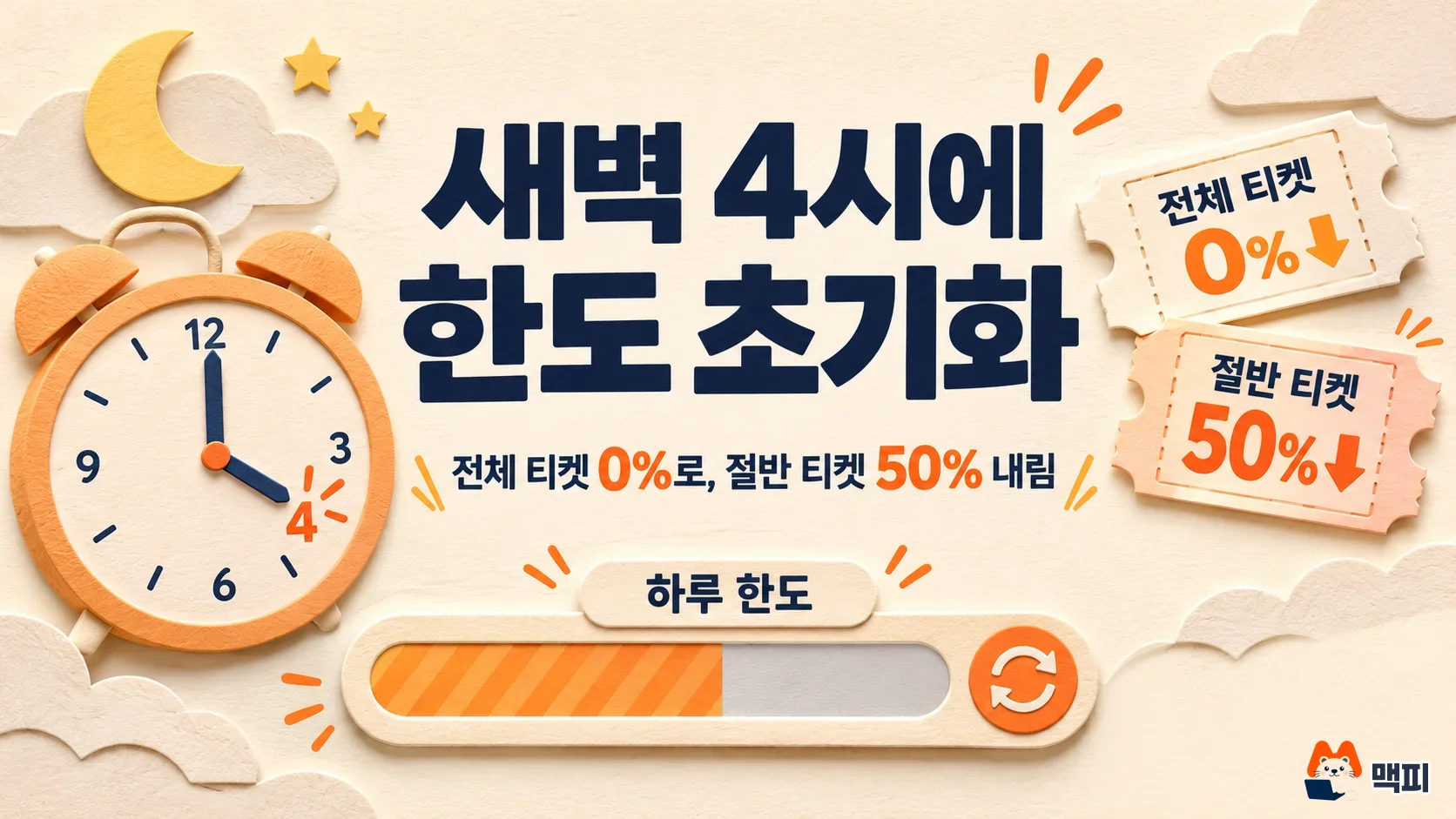
In Korea there is no paid plan. It is free within a daily limit, and the limit returns to 0% at 4 AM. To use more, you use a limit reset ticket.
Payments and bookings go ahead only within the range you approved on the approval card. If the payment amount rises above what you approved, it asks you again.
What the Pickle AI app does for you
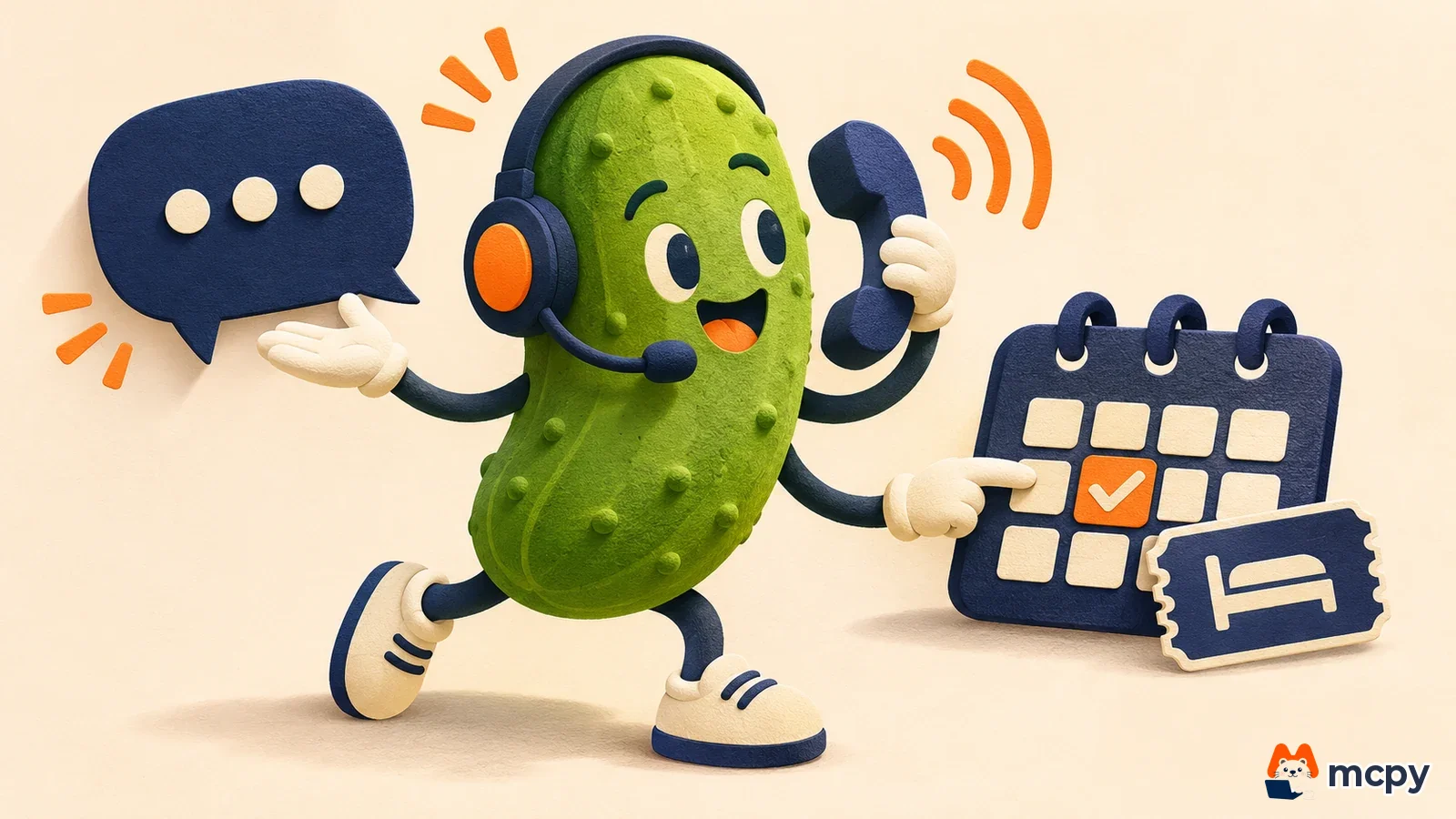
According to Pickle's official help pages, the app lets you chat with your own AI character "Pickle," hand off tasks, and connect the apps you use often. Unlike a typical chatbot, it does not just give answers. It works on websites through a real browser. For places the web cannot reach, such as a restaurant with no booking page or a clinic reception desk, Pickle makes the call for you.
| Tasks you can hand off | Examples from the help pages |
|---|---|
| Bookings and tickets | Restaurant and clinic reservations, show tickets, class sign-ups, flight bookings |
| Orders and cancellations | Buying items, requesting returns, canceling recurring payments and subscriptions |
| Phone calls | Calling a landlord or a customer service center for you |
| Documents and accounts | Requesting documents and submitting applications on government sites, analyzing bank and investment account records |
| Coordinating with friends | Talking to a friend's Pickle to settle a time and place |
Pickle also sends a short briefing every morning. It tells you the news that came in overnight, today's schedule and what you need to decide today. The App Store description also lists changing a mobile carrier plan and booking KTX (Korea's high-speed rail) tickets as examples. According to the help pages, you must be 18 or older.
How to hand off a task and check the result
To hand off a task, just send what you want done in the main chat, the way you would normally say it. The help pages describe a five-step flow.
- Send the task in the main chat. Example: "Book a table for 2 on Saturday at 7 PM."
- Pickle asks only for essential details such as headcount and date. If there are several candidates, it shows you the options.
- Before going ahead, it shows a card with what it will do and under what conditions, and asks you with a button.
- The task appears in chat as a task card. It keeps running even if you close the app.
- When done, it reports the result. For a booking, it also sends a confirmation link or a booking confirmation screen.
Judge success by the confirmation link or booking screen you receive in step 5. The help pages also say that "Pickle can make mistakes, so please check the card contents and the result." Do not type passwords or card numbers in chat. Enter them in the secure card.
Pickle AI app payment checks and price increases
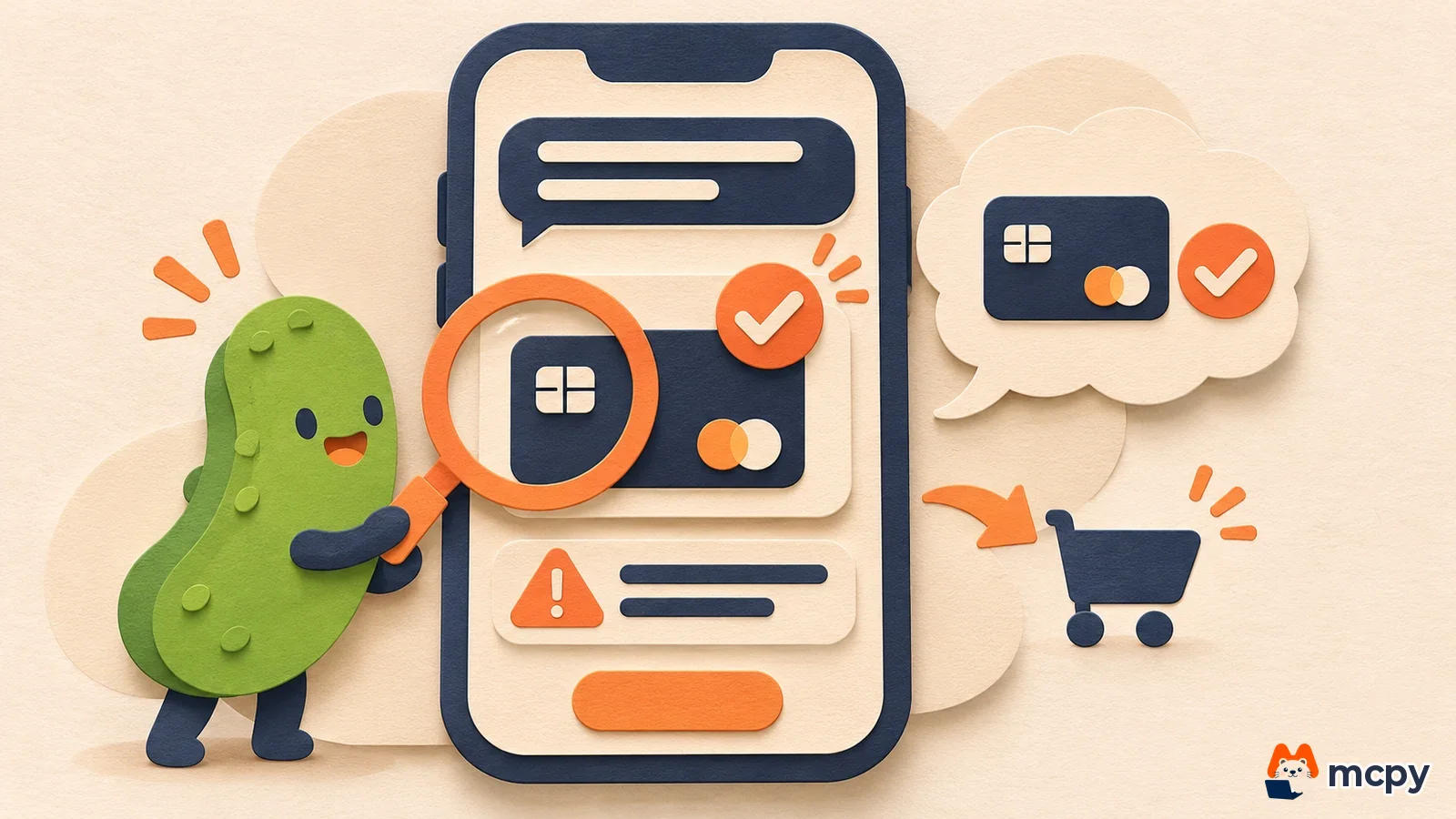
Before doing anything that spends money, Pickle shows what it will buy and for how much, and pays only within the range you approved. The approval card has Approve and Decline buttons, so check the product, amount and date before you tap.
If the amount on the payment screen rises above what you approved, it shows the increased part first and asks again. In the help page's example, if you approved an order of 25,000 KRW and fees and a tip bring it to 31,000 KRW, it tells you about the extra 6,000 KRW and asks whether to continue. For things you decide yourself, like how much extra to tip, Pickle does not decide for you.
If you already told it to "buy this item at this price" and set it going, that counts as your approval, so it does not ask the same thing again. You can see records of where your card was used in the app's access log.
Pickle AI app free limit and the 4 AM reset
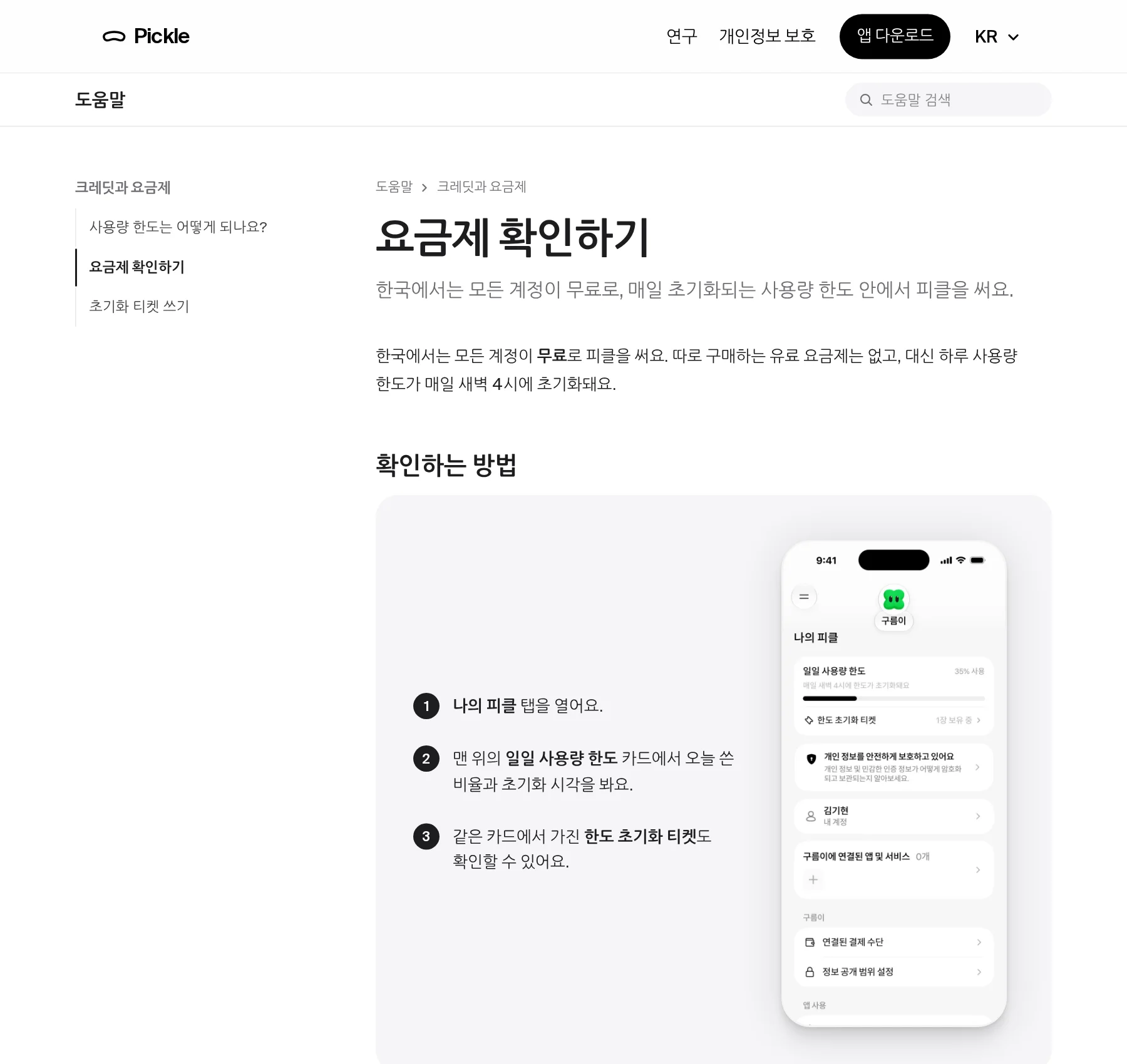
Pickle's help pages say that in Korea every account is free and there is no paid plan to buy. Instead, there is a daily usage limit, and it restarts from 0% every day at 4 AM (Korea time). Today's usage shows at the top of the My Pickle tab, on the daily usage limit card, as something like "40% used."
According to the usage limit page in the help pages, here is what uses the limit and what does not.
| Uses the limit | Does not use the limit |
|---|---|
| Pickle's replies to you | Conversations on calls made in the 3D World (an iOS screen where you play with the character on a map and in AR) |
| Calls made in the main chat | Scheduled routines Pickle runs on its own, like the morning routine |
| Tasks you hand off and tasks you schedule | Bubbles and energy (used only inside the 3D World) |
Phone calls Pickle makes for you have a separate daily call count, and it resets at the same 4 AM. When you hit the limit, chat shows "You have reached today's usage limit" with the time remaining, and the input box turns off. Any tasks you scheduled skip running until 4 AM.
Reset tickets: types, prices and how to get them
To keep going right away without waiting, use a limit reset ticket. A ticket gives back usage you already spent, so using one while you still have limit left does not increase your limit.
| Ticket | When used | How to get it |
|---|---|---|
| Full reset ticket | Usage resets to 0% | 1 on completing onboarding (the first-time setup guide), 3 when you reach 3 friends (once per account), or buy in the app |
| Half reset ticket | Usage drops by 50% (never below 0%) | Buy in the app |
For example, if your usage is 70%, a half ticket takes it to 20% and a full ticket takes it to 0%. If you have used only 30% and use a half ticket, it goes to 0%, so you get back 30 percentage points, not 20. The amount restored by a ticket applies only to today's limit, and at 4 AM the limit starts again from 0% as usual. Tickets have no expiration.
Prices differ between documents. The help pages say the full reset ticket is 5,900 KRW and the half reset ticket is 3,500 KRW, while the Korean App Store in-app purchase list shows 5,800 KRW for full and 2,900 KRW for half. The amount shown on the in-app payment screen is what counts. The help pages say the Pickle Plus subscription is no longer sold and will not auto-renew on the next billing date, and they note that users who were subscribed received 30 tickets.
App connections and privacy: what is visible and where it is stored
If you connect apps like mail and calendar, Pickle also looks after tasks inside them. To connect, tap "Apps and services connected to (your Pickle's name)" in the My Pickle tab, choose Add connection, then log in and allow permissions as guided. The help pages give Google, Microsoft, Slack, Notion and the phone's contacts and calendar as examples, and there is also a separate page for connecting Naver Mail (Naver is Korea's largest search engine and portal).
Once connected, Pickle reads the contents of that account broadly, and what it reads can remain in conversations, memory and task records. Content needed to produce an answer may be processed by the AI provider, and under the privacy policy, conversations, memory and content are not used for sales or advertising. Passwords and card numbers are encrypted on your phone and stored in a vault, and are not passed to the AI, as stated in the help page FAQ. On the other hand, authorized staff can view conversations and memory for operations, troubleshooting, safety response and legal obligations, and a record is kept each time they do. For sensitive accounts such as work email, read this scope and then decide whether to connect.
What to know before you start
The App Store listing says the iPhone app requires iOS 17.0 or later, and the official Pickle site has both App Store and Play Store buttons. The help pages classify the 3D World (bubbles, AR, map) as an iOS feature. How well bookings and orders work depends on the type of task and the site. The fastest way to see if it fits your needs is to test it with one small task. Start with a task that involves no payment (finding restaurant candidates, coordinating a schedule), see how the approval card and task card appear, and then hand off a task that includes payment.
To compare with other agent-style tools, see Gemini Agent's supported apps, models and cost caps and, for a similar approval flow, ChatGPT Work's plans, limits and approvals.
Common mistakes when using the Pickle AI app
- Typing a password or card number in chat. It may stay in the chat history, so enter it in the secure card (Save a card).
- Looking only at the amount on the approval card and not the date or product. Before tapping Approve or Decline, check all three: product, amount and date.
- Scheduling a task right before the limit runs out. When you hit the limit, scheduled tasks skip running until 4 AM.
- Using a ticket while you still have limit left. If you have no spent usage, the ticket is not used and stays in your account, but your remaining limit does not increase.
A first-day checklist to try
- Open the daily usage limit card in the My Pickle tab and check the usage percentage and the number of tickets you have.
- Hand off a task with no payment, such as "Give me 3 restaurant options nearby for this weekend," and see whether a task card appears and how much the usage percentage rose.
- The amount it rose is the cost of one task. You can use this to estimate how many tasks you can hand off per day.
- For tasks that involve payment, confirm that the approval card appears, and test with a small-amount task first.
Frequently asked questions
Can I use the Pickle AI app on Android?
The official site home page has App Store and Play Store buttons, and the connection help page also includes Android instructions. Check the app install page and the help pages for feature differences by device.
How old do you have to be to use the Pickle AI app?
According to the help page, only people 18 or older can use it.
Do tasks keep running if I close the app?
According to the help pages, tasks you hand off appear in chat as task cards and keep running even if you close the app. You can also cancel a task in progress.
Found this useful? Share it
Latest posts
Kakao Share Thumbnail Not Showing? Here's the Fix (JavaScript SDK 2025)
Learn why Kakao Share thumbnails don't appear even with a valid imageUrl, and fix it using scrapImage to convert your URL into a KAGE CDN URL. Step-by-step guide.
How to Generate CRM User Manuals in 20 Minutes with Claude Code Sub-Agents
Learn how Claude Code sub-agents can analyze your CRM codebase and auto-generate user manuals and visual guidebooks in just 20 minutes. See the real-world results.
GEO Generative Engine Optimization: The Complete 2025 AI Marketing Strategy Guide
Learn what GEO (Generative Engine Optimization) is, how it differs from traditional SEO, and discover 5 proven AI marketing strategies to get cited by AI search engines in 2025.
Related projects
Get new posts by email
Insights on marketing, analytics, and dev, delivered to your inbox.