
The YouTube thumbnail size recommended for videos is 3840×2160 pixels (16:9), and for Shorts it is 2160×3840 pixels (9:16). You upload the file as JPG or PNG. A pixel is one dot on the screen, and 3840×2160 means a resolution of 3,840 dots wide and 2,160 dots tall. 16:9 is the ratio of width to height. These values come from the YouTube Help page on custom thumbnails, which I checked on November 16, 2026. The file size limit depends on the device you upload from. On mobile, a video thumbnail can be up to 2MB. In YouTube Studio on a computer, it can be up to 50MB.
If you have been making thumbnails at 1280×720, you do not need to change. The minimum set by the same help page is a width of 640 pixels for video thumbnails, so 1280×720 clears it. But the recommended size is listed as 3840×2160, so if you are creating a new one, it is better to go with the larger size. Below, I show with measured values how to shrink a large file when it goes over 2MB.
YouTube thumbnail size at a glance
The table below copies the recommendations in the help page as they are. Videos and Shorts have opposite orientations, and the file size limit splits in two depending on the device.
| Type | Recommended resolution | Ratio | Minimum size | File size limit |
|---|---|---|---|---|
| Video | 3840×2160 | 16:9 | Width 640px | Mobile 2MB, computer 50MB |
| Shorts | 2160×3840 | 9:16 | Height 640px | Computer 50MB |
| Podcast playlist | No resolution in the help page | 1:1 | Not in the help page | Mobile 10MB, computer 50MB |

The official help page also explains why size matters. A custom thumbnail should be as large as possible, because it is also used as the preview image in the embedded player. It names two upload formats, JPG and PNG. JPG compresses a photo to make the file small. PNG has no quality loss, but the same image tends to produce a larger file.
Should you use 1280×720 or 3840×2160 for your YouTube thumbnail size
There are two things to check. One is which device you upload from. The other is whether the file goes over 2MB. If you upload from YouTube Studio on a computer, the limit is 50MB, so you can upload the 3840×2160 original as it is. If you upload from a phone, the limit is 2MB, so even at the same resolution you need to adjust the file format and save quality.
If you plan to use A/B testing, there is one more floor. According to the official A/B testing guide, if even one thumbnail has a resolution lower than 720p (1280×720), all the thumbnails in the test are reduced to 480p. So make your test thumbnails at 1280×720 or larger.
1920×1080 is a middle size with no separate standard in the help page. If your tool is slow or the file is heavy, making it at this size still meets the minimum width of 640 pixels and the 16:9 condition. This is not an official spec. It is an option I chose after looking at how heavy the files get in the experiment below.
How to get a thumbnail under 2MB
I measured how heavy a 3840×2160 file really is, using one photo. I took a CC BY-SA 4.0 landscape photo from Wikimedia Commons (taken by Giles Laurent, 7952×5304), cropped it to 16:9, shrank it to three sizes, saved each in different file formats, and measured the file size. I saved with the Python Pillow library, and I saved and measured each combination once on November 16, 2026. JPG quality is a compression setting from 0 to 100. Higher means better image quality and a bigger file. Here I used 90 and 80.
Only the 1280×720 PNG came in under 2MB. The 1920×1080 PNG was 3.18MB and the 3840×2160 PNG was 12.06MB, so both go over the mobile limit. The JPG at 3840×2160 came in at 1.67MB even at quality 90, which is under 2MB. So when you upload a large thumbnail from a phone, saving as JPG instead of PNG is the fastest fix. I measured a flat-color illustration the same way (a 1672×941 original, scaled up or down to each size), and it showed the same trend at 3840×2160: PNG 7.58MB and JPG quality 90 1.12MB.
This experiment has limits. I measured only one photo and one illustration, and the photo has wide areas of sky and water, so it compresses well. A photo with complex texture or an image packed with text may get bigger at the same quality. I only measured file size. I did not check in this experiment whether the upload actually succeeds.
Measuring your own thumbnail is simple. Export the image once as JPG at quality 90 and once as PNG, then compare the sizes in File Properties (Windows) or Get Info (Mac). If a file goes over 2MB (2,048KB), lower the JPG quality or shrink it to 1920×1080 and save again. If you only upload from Studio on a computer, you can skip this step.
Shorts thumbnail size and the 4:5 automatic replacement for vertical videos
For Shorts, the recommended resolution is 2160×3840 with a 9:16 ratio, and the minimum height is 640 pixels. If you use a regular 16:9 video thumbnail as it is, one thing changes, according to the help page. According to the official help page, a vertical video with a 16:9 custom thumbnail is replaced by an automatically generated 4:5 thumbnail on the Home, Explore and Subscriptions pages. In the Watch feed, watch history and platforms other than mobile, the custom thumbnail is shown as it is.
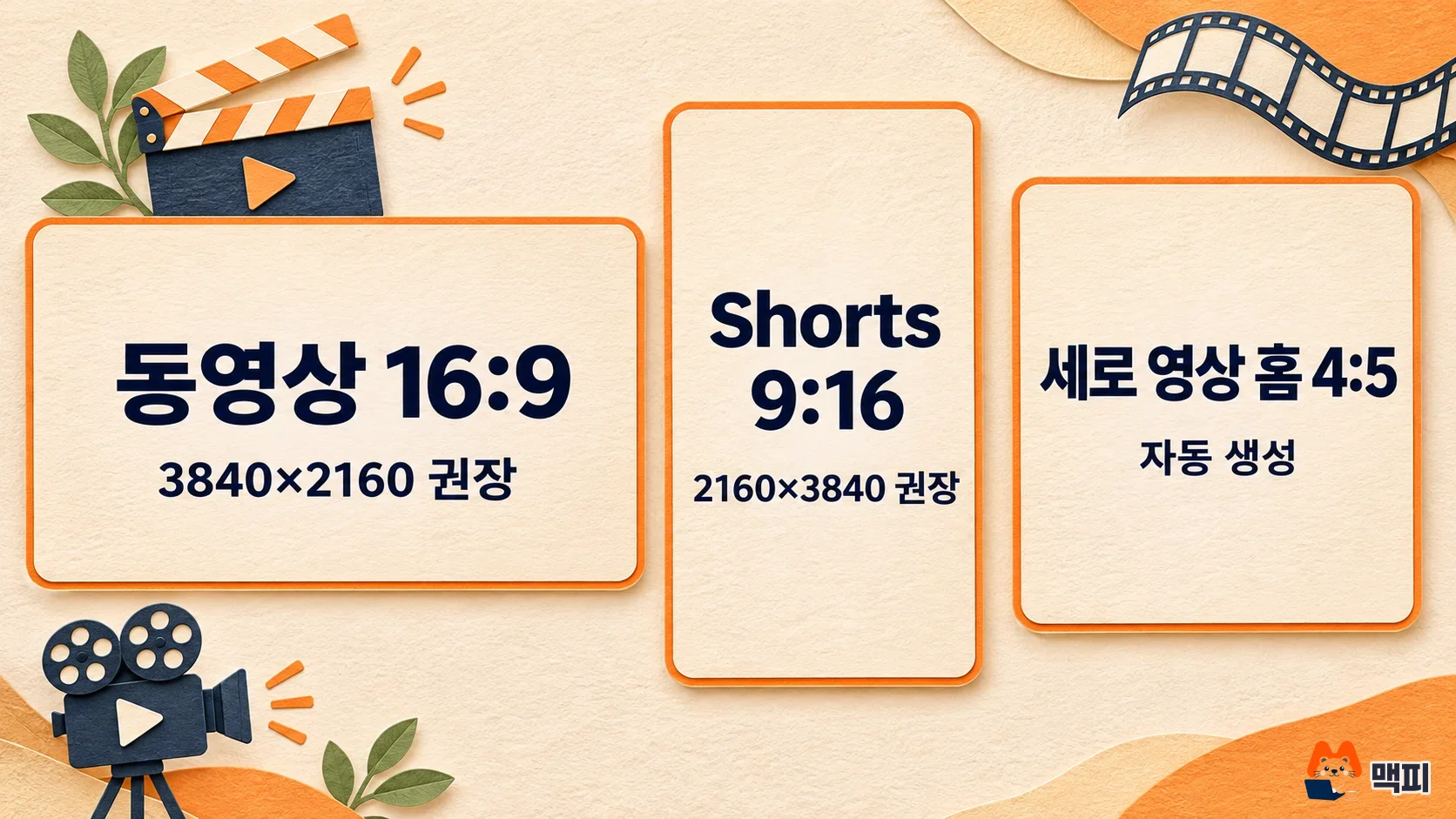
Shorts has one more restriction. A custom thumbnail for Shorts can currently be added only in YouTube Studio on a computer. Account verification is also required, so if you only use a phone, verify your account first.
How to upload a YouTube thumbnail
Uploading a video thumbnail on a computer takes the 5 steps below. Your account must be verified before you can upload a thumbnail you made yourself. The help page explains how to verify on the account verification page. If you have not created a channel yet, start with how to create a YouTube channel and set up a brand account.
- Sign in to YouTube Studio.
- Select Content from the left menu.
- Go to the video you want to edit and click the pencil-shaped edit button.
- Under "Thumbnail," click Upload file to upload your image, or pick a suggested thumbnail.
- Click Save.

After you save, check the content list to see whether the thumbnail of that video has changed. The same help page says a change can take time to appear on YouTube, so if it does not change right away, that does not mean the save failed. For Shorts, in step 2, choose Shorts videos at the top of the Content screen and upload the same way. The recommended ratio for the image is 9:16.
There are also limits to know before you upload. According to the custom thumbnail limit section of the help page, there is a cap on how many custom thumbnails you can upload per day, and if the message "Daily custom thumbnail limit reached" appears, try again after 24 hours. The limit differs by country or region and by channel history. If a thumbnail involves excessive exposure, hate speech, violence, or harmful or dangerous content, it can be rejected or get a warning, and repeated cases can restrict your use of custom thumbnails for 30 days.
Making a thumbnail: tool settings and official design tips
Whatever tool you use, what you check is the same. When you create a new design, enter a custom size of 1920×1080 or 3840×2160, and choose JPG or PNG when you export. If you use Miricanvas, a Korean online design tool, first read the Miricanvas free vs Pro comparison and pricing guide for plans and commercial use terms. If you pull a frame from a video editor, check the CapCut free vs paid difference and how to remove the watermark for the conditions that add a watermark on export. If you want to make one inside YouTube, you can type "Make me a thumbnail" into "Ask" in Studio. According to the help page, it analyzes the video's script and topic to recommend thumbnails, and you can request edits such as "make the text bigger" with follow-up prompts.
Base your design on YouTube's thumbnail tips. For content that subscribers will see, keep the familiar elements of your channel. If you are aiming at general viewers, include an action or emotion everyone relates to, such as a surprised face. Set the composition with the rule of thirds, and add descriptive text in an easy-to-read font. Vary the colors and layout, but too much gets in the way, so keep the whole thing uncluttered. Thumbnails look different on each device, so make them as large as possible.
Pick the best thumbnail with A/B testing
If you have several thumbnail candidates, you can compare them with A/B testing in YouTube Studio. According to the official guide, you can test up to 3 titles or thumbnails, and the combination with the longest watch time is shown to all viewers. If no best option can be picked, the title and thumbnail you first uploaded stay, and results take from a few days up to 2 weeks.
The conditions for using it are fixed. It works only in YouTube Studio on a computer, and you must turn on advanced features. You cannot test Shorts, scheduled live streams, or videos made for kids, for adults or set to private. If you change the title or thumbnail during a test, the test stops automatically, so do not touch them after you start. You can see results in the Reach tab of video analytics.
Frequently asked questions
Can I upload a GIF or WebP? The upload formats that the official help page lists are JPG and PNG. Other formats are not mentioned, so save as JPG or PNG before you upload.
I changed the thumbnail, but the list still shows the old one. The help page says a change can take time to appear on YouTube. If you clicked Save, reopen the content list after a moment and check again.
What should I do if "Daily custom thumbnail limit reached" appears? Try again after 24 hours. The limit varies by country or region and by channel history, and a warning for a Community Guidelines violation affects how many you can upload.
Found this useful? Share it
Latest posts
Kakao Share Thumbnail Not Showing? Here's the Fix (JavaScript SDK 2025)
Learn why Kakao Share thumbnails don't appear even with a valid imageUrl, and fix it using scrapImage to convert your URL into a KAGE CDN URL. Step-by-step guide.
How to Generate CRM User Manuals in 20 Minutes with Claude Code Sub-Agents
Learn how Claude Code sub-agents can analyze your CRM codebase and auto-generate user manuals and visual guidebooks in just 20 minutes. See the real-world results.
GEO Generative Engine Optimization: The Complete 2025 AI Marketing Strategy Guide
Learn what GEO (Generative Engine Optimization) is, how it differs from traditional SEO, and discover 5 proven AI marketing strategies to get cited by AI search engines in 2025.
Related projects
Get new posts by email
Insights on marketing, analytics, and dev, delivered to your inbox.