
BigQuery measures define a metric once and reuse it everywhere
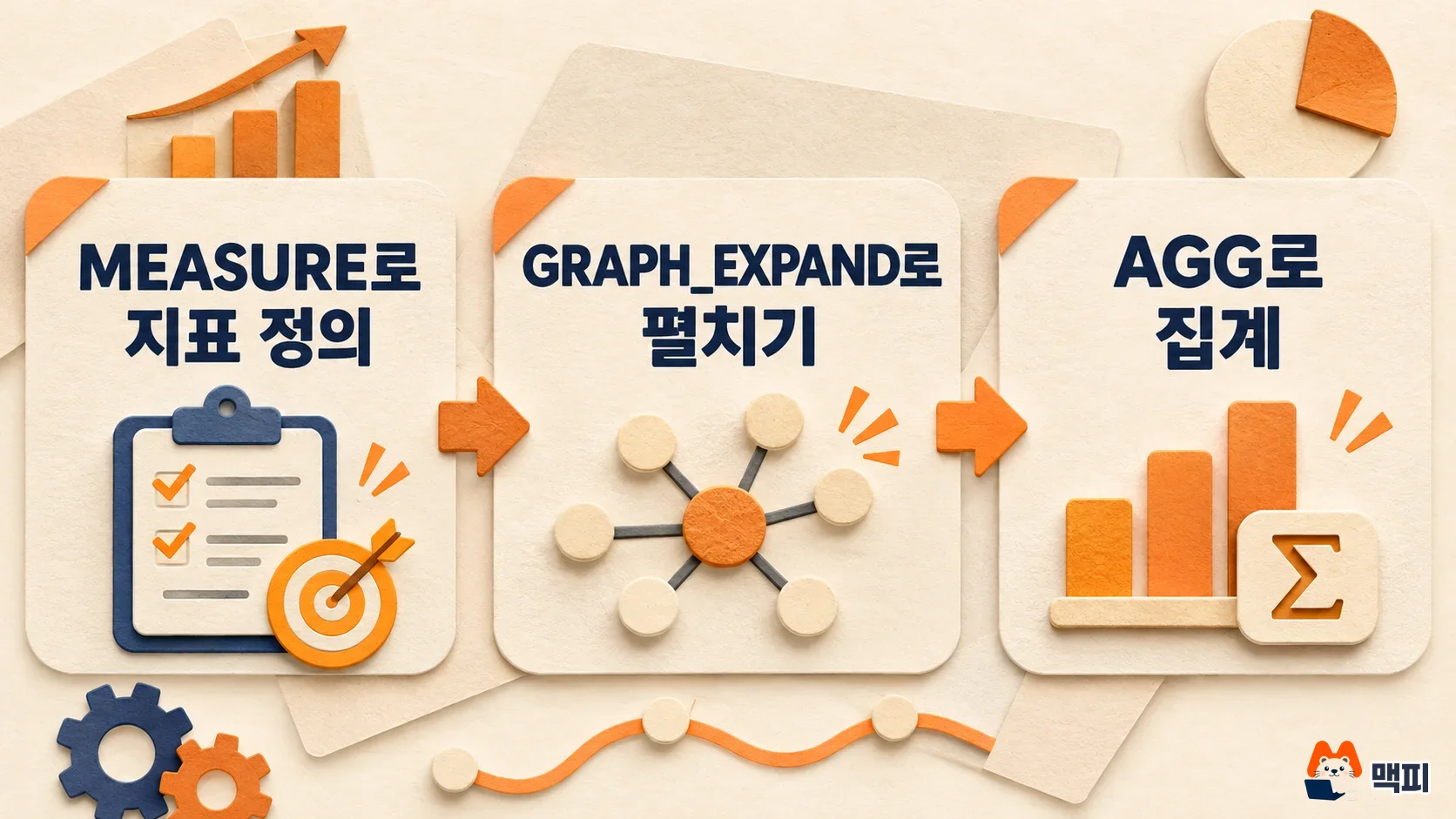
BigQuery measures let you write a formula such as total revenue or order count once, then call it by name in every query. Google released the feature as generally available (GA) on October 28, 2026. You use it in three steps. Name the formula when you create the graph, expand that graph in your query, and then call the name to aggregate. The "How to follow along" section below shows a real query run.
If your totals have ever swelled after joining tables, this feature is for you. Imagine an allowance ledger. If one allowance payment from a parent is joined with a table of three children, that one payment becomes three rows, and the total triples. Measures write the rule "count this value once per order ID" into the formula, so the total stays the same even when rows multiply. BigQuery calculates by the rule you wrote in the same way. This applies only to data built as a BigQuery graph (Property Graph). It does not change SUM in ordinary table queries.
In its October 28, 2026 blog post, Google Cloud said it introduced measures in BigQuery to fix the problem of AI agents giving confidently wrong answers, and they are now generally available (GA). Graph measures first appeared as a preview in the April 22 release notes. Dashboards and AI agents then share the same metric definition. If you have been writing metric formulas separately in each query, check whether this feature can consolidate them.
Measures prevent overcounting from JOINs
Take the case of counting ordered items by city. With a plain JOIN followed by SUM, an order duplicated across several rows adds the same value several times. Measures count each order once.
According to Google's documentation, a measure defines an aggregation based on the KEY of a node or edge table. Joining tables along the graph duplicates rows. Because the aggregation is keyed, the duplicated rows do not inflate the total. The documented aggregate functions are SUM, AVG, COUNT, MIN and MAX. For derived measures that combine other measures on the same table, you use AGG.
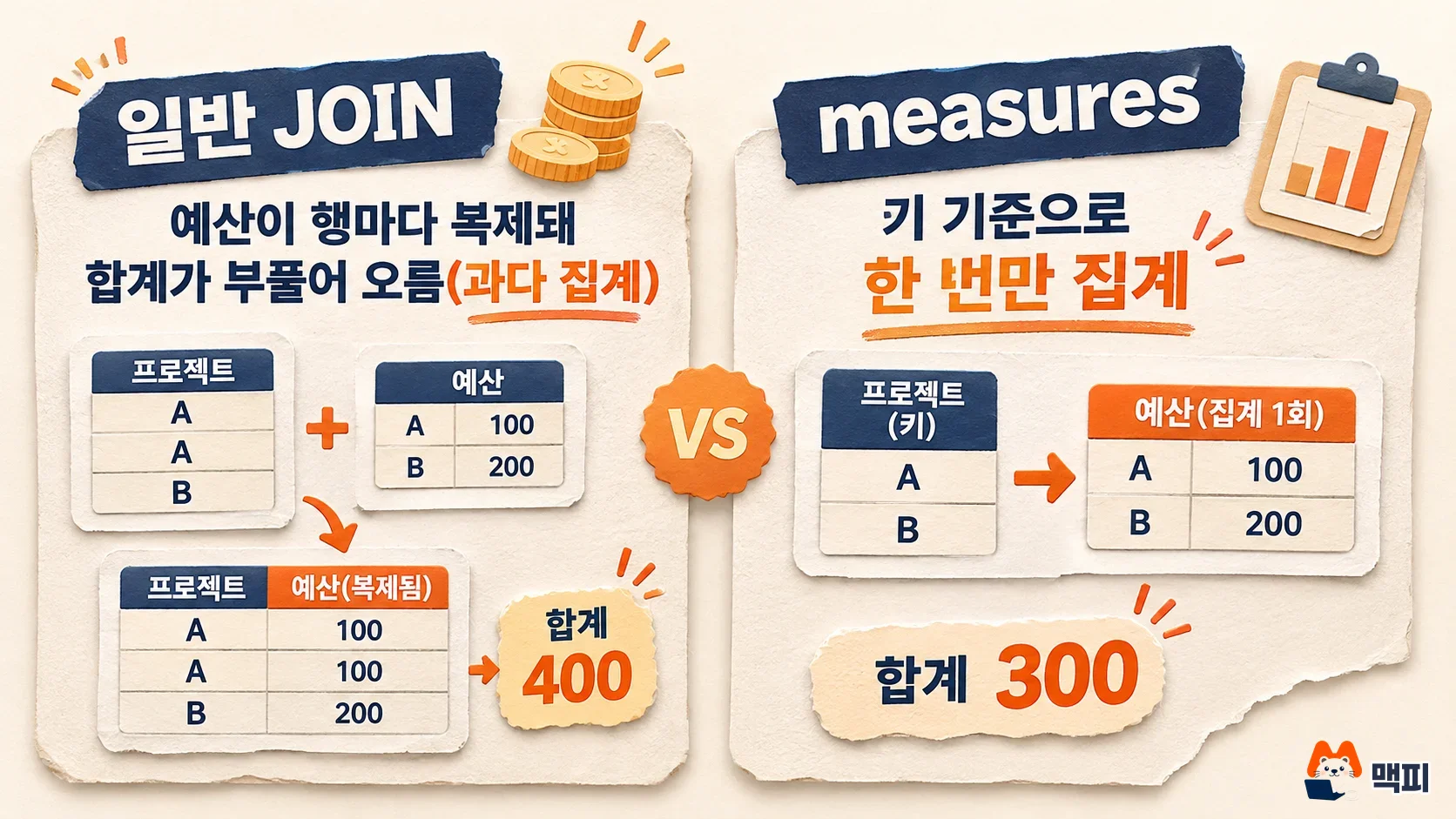
| Item | SUM after a plain JOIN | Measures |
|---|---|---|
| Aggregation basis | Every row of the joined result | The KEY of the defined table |
| When rows are duplicated | The same value is added several times | Counted once regardless of duplication |
| Where the formula lives | Written separately in each query | Once, inside the graph definition |
Google's preview announcement describes this as "resolve the graph path first, then calculate the metric." The same post gives an example. An agent that sees only flat tables can report that winter jacket sales fell 12% in Seattle. It cannot see the causal path that runs from orders to the fulfillment center to the supplier.
How to follow along: define a measure and aggregate with GRAPH_EXPAND
Open the BigQuery console (console.cloud.google.com/bigquery), create a dataset, and paste the queries below into the query editor in order. The value this example computes is the total number of items ordered per city. There are three steps. First, when you create the graph, you name the formula that adds up item counts. That formula is the measure. Next, GRAPH_EXPAND unfolds the graph like a single table. Finally, you wrap the saved name in AGG and aggregate by city.
The example uses thelook_ecommerce (order data from a fictional online store), the public dataset that the Google blog used. Public datasets are read-only, so you create the graph in your own dataset and point it at the public tables. Replace 내프로젝트 and 내데이터셋 with your own names.
CREATE OR REPLACE PROPERTY GRAPH `내프로젝트.내데이터셋.thelook_graph`
NODE TABLES(
  `bigquery-public-data.thelook_ecommerce.users` AS Users KEY(id) LABEL Users
    PROPERTIES(id, city, country),
  `bigquery-public-data.thelook_ecommerce.orders` AS Orders KEY(order_id) LABEL Orders
    PROPERTIES(
      order_id,
      num_of_item,
      MEASURE(AVG(num_of_item)) AS avg_items_per_order,
      MEASURE(SUM(num_of_item)) AS total_items
    )
)
EDGE TABLES(
  `bigquery-public-data.thelook_ecommerce.orders` AS OrderedBy KEY(order_id)
    SOURCE KEY(order_id) REFERENCES Orders(order_id)
    DESTINATION KEY(user_id) REFERENCES Users(id)
    LABEL OrderedBy
);
The key line in the code is MEASURE(SUM(num_of_item)) AS total_items. It names the formula that adds up the item count in each order as total_items. From then on, you only need to call that name.
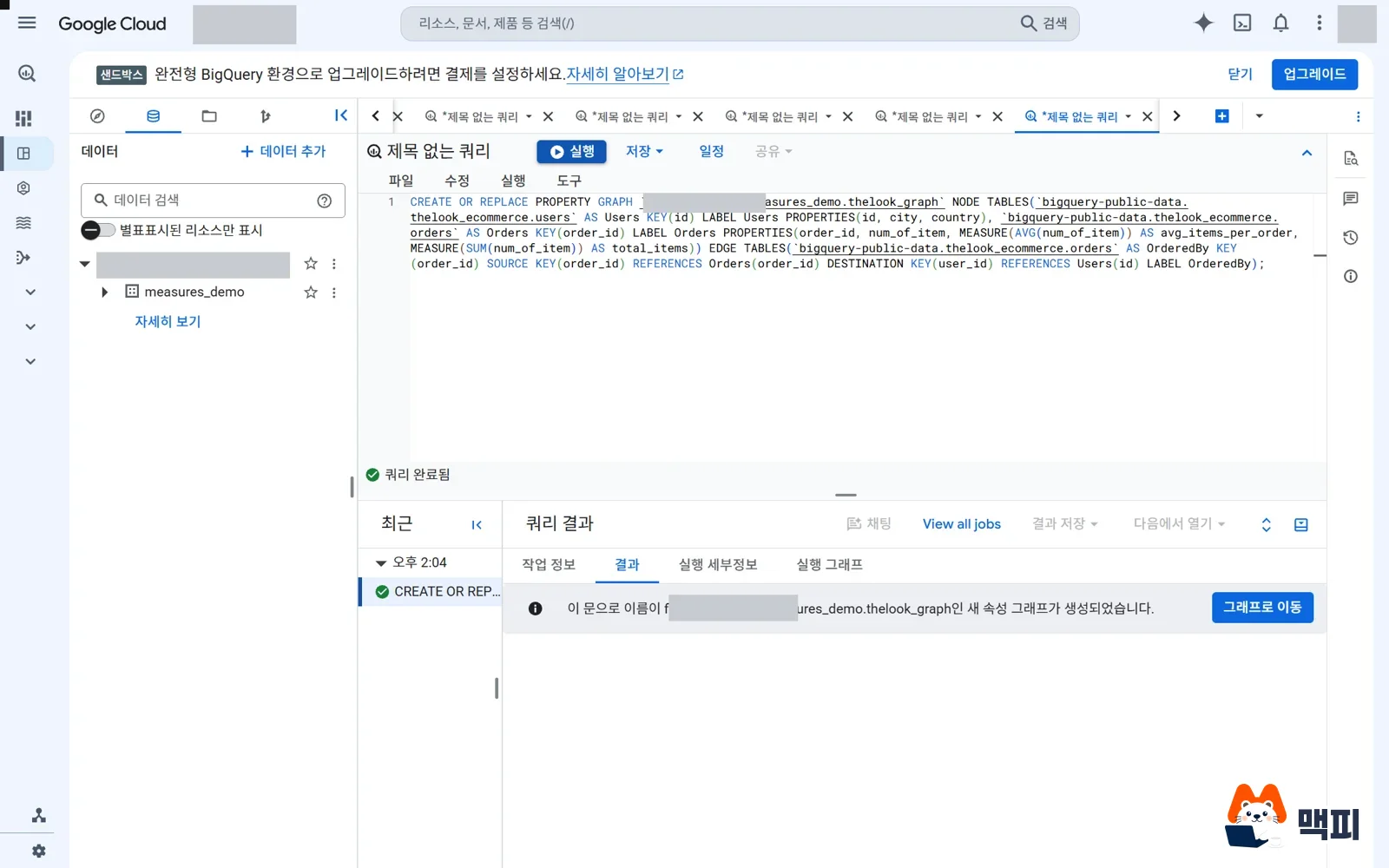
When you paste the query above into the editor and run it, a message under "Query completed" says a property graph was created. If you see it, the formula (measure) is saved inside the graph. I ran this query myself and confirmed it succeeds, and I hit three errors along the way. Using Order as a table alias fails with "Unexpected keyword ORDER" because it is a reserved word, so I changed it to Orders. If you do not list num_of_item in PROPERTIES even though the measure uses it, you get "Columns are not supported in graph measure property expressions". If an edge table has no KEY, you get "graph element table keys must be explicitly defined". You can check the key rules in Google's documentation on measures.
Next, run the SELECT below in the same editor. GRAPH_EXPAND in the FROM clause unfolds the graph like a single table. AGG calls the name you just attached (Orders_total_items) and calculates it by city. In short, the query asks how many items were ordered in total in each city.
SELECT
  Users_city AS city,
  ROUND(AGG(Orders_avg_items_per_order), 2) AS agg_avg_items,
  ROUND(AGG(Orders_total_items), 2) AS agg_total_items
FROM GRAPH_EXPAND("내프로젝트.내데이터셋.thelook_graph")
GROUP BY Users_city
ORDER BY agg_total_items DESC
LIMIT 10;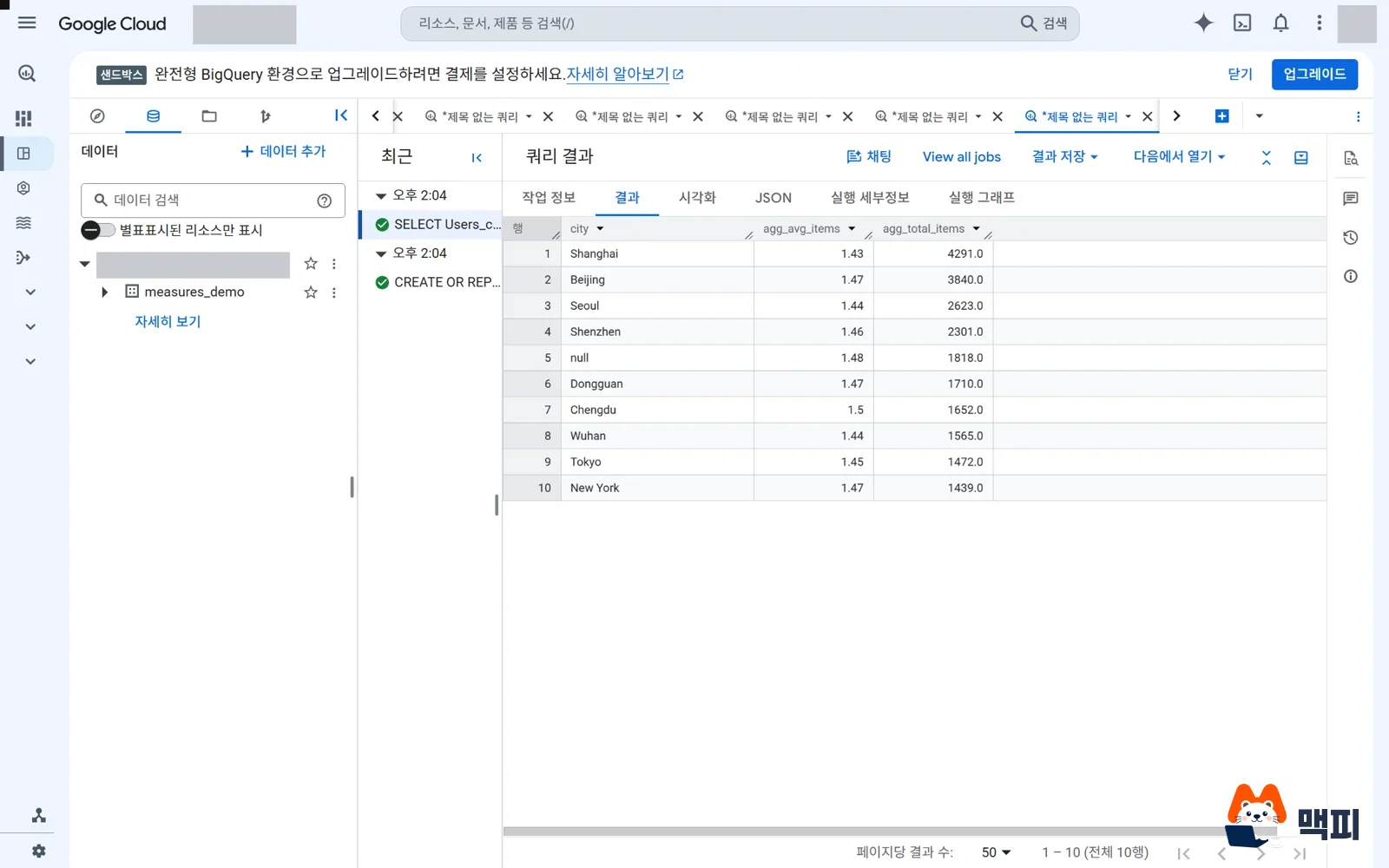
If the results tab shows 10 city rows, it worked. In this run, Shanghai was at the top with agg_total_items of 4291.0, followed by Beijing at 3840.0 and Seoul at 2623.0. Put simply, Shanghai had the most ordered items, 4291 in total. The public dataset can change, so your numbers may differ.
The expanded measure column name takes the form "node alias_measure alias". In the query above, total_items on the Orders node becomes Orders_total_items. A GQL query cannot reference a measure property directly, so you must go through GRAPH_EXPAND and AGG. If you want to see the returned structure first, call BQ.SHOW_GRAPH_EXPAND_SCHEMA. It shows the output schema without running the query.
To check that the result is right, compare two numbers. One is the sum of total_items across all cities. The other is the sum of num_of_item taken directly from the orders table. Limit that comparison to orders linked to a user. If the two match, the definition works as intended. If they differ, check the key settings and unlinked rows first.
Check the limits and your edition before using BigQuery measures
GRAPH_EXPAND has a few constraints. A graph with several root node tables needs a start_node, and data not reachable from that root is left out of the result. A junction table with an ambiguous many-to-many relationship is not recognized as an edge and is ignored. If every edge is ignored, the call ends in an error. In that case, the documentation advises you to model the junction table as a node table. Changing the graph does not invalidate cached results, so it is safer to turn off cache lookup when you call GRAPH_EXPAND.
Edition requirements split in two. According to the documentation, running GQL queries requires an Enterprise or Enterprise Plus reservation, while on-demand pricing can run SQL queries through GRAPH_EXPAND. The August 27 release notes state that measures remain available on Enterprise, Enterprise Plus and on-demand, and are not available on the Standard edition. The August 20 entry in the same notes announced that Standard edition and on-demand support for graph processing will be phased out starting April 26, 2027. If your team uses Standard today, check your edition before adopting this.
Use the same metric in dashboards and AI agents
In the GA announcement, Google highlighted a setup where Looker dashboards, conversational agents and data team queries share the measures defined in BigQuery. According to the preview announcement, Looker can link LookML dimensions and measures to the properties of an existing BigQuery graph. A conversational analytics agent builds queries from the graph descriptions and the measures.

This is a way to make metric definitions consistent. It does not guarantee that every AI answer is right. If a metric is wrong, the dashboard and the agent are wrong together, so it is safer to start small, following the suggestion in Google's post. If you already have a BI semantic layer, define one managed metric directly on the entity it describes. If a knowledge graph is your foundation, attach a unified metric to the most frequently used exploration path. After defining it, compare it against an existing report number you already trust, and only then connect it to a dashboard or agent.
For how to handle unstructured files such as images and PDFs with SQL inside BigQuery, see the step-by-step guide How to use BigQuery ObjectRef. For recent BigQuery changes, see this week's marketing and AI changes.
Frequently asked questions
Can I use BigQuery measures on ordinary table queries?
The documentation places the definition in the PROPERTIES of graph node and edge tables. To use an ordinary table, you first have to model that table as a graph.
Can I apply it to GA4 export data?
For how to query GA4 export tables, see How to filter GA4 internal traffic in BigQuery. You can try it on any table you can model as a graph. It is safer to start with a table that has a clear key column, such as an order ID.
Do measures add a separate charge?
Measures queries are billed like ordinary queries, on the on-demand (data processed) or capacity (slot usage) basis in BigQuery pricing.
Start by picking one metric whose total has been thrown off by a JOIN before. Define it with MEASURE on a graph node, then compare it against the existing value.
Found this useful? Share it
Latest posts
Kakao Share Thumbnail Not Showing? Here's the Fix (JavaScript SDK 2025)
Learn why Kakao Share thumbnails don't appear even with a valid imageUrl, and fix it using scrapImage to convert your URL into a KAGE CDN URL. Step-by-step guide.
How to Generate CRM User Manuals in 20 Minutes with Claude Code Sub-Agents
Learn how Claude Code sub-agents can analyze your CRM codebase and auto-generate user manuals and visual guidebooks in just 20 minutes. See the real-world results.
GEO Generative Engine Optimization: The Complete 2025 AI Marketing Strategy Guide
Learn what GEO (Generative Engine Optimization) is, how it differs from traditional SEO, and discover 5 proven AI marketing strategies to get cited by AI search engines in 2025.
Related projects
Get new posts by email
Insights on marketing, analytics, and dev, delivered to your inbox.